Event Consent Monitoring: verify that your tracking complies with user consent
Server-side tracking solves many data reliability issues, but it creates a new blind spot: it’s hard to know whether your tags respect user consent.
On the client side, a network inspector or a browser extension reveals what fires with or without consent. On the server side, everything happens inside a black box. A misconfiguration, a forgotten vendor mapping, or a CMP loading after GTM can cause your tags to fire without proper consent, without you knowing it.
Event Consent Monitoring (ECM) solves this problem: the consent status of every tag fired on your server-side container becomes visible directly in the Addingwell interface.
With ECM, you can:
- continuously verify that every tag fires with the right consent signal,
- detect misconfigurations (unmapped vendor, missing cookie, missing Google Consent Mode),
- provide your DPO with a documented, auditable view of your consent status,
- quickly diagnose issues without digging through BigQuery logs.
Setting up Event Consent Monitoring
Prerequisite: an up-to-date Addingwell Monitoring tag
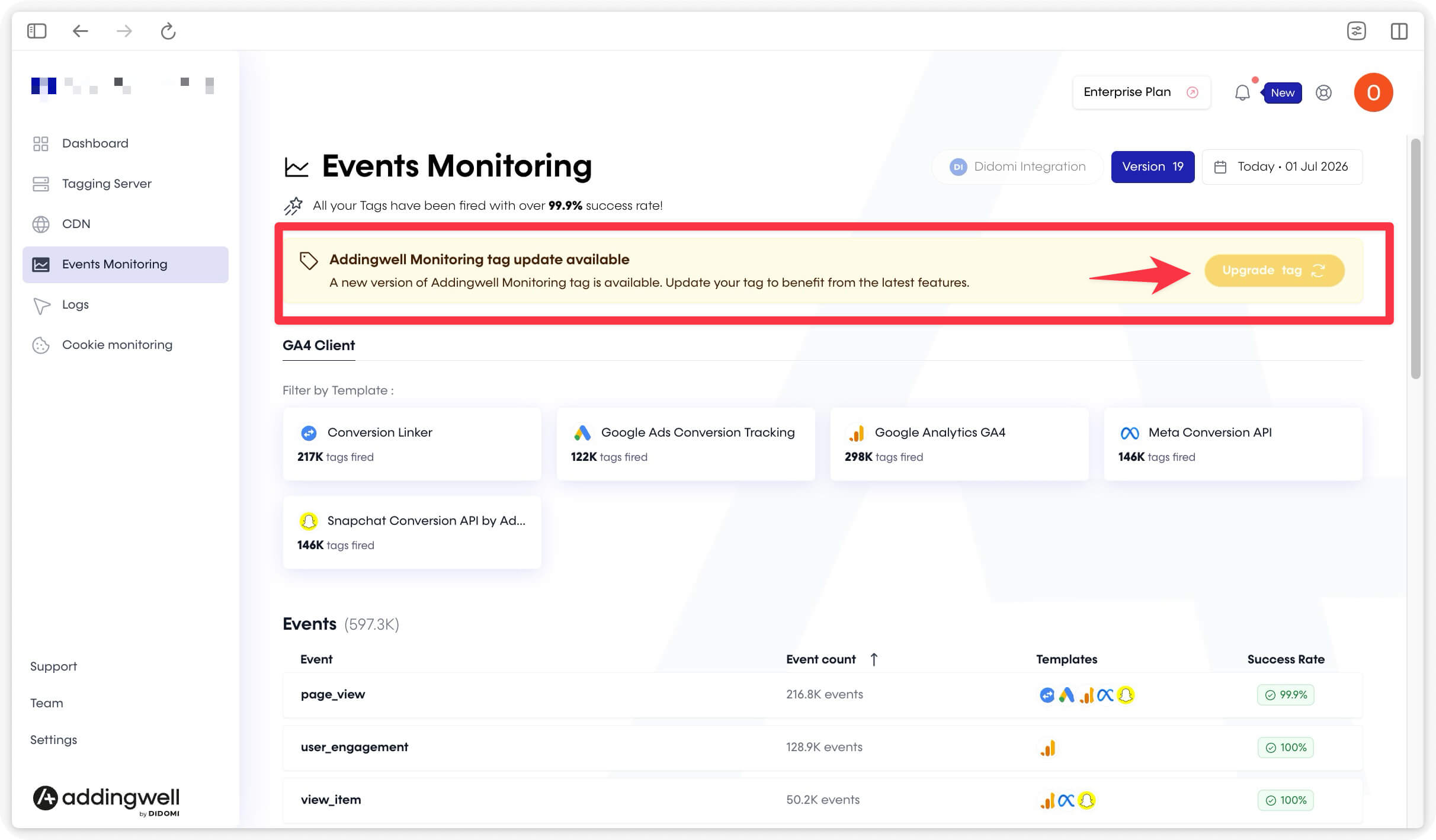
The Addingwell Monitoring tag must be up to date to correctly read and process consent data. To check, open the “Events Monitoring” tab: a banner appears if the tag needs to be redeployed. Click Upgrade Tag and follow the instructions.
Setting up Event Consent Monitoring for Google tags
If Google Consent Mode v2 is properly implemented through your CMP, no configuration is needed in Addingwell for Google tags (GA4, Google Ads Conversion Tracking, Floodlight, and Conversion Linker).
You simply need to have deployed a CMP supporting Google Consent Mode v2 on your website. The gtag(‘consent’, ‘default’, …) command must run before tags fire.
Setting up Event Consent Monitoring for non-Google tags (Meta, Pinterest, LinkedIn)
The Didomi integration, however, is required for tags conditioned with Didomi vendors (Meta CAPI, LinkedIn CAPI, etc.). Google-environment tags don’t require any mapping.
Step 1: Enable the integration
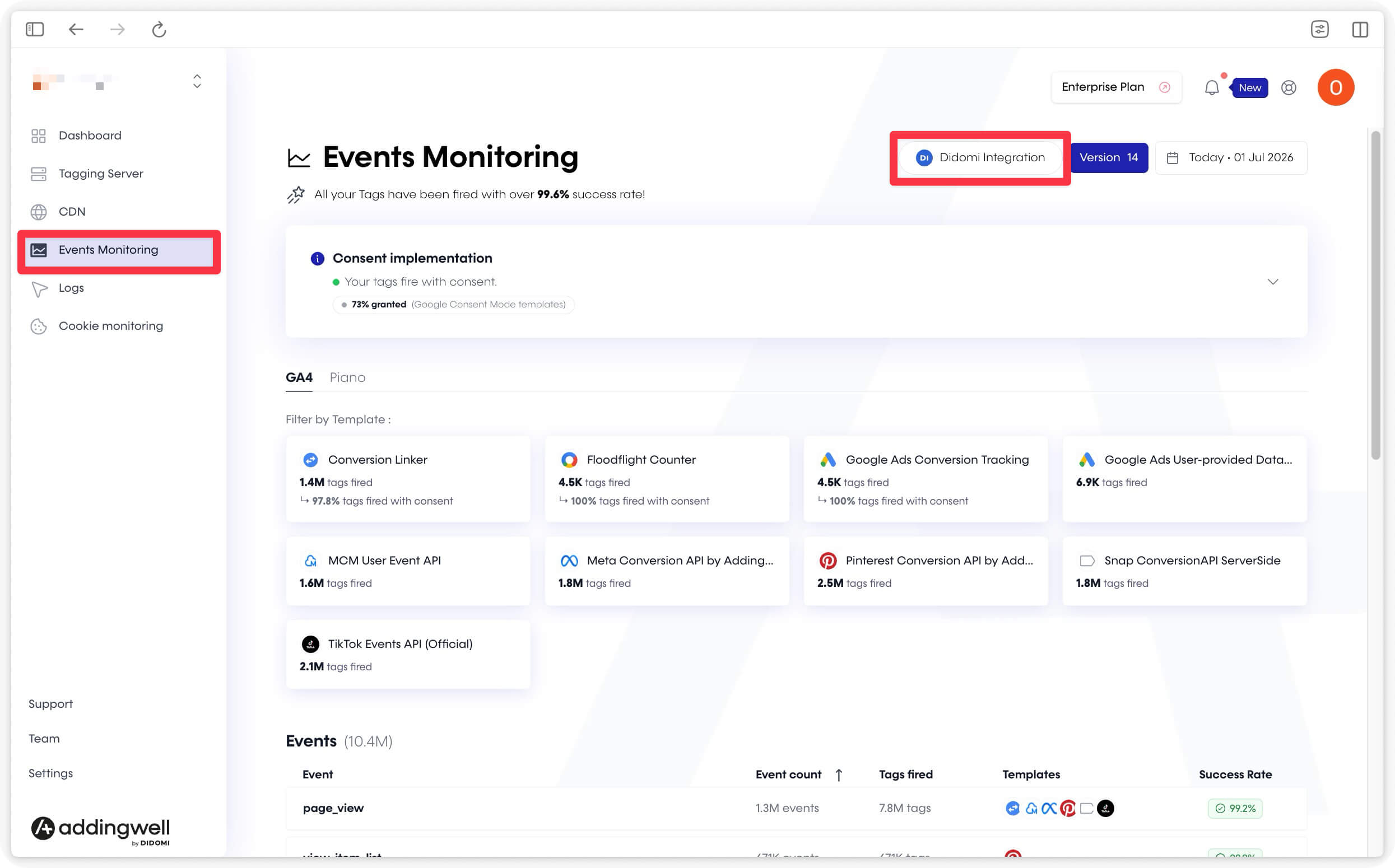
Go to the Events Monitoring page in the Addingwell console and click Didomi integration.
Enter the API Key and API Secret available in your Didomi console settings (Settings section).
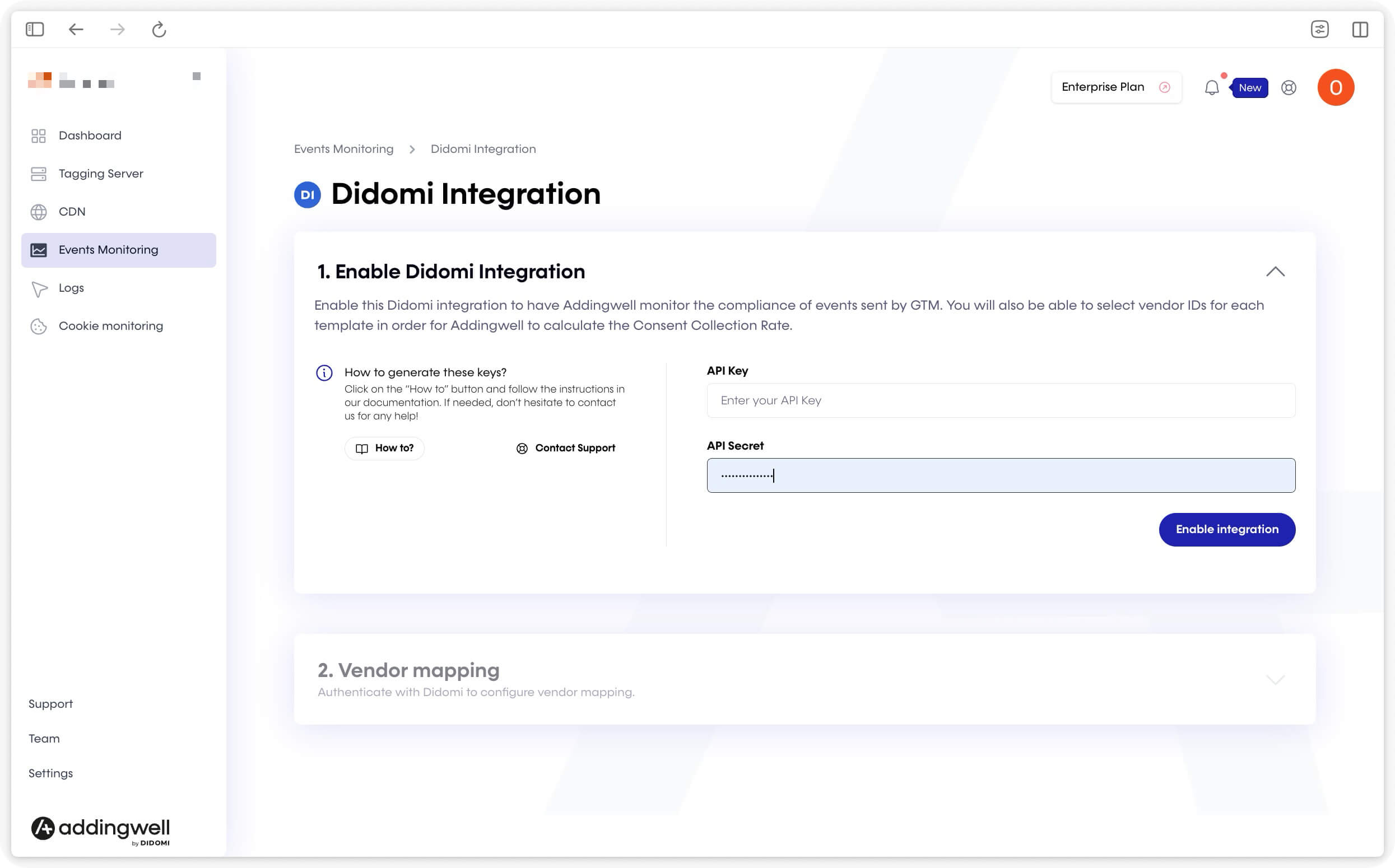
Once the integration is enabled, the vendors configured in your Didomi account populate automatically as incoming requests flow in. Allow about one hour after the first requests before vendors appear.
By default, Addingwell reads the didomi_token, euconsent-v2, and didomi_dcs cookies. If you are migrating from one cookie format to another, explicitly specify the cookies to read in the Reads cookie value(s) field. For example, when migrating to didomi_dcs, specify didomi_dcs and euconsent-v2.
Step 2: Map your templates to Didomi vendors
The Didomi integration page lets you associate each tag template in your container with a Didomi vendor. This mapping is required for Addingwell to evaluate consent for the template.
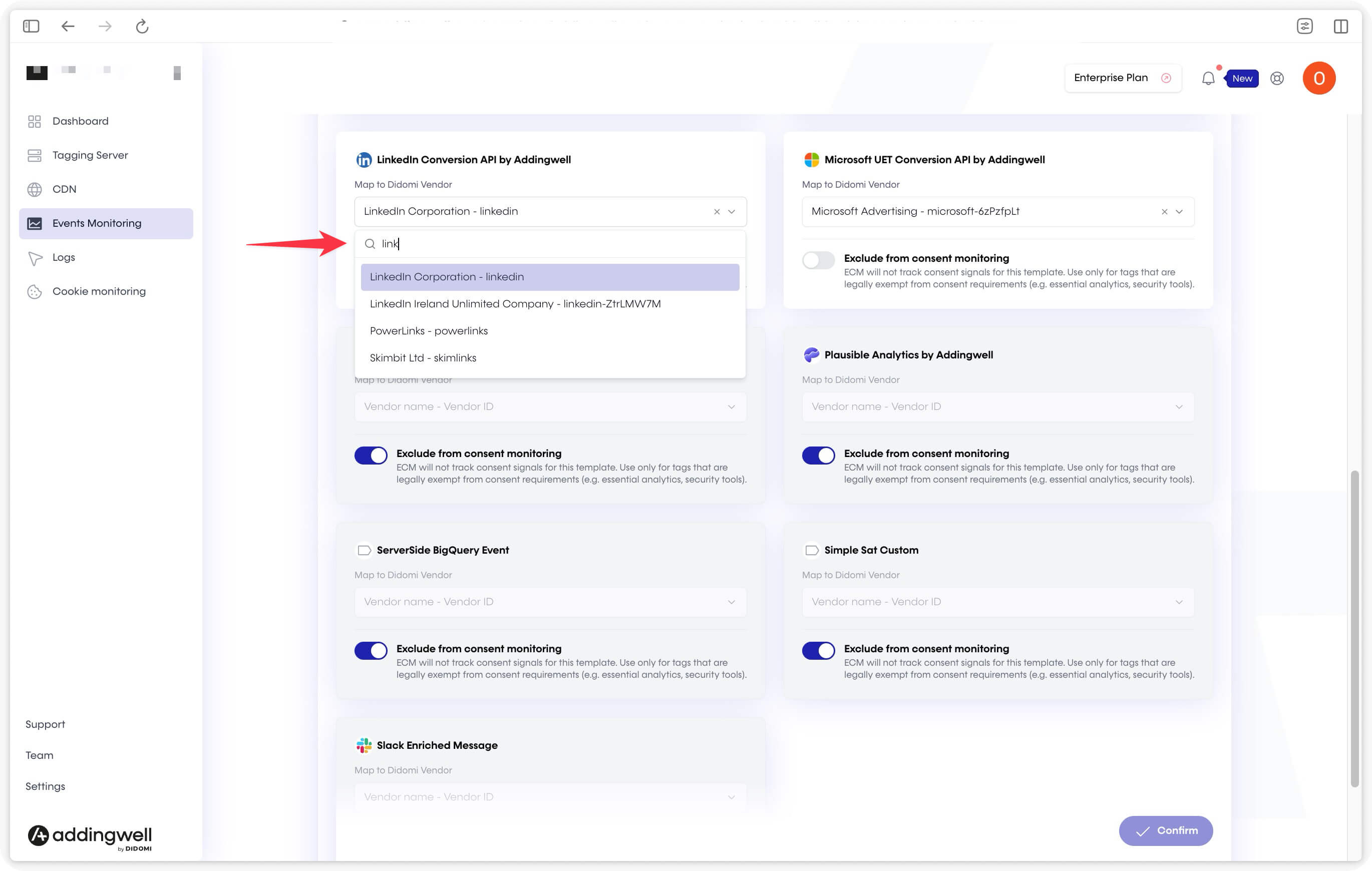
- Options are displayed as Vendor name - Vendor ID and can be searched by name or ID.
- A default mapping is suggested for common templates (GA4, Meta CAPI, etc.) and can be applied in one click.
- You can manually override a default mapping for a specific template.
Tags tied to Google Consent Mode (GA4, Google Ads Conversion Tracking, Floodlight, Conversion Linker) do not appear in the Didomi mapping list. They are always evaluated via the GCS parameter and cannot be mapped to a Didomi vendor.
Exempting a tag template from consent
Some tags are legally allowed to fire without consent (exempted audience measurement, technical tags, etc.). Mark them as Exempted from consent in the Didomi integration settings.
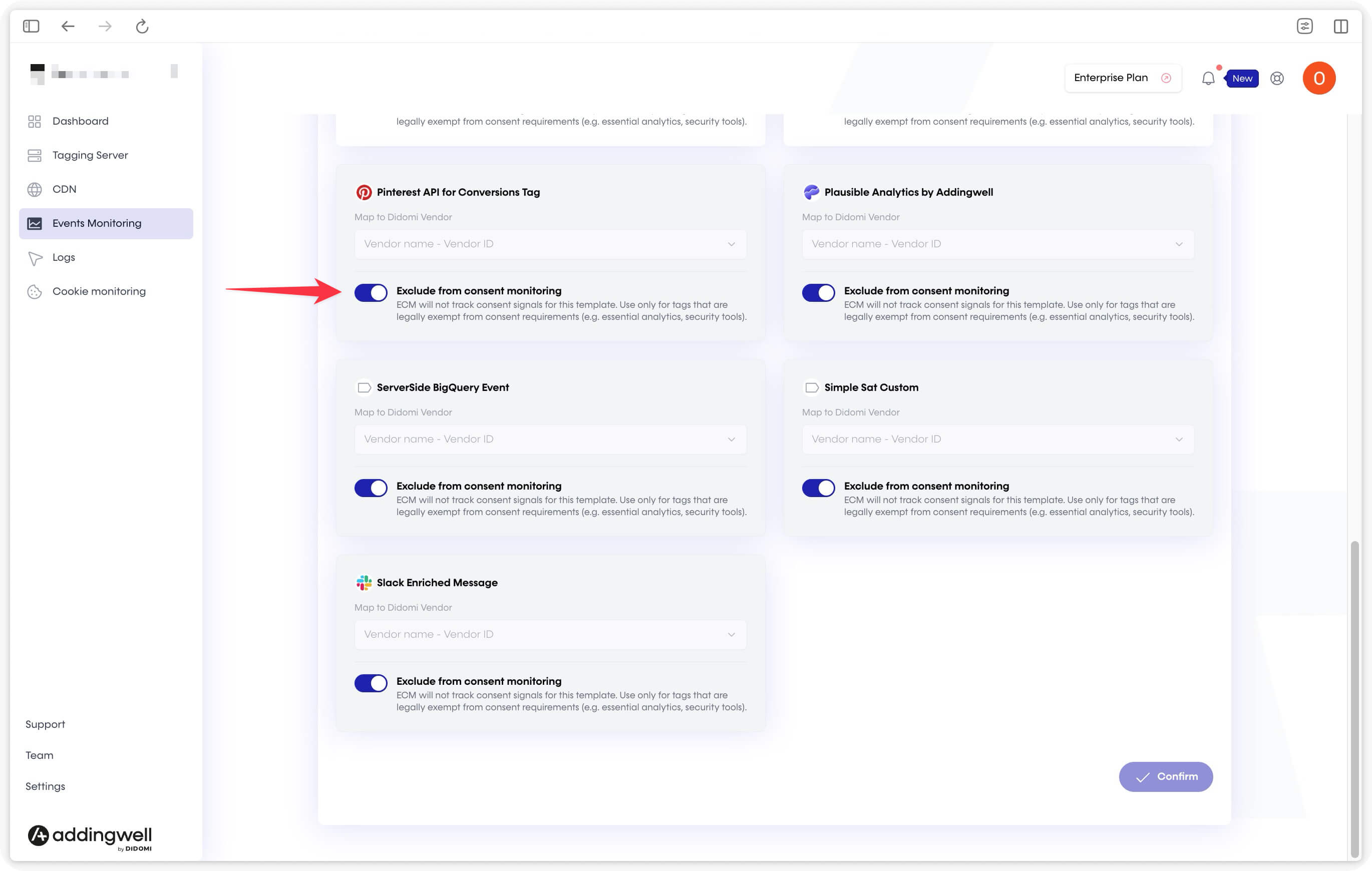
When a template is exempted:
- its vendor selector is disabled,
- its triggers are excluded from all consent calculations,
- it appears with the EXEMPTED status in stored data.
Monitoring consent
Global consent view
The Consent implementation section appears as a collapsible accordion on the Events Monitoring page, only when consent data exists for the selected period. When collapsed, it shows:
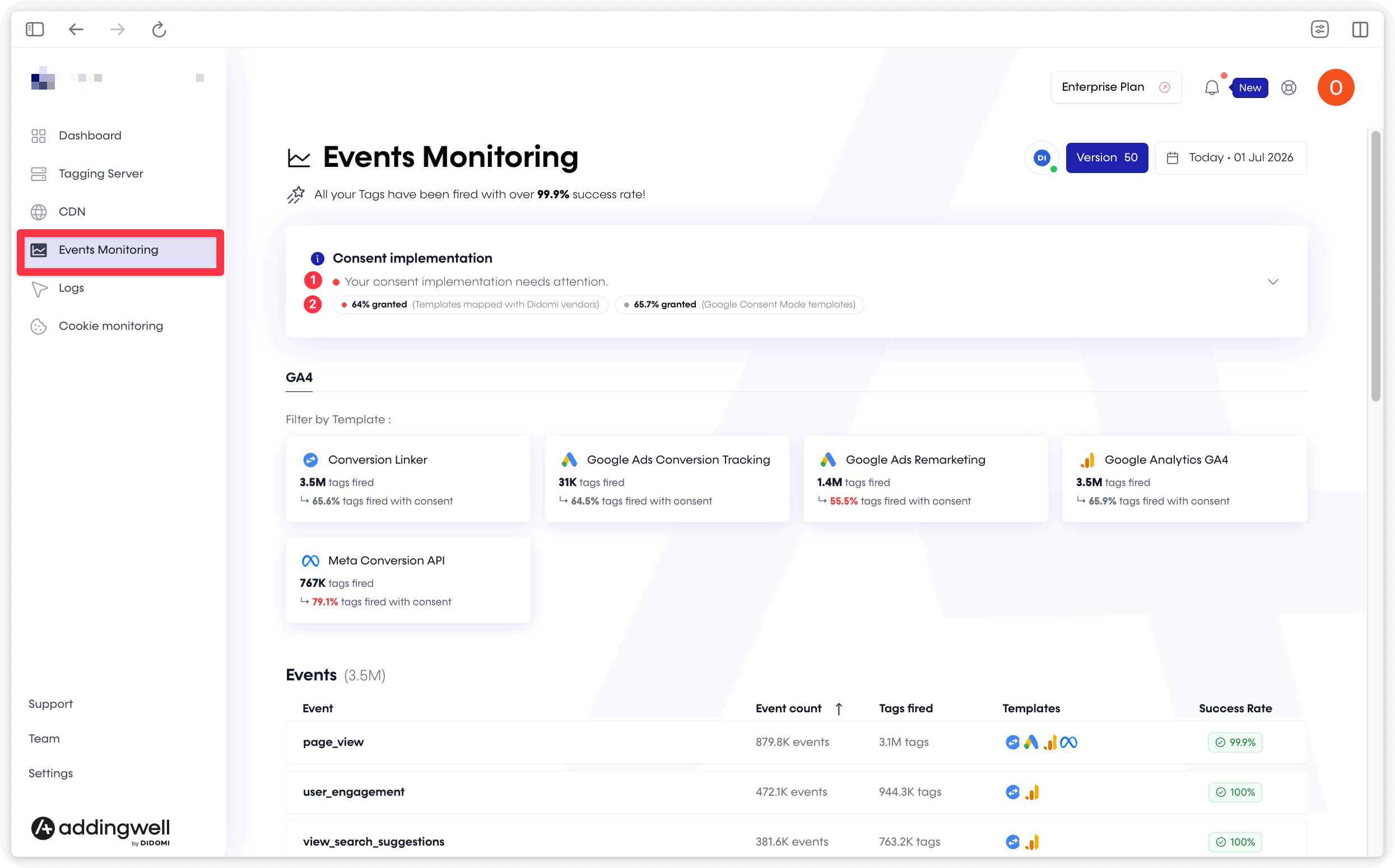
- the summary, reflecting the most degraded status detected,
- one chip per active subsection, showing the percentage of events with consent granted.
Expand the section to access details per subsection, depending on your configuration.
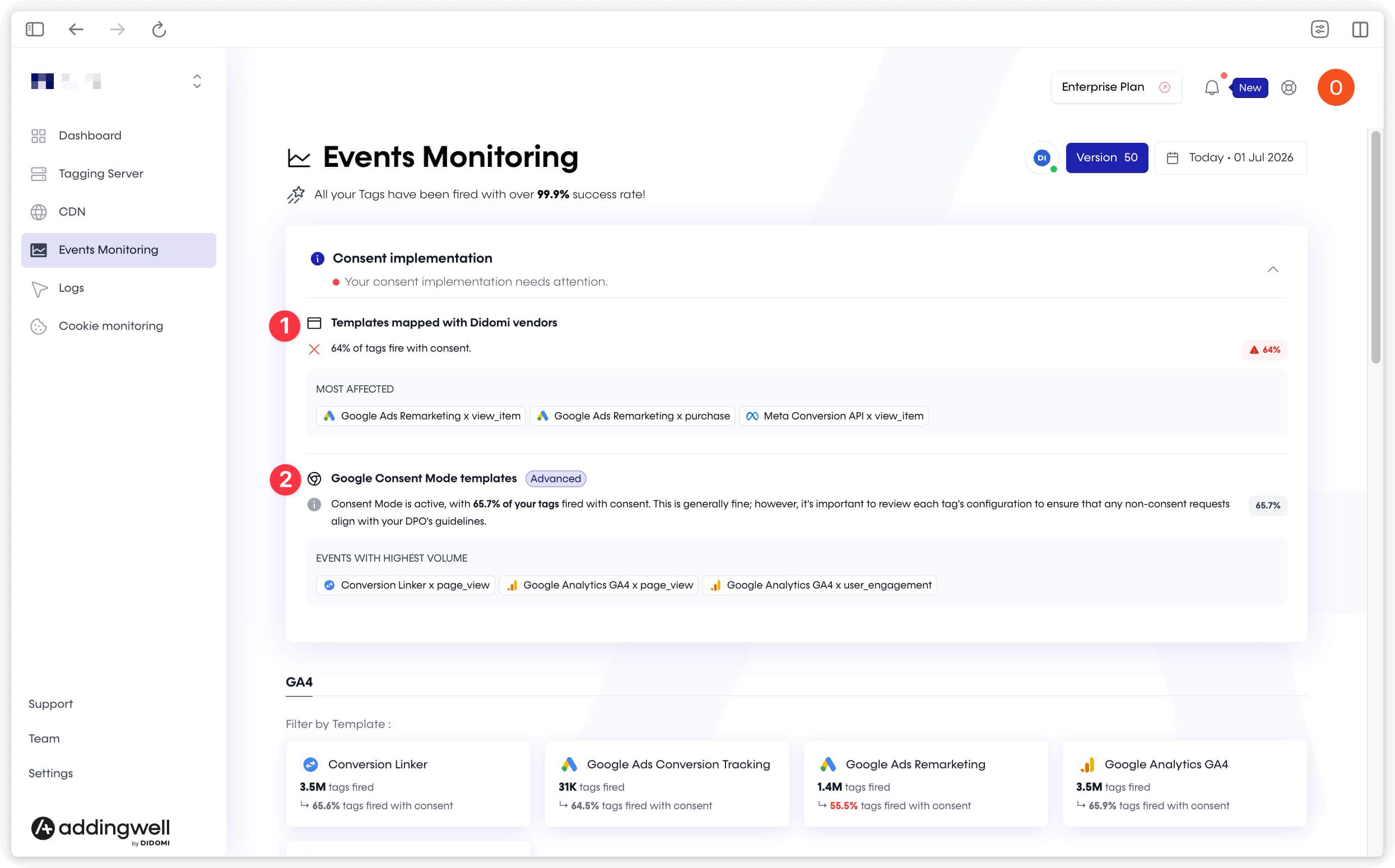
| Subsection | When is it displayed? |
|---|---|
| 1. Templates mapped to Didomi vendors | Didomi integration enabled and at least one template mapped |
| 2. Google Consent Mode templates | GCS data present for Google Consent Mode templates |
The 3 most impacted tag templates (lowest percentage of consent granted) are listed directly in each subsection, with a direct link to the detail page of the related event.
Understanding the global status
A three-color code indicates the state of your implementation:
| Color | Percentage of consent granted | Displayed message |
|---|---|---|
| 🔴 | 0–80% | Your consent implementation needs your attention. |
| 🟡 | 80–90% | Your implementation works but should be reviewed. |
| 🟢 | 90%+ | Your tags fire with consent. |
In Google Consent Mode Advanced, the percentage is shown for information only, with no color evaluation. In this mode, tags fire regardless of the user’s decision: triggers with denied consent are expected behavior, not an anomaly.
Viewing consent for a specific event
Understanding the consent status per event
Click an event in the list to open its detail page.
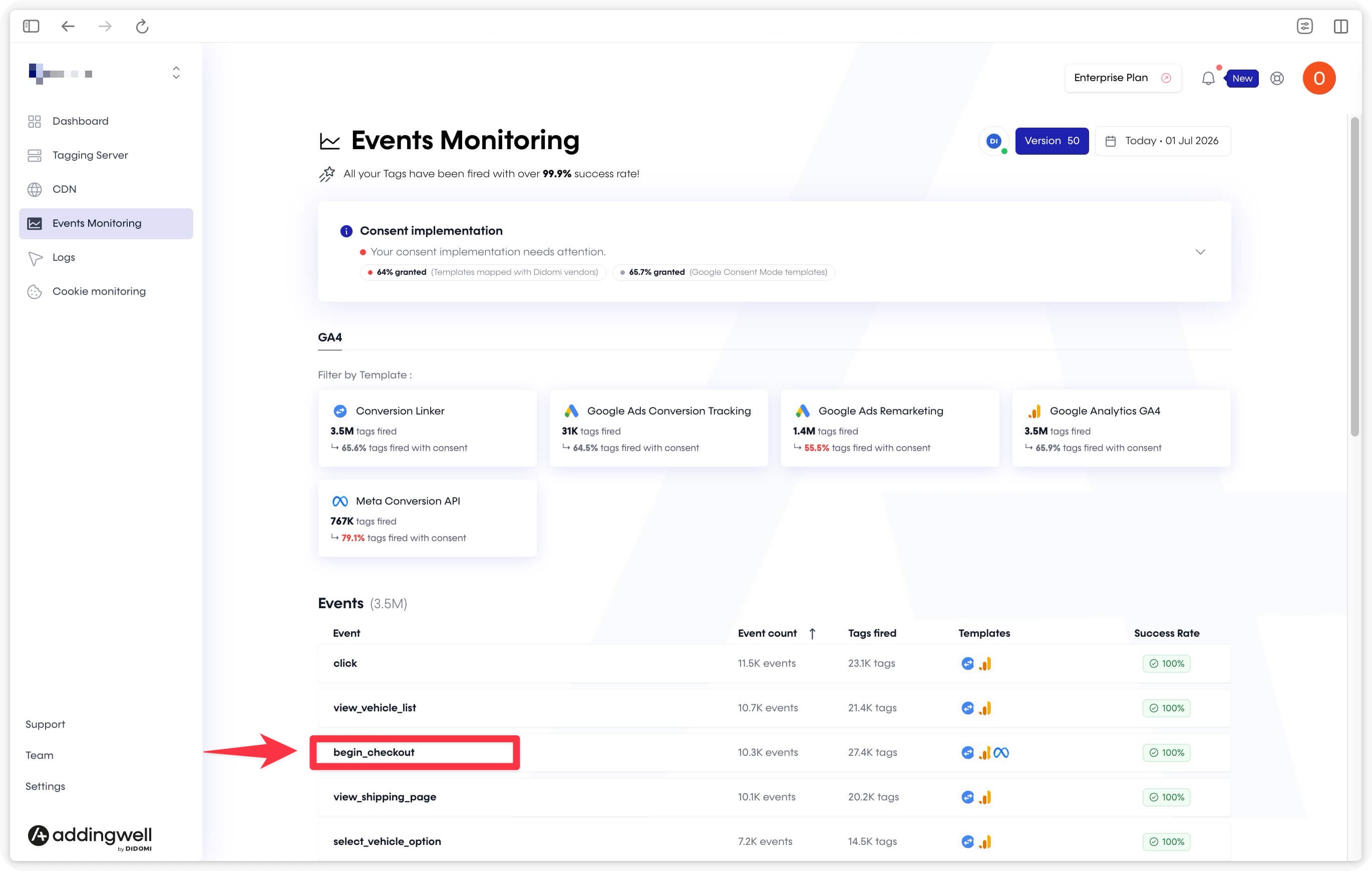
At the top of the page, you’ll see the “Granted” consent rate for each tag fired by this event.
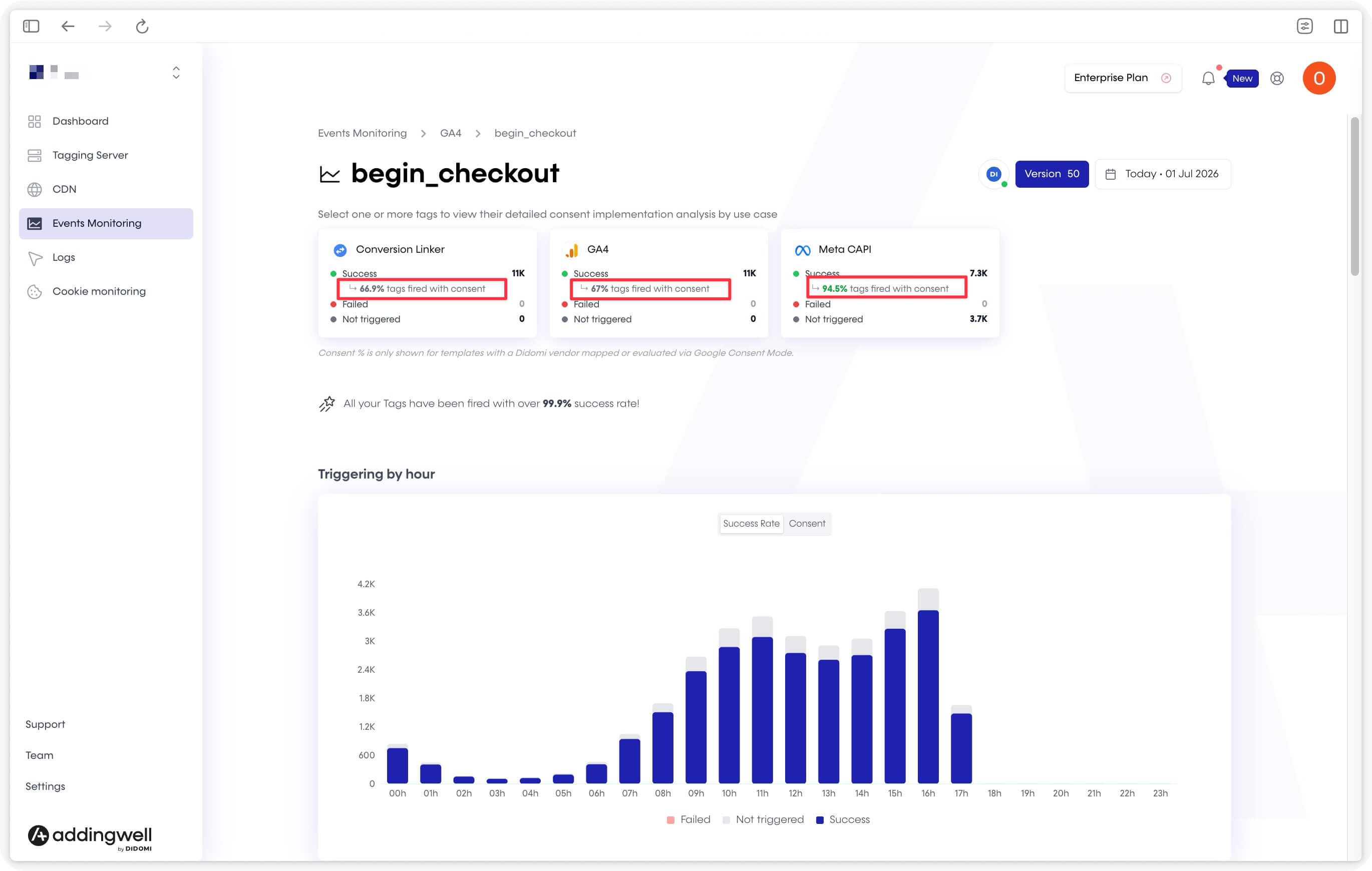
The stacked bar chart
The Consent tab shows the distribution of tag triggers by hour over the selected period. Each bar has two series:
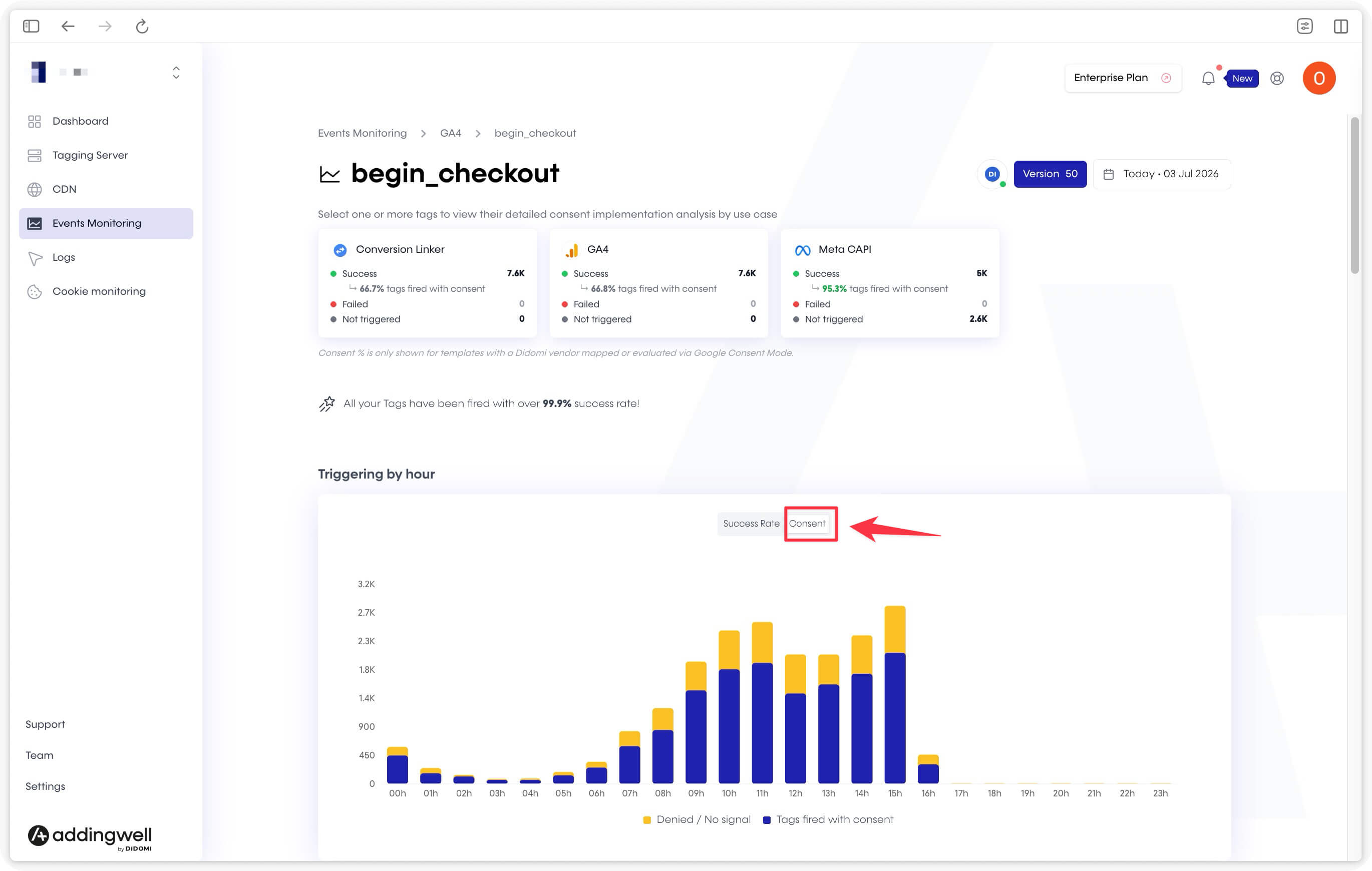
- Tags fired with consent (dark blue),
- Denied / No signal (yellow): groups the DENIED, NO_TOKEN, and NO_VENDOR statuses.
Hover over a bar to see the detailed counts for that hour.
Consent status breakdown
Below the chart, the Consent Collection Details tab breaks down each status with its percentage and description.
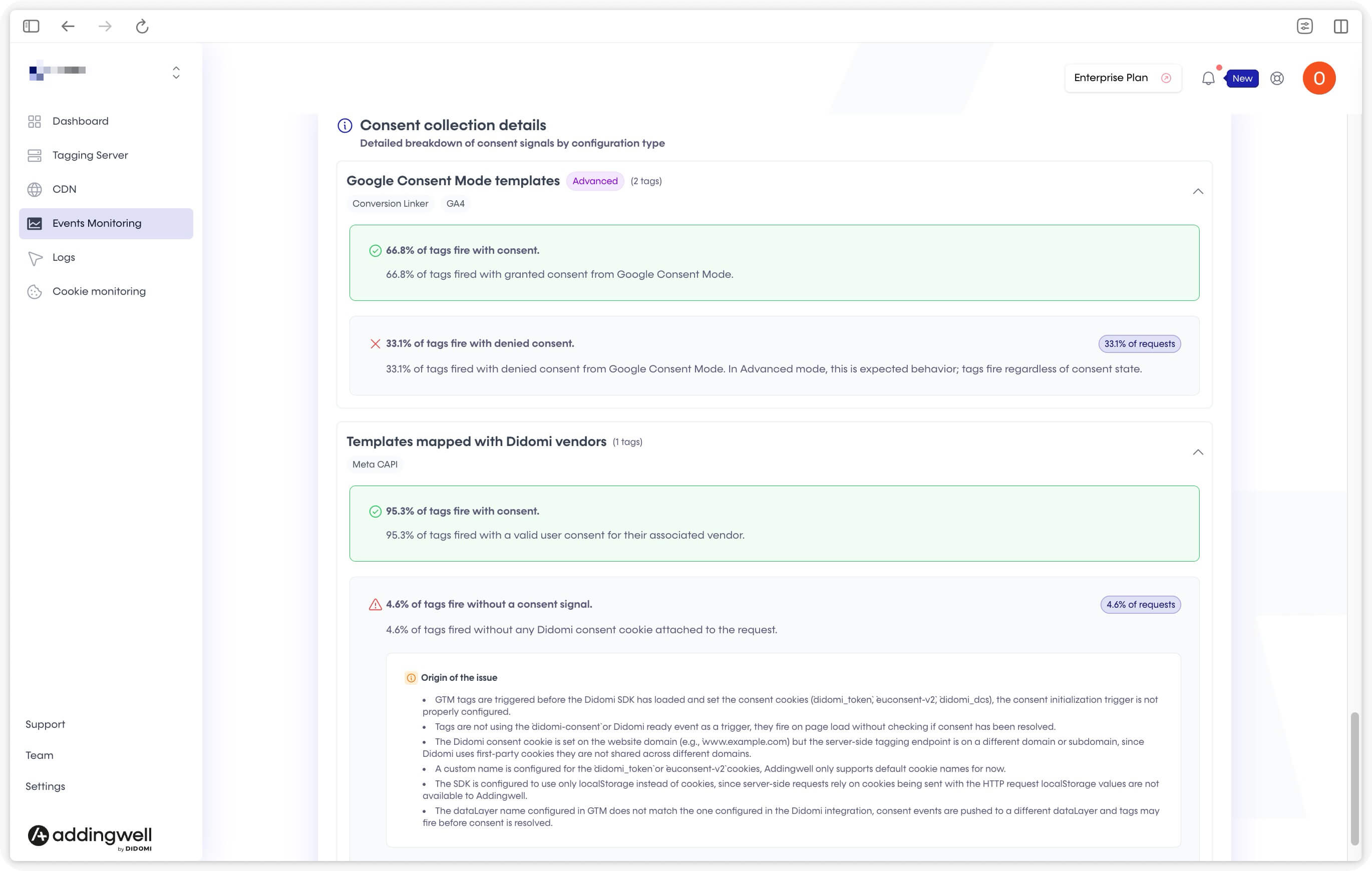
| Status | Color | Description |
|---|---|---|
| GRANTED | 🟢 | The tag received valid consent from the user. |
| DENIED | 🔴 | The tag received an explicit denial from the user. |
| NO_TOKEN | 🟠 | No consent signal found in the request (missing cookie, missing or misconfigured GCS). |
| NO_VENDOR | ⚪ | The template is not mapped to any Didomi vendor: consent cannot be evaluated. |
These four statuses always add up to 100% of monitored triggers. Exempted templates (EXEMPTED) are excluded from this calculation and displayed separately.
The consent source used (Didomi cookie or GCS parameter) is indicated for each tag on this page.
Interpreting the results
What the consent-granted percentage means
The percentage is calculated across all monitored triggers: only tags that actually fired (and are not exempted) are taken into account.
A percentage below 100% is not necessarily an anomaly. It all depends on how consent is handled in your setup:
- With GCM Advanced: all events reach the server and all Google tags fire regardless of the user’s decision. The percentage then directly reflects your visitors’ opt-in rate: this is expected behavior.
- With GCM Basic or server-side blocking: tags only fire with consent. The percentage should be close to 100%; any gap warrants investigation.
Understanding “Not triggered” events
A “Not triggered” status means the tag was evaluated by sGTM but its firing conditions were not met, so it did not execute.
The most common cause is missing consent: when a user hasn’t consented to a vendor, the associated tag doesn’t fire, even if all other conditions are met.
By combining the “Not triggered” volume with the consent-granted percentage, you can diagnose how consent is handled in your setup.
Common anomaly causes and recommendations
| Problematic status | Likely cause | Recommended action |
|---|---|---|
| DENIED with GCM Basic | The tag fires despite consent being denied (configuration anomaly) | Check that the firing logic correctly follows Google Consent Mode Basic |
| NO_VENDOR | The template is not mapped to a Didomi vendor | Assign a vendor ID on the Didomi integration page |
| NO_TOKEN (< 80%) | The consent cookie is missing on some requests | Check that the Didomi CMP is deployed and that the cookie is set on the same domain as the Addingwell endpoint |
| NO_TOKEN (≥ 80%) | The CMP does not appear to be active on the site | Check that the Didomi SDK is initialized and configured to set cookies (not localStorage only) |
In summary
Event Consent Monitoring takes your server-side tracking out of black-box mode when it comes to consent: you know, continuously, whether your tags respect the user’s decision — vendor by vendor, event by event.
Whether you are a technical integrator, a marketing lead, or a DPO, ECM gives you the means to quickly detect an anomaly, diagnose its cause, and demonstrate the compliance of your setup at any time.