Piano Analytics with GTM Server-Side
Piano Analytics, formerly known as AT Internet, is a performance analysis tool for websites and mobile applications. It provides real-time data on users, revenues and clicks, helping companies to improve their user experience and acquisition strategy.
Piano Analytics is eligible for the CNIL consent exemption, making it an attractive alternative to Google Analytics.
Here are a few tips if you’re thinking of migrating to Piano Analytics or switching to a server-side configuration.
Don’t forget that Piano Analytics has a responsive customer service team. So don’t hesitate to contact them if you have any questions specific to your organization.
Update the SDK
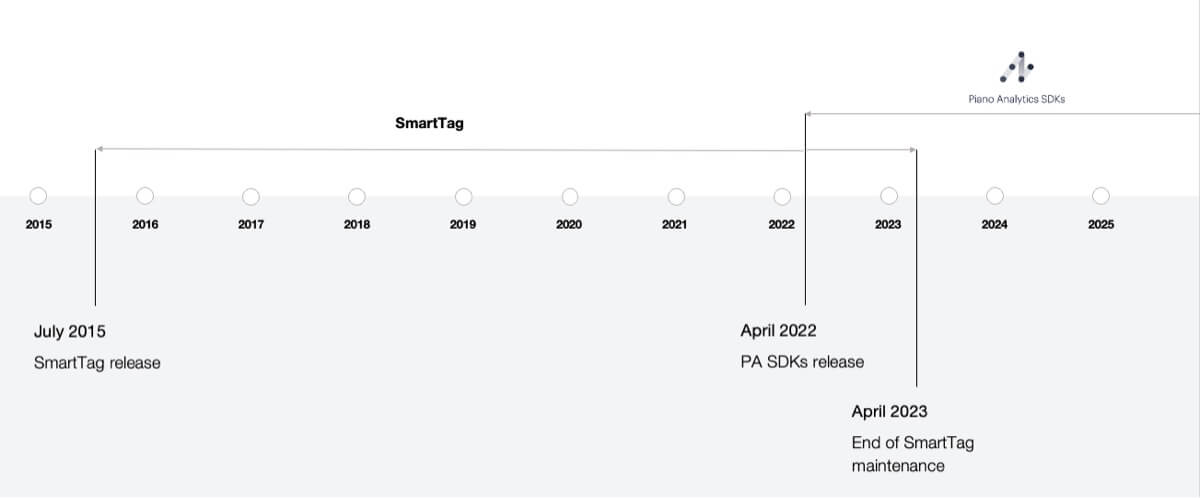
Some of you may already have been using Piano Analytics for some time. Prior to 2022, the tool was known as AT Internet and used its own SDK called SmartTag. You are therefore invited to migrate to the Piano SDK to benefit from the latest updates and take advantage of the server-side configuration shown below.
The SmartTag SDK has not been maintained since April 2023.
Send data to the server
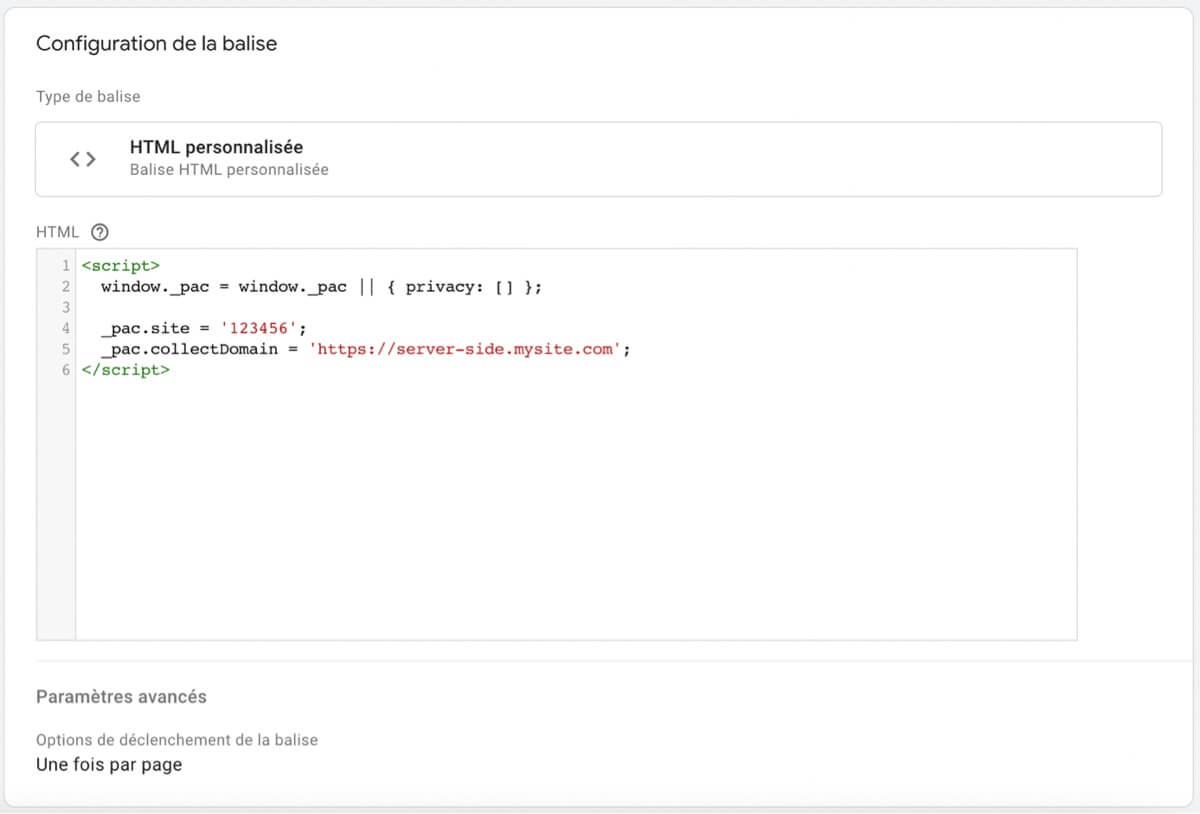
First of all, it’s essential to add the “collectDomain” parameter to your configuration. The value of this parameter must correspond to the URL of your tracking server (for example: https://metrics.example.com ).
This modification will allow your data to be routed to your server rather than to Piano Analytics directly.
Bypass ad blockers
To bypass ad blockers and browsers with strict security settings, you’ll need to adjust the URL of the Piano Analytics JavaScript library used on the client side.
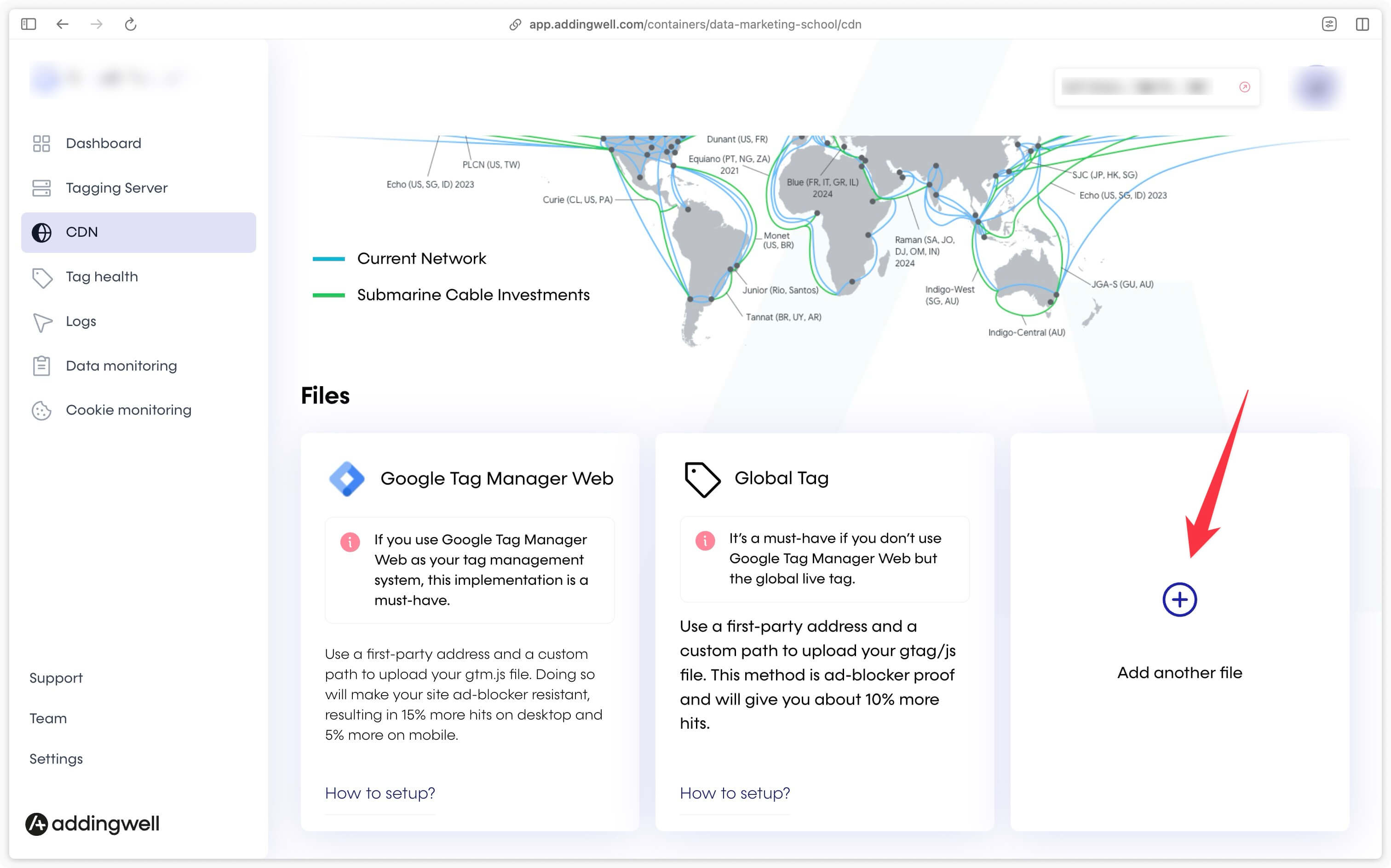
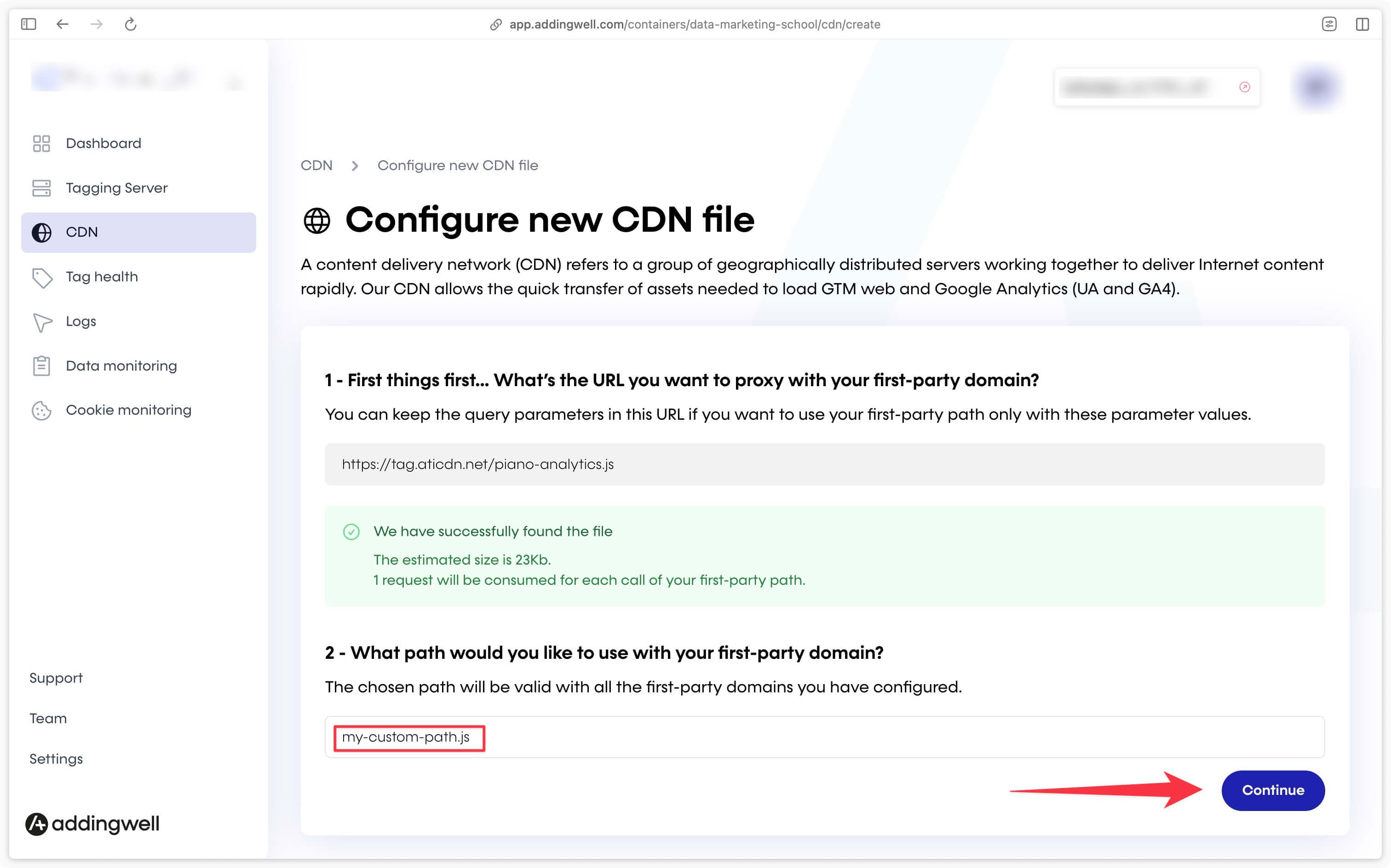
Here are the steps to follow on Addingwell to create a new CDN file:
- Access Addingwell and create a new CDN file.
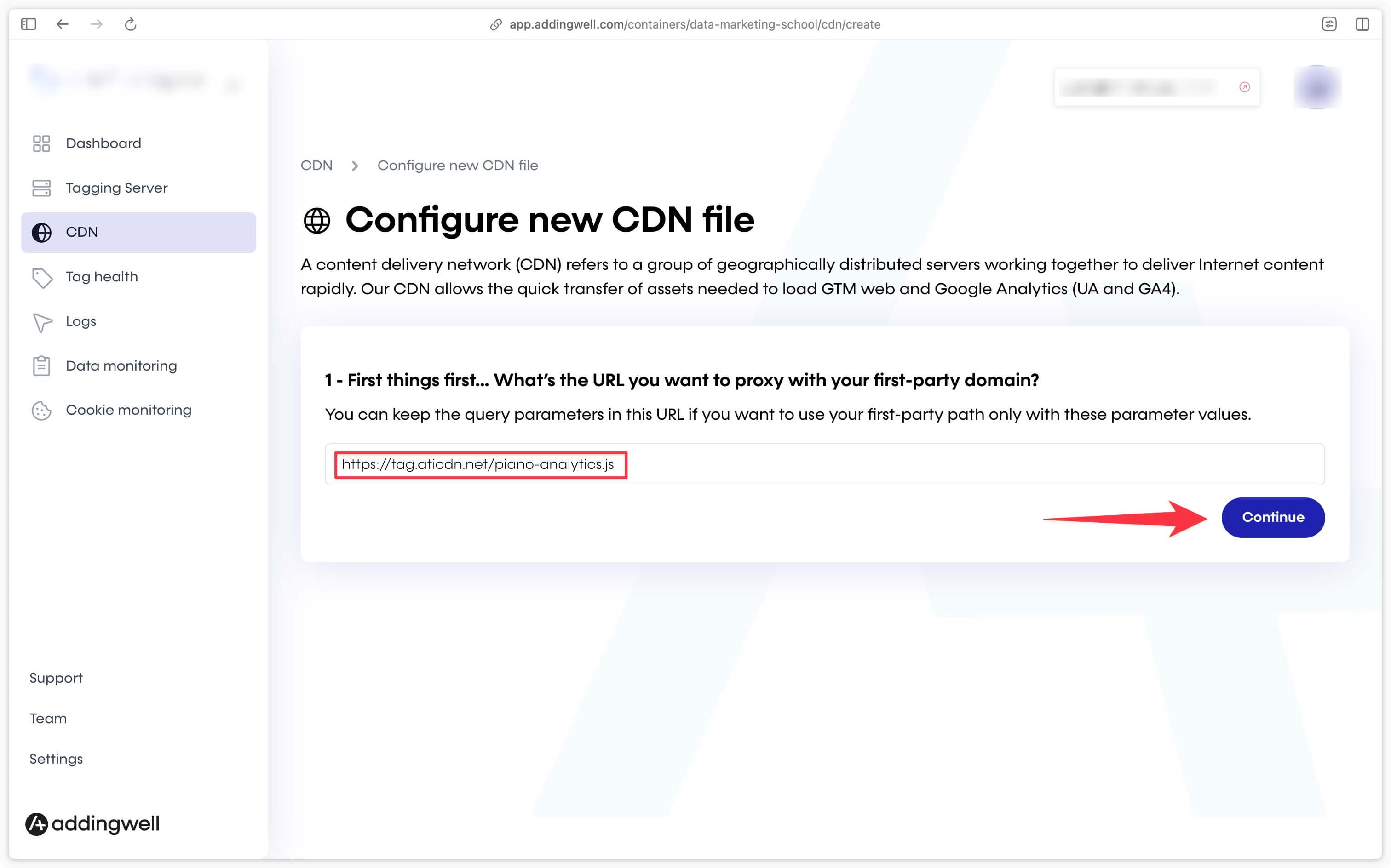
- Enter the URL you wish to access using the proxy:
https://tag.aticdn.net/piano-analytics.js
- Choose the URL path of your choice (for instance, at Kimetrix, we’ve opted for /pa.js).
Next, modify the URL of the JavaScript library in your tag on Google Tag Manager so that it points to the proxy file you’ve created. This will avoid blocking by ad blockers and strict security settings.
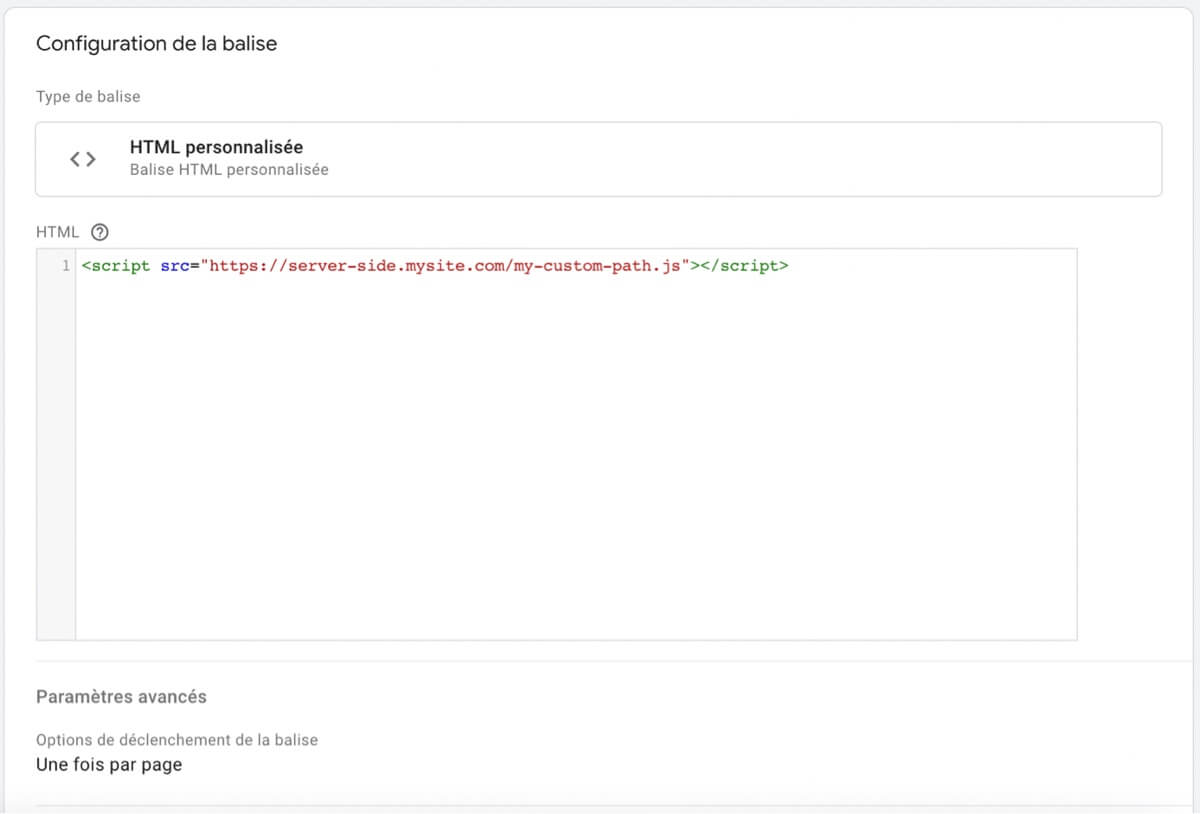
These adjustments will ensure that your tracking with Piano Analytics runs smoothly, even in environments where ad blockers are active.
Receive data on the server
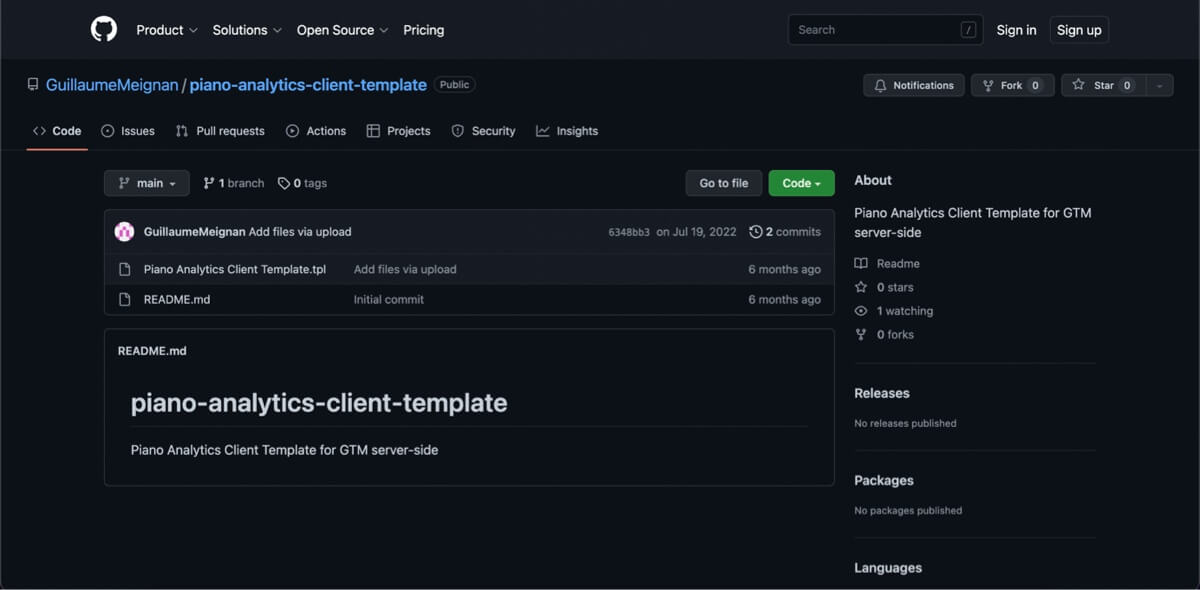
To date, there is no Piano Analytics client template available for Google Tag Manager. To save you time, Kimetrix offers a ready-to-use template.
Start by downloading the file “Piano Analytics Client Template.tpl” .
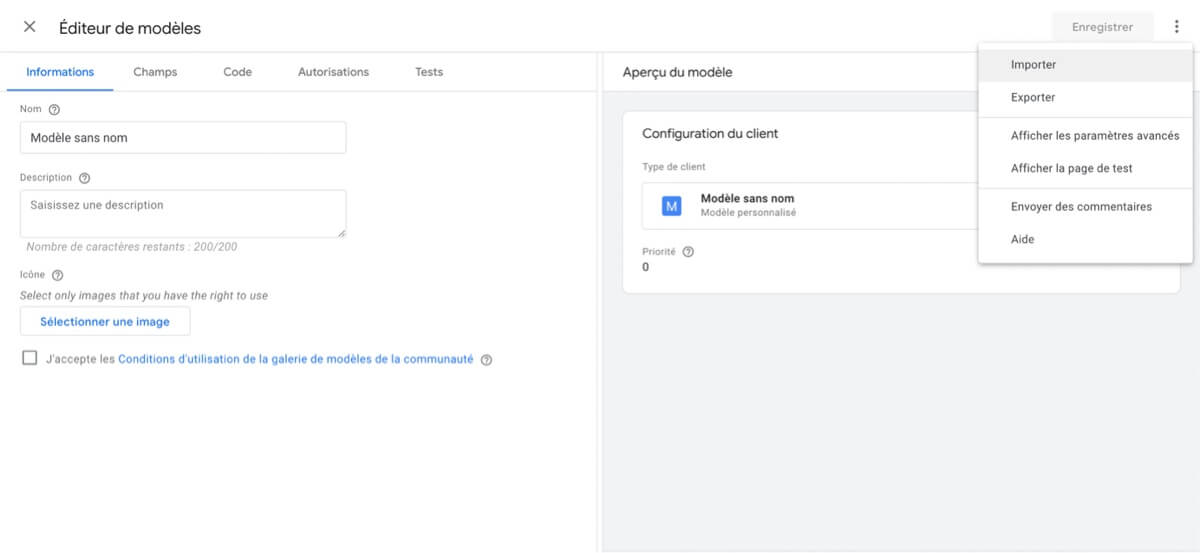
Then import this file into your server container (Templates > New client), and save the changes.
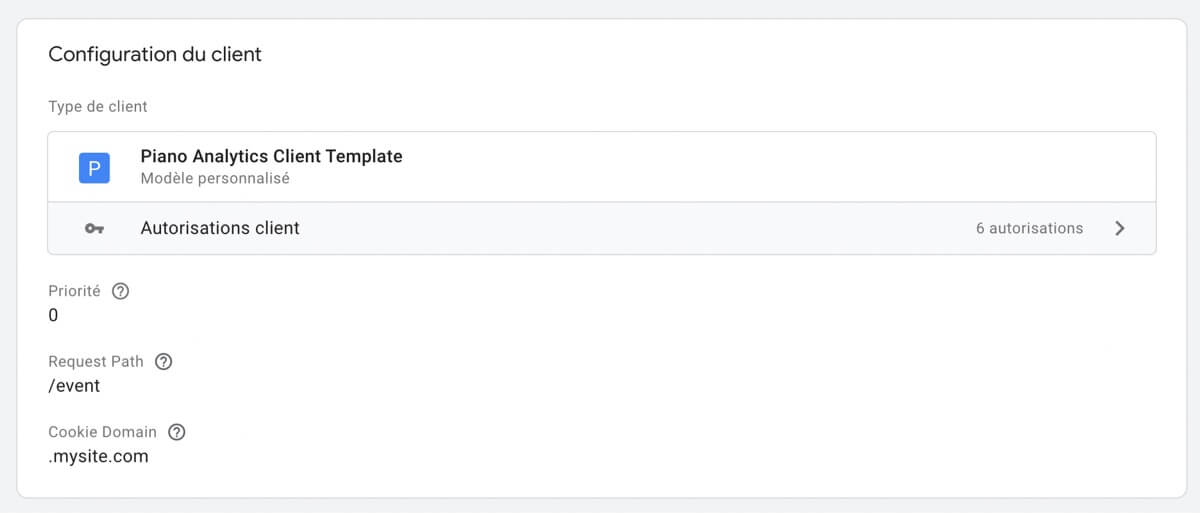
Finally, create the Piano Analytics client by following the instructions below. The Request path field corresponds to the value of the path parameter specified in your client-side configuration, or /event by default. The Cookie Domain field corresponds to the perimeter on which your Piano cookies will be accessible.
Send data to Piano
At present, there is no ready-made Piano Analytics tag template for server-side configuration. However, Kimetrix provides you with a customized template to simplify this step.
Start by downloading the file “Piano Analytics Tag Template.tpl” .
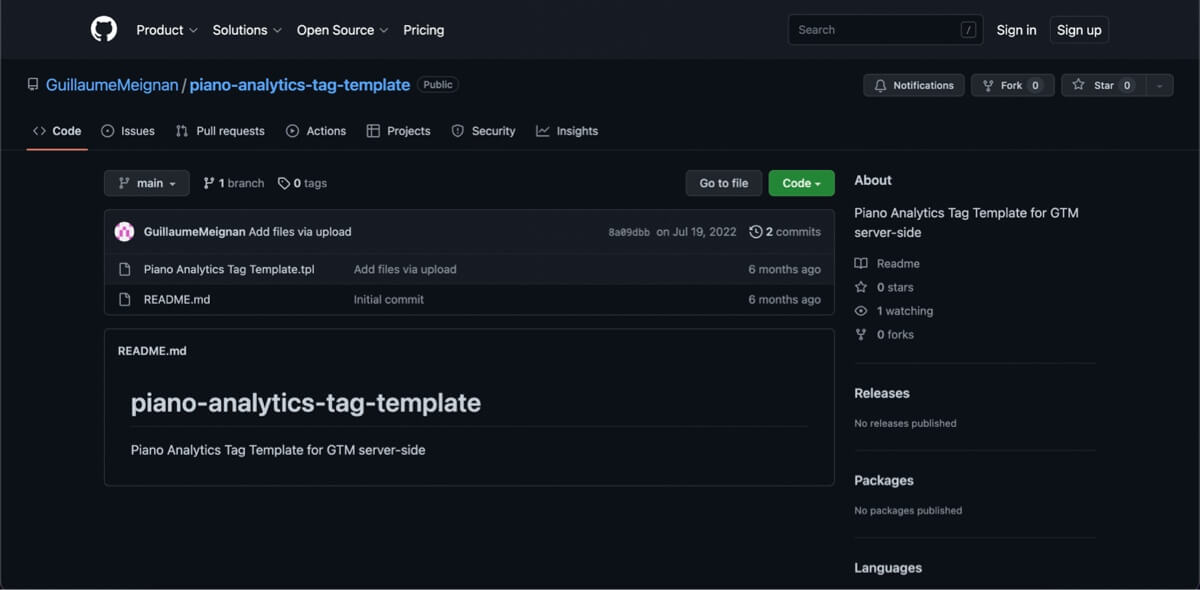
Then import this file into your server container (Templates > New tag), and save the changes.
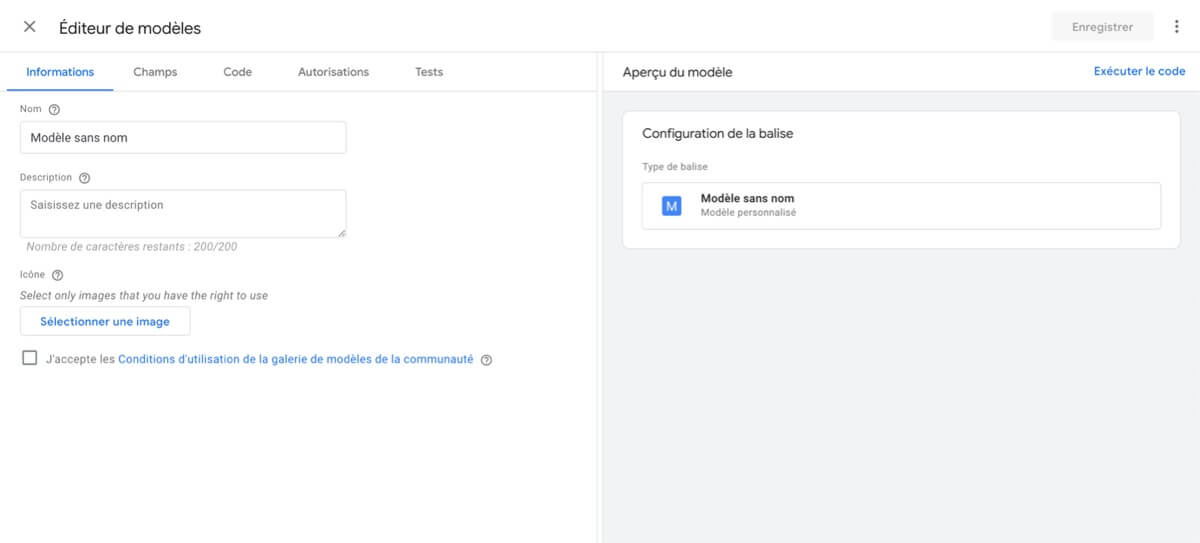
Finally, configure the Piano Analytics tag by following the instructions below:
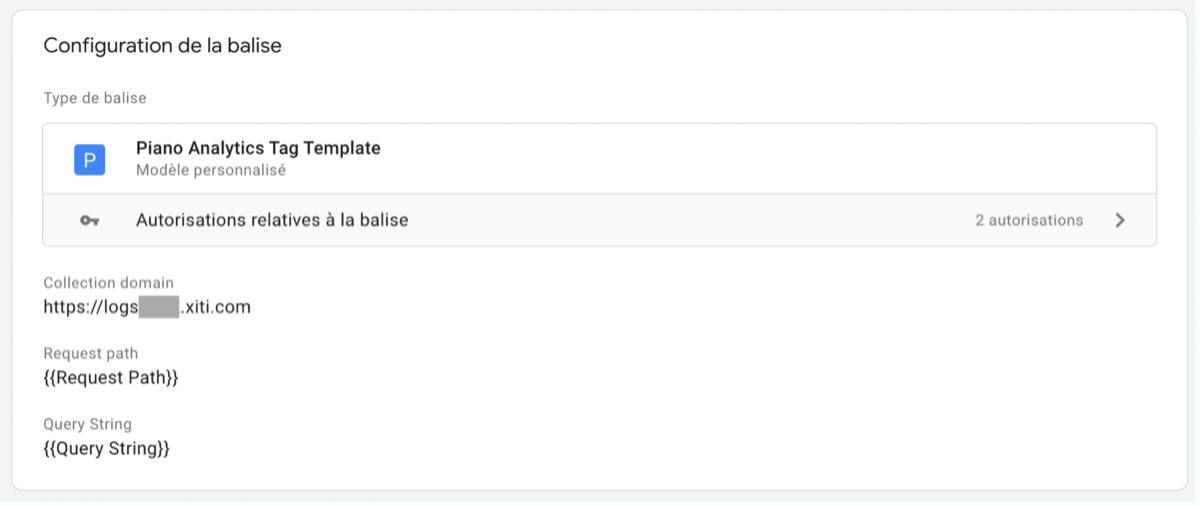
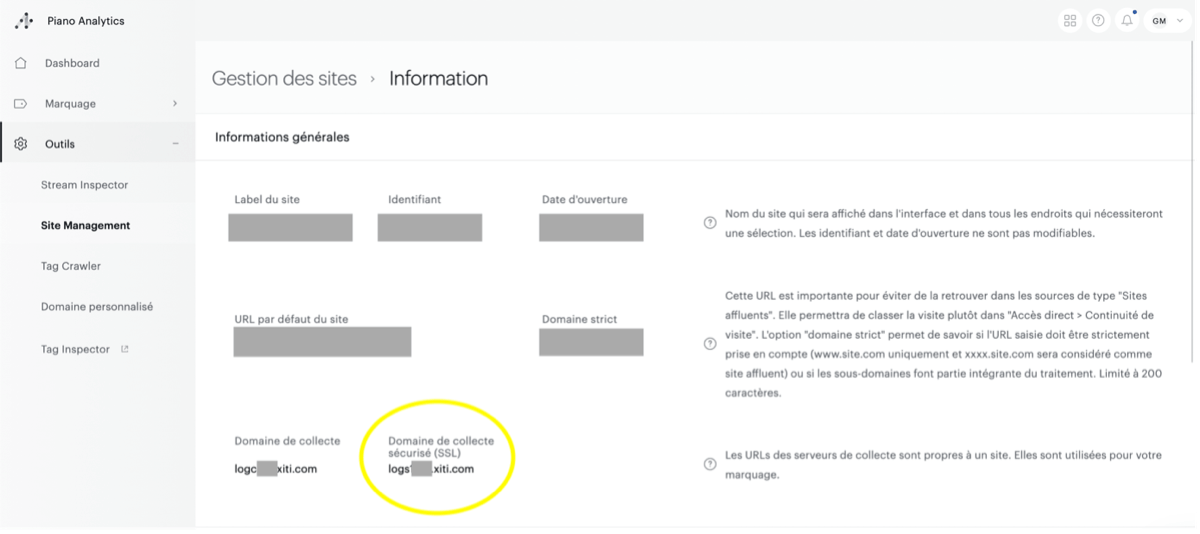
You will need to provide the collection domain https://logsXXXX.xiti.com (value to be found in your Piano Analytics account):
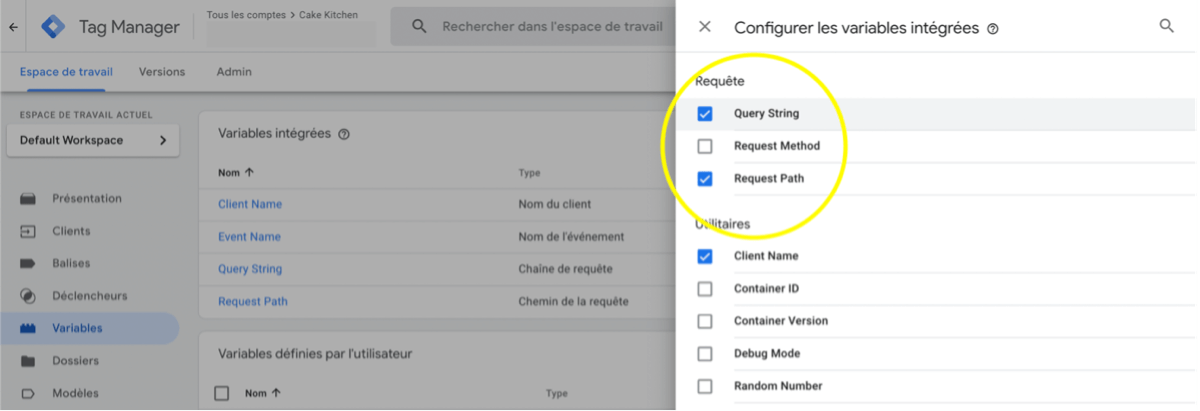
Make sure you also enable the Request path and Query String built-in variables to add them to the corresponding fields in the tag.
Test and publish changes
Before publishing your containers, make sure of the following:
- Client-side tag triggering is correctly configured.
- Data is received on the server side.
- Server-side tag triggering is operational.
- Data is received in Piano Analytics.
Once these elements have been validated, you can proceed with publication.