Proxyfication & data minimization
Minimize the transmission of personal data
This guide shows you how to configure server-side GTM to minimize the personal data transmitted to your audience measurement partners: removal of the IP address, user identifiers, referrer, page location and user agent.
This technique, known as proxyfication, involves routing data through your own server, which cleans it before relaying it.
This proxyfication was initially recommended by the CNIL in June 2022 to bring Google Analytics into compliance (see the recommendation) . This regulatory context has since evolved, but proxyfication remains a good data-minimization practice, applicable to GA4 as well as any other measurement tool.
We review each type of data and how to process it in GTM, on the server side.
IP address
The CNIL’s initial recommendation is the absence of IP address transfer to marketing platforms. If a location is transmitted to marketing platforms, it must be carried out by the proxy server, and the level of precision must ensure that this information does not allow the person to be re-identified (for example, by using a geographic mesh ensuring a minimum number of Internet users per cell);
Solution 1
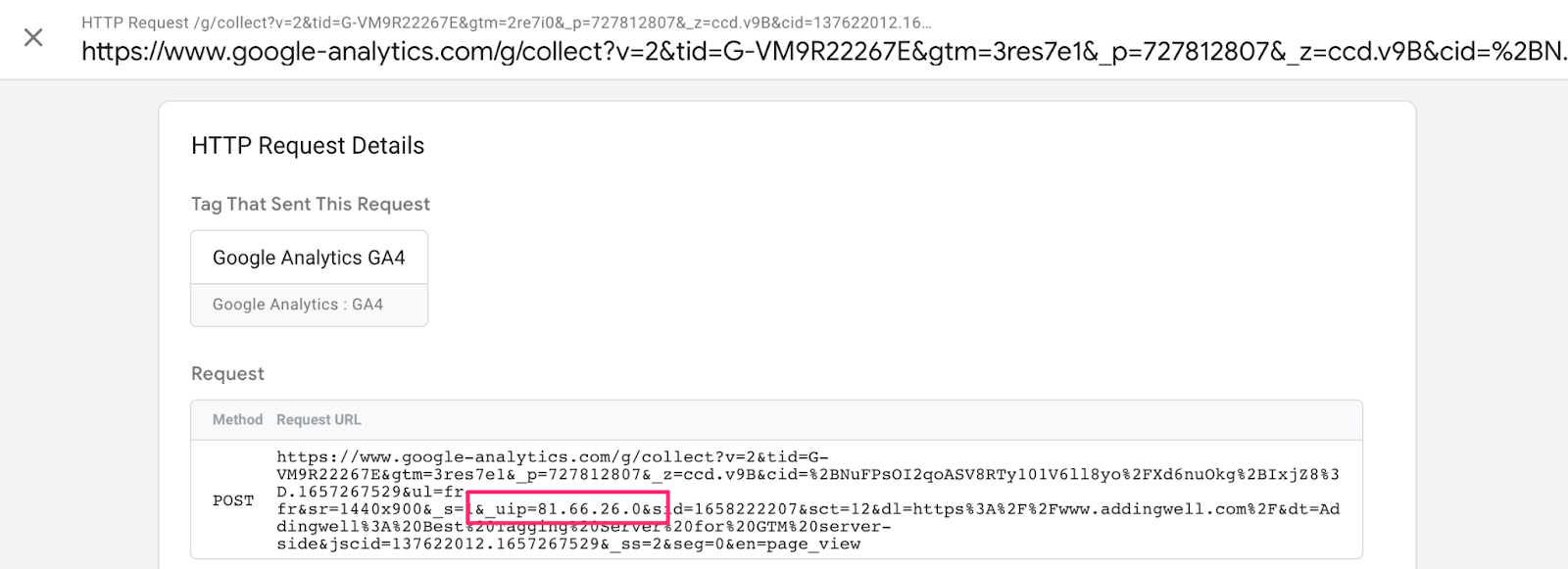
By default, the sGTM GA4 tag automatically sets a user’s IP address to a “modified” IP address. The last part of the IP address is modified by adding a 0, which should generally be enough to reduce the level of precision and thus prevent the re-identification of an Internet user.
Solution 2
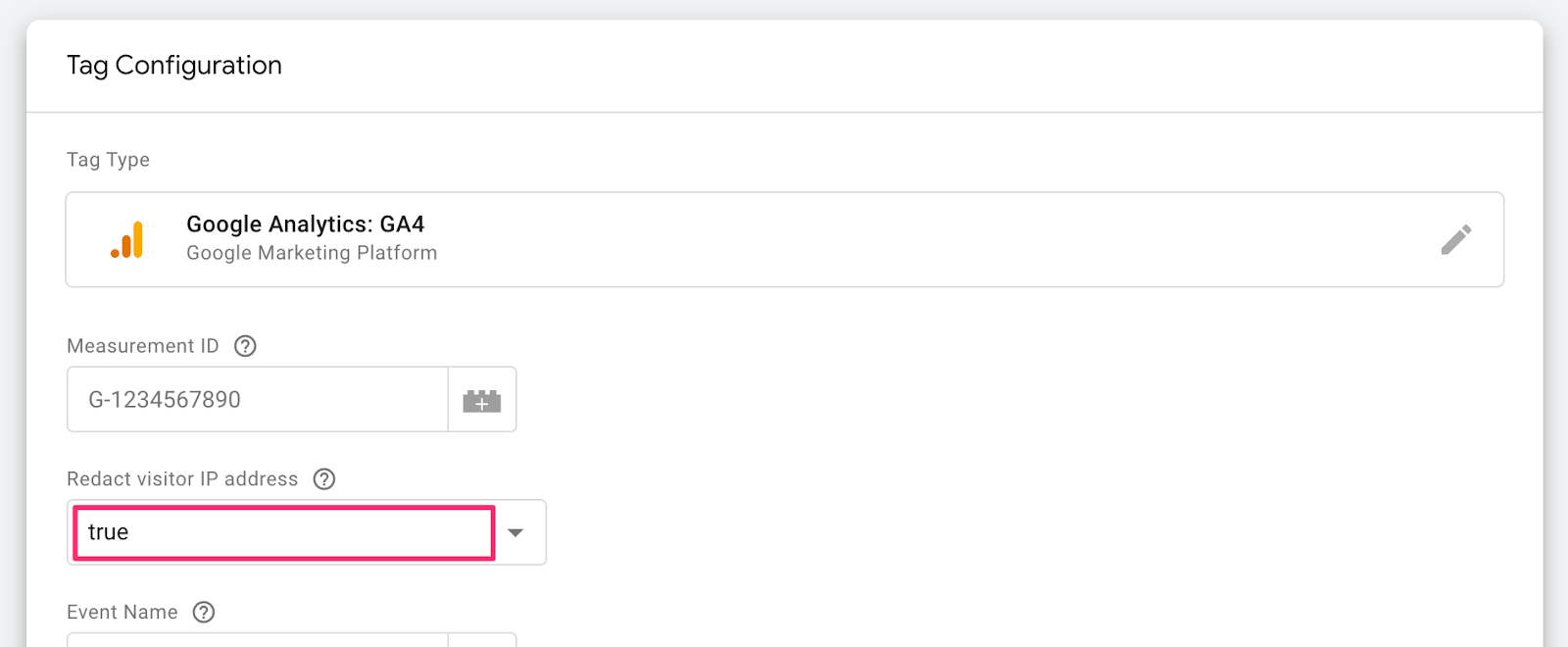
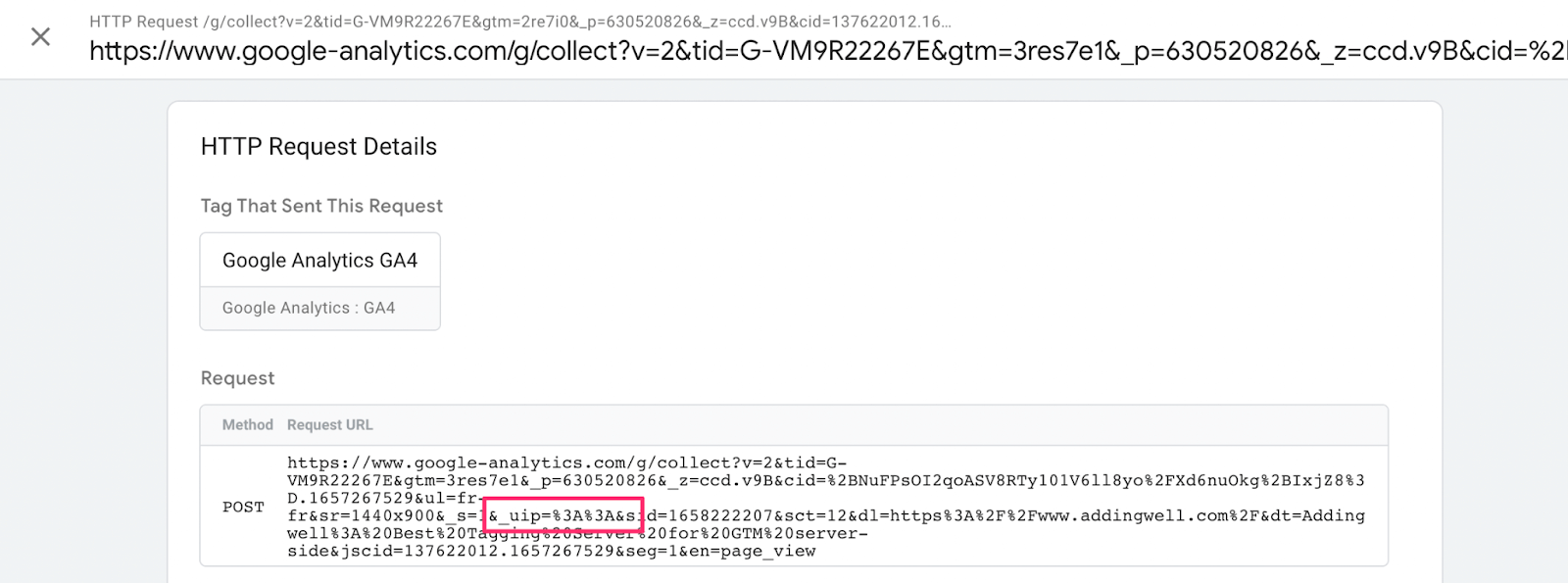
Let’s assume that the CNIL decides that this first solution is insufficient. In this case, a parameter in the GA4 tag configuration in sGTM allows you not to send your IP address to Google (Redact visitor IP address). This parameter is set to false by default. By setting it to true, no IP address will be sent to GA4.
User identification
The CNIL’s initial recommendation is the replacement of the user ID by the proxification server. To ensure effective pseudonymization, the algorithm performing the replacement should ensure a sufficient level of collision (i.e. a sufficient probability that two different identifiers will give an identical result after hashing) and include a variable temporal component (adding a value to the hashed data that evolves over time, so that the hashed result is not always the same for the same identifier);
Solution
Two fields sent to GA4 identify the user over time:
x-ga-js_client_id: Thex-ga-js_client_idis the cid value sent in the browser request. In the request sent by the server to the GA4, this field is calledjscid.client_id: Theclient_idis based on this same value (cid) but has been processed by the GA4 client. In the request sent by the server to GA4, this field is calledcid.
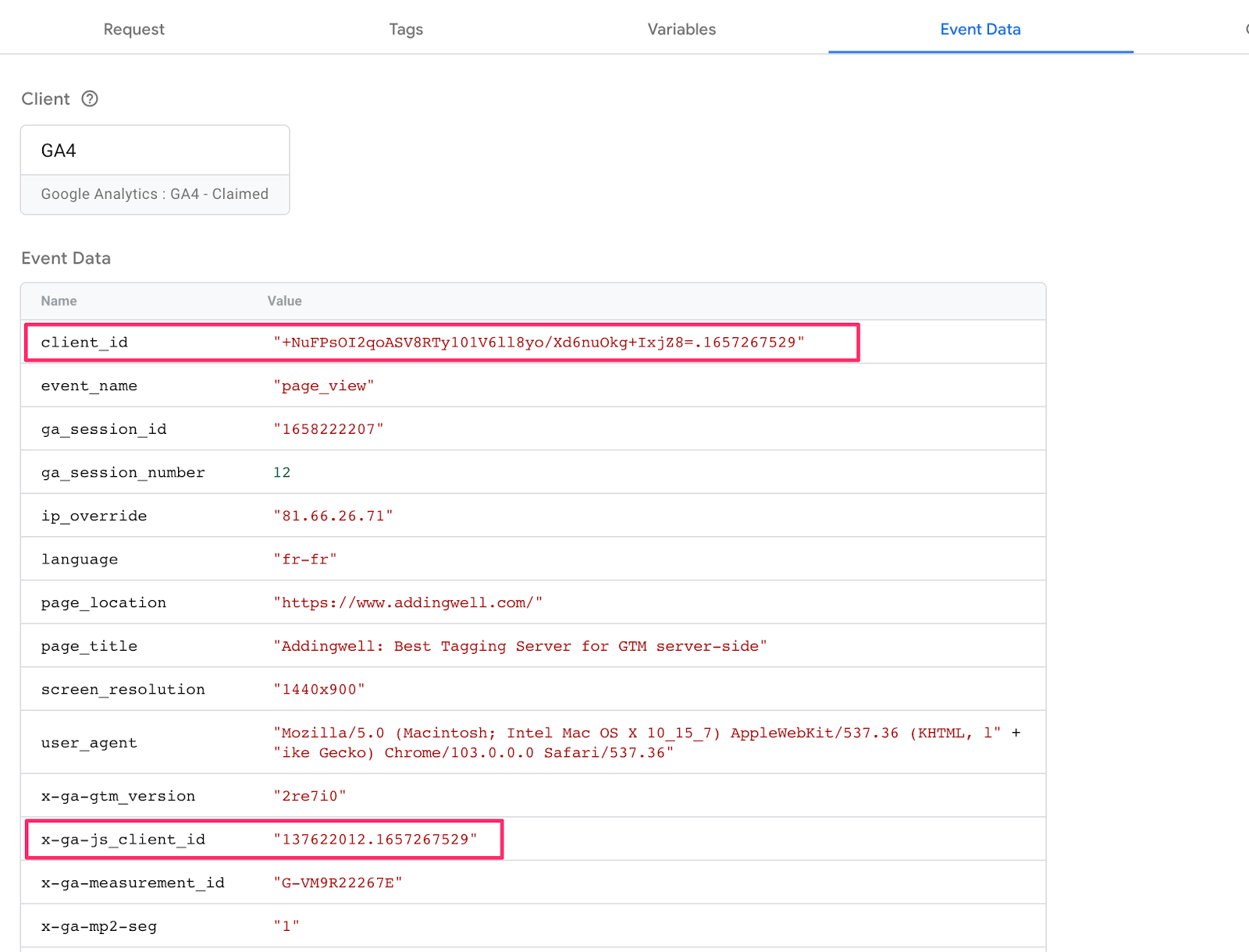
We’ll need to pseudonymize these two fields so that Google can’t link multiple sessions from the same user.
To ensure this uniqueness across multiple sessions, we’re going to create a variable template that will hash an input value (in this case, our client_id) by adding a temporal component (part of a timestamp).
To do this, go to Templates > Variable Templates > New.
In the “Info” section, we’ll name the template (in this case, “Pseudonymize Variable”).
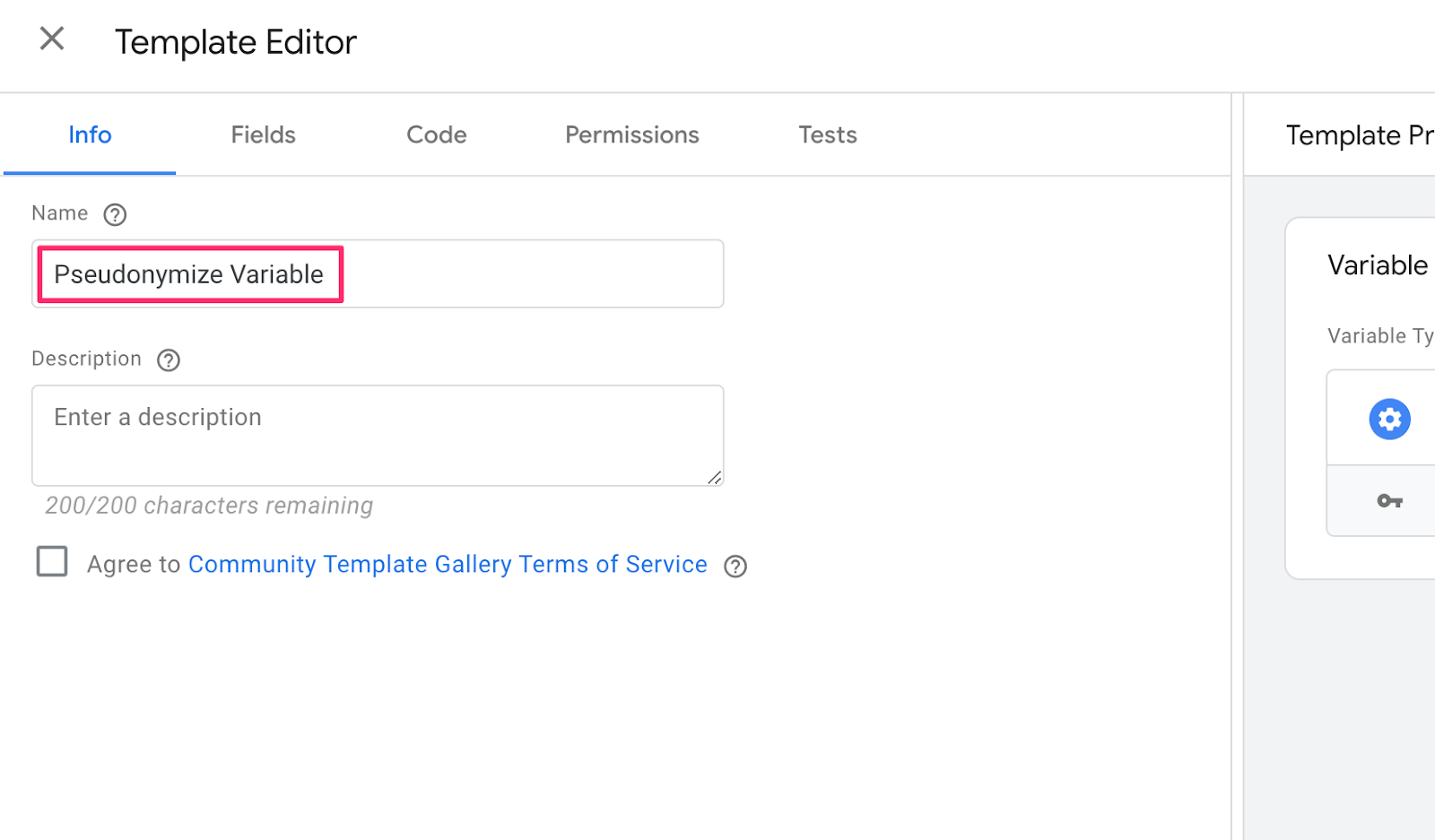
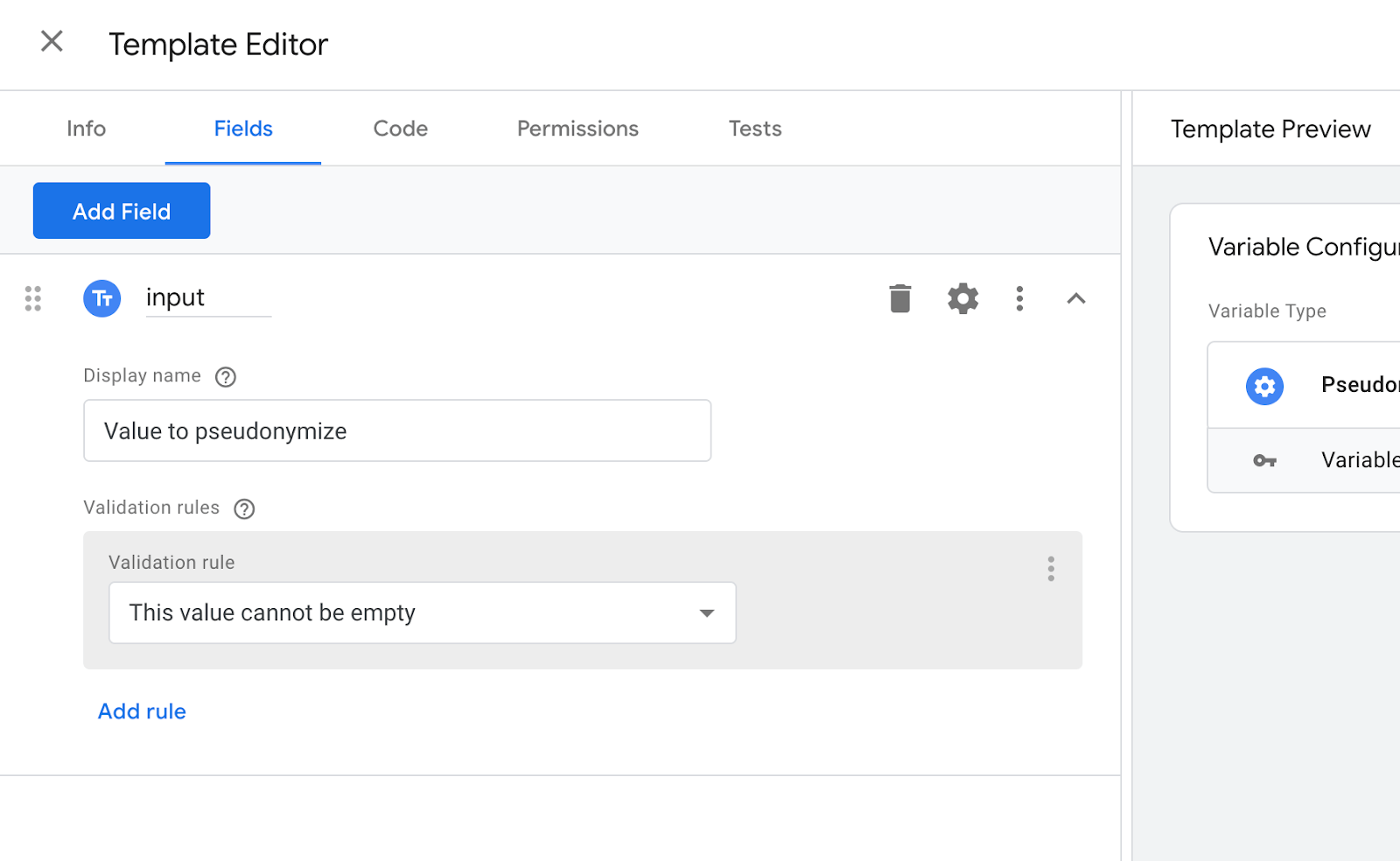
In the second tab (Fields), we’ll add a field to associate our variable with being pseudonymized.
Create a new field
- Click on ‘Add Field’ > Select ‘Text Input’ > Rename the field to ‘input’ > Enter ‘Value to pseudonymize’ as the display name.
Add a new control
- Click on the cogwheel (parameters) > Activate ‘Validation rules’ > Click on ‘Add rules’ > The option ‘This value cannot be empty’ must be selected by default.
The third tab (Code) is the processing applied to this variable. Here’s the code to copy and paste into the appropriate field.
const ts = require("getTimestampMillis");
const sha256Sync = require('sha256Sync');
const math = require("Math");

var t = ts();
var key = math.round(t / 10000000);

return sha256Sync(data.input + '.' + key, {outputEncoding: 'hex'});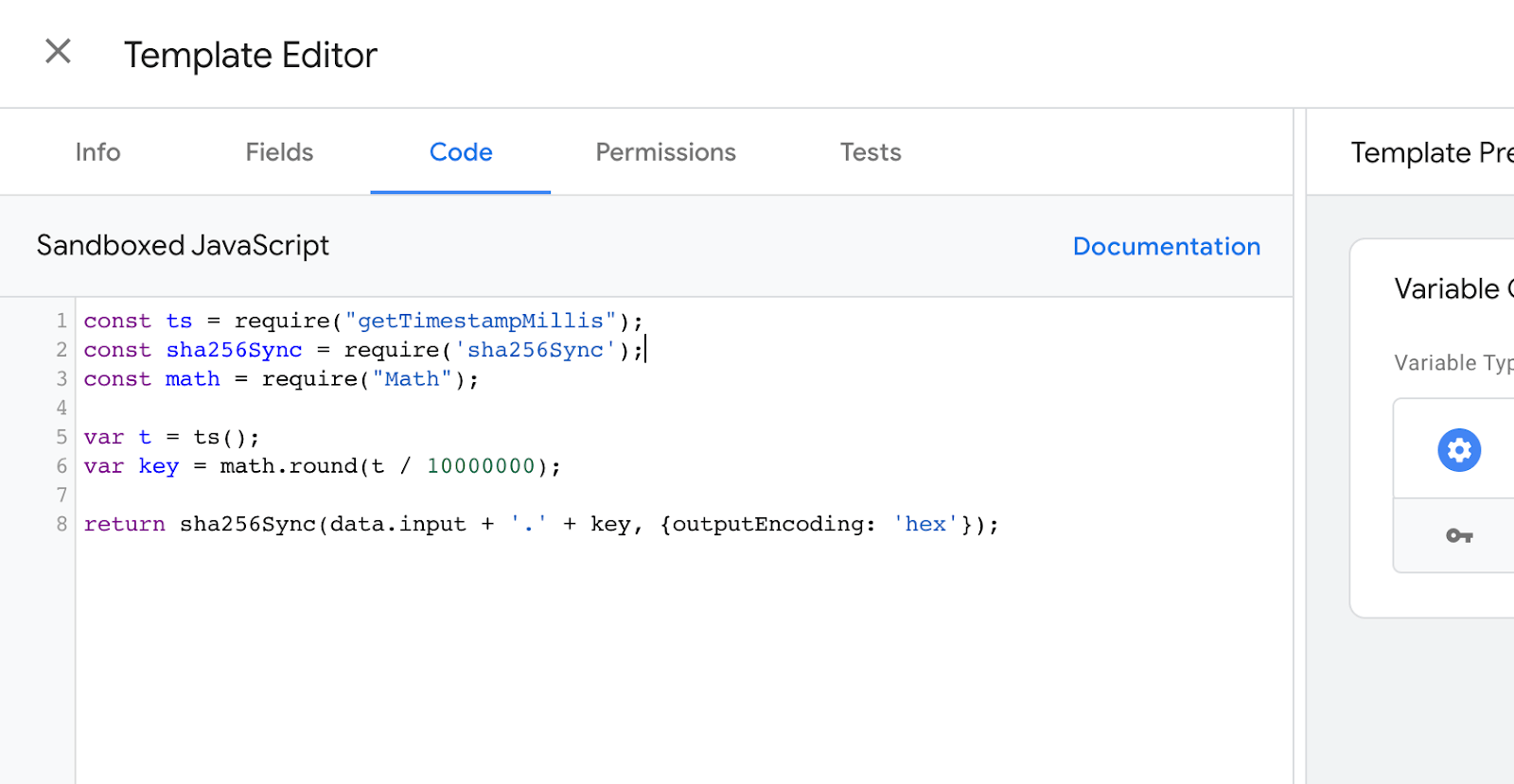
Our variable will be hashed after concatenation with a key that changes every 2 hours and 45 minutes. This modification allows us to create identical client_ids within a session, but different from one session to the next. This will prevent GA4 from tracking a user over time.
Now that we’ve created this variable template, we’ll need to update our client_id and x-ga-js_client_id before sending it to Google.
First, we create a GA4 - Client ID variable, which will retrieve the value of client_id from the event data.
Variables > New:
- Variable name:
GA4 - Client ID- Variable type: Event Data
- Key path:
client_id
Next, we use our previously created template to pseudonymize this variable.
Variables > New:
- Variable name:
GA4 - Client ID Pseudonymized- Variable type: Pseudonymized Variable
- Key path:
{{GA4 - Client ID}}
Our client_id is now pseudonymized; we need to repeat these last two steps for the x-ga-js_client_id.
Variables > New:
- Variable name:
GA4 - JS Client ID- Variable type: Event Data
- Key path:
x-ga-js_client_id
Next, we use our previously created template to pseudonymize this variable.
Variables > New:
- Variable name:
GA4 - JS Client ID Pseudonymized- Variable type: Pseudonymized Variable
- Key path:
{{GA4 - JS Client ID}}
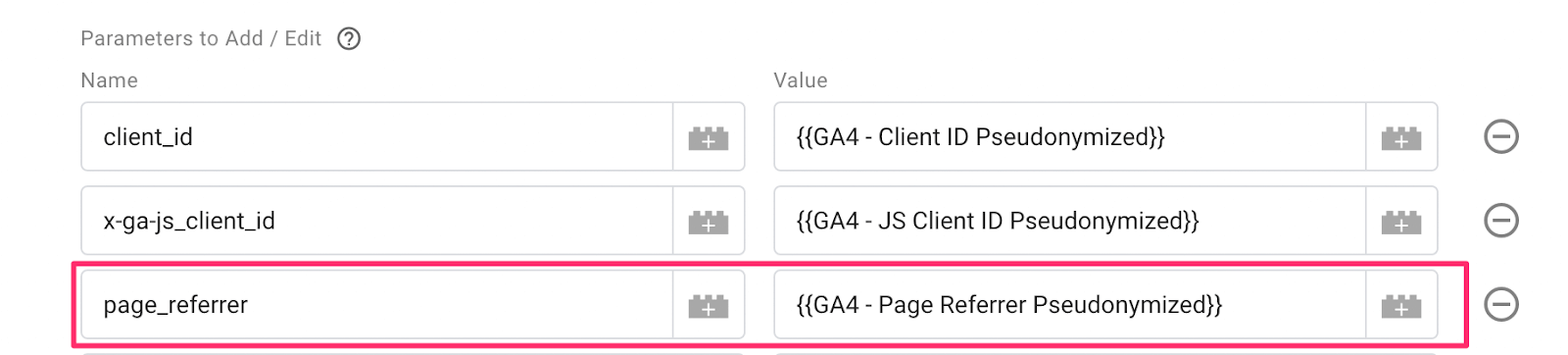
Once these two variables have been pseudonymized, they must be assigned in the GA4 tag to replace the existing variables.
- Tags > Open the GA4 tag > Open the ‘Event Parameters’ section > Add these two variables in the ‘Parameters to Add / Edit’ section.
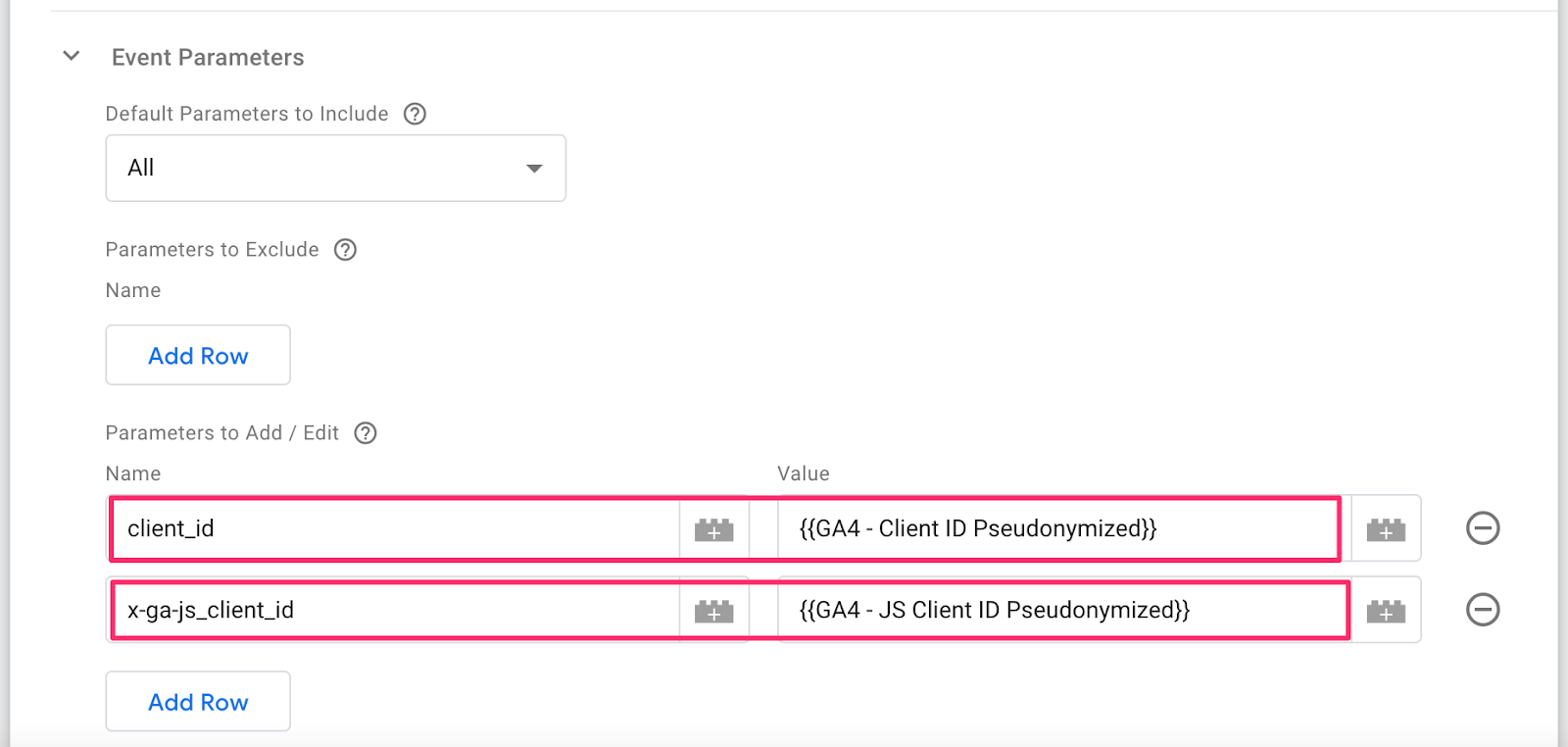
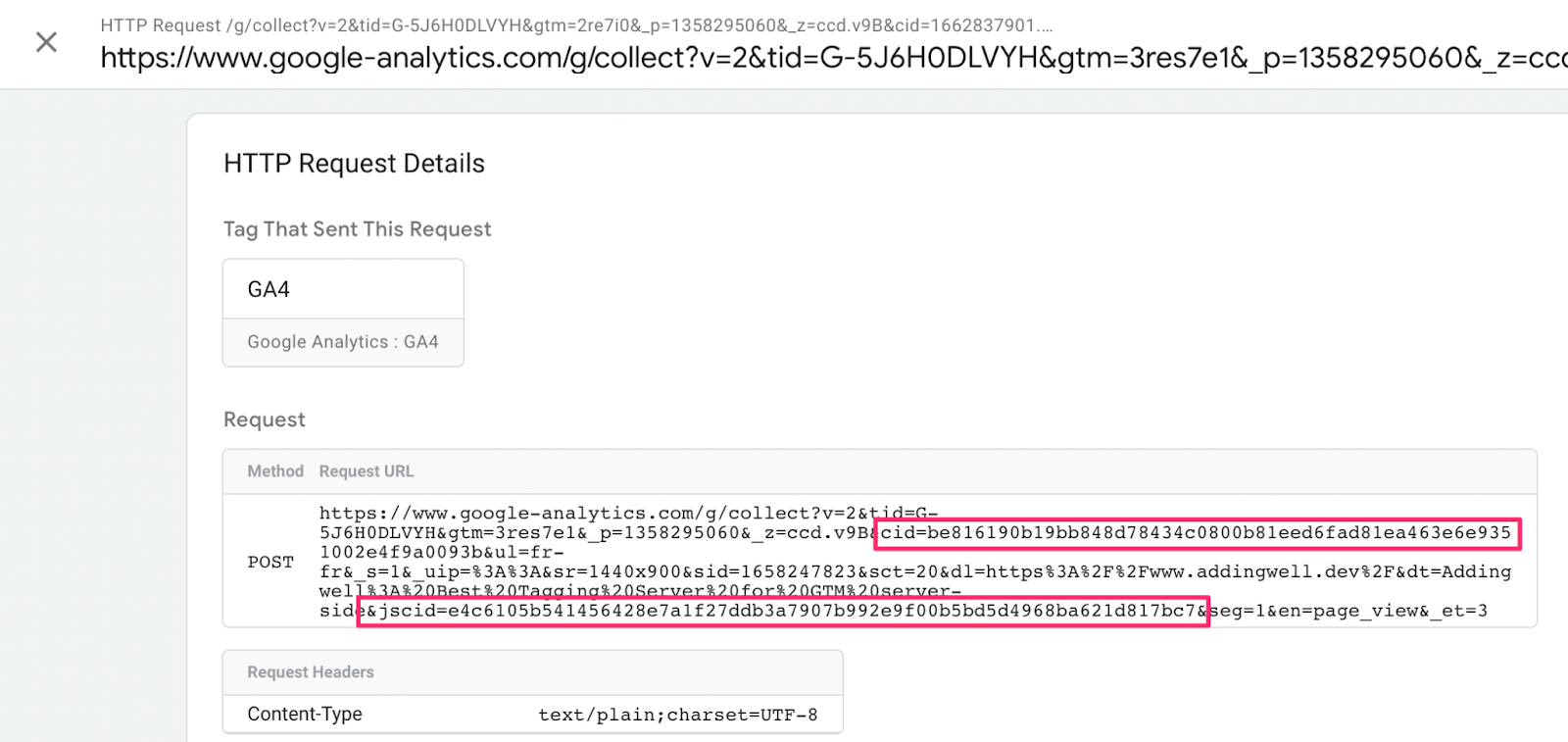
Our cid and jscid are now pseudonymized.
Page referrer
The CNIL’s initial recommendation is the removal of external referrer information.
Solution
The page_referrer field should be retained for internal links, but removed for external links. In practice, if the page_referrer domain corresponds to that of the website, this field is retained. Otherwise, it should be left blank.
We start by creating a variable containing our page_referrer.
Variables > New:
- Variable name:
GA4 - Page Referrer- Variable type: Event Data
- Key Path:
page_referrer
Next, we create a second variable that will allow us to retrieve only the page_referrer domain. To do this, we’ll use Simo Ahava’s ‘URL Parser’ variable template.
Variables > New:
- Variable name:
GA4 - Page Referrer Domain- Variable type: URL Parser (via Community Template Gallery)
- URL Source:
{{GA4 - Page Referrer}}(created previously)- Component Type: Host Name
- Strip ‘www’: true
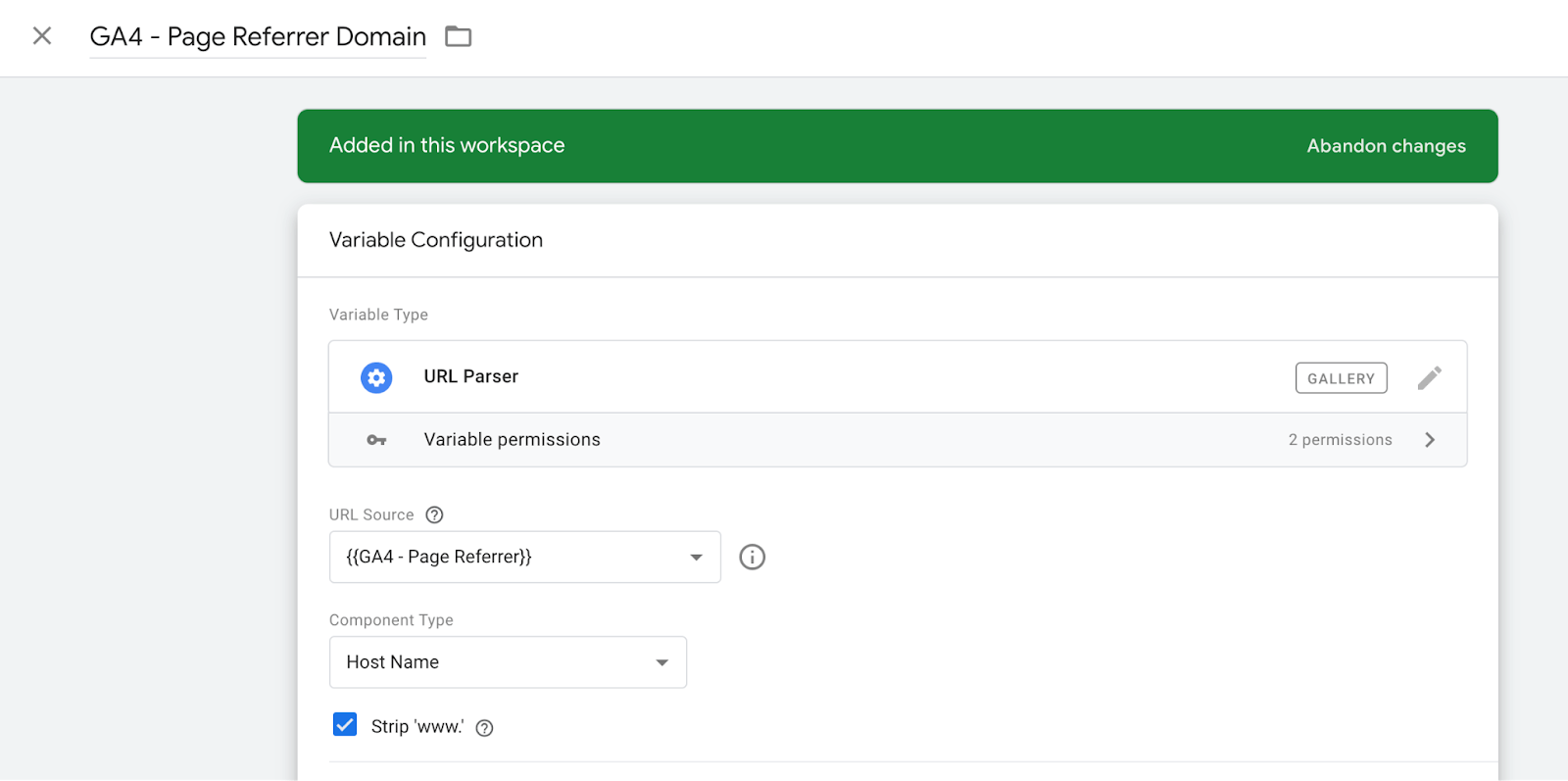
And the last variable to create is the page_referrer that we’ll send to Google, which will be either empty or filled depending on the origin.
Variables > New:
- Variable name:
GA4 - Page Referrer Pseudonymized- Variable type: Lookup Table
- Input Variable:
{{GA4 - Page Referrer Domain}}(our previously created domain)- Output Variable: (list of our authorized domains)
- input: example1.com / output:
{{GA4 - Page Referrer}}- input: example2.com / output:
{{GA4 - Page Referrer}}- Set default value:
true(leave default empty)
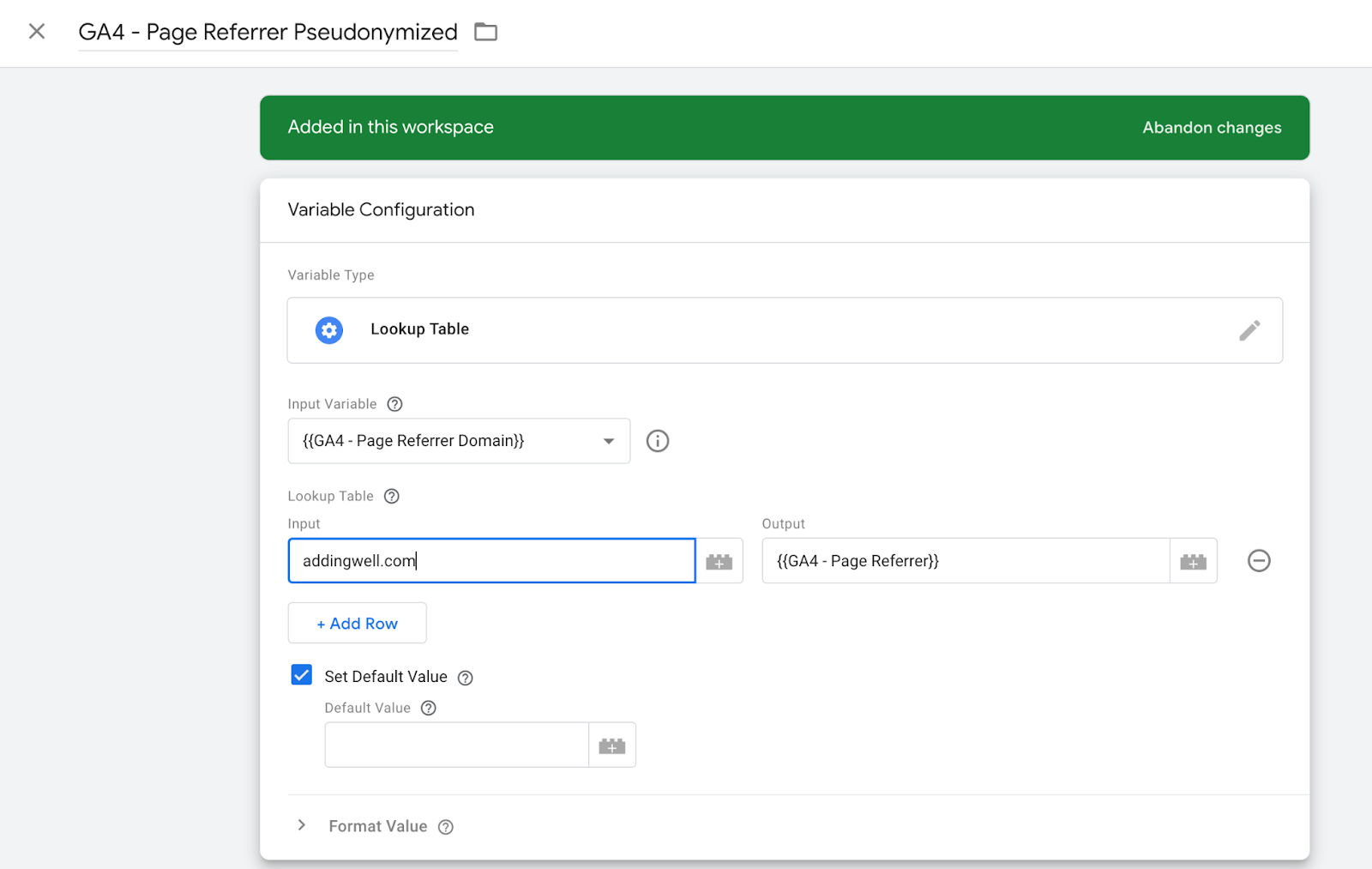
We need to use this last variable in the configuration of the GA4 tag by adding a page_referrer field to the list of fields to be added/modified and assigning it this value.
Page location
The CNIL’s initial recommendation is the deletion of all parameters contained in collected URLs (e.g. UTMs, but also URL parameters enabling internal website routing);
Solution
The idea is to remove the parameters in the URL sent in the page_location field.
A URL with parameters looks like this: https://www.addingwell.com/?gclid=Cj0KCQjwio6XBhCMARIsAC0u9aGc7gQZfDc8YvuTRIMgrR6bxatLaoc6t6qriAZm0ozMsaam6UjW
After processing, it should look like this: https://www.addingwell.com/
In order to remove the parameters from this URL, we’ll create a template that returns this URL cleaned up.
To do this, go to Templates > Variable Templates > New
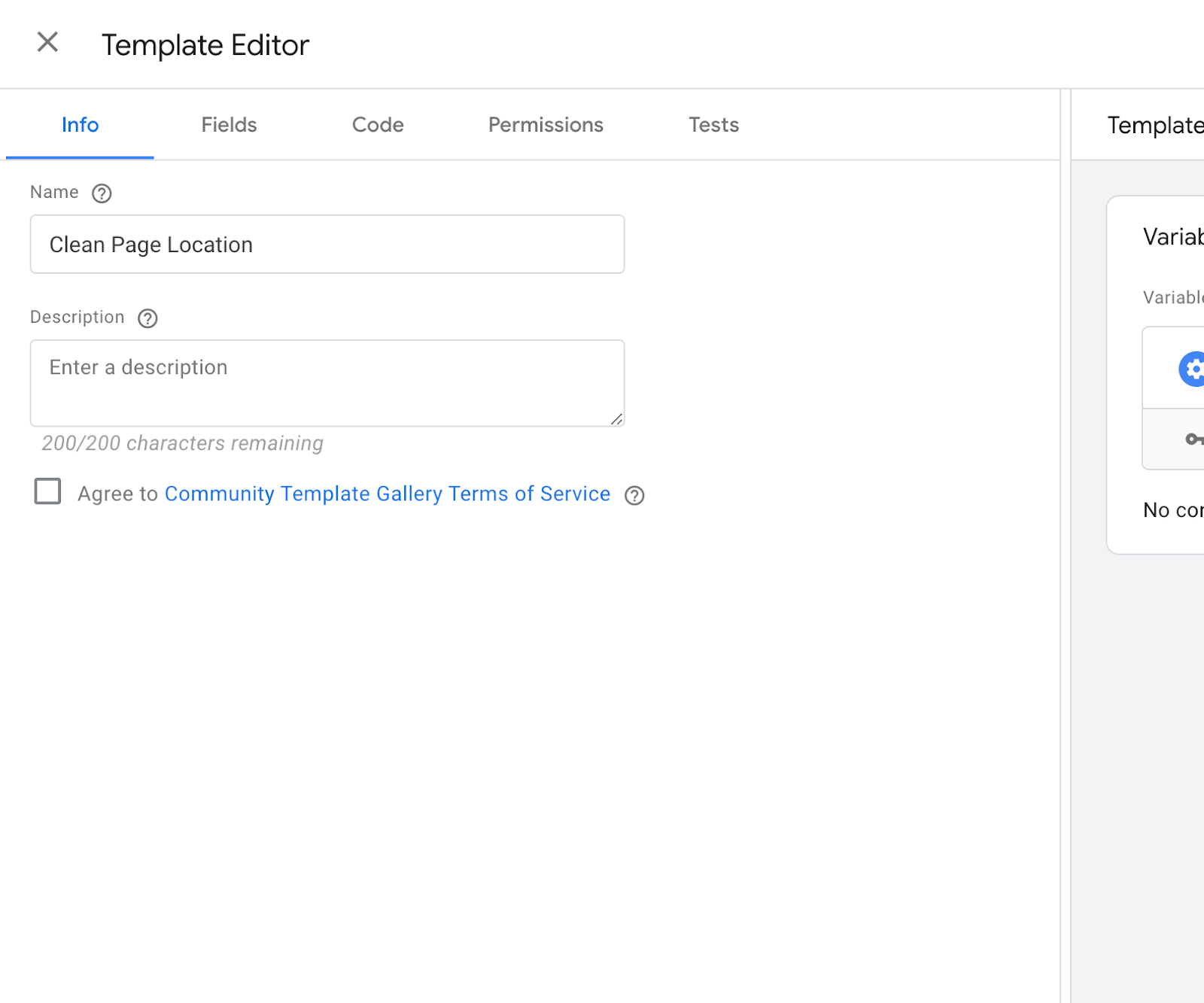
In the “Info” section, we’ll name the template (in this case, “Clean Page Location”).
The third tab (Code) is the code to be copied and pasted into the appropriate field.
const getEventData = require('getEventData');
const parseUrl = require('parseUrl');
const parsedUrl = parseUrl(getEventData('page_location'));

if (!parsedUrl) return;

return parsedUrl.protocol + '//' + parsedUrl.hostname + parsedUrl.pathname;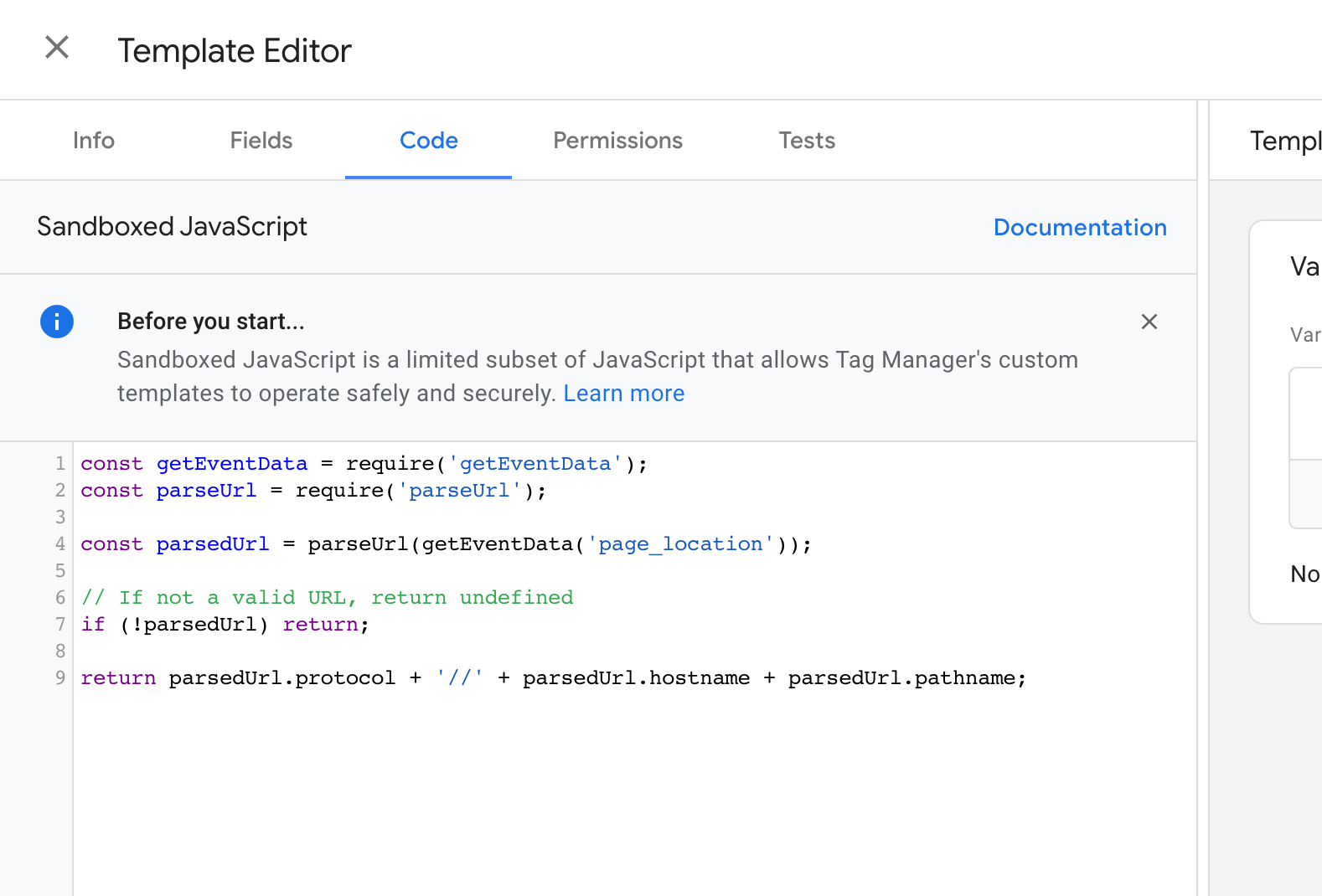
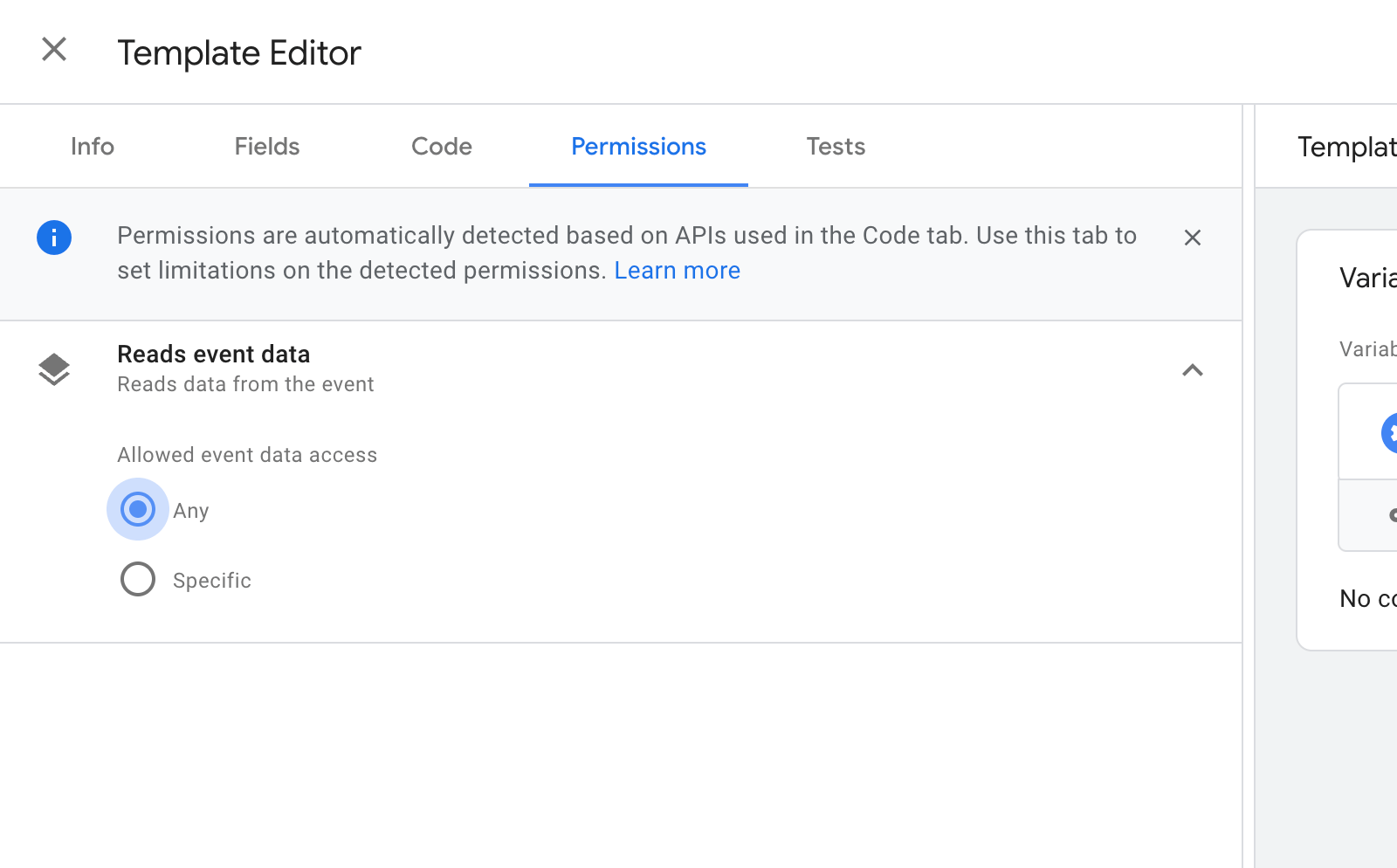
In the fourth tab (Permissions), open the “Reads event data” accordion and select “Any”.
We can now save and close the template.
Now that we’ve created this variable template, we’ll need to create a variable that contains this value. This variable will replace our original page_location.
Variables > New:
- Variable name:
GA4 - Page Location Cleaned- Variable type: Clean Page Location (Template name previously created)
Once this variable has been created, it must be assigned in the GA4 tag to replace the existing page_location.
- Tags > Open the GA4 tag > Open the ‘Event Parameters’ section > Add this variable in the ‘Parameters to Add / Edit’ section.
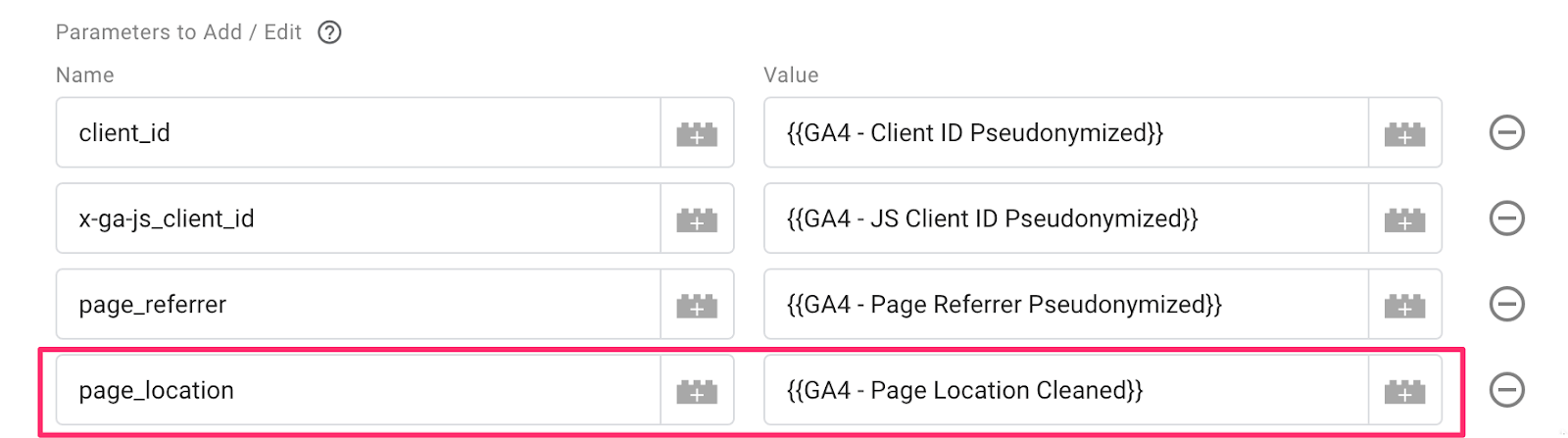
Our page location is now anonymized and no longer contains any personal information.
User Agent
The CNIL’s recommendation is the reprocessing of information that can be used to generate a fingerprint, such as the “user-agent”, to eliminate the rarest configurations that could lead to re-identification;
Solution
The CNIL talks about reprocessing information such as the user_agent or the screen_resolution. In my opinion, there’s no point in sending this information if Google Analytics can’t understand it.
We’ll remove these fields from the request sent to GA4.
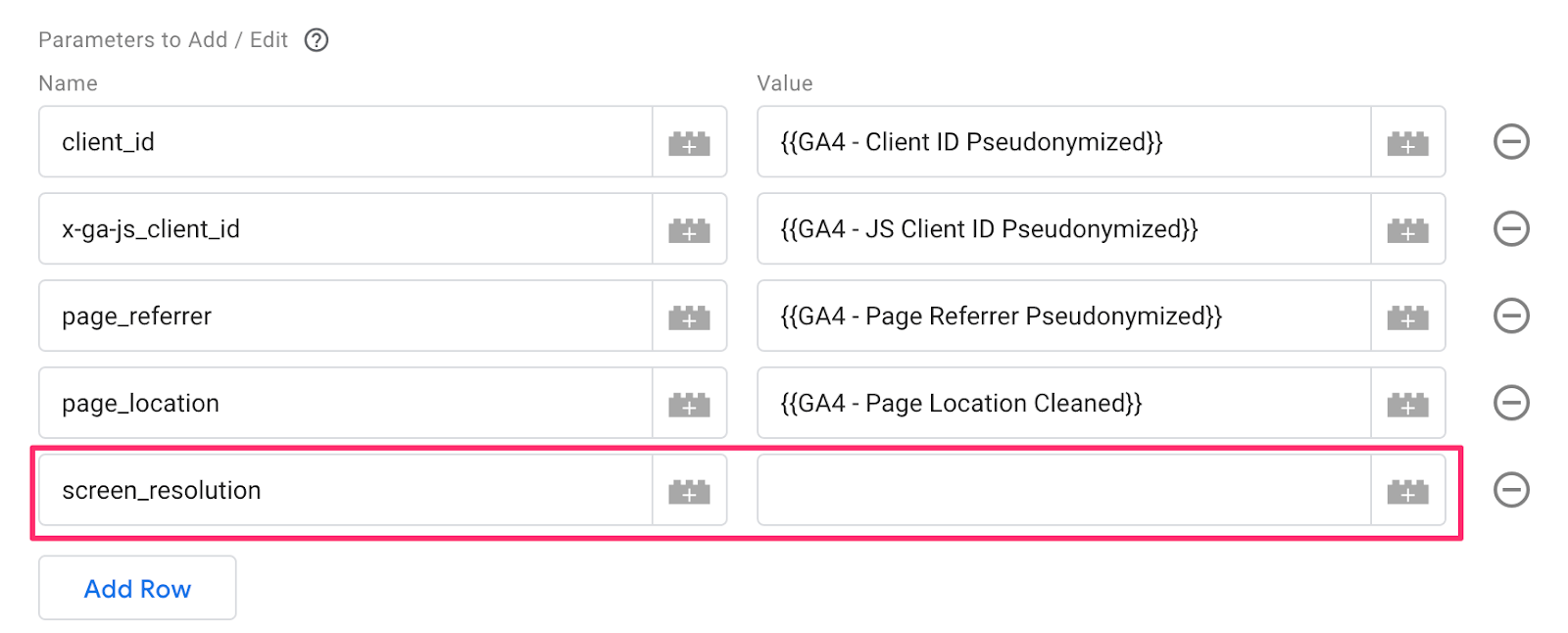
For the user_agent, in the tag configuration, we’ll add this field to the list of parameters to exclude (‘Event Parameters’ > ‘Parameters to exclude’).

We could do the same thing with the screen_resolution field, but by adding this field to the list of parameters to exclude, this field mysteriously remains in the query. We’ll add it to the parameters to be added/modified, but leave its value empty.
Cross-site or deterministic identifiers
The CNIL’s initial recommendation is the absence of any collection of identifiers between websites (cross-site) or deterministic identification (CRM, unique ID );
The deletion of any other data that could lead to re-identification.
Solution
These two recommendations don’t concern a basic GA4 implementation, but they do remind us that we also need to delete any fields that could allow a user to be re-identified. We’re talking about parameters such as user_id, email address, phone number, etc…
Conclusion
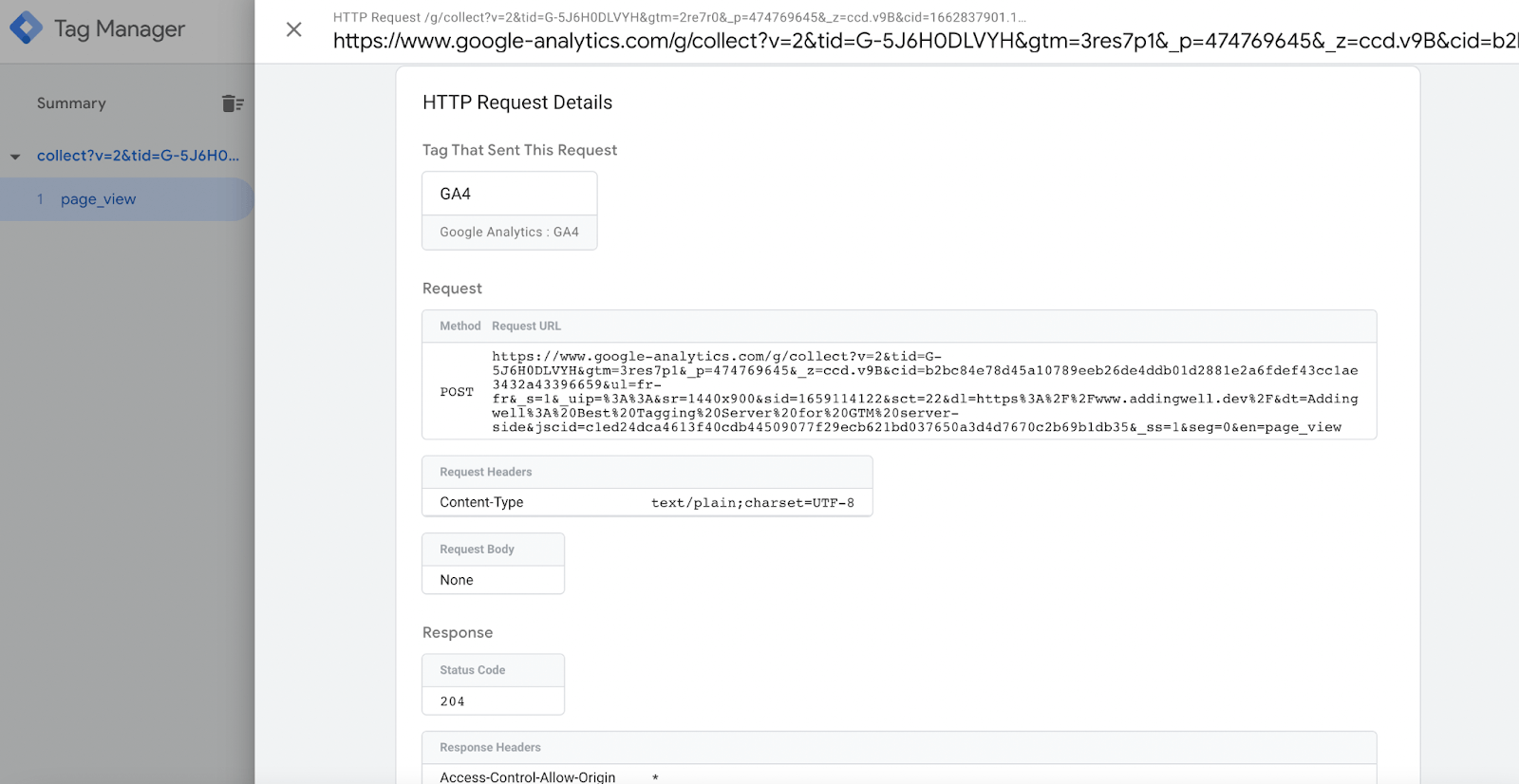
Once these changes have been applied, we can see the request sent to Google in GTM’s server-side preview. This request should no longer contain any personal information or user identifiers.
If this were the case, we could delete, anonymize or permanently pseudonymize these fields in the GA4 tag configuration, as we’ve just done.
How to view outgoing requests from sGTM to GA4:
Preview > Select the event to be tested from the list on the left > Request (1st tab) > Outgoing HTTP Requests from Server > Select the request we’re interested in > all the information sent to GA4 can be found on this page.