Google Analytics 4 with GTM server-side
This page covers the GA4 tag that dispatches the events received by your server to Google Analytics. The GA4 client must be configured first, see Configure your server container.
GA4 tag configuration
With the GA4 client configured, the server can receive GA4 web tracking requests. Next, create tags to dispatch these requests to the right marketing platforms.
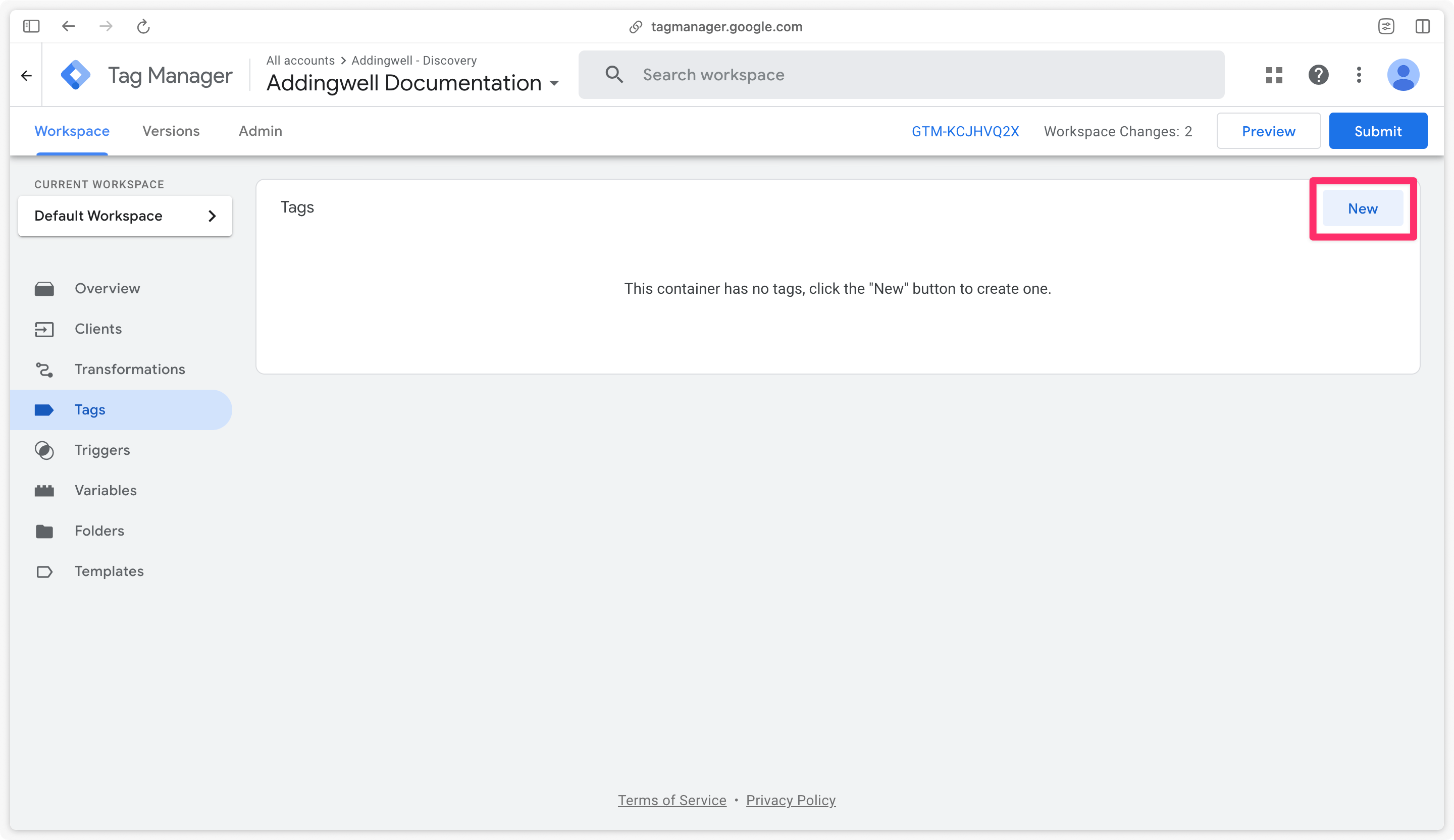
Go to the Tags tab of your server container and create a new tag.
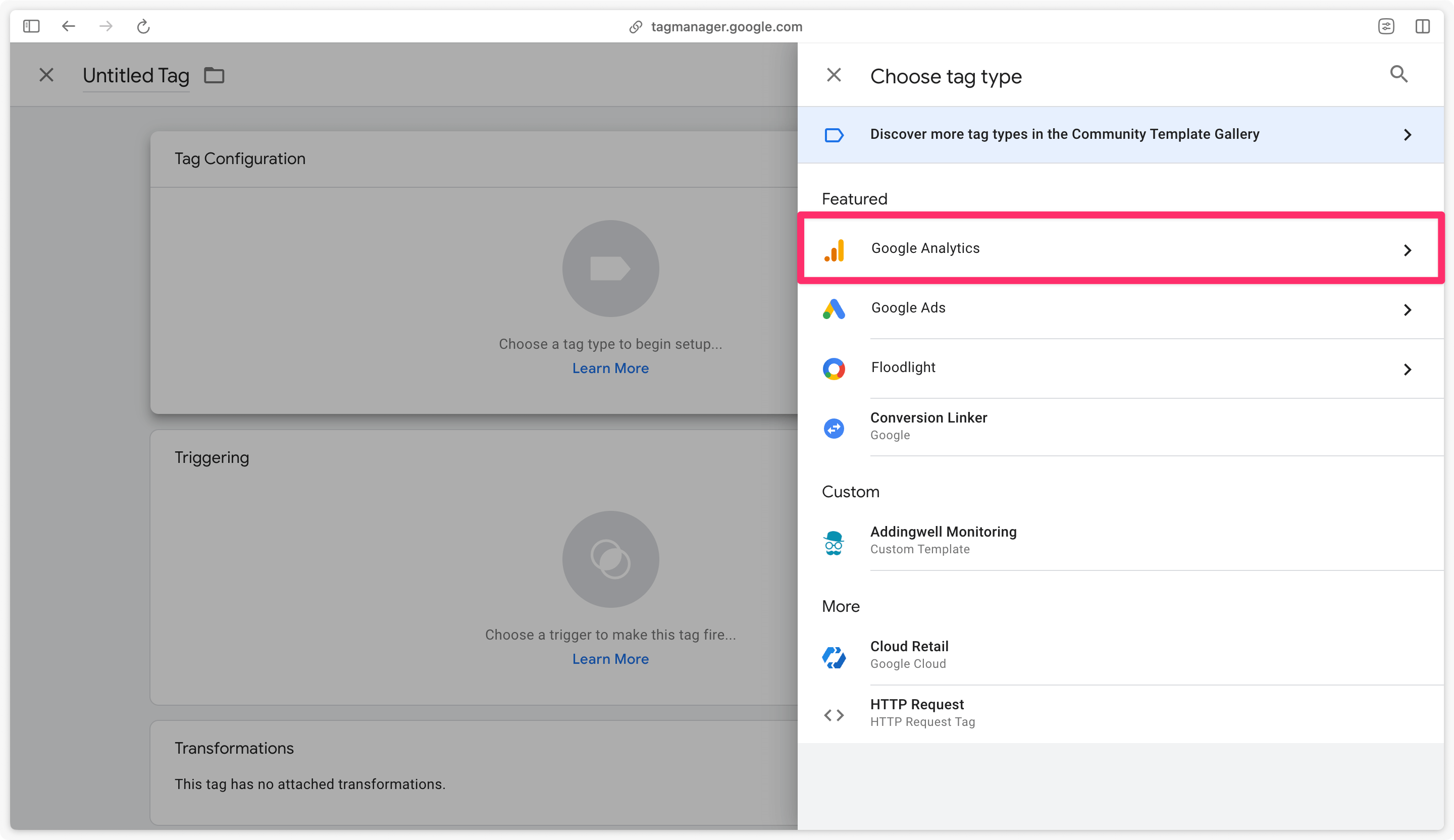
Select Google Analytics: GA4 tag under Google Analytics section.
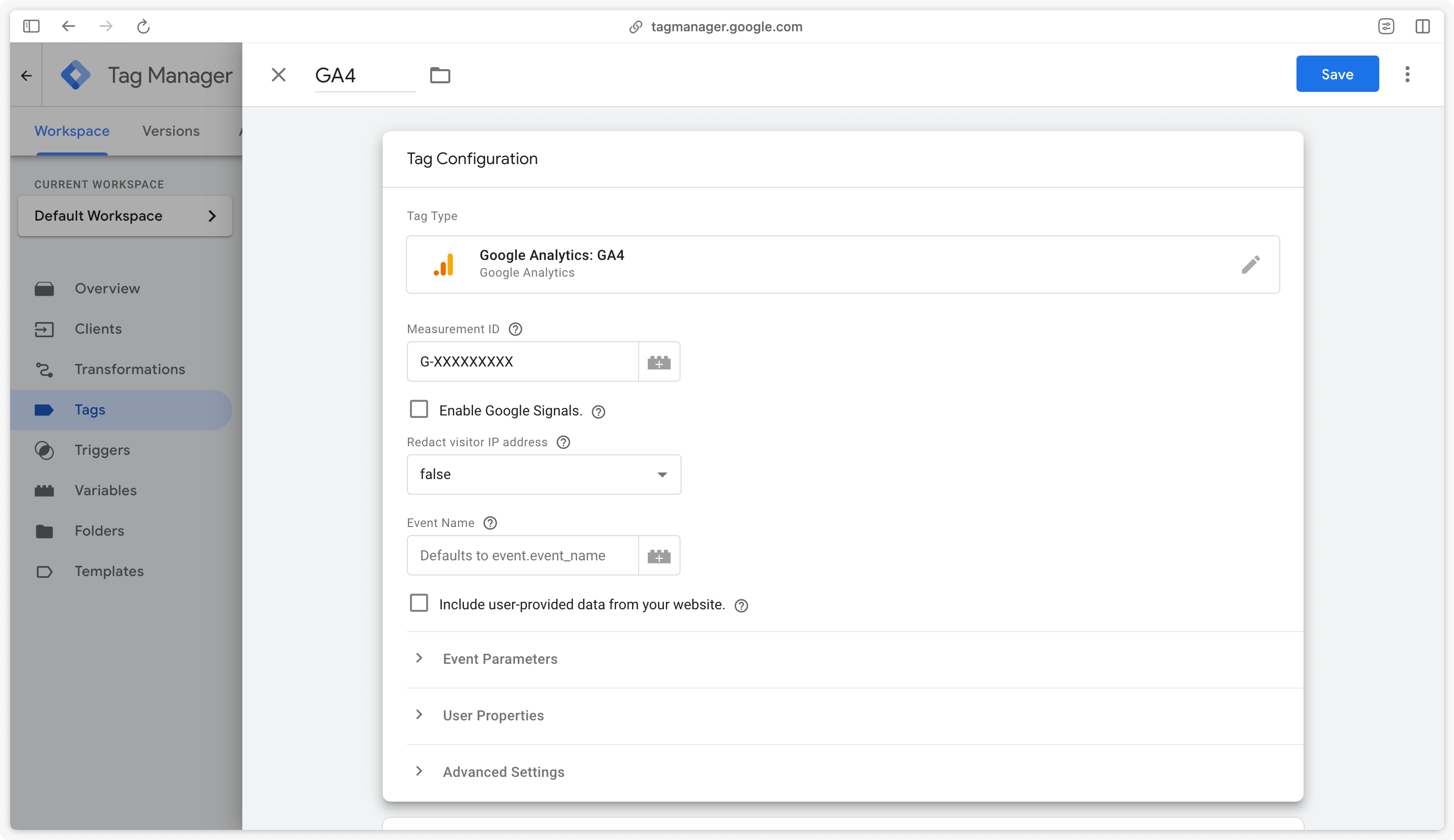
In this GA4 tag, several configurations are possible. Here are the 4 most commonly used fields:
Measurement ID
This measurement ID is used to send data to the correct GA4 property. If this field is filled in, all data will be sent to this property. Otherwise, the measurement ID used will be the one sent by your web container.
Google signals
Google signals are session data from websites and applications that Google associates with users who are logged in to their Google account and have enabled ad personalization. This data enables cross-device remarketing and the export of cross-device conversions to Google Ads.
Google signals can only be enabled if a measurement ID is defined on the server side.
Hide IP address
This field allows you to remove the IP address before transmitting data to GA4, thus preventing access to visitors’ geographical data.
Event name
This field is used to force the tag to send a specific event name to GA4. If left empty, event names received from the web container will be forwarded to GA4.
Unless otherwise stated, this field should be left blank.
GA4 trigger configuration
To forward all GA4 events arriving on your server to your GA4 property, configure the tag to trigger when the Client Name is GA4.
Create a new trigger by clicking in the trigger section of the tag.
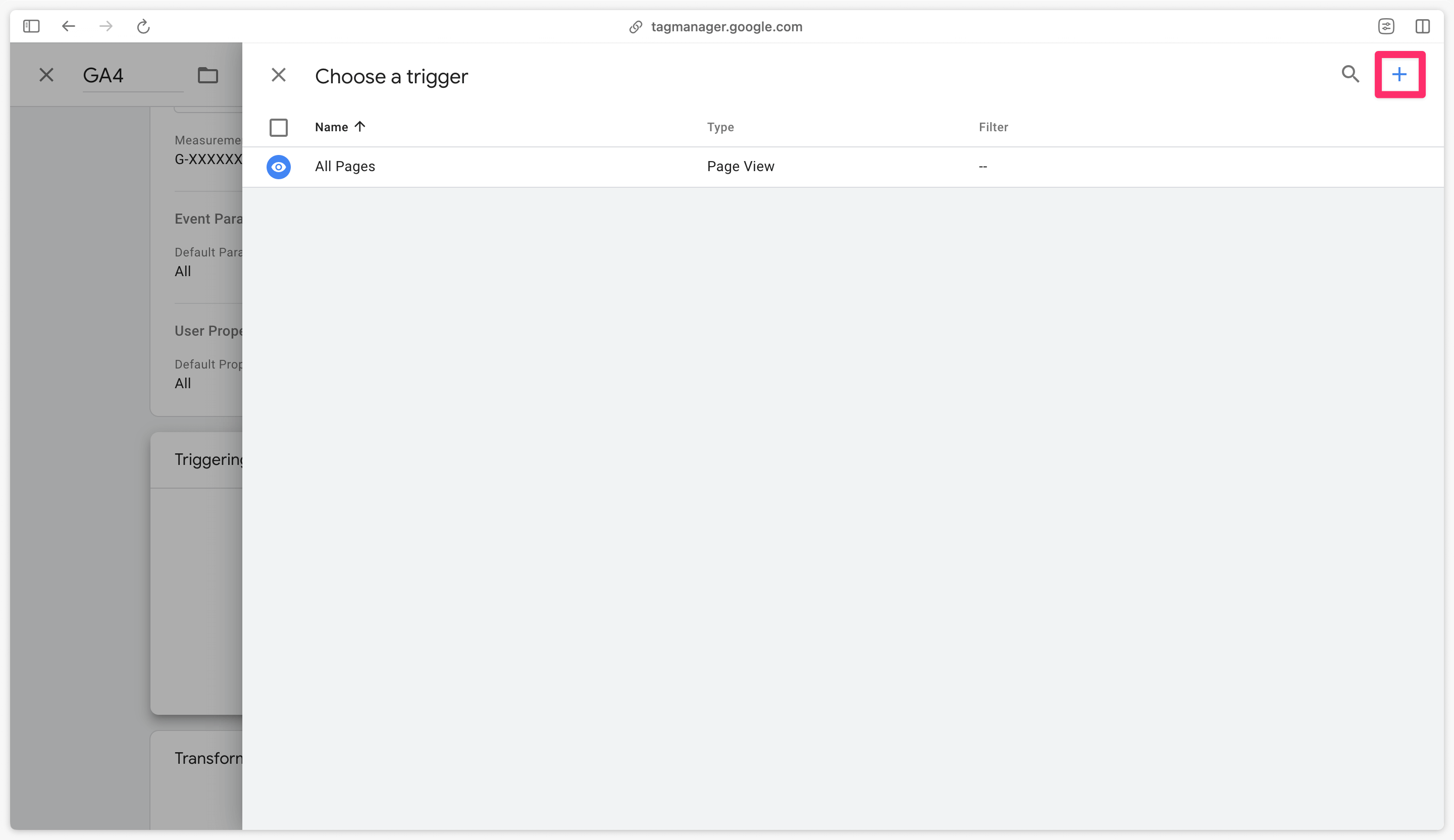
Select the custom trigger type.
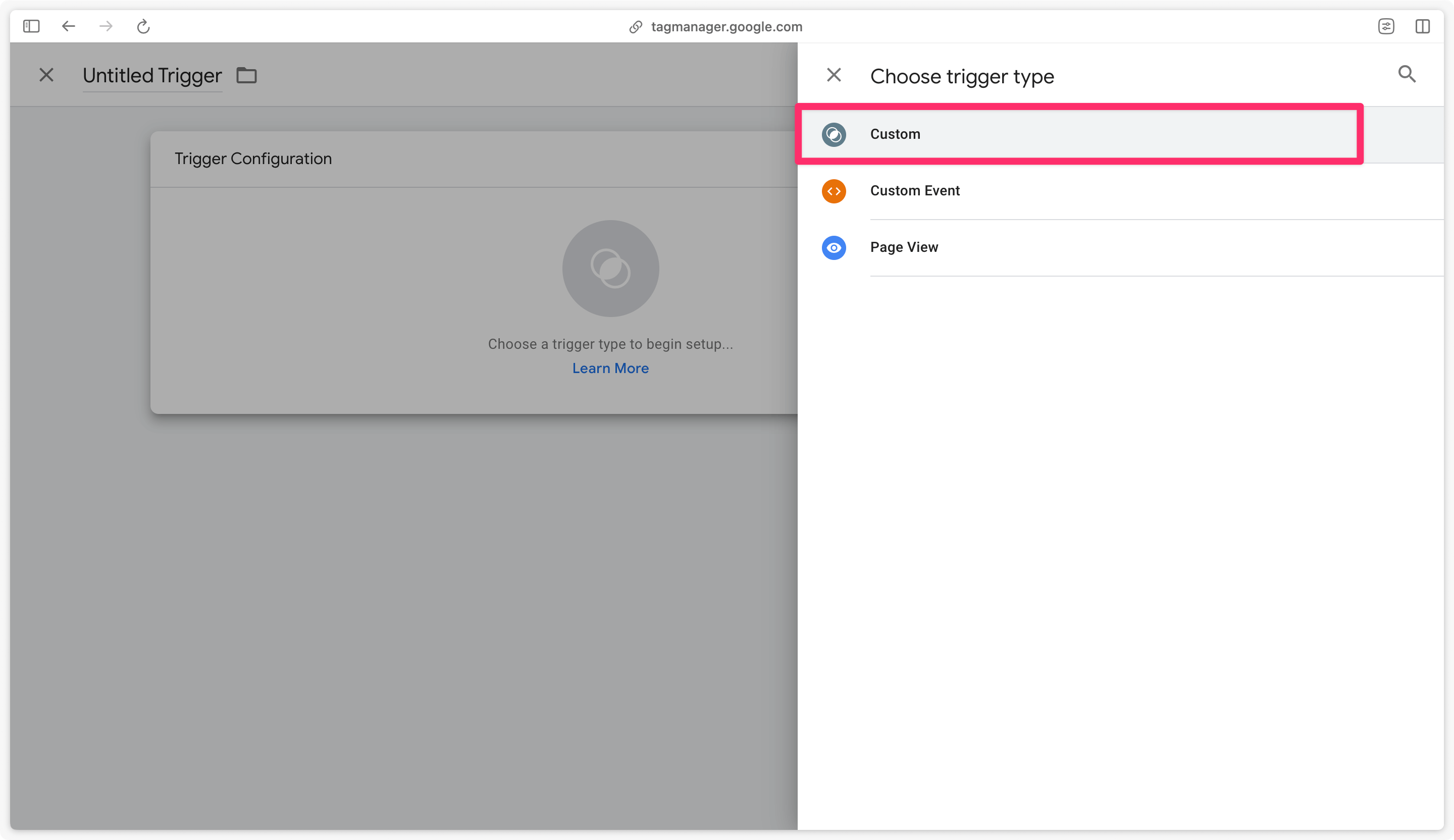
In this trigger, set a single rule: Client Name equals GA4. This rule means that this tag will be triggered by every incoming GA4 request to the server.
If Client Name doesn’t appear in the dropdown, enable it by clicking on Choose Built-in variable.
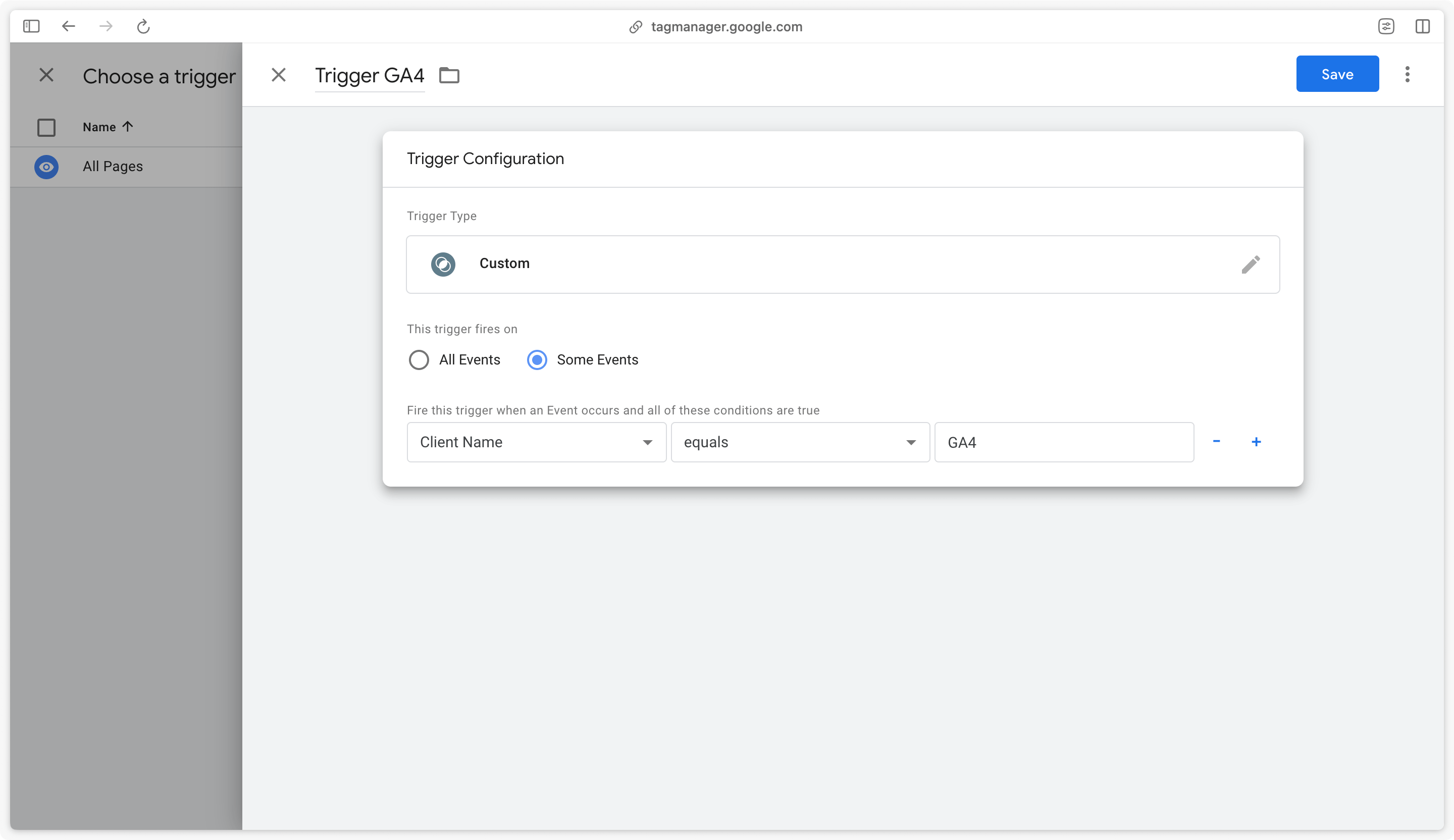
Save the trigger and tag.
Next step
Once your GA4 tag is configured, go back to the server container configuration to set up the preview URL.