Option 1: Reverse Proxy DNS
How does this solution work?
By using a reverse proxy, you force the traffic from your tracking server to pass through the DNS of your browsing website. The IPs of your browsing website server (example.com) and your tracking server (tagging.example.com) will no longer appear when cookies are set on the user’s browser = only the IP of your reverse proxy will be visible. Thus, when the browser checks the IP of your browsing server and the IP of your tracking server, these IPs will be exactly the same. The cookies set by your tracking server will therefore be considered first-party cookies, and their lifespan will be 13 months.
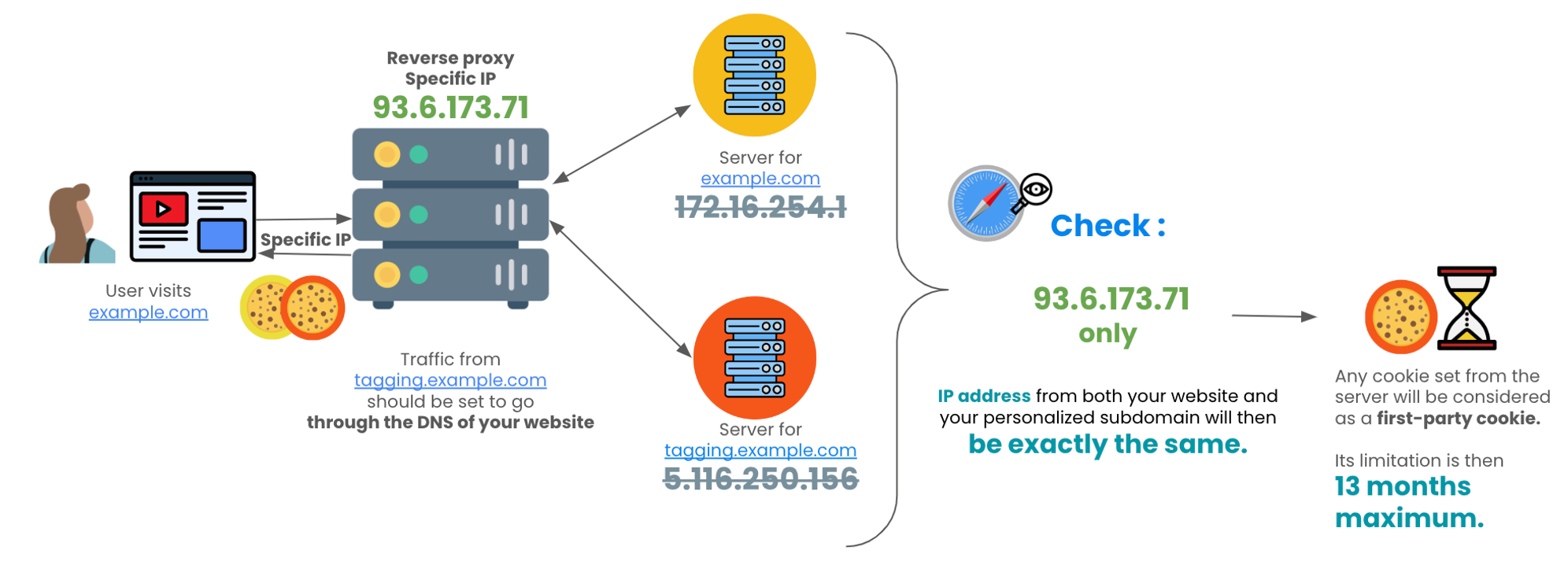
Below we are listing different providers. Reach out to your team internally to see if you are already one, that will help you select the best option to continue maintaining your cookies in the new version of Safari.
Provider Choice
Cloudflare
Reverse Proxy via Subdomain
Once your reverse proxy setup is live, your tracking can lapse for a short moment until all changes are propagated, make sure to start things outside of business critical times.
Detailed setup
-
Go to your Cloudflare account.
-
Select your website on the interface.
-
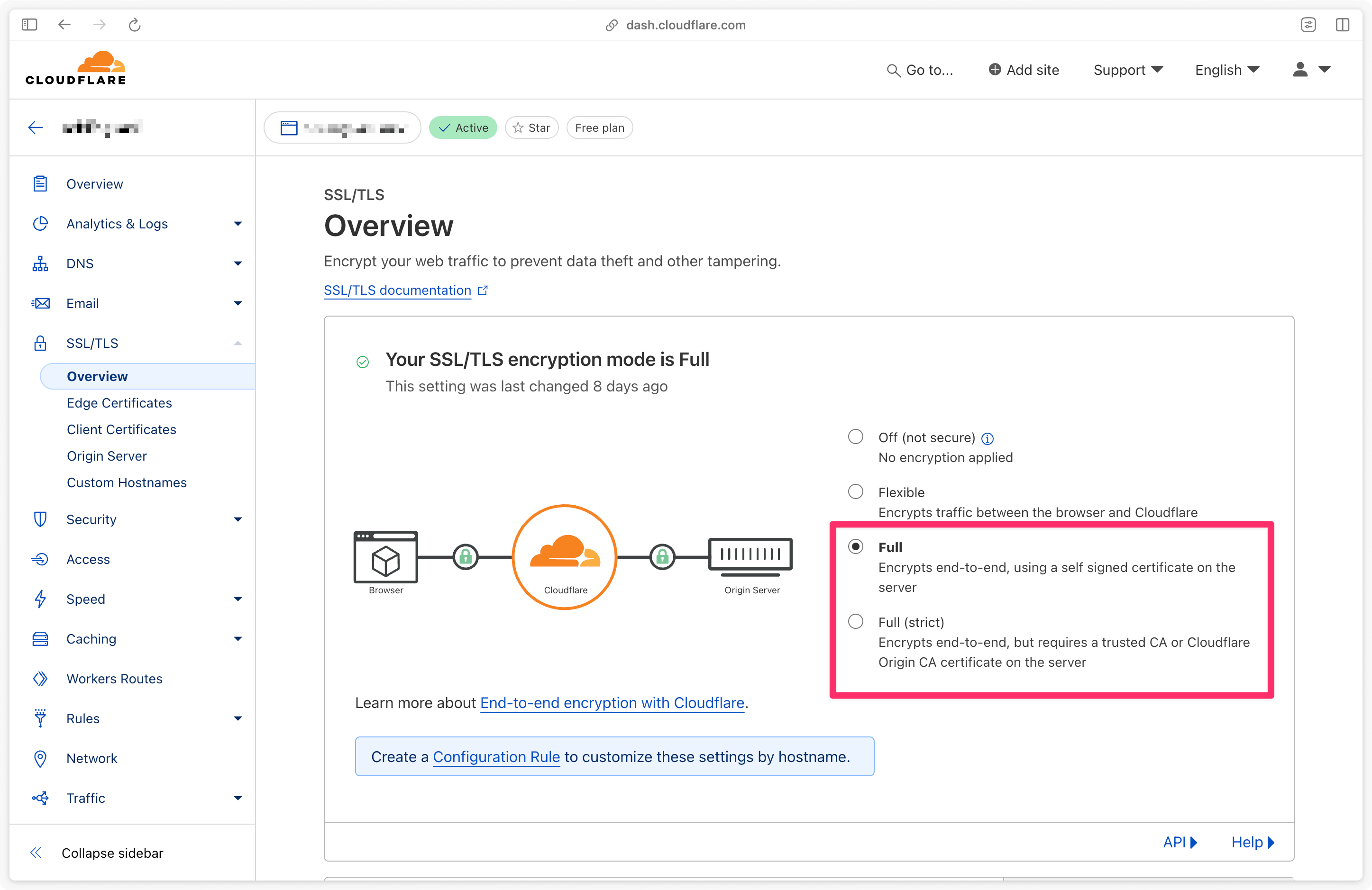
Go to SSL/TLS then Overview, and make sure the encryption mode is set to Full or Full (Strict).
If not, you can create a configuration rule to be Full only on the tagging domain.

-
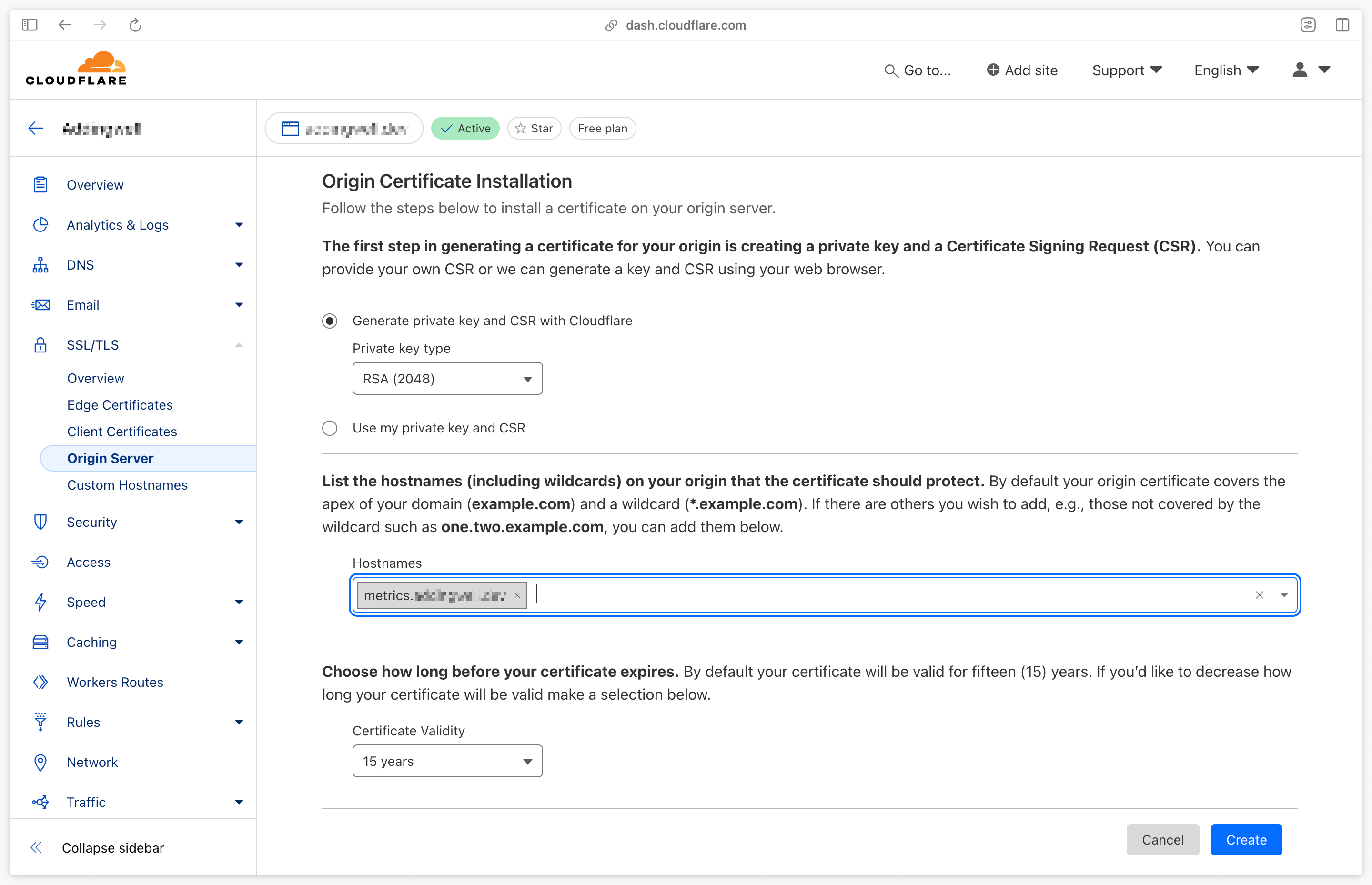
Go to SSL/TLS and select Origin Server.
-
Click on Create a certificate, and leave the options as default.
-
In the Hostname section, enter the domain defined in Addingwell, for example: metrics.example.com.

- Click on Create.
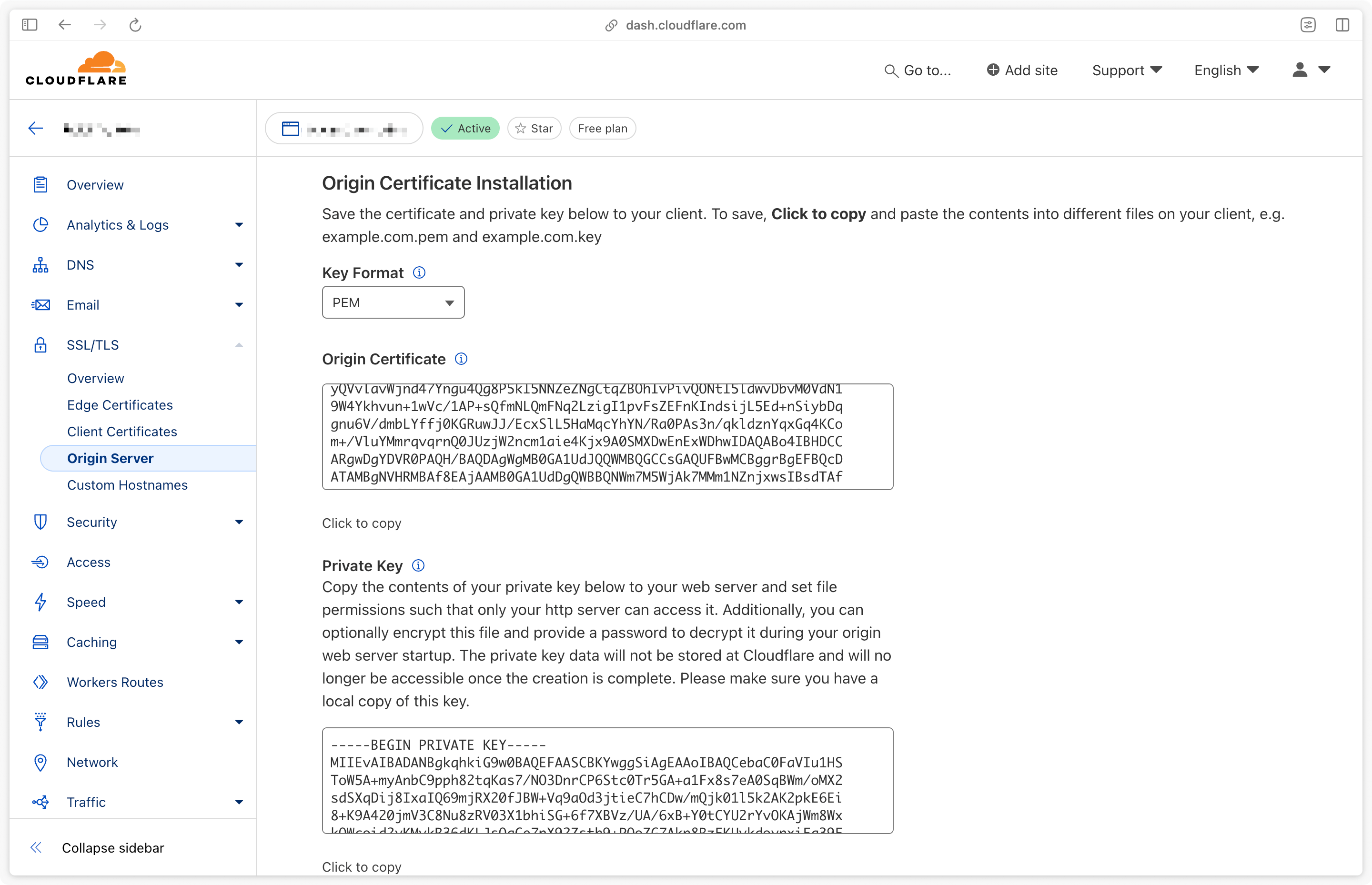
Once you have created the certificate, Cloudflare will provide you with the certificate and the private key, keep them for later. Please note that the private key will only be given once.

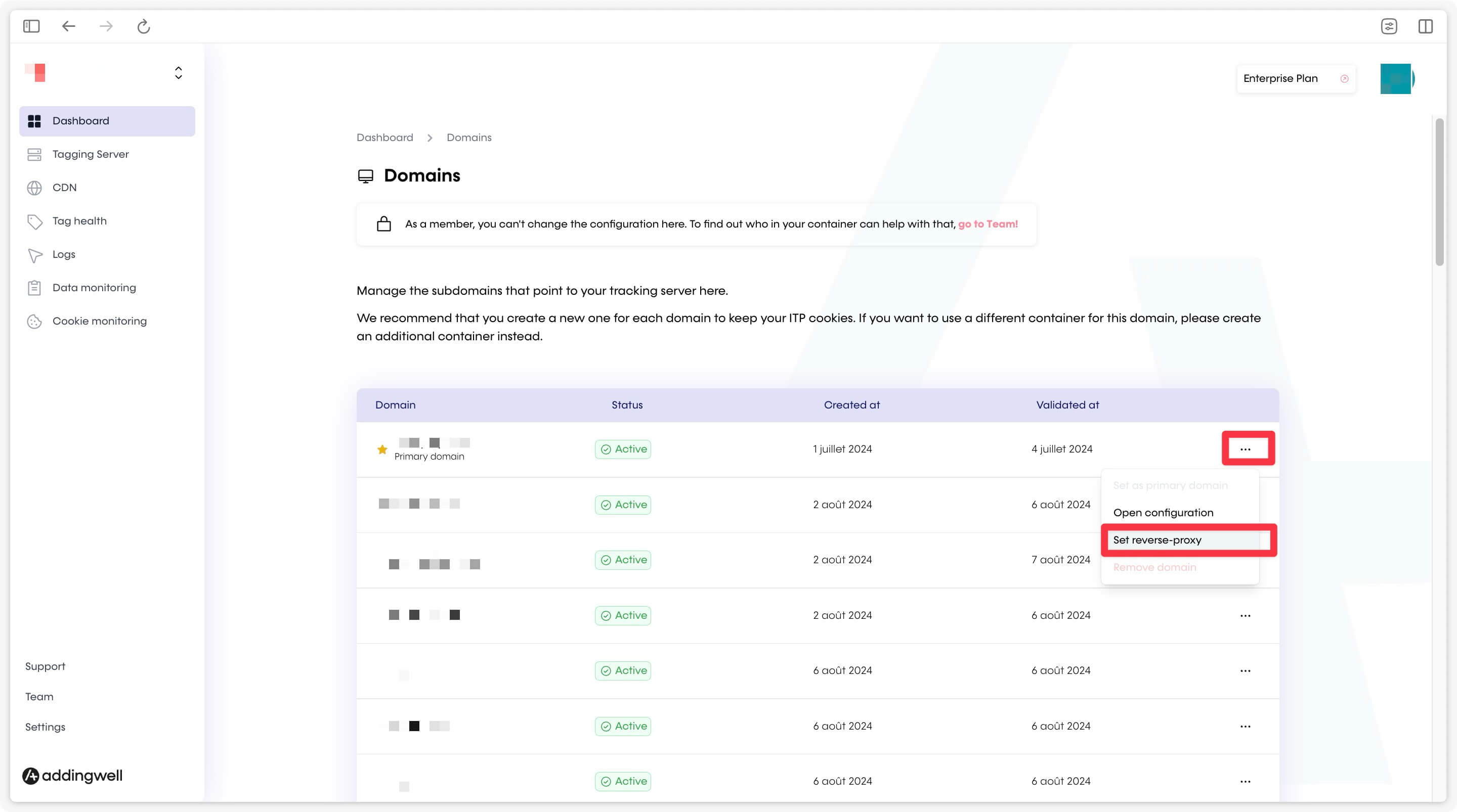
- In your Container on app.addingwell.com, under Dashboard > Domains, and on your domain, select Set reverse-proxy.

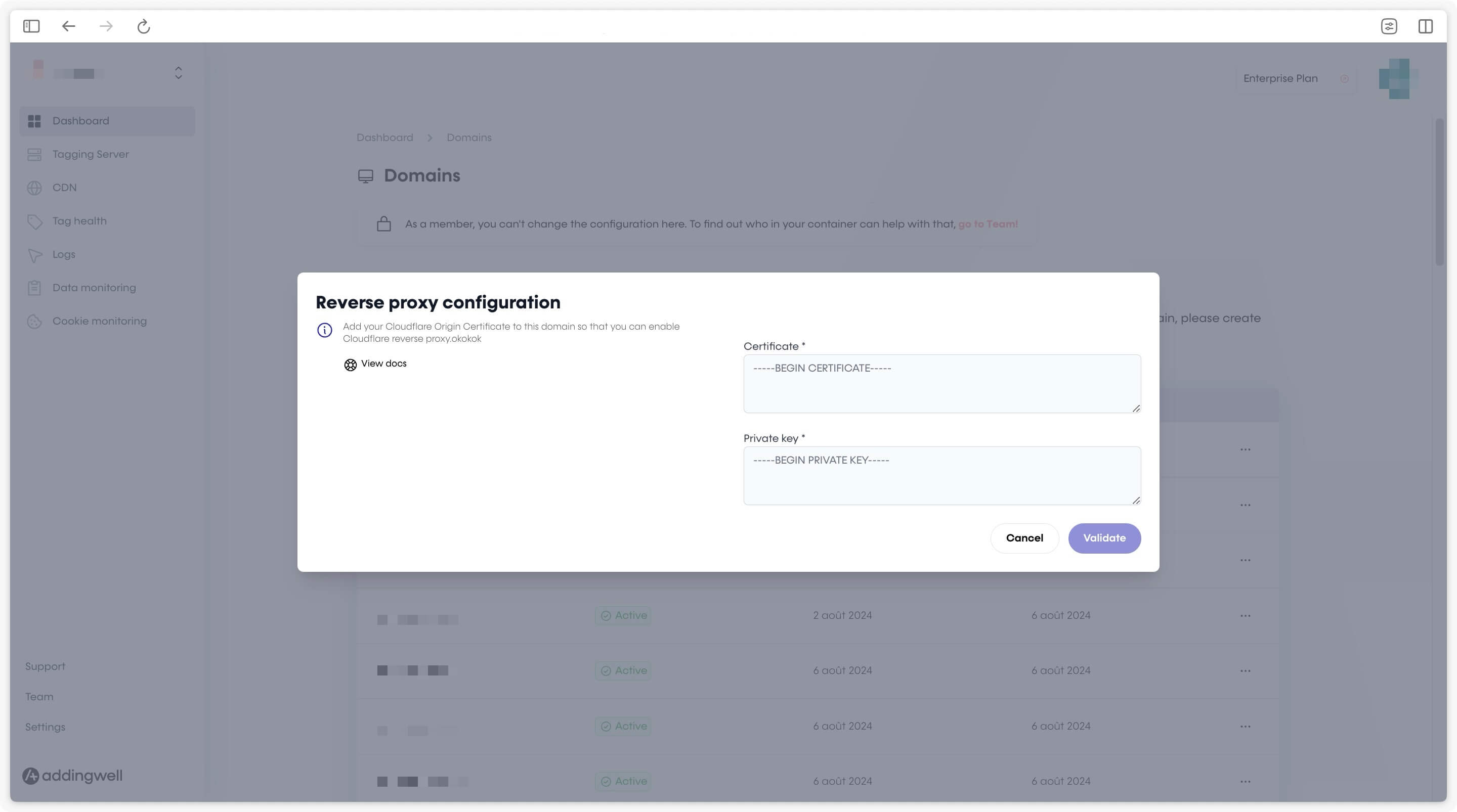
- Fill in the fields with your certificate and key provided by Cloudflare.

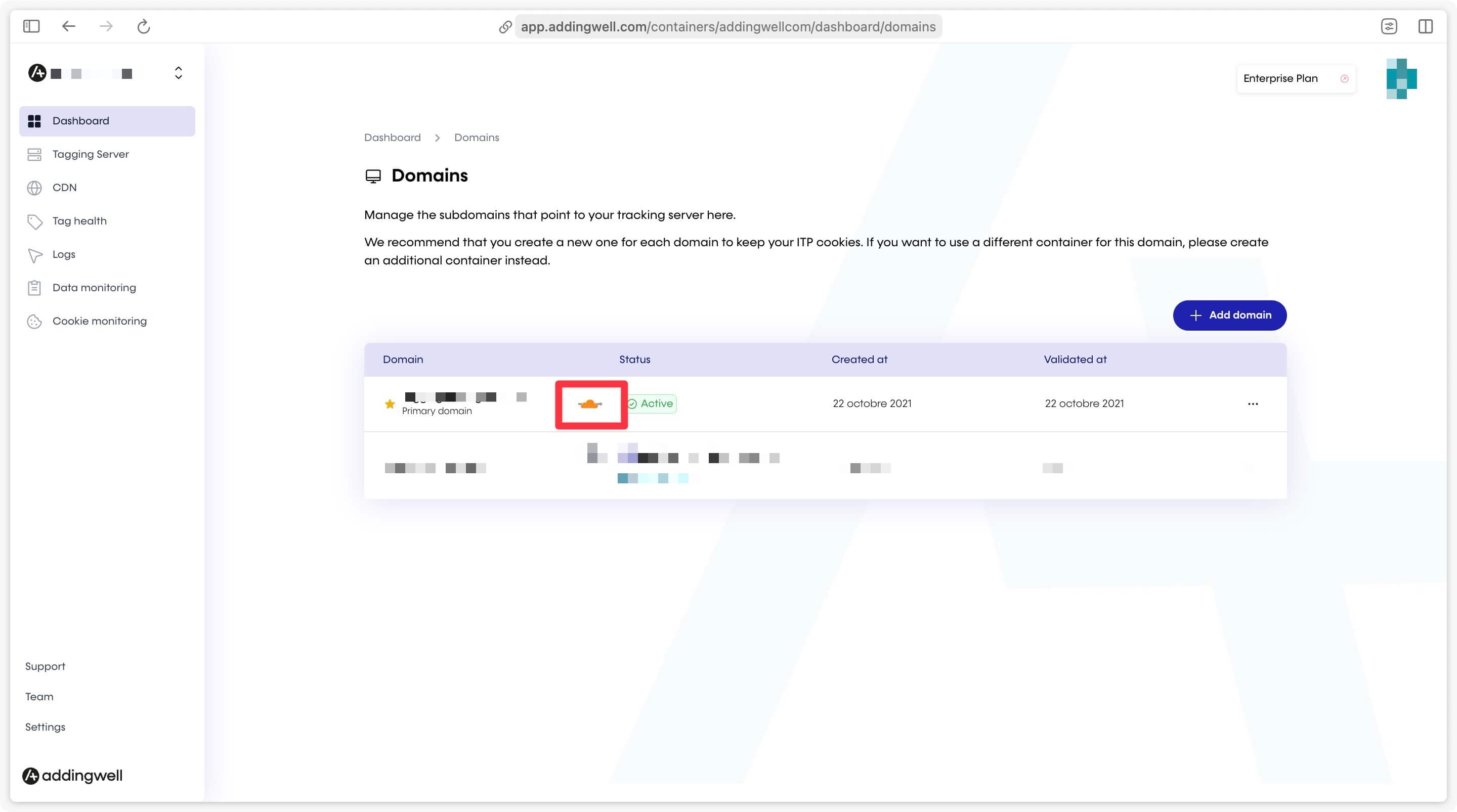
- Once the certificates have been registered, you should see an icon next to your domain.
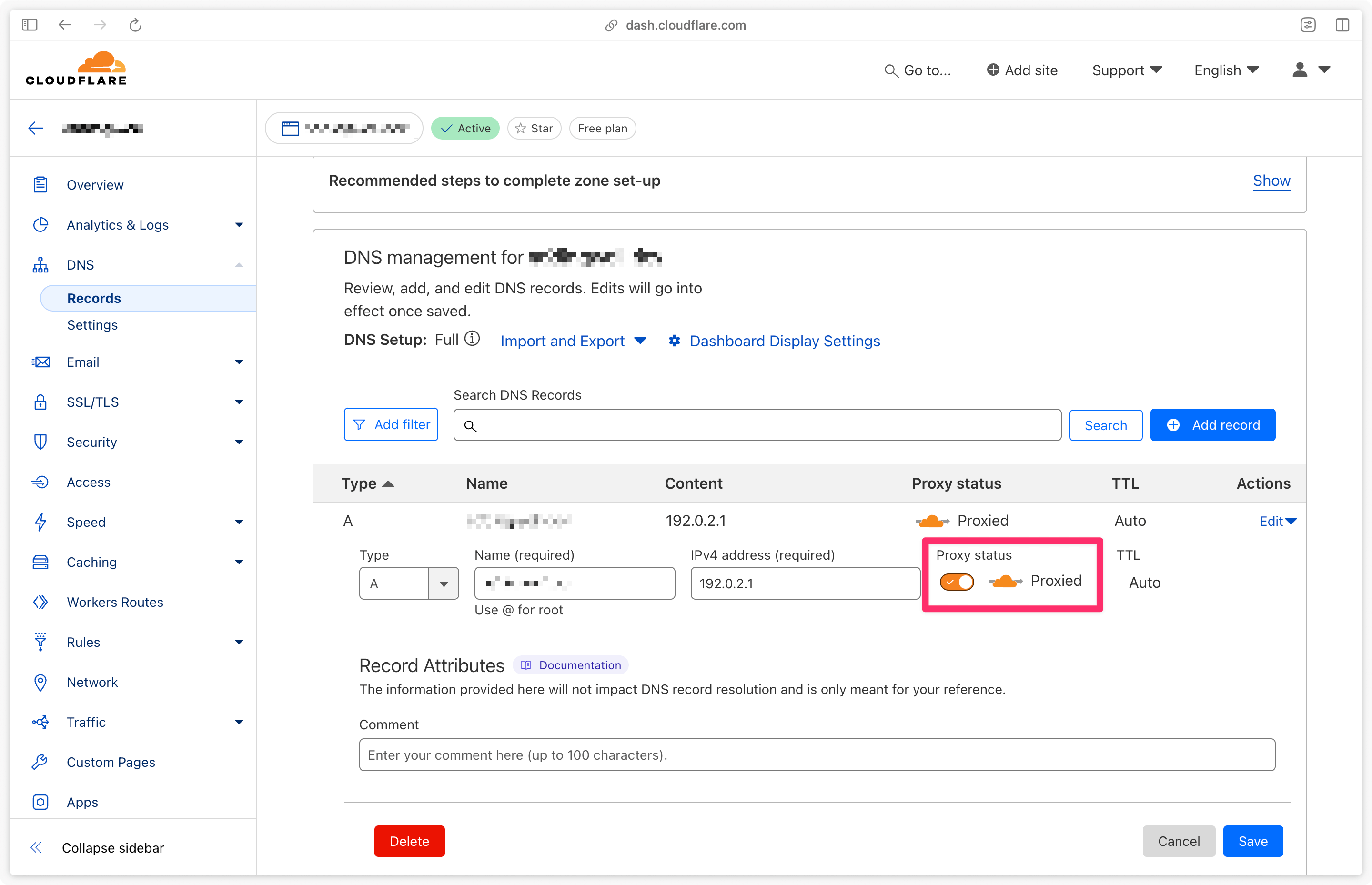
- Back on Cloudflare, in the left menu, select DNS and enable the Cloudflare proxy on the DNS record corresponding to the domain linked to Addingwell.

Reverse Proxy via Path
Once your reverse proxy setup is live, your tracking can lapse for a short moment until all changes are propagated, make sure to start things outside of business critical times.
Detailed setup
- Reserve a unique measurement path on your website domain for each domain on Addingwell you wish to apply a reverse proxy to. For website example.com, reserve for example: example.com/w3ke4d
Paths must not already be in use on your domain, not be the root path ”/”, and not exceed 100 characters. To avoid future ad blocks, avoid transparent paths like /metrics, /ads, etc…
-
Contact us at [email protected] mentioning the name of your container, the domain you are setting the reverse proxy on, the path chosen, and add the Object “Cloudflare Reverse Proxy Setup”.
We will return a value under the format example.adding-sst.com, keep it. It will be set up on our side and used as the destination endpoint for the reverse proxy configuration.
Pre-flight checks
- In the Cloudflare dashboard, select your domain and confirm that:
- The domain is proxied through Cloudflare (orange cloud on the DNS record for example.com)
- SSL/TLS → Overview is set to Full or Full (strict)
- Rules → Settings → URL normalization does not strip or sort query parameters (we require query parameters to be preserved unchanged)
Pick the configuration method that matches your Cloudflare plan:
Enterprise rules
If your Cloudflare plan is Enterprise, the reverse proxy can be set up with native rules. This keeps the proxy logic visible in the Cloudflare dashboard rather than in JavaScript. The required features (Resolve Override and SNI Override on Origin Rules) are gated to Enterprise — they are not available on Free, Pro or Business plans. If you are not on Enterprise, switch to the Worker tab.
Create the Origin Rule
Requests matching your measurement path are sent to the Addingwell destination instead of your normal origin, without touching the rest of your traffic.
-
Go to Rules → Overview, click Create rule, and choose Origin Rule.
-
Set the rule Name to something like
Addingwell Reverse Proxy. -
Under “If incoming requests match…”, select Custom filter expression and set Field to
URI Path, Operator tostarts withand Value to the path you’ve chosen at Step 1, e.g. /w3ke4d. -
Under “Then…”, configure all three overrides, pointing to the domain we sent you in Step 2:
- DNS Record → Override → example.adding-sst.com
- Host Header → Override → example.adding-sst.com
- SNI → Override → example.adding-sst.com
-
Save and Deploy.
Strip the path prefix
-
Go to Rules → Transform Rules → Rewrite URL and click Create rule.
-
Set the rule Name to something like
Addingwell path strip. -
Use the same custom filter expression as Step 6 (URI Path starts with /w3ke4d).
-
Under “Then…”, set Path → Rewrite to… → Dynamic and Expression to
regex_replace(http.request.uri.path, ”^/w3ke4d/?”, ”/”)(change w3ke4d by the path you chose at Step 1). -
Save and Deploy.
Add the required headers
-
Go to Rules → Transform Rules → Modify Request Header and click Create rule.
-
Set the rule Name to
Addingwell headers. -
Use the same custom filter expression as Step 6 (URI Path starts with /w3ke4d).
-
Under “Then…”, add two header modifications:
- Set static / dynamic header → Action:
Set→ Header name:x-forwarded-host→ Value:Dynamic→http.host - Set static / dynamic header → Action:
Set→ Header name:true-client-ip→ Value:Dynamic→ip.src
- Set static / dynamic header → Action:
-
Save and Deploy.
Bypass caching for the measurement path
Tracking endpoints must not be cached.
-
Go to Caching → Cache Rules and click Create rule.
-
Set the rule Name to
Addingwell bypass cache. -
Under “If incoming requests match…”, select Custom filter expression and build:
- Field:
URI Path - Operator:
starts with - Value: /w3ke4d (replace with your chosen path)
- Field:
-
Under “Then…”, set Cache eligibility to
Bypass cache. -
Save and Deploy.
Worker
Create the Worker
The Worker intercepts requests matching your measurement path, strips the path prefix, sets the required headers, and forwards the request to the Addingwell destination.
- In the Cloudflare dashboard, go to Workers & Pages → Create → Create Worker. Give it a name such as
addingwell-reverse-proxyand click Deploy to create an empty Worker.
Workers may incur additional Cloudflare usage costs above the Free plan’s allowance. Check Cloudflare’s pricing page for current rates if your traffic exceeds the included quota.
- On the deployed Worker’s page, click Edit code and replace the file contents with:
export default {
async fetch(request) {
const url = new URL(request.url);
const originalHost = url.hostname;
// Strip the /w3ke4d prefix; the trailing /? makes /w3ke4d,
// /w3ke4d/ and /w3ke4d/anything all resolve correctly.
url.pathname = url.pathname.replace(/^\/w3ke4d\/?/, "/");
// Route the request to the Addingwell destination
const destination = "example.adding-sst.com";
url.hostname = destination;
// Forward the original host so Addingwell knows the first-party domain,
// and the real client IP so Addingwell can geolocate the end user
// (Cloudflare would otherwise hide it behind the edge IP).
const newRequest = new Request(url, request);
newRequest.headers.set("Host", destination);
newRequest.headers.set("x-forwarded-host", originalHost);
newRequest.headers.set("true-client-ip", request.headers.get("CF-Connecting-IP"));
return fetch(newRequest);
},
};- Click Deploy to publish the Worker.
Bind the Worker to your domain and path
-
Still on the Worker’s page, open Settings → Domains & Routes → Add → Route.
-
Set:
- Zone: the domain on which the reverse proxy will run, e.g. example.com
- Route: example.com/w3ke4d/* (replace with your website domain and the path you chose at Step 1)
-
Save. The Worker now intercepts every request matching that route.
Bypass caching for the measurement path
Tracking endpoints must not be cached.
-
Go to Caching → Cache Rules and click Create rule.
-
Set the rule Name to
Addingwell bypass cache. -
Under “If incoming requests match…”, select Custom filter expression and build:
- Field:
URI Path - Operator:
starts with - Value: /w3ke4d (replace with your chosen path)
- Field:
-
Under “Then…”, set Cache eligibility to
Bypass cache. -
Save and Deploy.
Verify the setup
-
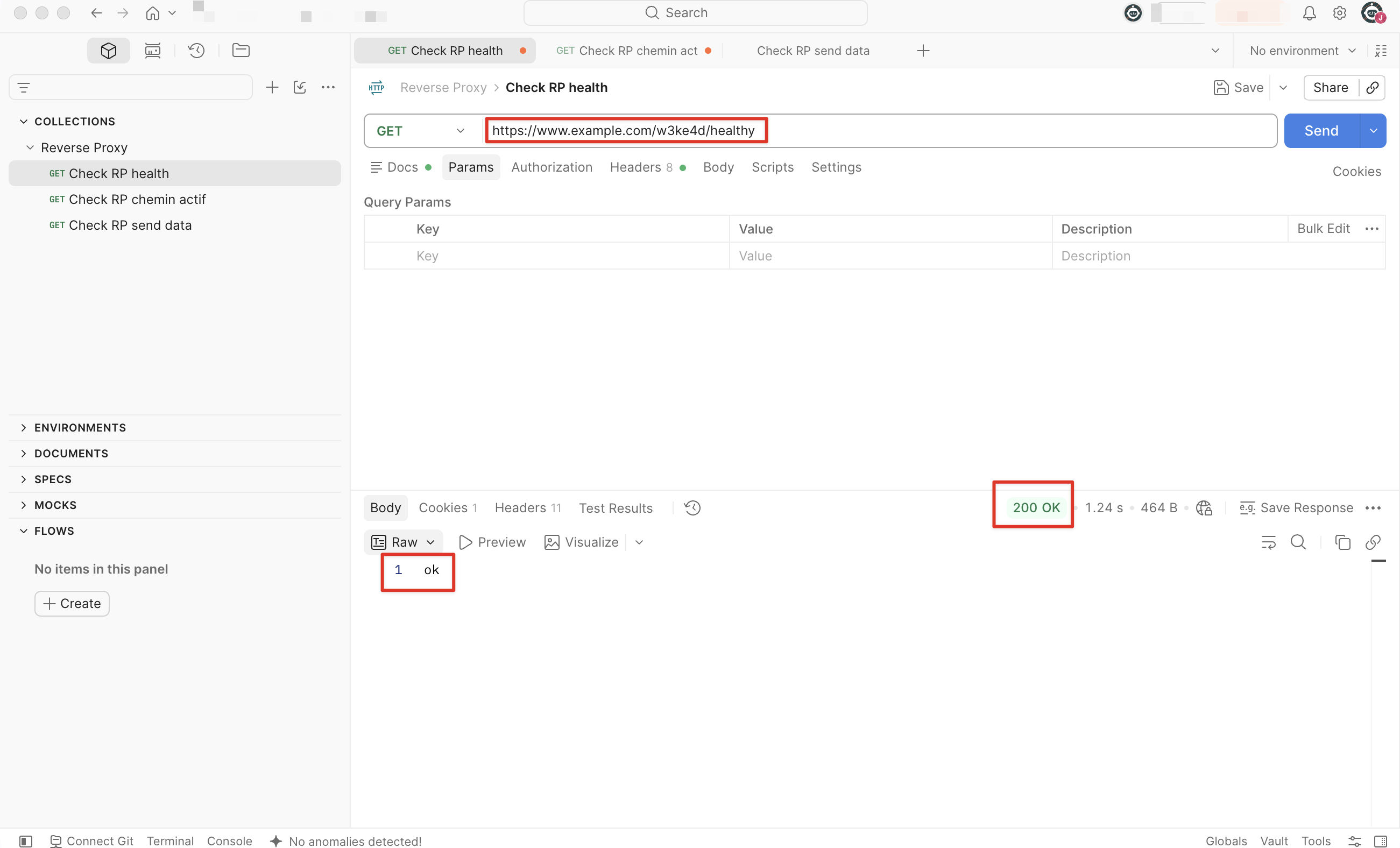
Go to */your-path/healthy, as
https://example.com/w3ke4d/healthy, the page should read: ok -
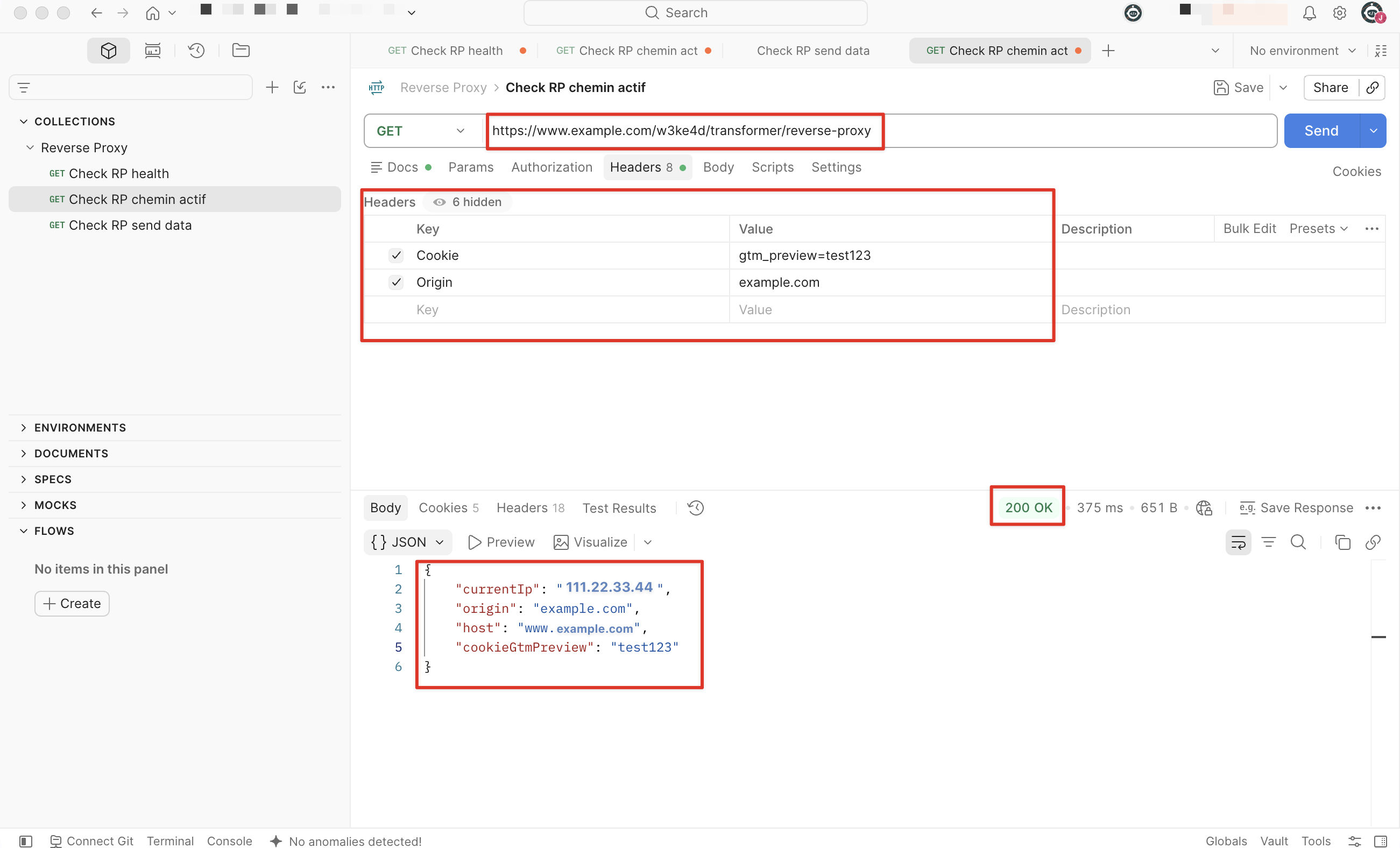
Go to */your-path/transformer/reverse-proxy, as
https://example.com/w3ke4d/transformer/reverse-proxy, the page must:- Display your IP in “currentIp”
- Display the current host in “host”
- If cookies are being passed they should not be changed
See for example this request:
curl --location 'https://example.com/w3ke4d/transformer/reverse-proxy' \ --header 'Cookie: gtm_preview=test123' \ --header 'Origin: example.com'Response should look like:
{ "currentIp": "X.X.X.X", "origin": "www.example.com", "host": "www.example.com", "cookieGtmPreview": "test123" }In host, the domain looking like example.adding-sst.com should not be displayed.
-
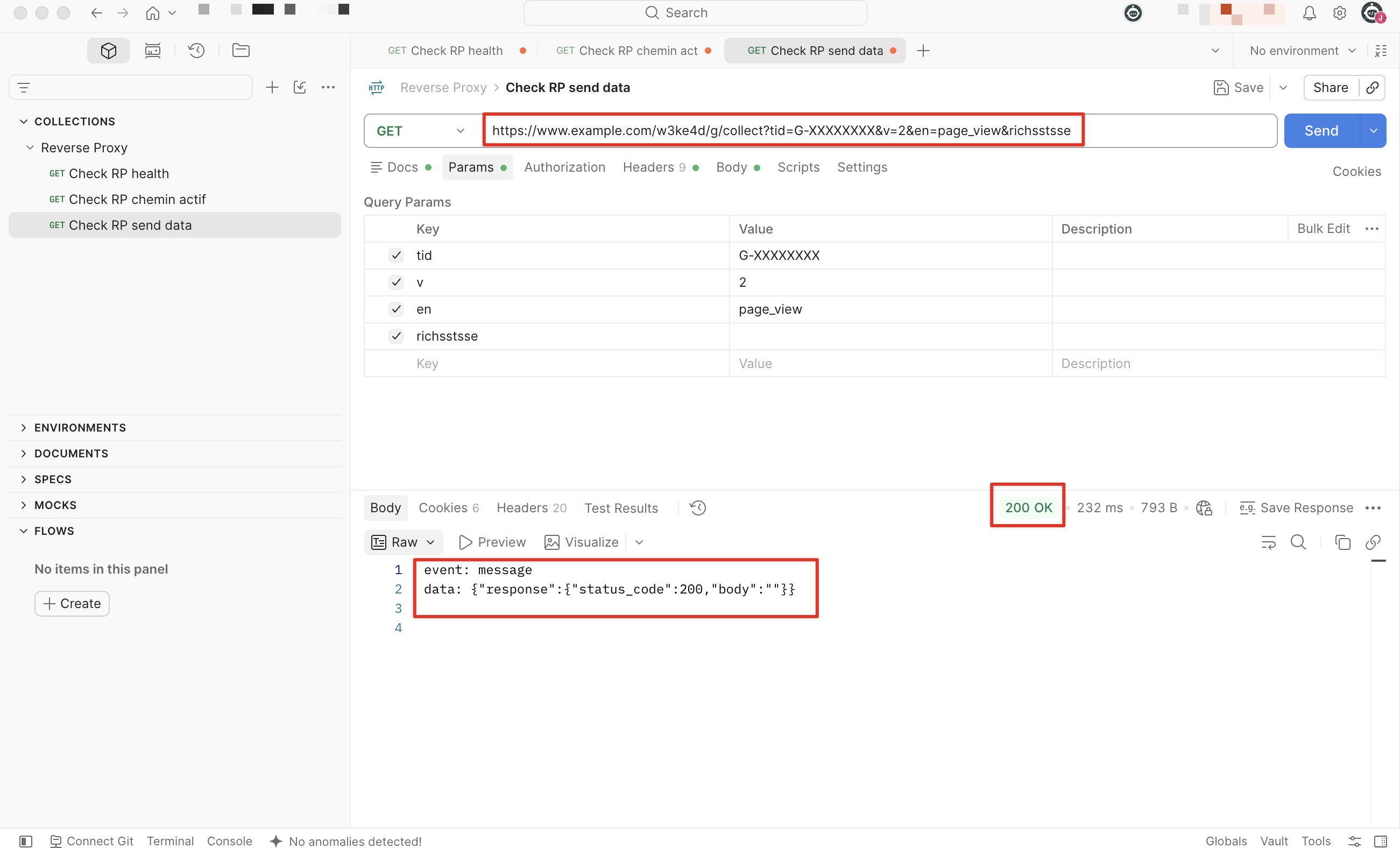
Go to
https://example.com/w3ke4d/g/collect?tid=G-XXXXXXXX&v=2&en=page_view&richsstsse. This is to try and send “real” data via the collect path, you should have a 200 response at minimum (depending on your configuration, some more elements might appear, like google ads remarketing).
Apply these changes and send your data via this path
Last but not least, now that the reverse proxy is configured, what is left to do is propagate these changes so data is sent through this newly created path.
Google Configuration Tag
To do so we will have to add or modify the server url in your GTM web container, to indicate the new destination for your data transporter tags.
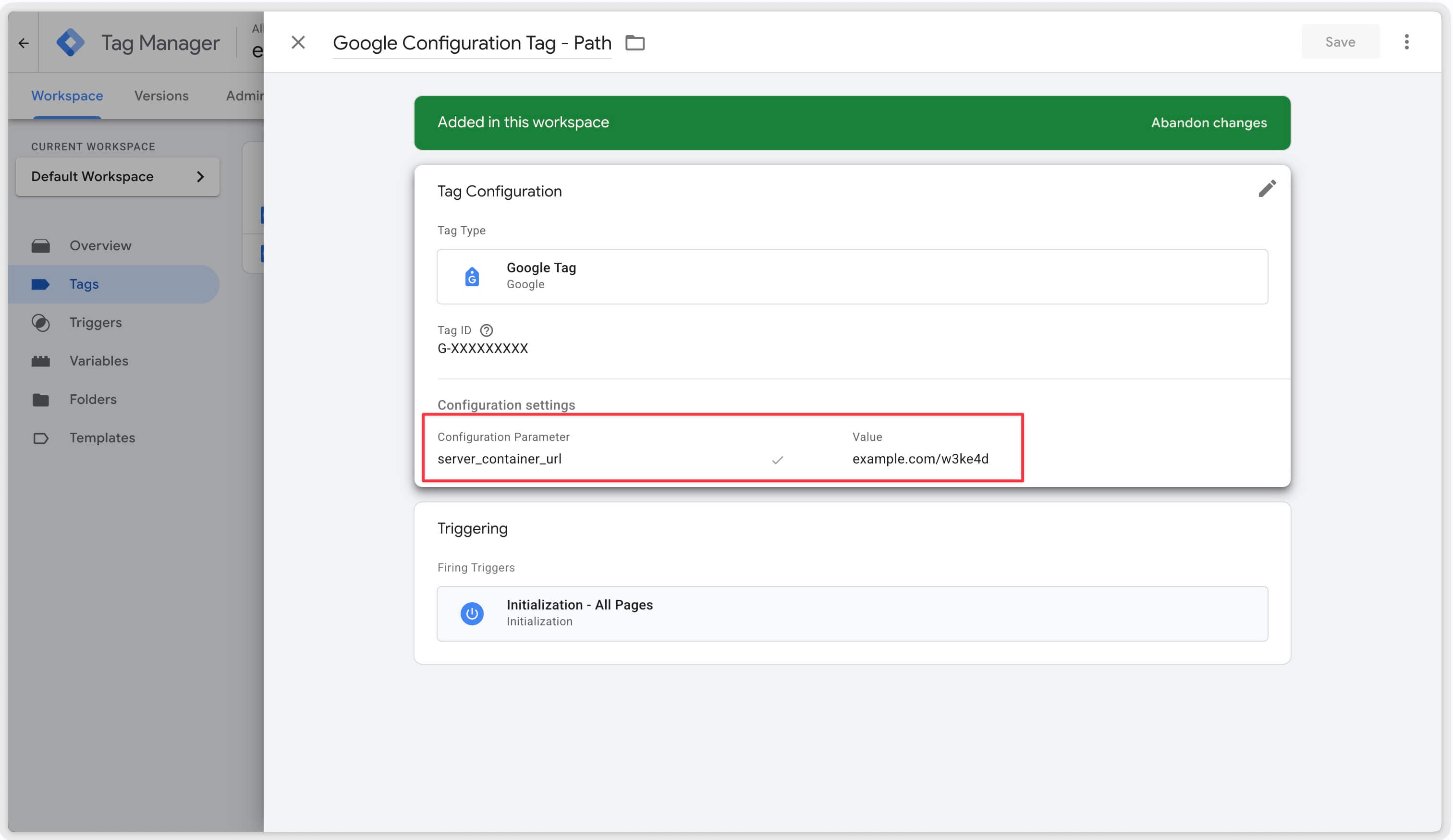
Select your Google Configuration Tag, and edit the configuration settings, either adding or changing the server_container_url parameter to reflect the destination with your domain/your path, e.g. example.com/w3ke4d

Server Side Preview
In your GTM server container, should you need to do some tests before pushing changes, you will need to also edit the server url.
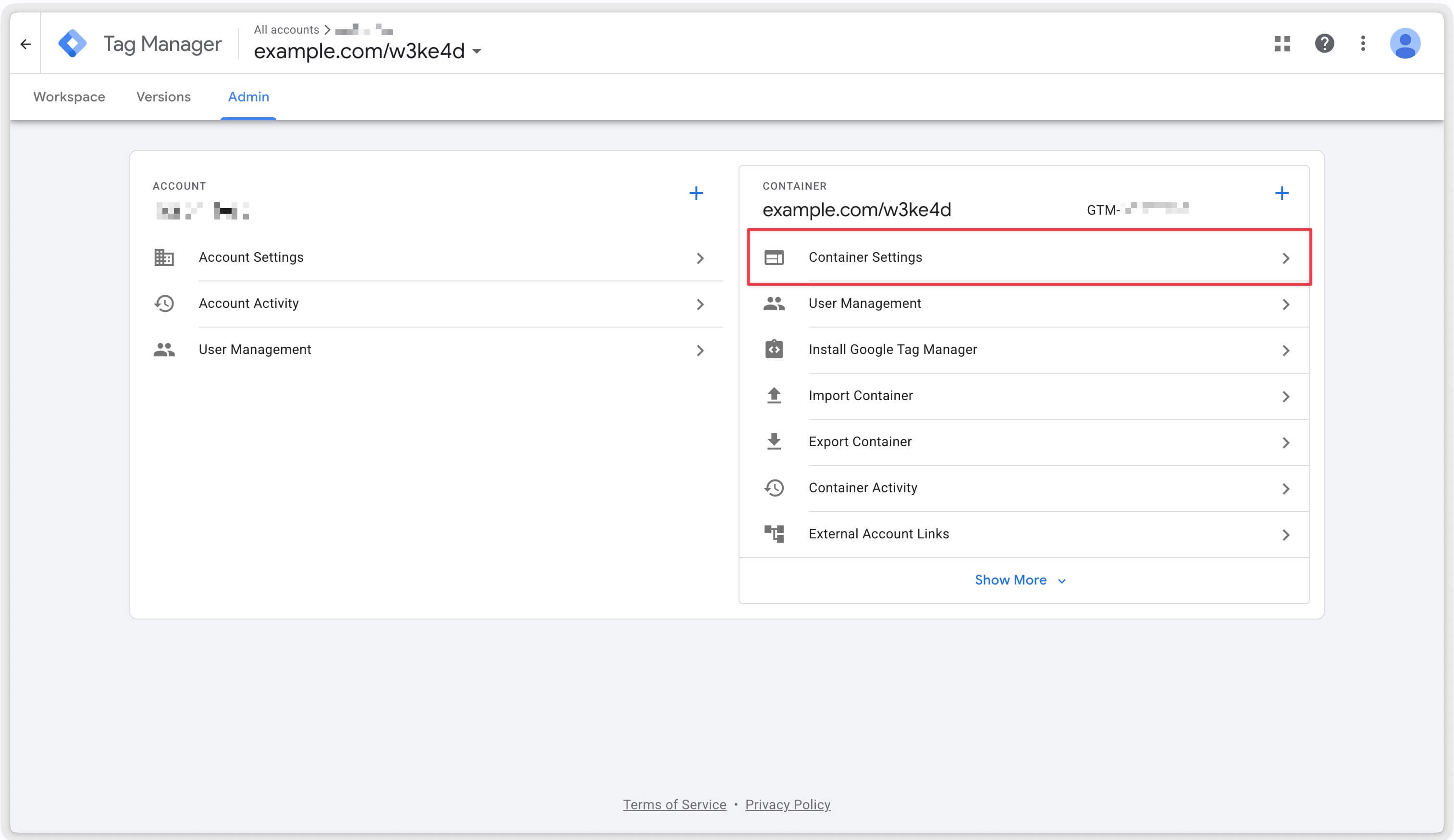
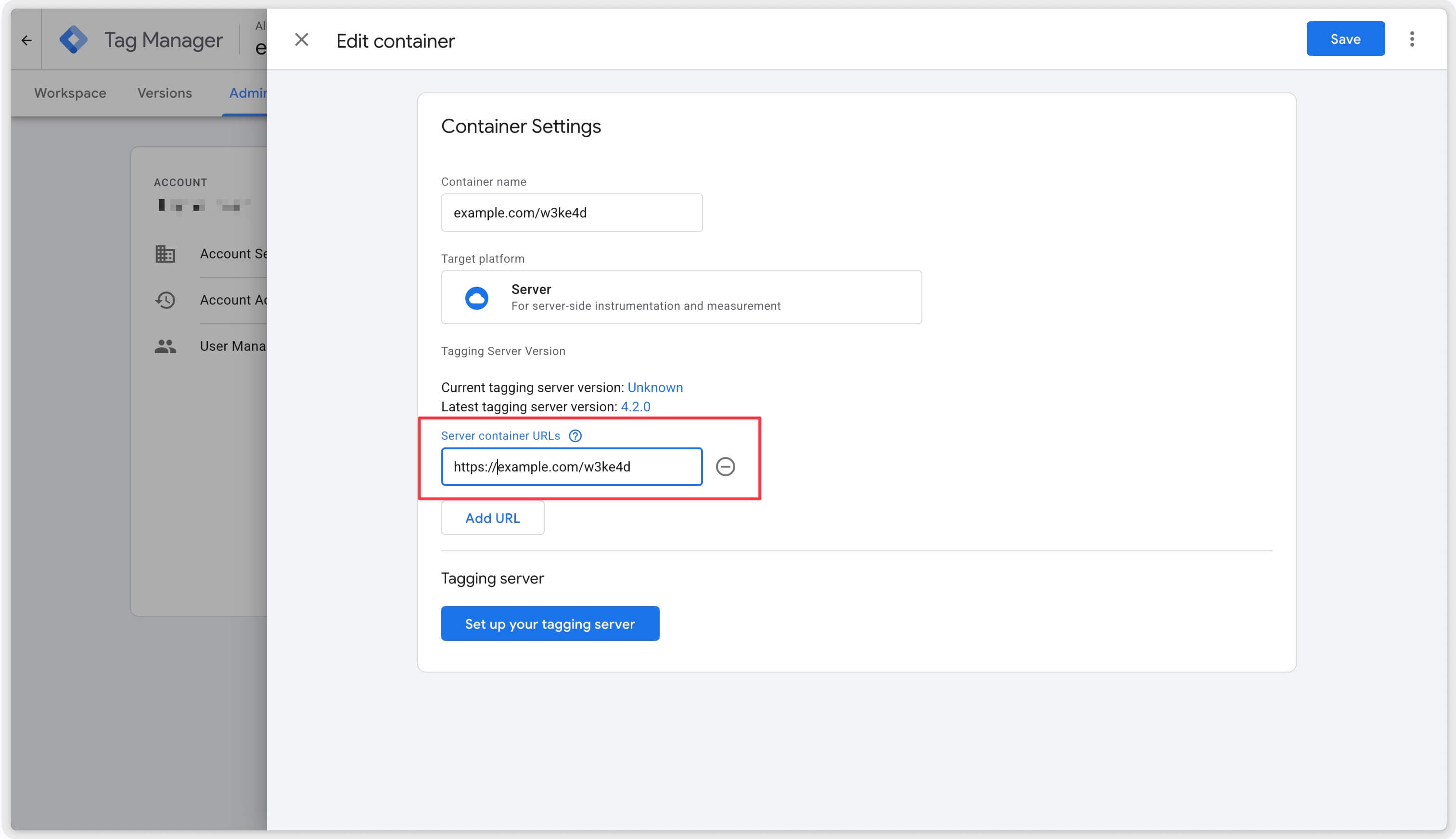
In Admin (top left), select Container Settings on the right and add a the URL to the server, under the format https://example.com/w3ke4d


(Optional) Ad-blocker bypass
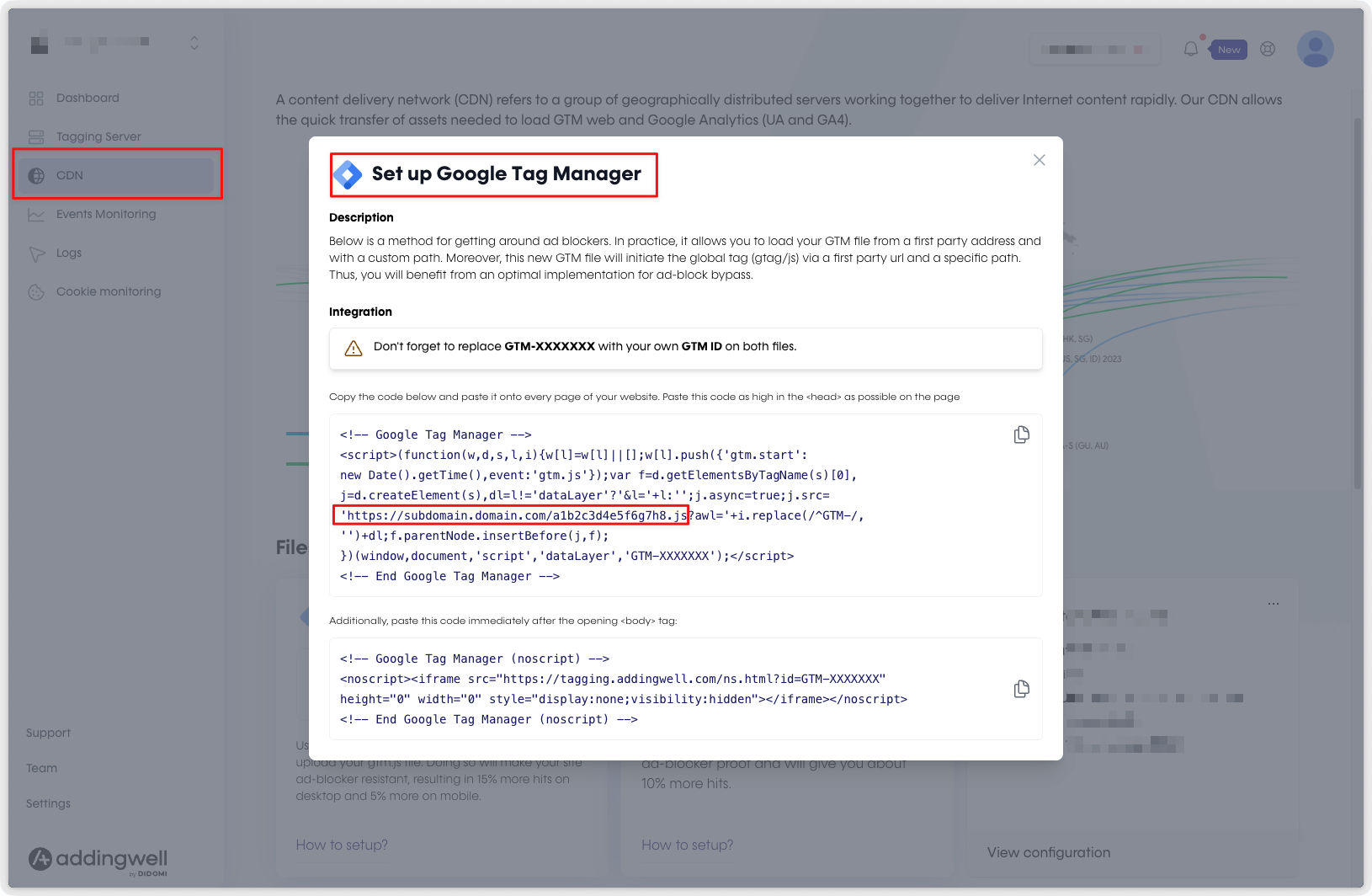
If you are using or want to use our CDN to bypass ad-blockers, there is a snippet you can use to load all the components you need for tracking using URLs that are not detectable. See our related documentation for more information.
If you followed this guide for implementing a reverse proxy, the snippet must be edited to reflect the changes.
Normally in this CDN tab you can find a snippet that has a line looking like https://w3ke4d.example.com/a1b2c3d4e5f6g7h8.js…
Replace the w3ke4d.example.com by your domain and chosen path, like example.com/w3ke4d
This will ensure you load the gtm via the reverse proxy we just set up and bypass all the ad-blockers on the market.
Akamai
Once your reverse proxy setup is live, your tracking can lapse for a short moment until all changes are propagated, make sure to start things outside of business critical times.
Detailed setup
- Reserve a unique measurement path on your website domain for each domain on Addingwell you wish to apply a reverse proxy to. For website example.com, reserve for example: example.com/w3ke4d
Paths must not already be in use on your domain, not be the root path ”/”, and not exceed 100 characters. To avoid future ad blocks, avoid transparent paths like /metrics, /ads, etc…
-
Contact us at [email protected] mentioning the name of your container, the domain you are setting the reverse proxy on, the path chosen, and add the Object “Reverse Proxy Setup via Path Cloudfront”.
We will return a value under the format example.adding-sst.com, keep it. It will be set up on our side and used as the destination endpoint for the reverse proxy configuration.
Change the Origin
-
Go to the Cloudfront page in Amazon Web Services.
-
Select your Cloudfront Distribution.
-
In the Origins tab, create an origin with the following settings:
- Set Origin domain to the domain we replied with in Step 2, looking like example.adding-sst.com.
- Set Protocol to HTTPS Only.
- Under Add custom header, add a header with Header name
x-forwarded-hostand Header value set to your first-party domain, e.g. example.com. This forwards the original host to the Addingwell server, which Cloudfront does not pass natively when using theAllViewerExceptHostHeaderorigin request policy. For the end-user IP, Cloudfront populatesX-Forwarded-Forautomatically with the viewer’s IP.
Create the redirect behavior
-
Going back to your Distribution, this time select the Behaviors tab, and create a new Behavior.
-
Set Path pattern to the path you’ve chosen in Step 1 (for example we used /w3ke4d/*).
The path prefix (e.g. /w3ke4d) must be removed when forwarding the request to the Addingwell destination domain (e.g. example.adding-sst.com). The full remaining path must be preserved, E.g. /w3ke4d/test/collect must be forwarded as: /test/collect
-
Set Origin and origin groups to to the domain we replied with, looking like example.adding-sst.com.
-
Set Compress objects automatically to No.
-
Set Viewer protocol policy to HTTPS only.
-
Set Allowed HTTP Methods to GET, HEAD, OPTIONS, PUT, POST, PATCH, DELETE.
-
Under Cache key and origin requests choose Cache policy and origin request policy
- Set Cache policy to CachingDisabled.
- Set Origin request policy to AllViewerExceptHostHeader.
-
In the Behavior list verify the precedence of the new behavior is higher than all other behaviors.
Verify the setup
-
Go to */your-path/healthy, as
https://example.com/w3ke4d/healthy, the page should read: ok -
Go to */your-path/transformer/reverse-proxy, as
https://example.com/w3ke4d/transformer/reverse-proxy, the page must:- Display your IP in “currentIp”
- Display the current host in “host”
- If cookies are being passed they should not be changed
See for example this request:
curl --location 'https://example.com/w3ke4d/transformer/reverse-proxy' \ --header 'Cookie: gtm_preview=test123' \ --header 'Origin: example.com'Response should look like:
{ "currentIp": "X.X.X.X", "origin": "www.example.com", "host": "www.example.com", "cookieGtmPreview": "test123" }In host, the domain looking like example.adding-sst.com should not be displayed.
-
Go to
https://example.com/w3ke4d/g/collect?tid=G-XXXXXXXX&v=2&en=page_view&richsstsse. This is to try and send “real” data via the collect path, you should have a 200 response at minimum (depending on your configuration, some more elements might appear, like google ads remarketing).
Apply these changes and send your data via this path
Last but not least, now that the reverse proxy is configured, what is left to do is propagate these changes so data is sent through this newly created path.
Google Configuration Tag
To do so we will have to add or modify the server url in your GTM web container, to indicate the new destination for your data transporter tags.
Select your Google Configuration Tag, and edit the configuration settings, either adding or changing the server_container_url parameter to reflect the destination with your domain/your path, e.g. example.com/w3ke4d

Server Side Preview
In your GTM server container, should you need to do some tests before pushing changes, you will need to also edit the server url.
In Admin (top left), select Container Settings on the right and add a the URL to the server, under the format https://example.com/w3ke4d


(Optional) Ad-blocker bypass
If you are using or want to use our CDN to bypass ad-blockers, there is a snippet you can use to load all the components you need for tracking using URLs that are not detectable. See our related documentation for more information.
If you followed this guide for implementing a reverse proxy, the snippet must be edited to reflect the changes.
Normally in this CDN tab you can find a snippet that has a line looking like https://w3ke4d.example.com/a1b2c3d4e5f6g7h8.js…
Replace the w3ke4d.example.com by your domain and chosen path, like example.com/w3ke4d
This will ensure you load the gtm via the reverse proxy we just set up and bypass all the ad-blockers on the market.
NGINX
Once your reverse proxy setup is live, your tracking can lapse for a short moment until all changes are propagated, make sure to start things outside of business critical times.
Detailed setup
- Reserve a unique measurement path on your website domain for each domain on Addingwell you wish to apply a reverse proxy to. For website example.com, reserve for example: example.com/w3ke4d
Paths must not already be in use on your domain, not be the root path ”/”, and not exceed 100 characters. To avoid future ad blocks, avoid transparent paths like /metrics, /ads, etc…
-
Contact us at [email protected] mentioning the name of your container, the domain you are setting the reverse proxy on, the path chosen, and add the Object “Reverse Proxy Setup via Path Akamai”.
We will return a value under the format example.adding-sst.com, keep it. It will be set up on our side and used as the destination endpoint for the reverse proxy configuration.
Change the Origin
-
Create a new version of your delivery configuration in the property manager
-
Under the Property Configuration Settings section add a new Rule. Enter a name, such as Measurement Path
-
Add a new Match, set the match dropdowns to Path and is one of
-
Then, set the match value to the path you defined in Step 1, for example /w3ke4d/*
The path prefix (e.g. /w3ke4d) must be removed when forwarding the request to the Addingwell destination domain (e.g. example.adding-sst.com). The full remaining path must be preserved, E.g. /w3ke4d/test/collect must be forwarded as: /test/collect
-
Add a new Behavior and select Standard Property Behavior and choose the Origin Server behavior.
-
Set Origin Server Hostname to the value we sent you in Step 2, under the format example.adding-sst.com
-
Set Forward Host Header to Origin Hostname
-
In Origin SSL Certificate Verification, set Match CN/SAN to “{{Origin Hostname}}”, as well as the value we sent you in Step 2, under the format example.adding-sst.com.
-
Add a Modify Outgoing Request Path behavior. Set Action to
Remove fixed path segment, and set the Path segment to remove as the path you’ve chosen in Step 1, here /w3ke4d. -
Add a Modify Outgoing Request Header behavior to forward the original host. Set Action to
Add, Custom header name asx-forwarded-host, with Header value as{{builtin.AK_HOST}}, and set Avoid duplicate headers asOn. -
Add another Modify Outgoing Request Header behavior to forward the client IP. Set Action to
Add, Custom header name astrue-client-ip, Header value as{{builtin.AK_CLIENT_IP}}, and set Avoid duplicate headers asOn.
Make sure you don’t have any rules that modify or remove the outgoing response headers. This may cause Google scripts to fail if the Content-Type response header is missing.
Verify the setup
-
Go to */your-path/healthy, as
https://example.com/w3ke4d/healthy, the page should read: ok -
Go to */your-path/transformer/reverse-proxy, as
https://example.com/w3ke4d/transformer/reverse-proxy,The page must:
- Display your IP in “currentIp”
- Display the current host in “host”
- If cookies are being passed they should not be changed
See for example this request:
curl --location 'https://example.com/w3ke4d/transformer/reverse-proxy' \ --header 'Cookie: gtm_preview=test123' \ --header 'Origin: example.com'Response should look like:
{ "currentIp": "X.X.X.X", "origin": "www.example.com", "host": "www.example.com", "cookieGtmPreview": "test123" }In host, the domain looking like example.adding-sst.com should not be displayed.
-
Go to
https://example.com/w3ke4d/g/collect?tid=G-XXXXXXXX&v=2&en=page_view&richsstsse. This is to try and send “real” data via the collect path, you should have a 200 response at minimum (depending on your configuration, some more elements might appear, like google ads remarketing).
Apply these changes and send your data via this path
Last but not least, now that the reverse proxy is configured, what is left to do is propagate these changes so data is sent through this newly created path.
Google Configuration Tag
To do so we will have to add or modify the server_container_url parameter in your GTM web container, to indicate the new server destination for your data transporter tags.
Select your Google Configuration Tag, and either add or edit the server_container_url parameter to reflect the destination with your domain/your path, e.g. example.com/w3ke4d

Server Side Preview
In your GTM server container, should you need to do some tests before pushing changes, you will need to also edit the server url.
In Admin (top left), select Container Settings on the right and add a the URL to the server, under the format https://example.com/w3ke4d


(Optional) Ad-blocker bypass
If you are using or want to use our CDN to bypass ad-blockers, there is a snippet you can use to load all the components you need for tracking using URLs that are not detectable. See our related documentation for more information.
If you followed this guide for implementing a reverse proxy, the snippet must be edited to reflect the changes.
Normally in this CDN tab you can find a snippet that has a line looking like https://w3ke4d.example.com/a1b2c3d4e5f6g7h8.js…
Replace the w3ke4d.example.com by your domain and chosen path, like example.com/w3ke4d
This will ensure you load the gtm via the reverse proxy we just set up and bypass all the ad-blockers on the market.
Other (General Rules)
Once your reverse proxy setup is live, your tracking can lapse for a short moment until all changes are propagated, make sure to start things outside of business critical times.
Detailed setup
- Reserve a unique measurement path on your website domain for each domain on Addingwell you wish to apply a reverse proxy to. For website example.com, reserve for example: example.com/w3ke4d
Paths must not already be in use on your domain, not be the root path ”/”, and not exceed 100 characters. To avoid future ad blocks, avoid transparent paths like /metrics, /ads, etc…
-
Contact us at [email protected] mentioning the name of your container, the domain you are setting the reverse proxy on, the path chosen, and add the Object “Reverse Proxy Setup via Path GCP”.
We will return a value under the format example.adding-sst.com, keep it. It will be set up on our side and used as the destination endpoint for the reverse proxy configuration.
Backend Rules
-
Open GCP load balancer, and then the Backend configuration section. Select Create a new backend service
-
To start the configuration, specify a name, such as “measurement-path”
-
Set Backend type to Internet network endpoint group
-
For Protocol, select HTTPS and leave Timeout as the default value
-
Under Backends, select the Internet network endpoint group drop-down and create a new one
-
Set Network endpoint group type to Internet NEG (Global, Regional), Scope to Global, Add through to Fully qualified domain name and port
-
Under Fully qualified domain name, write the domain we sent you in Step 2 as a hostname (no protocol prefix), e.g. example.adding-sst.com
-
Click CREATE to create the endpoint, and close the Network endpoint group tab to return to the New backend service one.
-
Search for the name of the new network endpoint group you chose in Step 4, select it, then open the Advanced configurations section. Add the following request headers:
- Host with the value of the domain we sent you in Step 2, under the format example.adding-sst.com
- x-forwarded-host with the value of your domain, e.g. example.com
- true-client-ip with the value
{client_ip_address}, GCP’s placeholder for this custom header variable.
-
Save the configuration
Routing rules
-
Going back to GCP load balancer, this time open the Routing rules section
-
Add the following host and path rules:
- Host: *
- Path: the path you defined in Step 1, (e.g. /w3ke4d) under the format /w3ke4d/*
- Backend: the name of the backend defined in Step 4
-
Still in the Routing rules section, expand the path rule you just created and open Advanced URL rewrite. Then set the Path prefix rewrite to
/.
The path prefix (e.g. /w3ke4d) must be removed when forwarding the request to the Addingwell destination domain (e.g. example.adding-sst.com). The full remaining path must be preserved, E.g. /w3ke4d/test/collect must be forwarded as: /test/collect
- Update and save the load balancer configuration.
Verify the setup
-
Go to */your-path/healthy, as
https://example.com/w3ke4d/healthy, the page should read: ok -
Go to */your-path/transformer/reverse-proxy, as
https://example.com/w3ke4d/transformer/reverse-proxy,The page must:
- Display your IP in “currentIp”
- Display the current host in “host”
- If cookies are being passed they should not be changed
See for example this request:
curl --location 'https://example.com/w3ke4d/transformer/reverse-proxy' \ --header 'Cookie: gtm_preview=test123' \ --header 'Origin: example.com'Response should look like:
{ "currentIp": "X.X.X.X", "origin": "www.example.com", "host": "www.example.com", "cookieGtmPreview": "test123" }In host, the domain looking like example.adding-sst.com should not be displayed.
-
Go to
https://example.com/w3ke4d/g/collect?tid=G-XXXXXXXX&v=2&en=page_view&richsstsse. This is to try and send “real” data via the collect path, you should have a 200 response at minimum (depending on your configuration, some more elements might appear, like google ads remarketing).
Apply these changes and send your data via this path
Last but not least, now that the reverse proxy is configured, what is left to do is propagate these changes so data is sent through this newly created path.
Google Configuration Tag
To do so we will have to add or modify the server_container_url parameter in your GTM web container, to indicate the new server destination for your data transporter tags.
Select your Google Configuration Tag, and either add or edit the server_container_url parameter to reflect the destination with your domain/your path, e.g. example.com/w3ke4d

Server Side Preview
In your GTM server container, should you need to do some tests before pushing changes, you will need to also edit the server url.
In Admin (top left), select Container Settings on the right and add a the URL to the server, under the format https://example.com/w3ke4d


(Optional) Ad-blocker bypass
If you are using or want to use our CDN to bypass ad-blockers, there is a snippet you can use to load all the components you need for tracking using URLs that are not detectable. See our related documentation for more information.
If you followed this guide for implementing a reverse proxy, the snippet must be edited to reflect the changes.
Normally in this CDN tab you can find a snippet that has a line looking like https://w3ke4d.example.com/a1b2c3d4e5f6g7h8.js…
Replace the w3ke4d.example.com by your domain and chosen path, like example.com/w3ke4d
This will ensure you load the gtm via the reverse proxy we just set up and bypass all the ad-blockers on the market.
undefined
Once your reverse proxy setup is live, your tracking can lapse for a short moment until all changes are propagated, make sure to start things outside of business critical times.
Detailed setup
- Reserve a unique measurement path on your website domain for each domain on Addingwell you wish to apply a reverse proxy to. For website example.com, reserve for example: example.com/w3ke4d
Paths must not already be in use on your domain, not be the root path ”/”, and not exceed 100 characters. To avoid future ad blocks, avoid transparent paths like /metrics, /ads, etc…
-
Contact us at [email protected] mentioning the name of your container, the domain you are setting the reverse proxy on, the path chosen, and add the Object “Reverse Proxy Setup via Path NGINX”.
We will return a value under the format example.adding-sst.com, keep it. It will be set up on our side and used as the destination endpoint for the reverse proxy configuration.
Implement Changes
- The following configuration is an example for a configuration on NGINX with the domain example.com, and a path chosen to be example.com/w3ke4d. The different instances of these should be replaced with your domain, the path chosen and the domain we shared in Step 2. If your server side tracking is already running, some parts of this are not needed as ssl certificates might already have been set up. We list in the next section the technical requirements for a proper implementation.
server {
listen 443 ssl http2;
server_name www.example.com;
error_log /var/log/nginx/error.log;
access_log /var/log/nginx/access.log;
ssl_certificate /etc/letsencrypt/live/www.example.com/fullchain.pem; # managed by Certbot
ssl_certificate_key /etc/letsencrypt/live/www.example.com/privkey.pem; # managed by Certbot
location /w3ke4d {
proxy_pass https://example.adding-sst.com/;
proxy_ssl_server_name on;
proxy_ssl_name example.adding-sst.com;
proxy_set_header true-client-ip $remote_addr;
proxy_set_header X-Forwarded-For $proxy_add_x_forwarded_for;
proxy_set_header X-Forwarded-Host 'www.example.com';
}
}If your nginx serves multiple vhosts from the same config, you can substitute $host for the hardcoded Host header value above so the original Host header is forwarded dynamically per request.
Technical Requirements
-
The following HTTP methods must be supported:
GET, POST, OPTIONS -
For Headers:
- The end-user IP address must be forwarded in the header: true-client-ip
- The original host (e.g. example.com, not the Addingwell destination domain we shared in Step 2, i.e. example.adding-sst.com) must be forwarded: x-forwarded-host
-
If Caching is enabled on your proxy:
- The proxy cache must respect Addingwell’s cache-control headers.
- The cache key must include all query parameters.
- Regarding query parameters, they:
- Must not be modified
- Must not be reordered
- Must not have additional parameters added
-
All Cookies must be forwarded without modification.
-
When the reverse proxy is exposed through a path (e.g. example.com/w3ke4d/):
- The path prefix (e.g. /w3ke4d) must be removed when forwarding the request to the Addingwell destination domain (e.g. the domain we shared in Step 2 under the format example.adding-sst.com).
- The full remaining path must be preserved.
- E.g. /w3ke4d/test/collect must be forwarded as: /test/collect
Verify the setup
-
Go to */your-path/healthy, as
https://example.com/w3ke4d/healthy, the page should read: ok -
Go to */your-path/transformer/reverse-proxy, as
https://example.com/w3ke4d/transformer/reverse-proxy,The page must:
- Display your IP in “currentIp”
- Display the current host in “host”
- If cookies are being passed they should not be changed
See for example this request:
curl --location 'https://example.com/w3ke4d/transformer/reverse-proxy' \ --header 'Cookie: gtm_preview=test123' \ --header 'Origin: example.com'Response should look like:
{ "currentIp": "X.X.X.X", "origin": "www.example.com", "host": "www.example.com", "cookieGtmPreview": "test123" }In host, the domain looking like example.adding-sst.com should not be displayed.
-
Go to
https://example.com/w3ke4d/g/collect?tid=G-XXXXXXXX&v=2&en=page_view&richsstsse. This is to try and send “real” data via the collect path, you should have a 200 response at minimum (depending on your configuration, some more elements might appear, like google ads remarketing).
Apply these changes and send your data via this path
Last but not least, now that the reverse proxy is configured, what is left to do is propagate these changes so data is sent through this newly created path.
Google Configuration Tag
To do so we will have to add or modify the server_container_url parameter in your GTM web container, to indicate the new server destination for your data transporter tags.Select your Google Configuration Tag, and either add or edit the server_container_url parameter to reflect the destination with your domain/your path, e.g. example.com/w3ke4d

Server Side Preview
In your GTM server container, should you need to do some tests before pushing changes, you will need to also edit the server url.
In Admin (top left), select Container Settings on the right and add a the URL to the server, under the format https://example.com/w3ke4d


(Optional) Ad-blocker bypass
If you are using or want to use our CDN to bypass ad-blockers, there is a snippet you can use to load all the components you need for tracking using URLs that are not detectable. See our related documentation for more information.
If you followed this guide for implementing a reverse proxy, the snippet must be edited to reflect the changes.
Normally in this CDN tab you can find a snippet that has a line looking like https://w3ke4d.example.com/a1b2c3d4e5f6g7h8.js…
Replace the w3ke4d.example.com by your domain and chosen path, like example.com/w3ke4d
This will ensure you load the gtm via the reverse proxy we just set up and bypass all the ad-blockers on the market.
undefined
Once your reverse proxy setup is live, your tracking can lapse for a short moment until all changes are propagated, make sure to start things outside of business critical times.
Detailed setup
- Reserve a unique measurement path on your website domain for each domain on Addingwell you wish to apply a reverse proxy to. For website example.com, reserve for example: example.com/w3ke4d
Paths must not already be in use on your domain, not be the root path ”/”, and not exceed 100 characters. To avoid future ad blocks, avoid transparent paths like /metrics, /ads, etc…
-
Contact us at [email protected] mentioning the name of your container, the domain you are setting the reverse proxy on, the path chosen, and add the Object “Reverse Proxy Setup via Path Fastly”.
We will return a value under the format example.adding-sst.com, keep it. It will be set up on our side and used as the destination endpoint for the reverse proxy configuration.
Condition and Host
-
Create a new Condition with the following settings: in Type, set Request, for Name, use Measurement Path (or any name you prefer), and for the option Apply if…, set req.url.path ~ ”^/w3ke4d” replacing w3ke4d by the path chosen at Step 1.
-
Create a new Host and set the Host name/Address field to the domain we sent you in Step 2, under the format example.adding-sst.com.
-
Still for that new Host, click Attach a condition and select the condition you created in Step 3.
-
Then, Set Override host to the domain we sent you in Step 2, under the format example.adding-sst.com. Leave other settings as default, and click on Update to save the host.
-
Still under your Fastly service configuration, open Content then Headers and create three new headers, each with Condition set to the condition created in Step 3 (e.g. Measurement Path).
-
First, to strip the path prefix, set Type to Request, Action to Set, Destination to url and for source, input
regsub(req.url, ”^/w3ke4d/?”, ”/”)(replace w3ke4d with your chosen path). -
Then to forward the real client IP, set Type to Request, Action to Set, Destination to http.true-client-ip and Source to client.ip.
-
Thirdly, to forward the original host, set Type to Request, Action to Set, Destination to http.x-forwarded-host and source to req.http.host.
-
Lastly, activate the new version of the service.
Technical Requirements
-
The following HTTP methods must be supported:
GET, POST, OPTIONS -
For Headers:
- The end-user IP address must be forwarded in the header: true-client-ip
- The original host (e.g. example.com, not the Addingwell destination domain we shared in Step 2, i.e. example.adding-sst.com) must be forwarded: x-forwarded-host
-
If Caching is enabled on your proxy:
- The proxy cache must respect Addingwell’s cache-control headers.
- The cache key must include all query parameters.
- Regarding query parameters, they:
- Must not be modified
- Must not be reordered
- Must not have additional parameters added
-
All Cookies must be forwarded without modification.
-
When the reverse proxy is exposed through a path (e.g. example.com/w3ke4d/):
- The path prefix (e.g. /w3ke4d) must be removed when forwarding the request to the Addingwell destination domain (e.g. the domain we shared in Step 2 under the format example.adding-sst.com).
- The full remaining path must be preserved.
- E.g. /w3ke4d/test/collect must be forwarded as: /test/collect
Verify the setup
-
Go to */your-path/healthy, as
https://example.com/w3ke4d/healthy, the page should read: ok -
Go to */your-path/transformer/reverse-proxy, as
https://example.com/w3ke4d/transformer/reverse-proxy,The page must:
- Display your IP in “currentIp”
- Display the current host in “host”
- If cookies are being passed they should not be changed
See for example this request:
curl --location 'https://example.com/w3ke4d/transformer/reverse-proxy' \ --header 'Cookie: gtm_preview=test123' \ --header 'Origin: example.com'Response should look like:
{ "currentIp": "X.X.X.X", "origin": "www.example.com", "host": "www.example.com", "cookieGtmPreview": "test123" }In host, the domain looking like example.adding-sst.com should not be displayed.
-
Go to
https://example.com/w3ke4d/g/collect?tid=G-XXXXXXXX&v=2&en=page_view&richsstsse. This is to try and send “real” data via the collect path, you should have a 200 response at minimum (depending on your configuration, some more elements might appear, like google ads remarketing).
Apply these changes and send your data via this path
Last but not least, now that the reverse proxy is configured, what is left to do is propagate these changes so data is sent through this newly created path.
Google Configuration Tag
To do so we will have to add or modify the server_container_url parameter in your GTM web container, to indicate the new server destination for your data transporter tags.
Select your Google Configuration Tag, and either add or edit the server_container_url parameter to reflect the destination with your domain/your path, e.g. example.com/w3ke4d

Server Side Preview
In your GTM server container, should you need to do some tests before pushing changes, you will need to also edit the server url.
In Admin (top left), select Container Settings on the right and add a the URL to the server, under the format https://example.com/w3ke4d


(Optional) Ad-blocker bypass
If you are using or want to use our CDN to bypass ad-blockers, there is a snippet you can use to load all the components you need for tracking using URLs that are not detectable. See our related documentation for more information.
If you followed this guide for implementing a reverse proxy, the snippet must be edited to reflect the changes.
Normally in this CDN tab you can find a snippet that has a line looking like https://w3ke4d.example.com/a1b2c3d4e5f6g7h8.js…
Replace the w3ke4d.example.com by your domain and chosen path, like example.com/w3ke4d
This will ensure you load the gtm via the reverse proxy we just set up and bypass all the ad-blockers on the market.
undefined
Once your reverse proxy setup is live, your tracking can lapse for a short moment until all changes are propagated, make sure to start things outside of business critical times.
Detailed setup
- Reserve a unique measurement path on your website domain for each domain on Addingwell you wish to apply a reverse proxy to. For website example.com, reserve for example: example.com/w3ke4d
Paths must not already be in use on your domain, not be the root path ”/”, and not exceed 100 characters. To avoid future ad blocks, avoid transparent paths like /metrics, /ads, etc…
-
Contact us at [email protected] mentioning the name of your container, the domain you are setting the reverse proxy on, the path chosen, and add the Object “Reverse Proxy Setup via Path + the name of the provider you intend to use (e.g. Cloudfront, Nginx, etc)”.
We will return a value under the format example.adding-sst.com, keep it. It will be set up on our side and used as the destination endpoint for the reverse proxy configuration.
Technical Requirements
-
The following HTTP methods must be supported:
GET, POST, OPTIONS -
For Headers:
- The end-user IP address must be forwarded in the header: true-client-ip
- The original host (e.g. example.com, not the Addingwell destination domain we shared in Step 2, i.e. example.adding-sst.com) must be forwarded: x-forwarded-host
-
If Caching is enabled on your proxy:
- The proxy cache must respect Addingwell’s cache-control headers.
- The cache key must include all query parameters.
- Regarding query parameters, they:
- Must not be modified
- Must not be reordered
- Must not have additional parameters added
-
All Cookies must be forwarded without modification.
-
When the reverse proxy is exposed through a path (e.g. example.com/w3ke4d/):
- The path prefix (e.g. /w3ke4d) must be removed when forwarding the request to the Addingwell destination domain (e.g. the domain we shared in Step 2 under the format example.adding-sst.com).
- The full remaining path must be preserved.
- E.g. /w3ke4d/test/collect must be forwarded as: /test/collect
Verify the setup
-
Go to */your-path/healthy, as
https://example.com/w3ke4d/healthy, the page should read: ok -
Go to */your-path/transformer/reverse-proxy, as
https://example.com/w3ke4d/transformer/reverse-proxy,The page must:
- Display your IP in “currentIp”
- Display the current host in “host”
- If cookies are being passed they should not be changed
See for example this request:
curl --location 'https://example.com/w3ke4d/transformer/reverse-proxy' \ --header 'Cookie: gtm_preview=test123' \ --header 'Origin: example.com'Response should look like:
{ "currentIp": "X.X.X.X", "origin": "www.example.com", "host": "www.example.com", "cookieGtmPreview": "test123" }In host, the domain looking like example.adding-sst.com should not be displayed.
-
Go to
https://example.com/w3ke4d/g/collect?tid=G-XXXXXXXX&v=2&en=page_view&richsstsse. This is to try and send “real” data via the collect path, you should have a 200 response at minimum (depending on your configuration, some more elements might appear, like google ads remarketing).
Apply these changes and send your data via this path
Last but not least, now that the reverse proxy is configured, what is left to do is propagate these changes so data is sent through this newly created path.
Google Configuration Tag
To do so we will have to add or modify the server_container_url parameter in your GTM web container, to indicate the new server destination for your data transporter tags.
Select your Google Configuration Tag, and either add or edit the server_container_url parameter to reflect the destination with your domain/your path, e.g. example.com/w3ke4d

Server Side Preview
In your GTM server container, should you need to do some tests before pushing changes, you will need to also edit the server url.
In Admin (top left), select Container Settings on the right and add a the URL to the server, under the format https://example.com/w3ke4d


(Optional) Ad-blocker bypass
If you are using or want to use our CDN to bypass ad-blockers, there is a snippet you can use to load all the components you need for tracking using URLs that are not detectable. See our related documentation for more information.
If you followed this guide for implementing a reverse proxy, the snippet must be edited to reflect the changes.
Normally in this CDN tab you can find a snippet that has a line looking like https://w3ke4d.example.com/a1b2c3d4e5f6g7h8.js…
Replace the w3ke4d.example.com by your domain and chosen path, like example.com/w3ke4d
This will ensure you load the gtm via the reverse proxy we just set up and bypass all the ad-blockers on the market.
For any questions, reach out to [email protected] we’re happy to assist!