Configure Events Monitoring in GTM Server-Side
Events Monitoring lets you monitor what happens in production on your server-side tracking. It is easy to see what happens when previewing your server container, but once you are live, it is crucial to keep monitoring and make sure everything works as expected.
This Addingwell feature helps you keep an eye on ongoing activity and get alerted if something goes wrong with your server-side tracking. That way, you can quickly identify and fix any potential issue.
Setup
Connect your GTM Server container
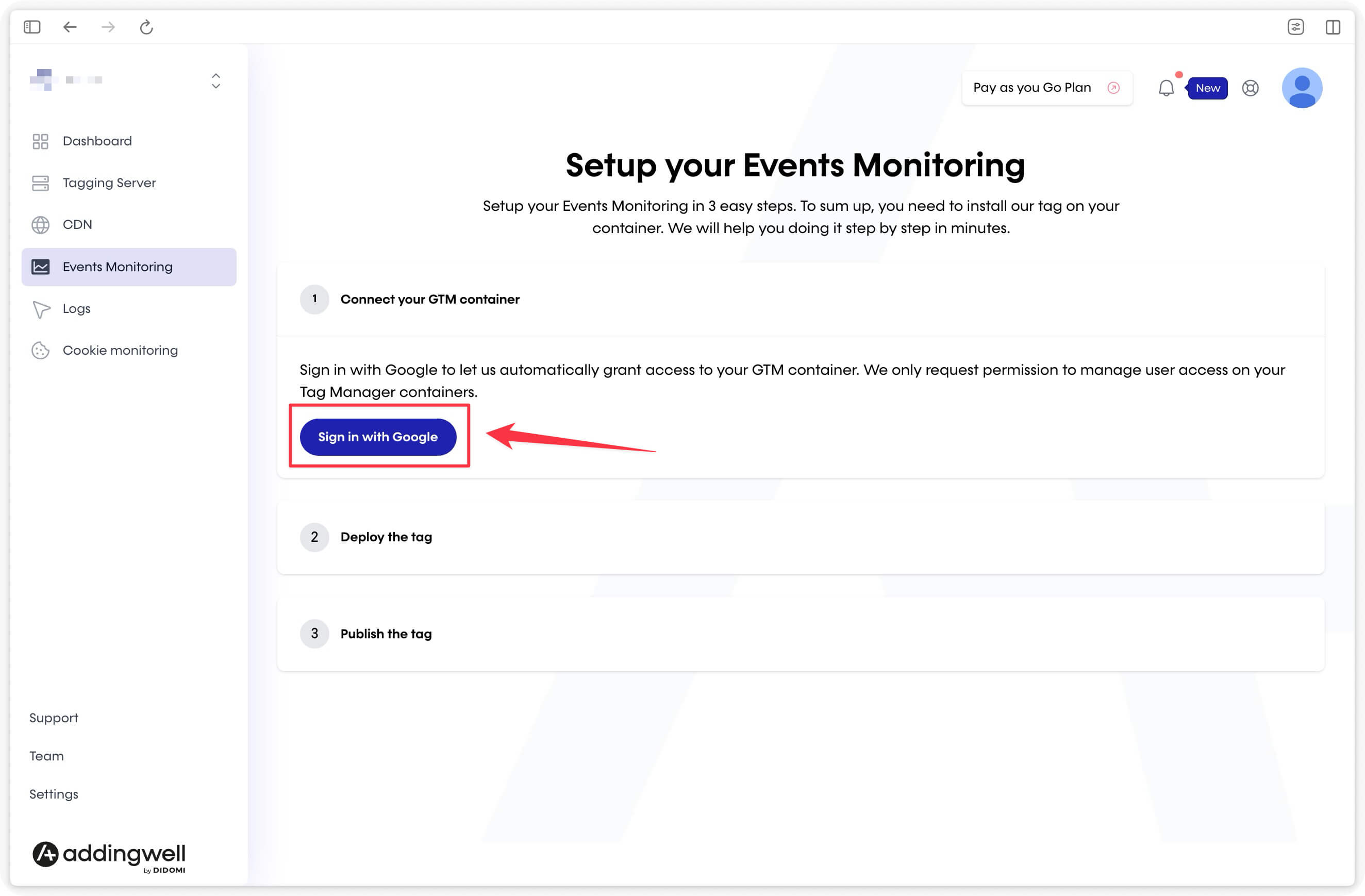
Go to the Events Monitoring tab in the Addingwell interface.
Then click the Sign in with Google button and sign in with Google to automatically grant access to your GTM container.
Deploy the tag
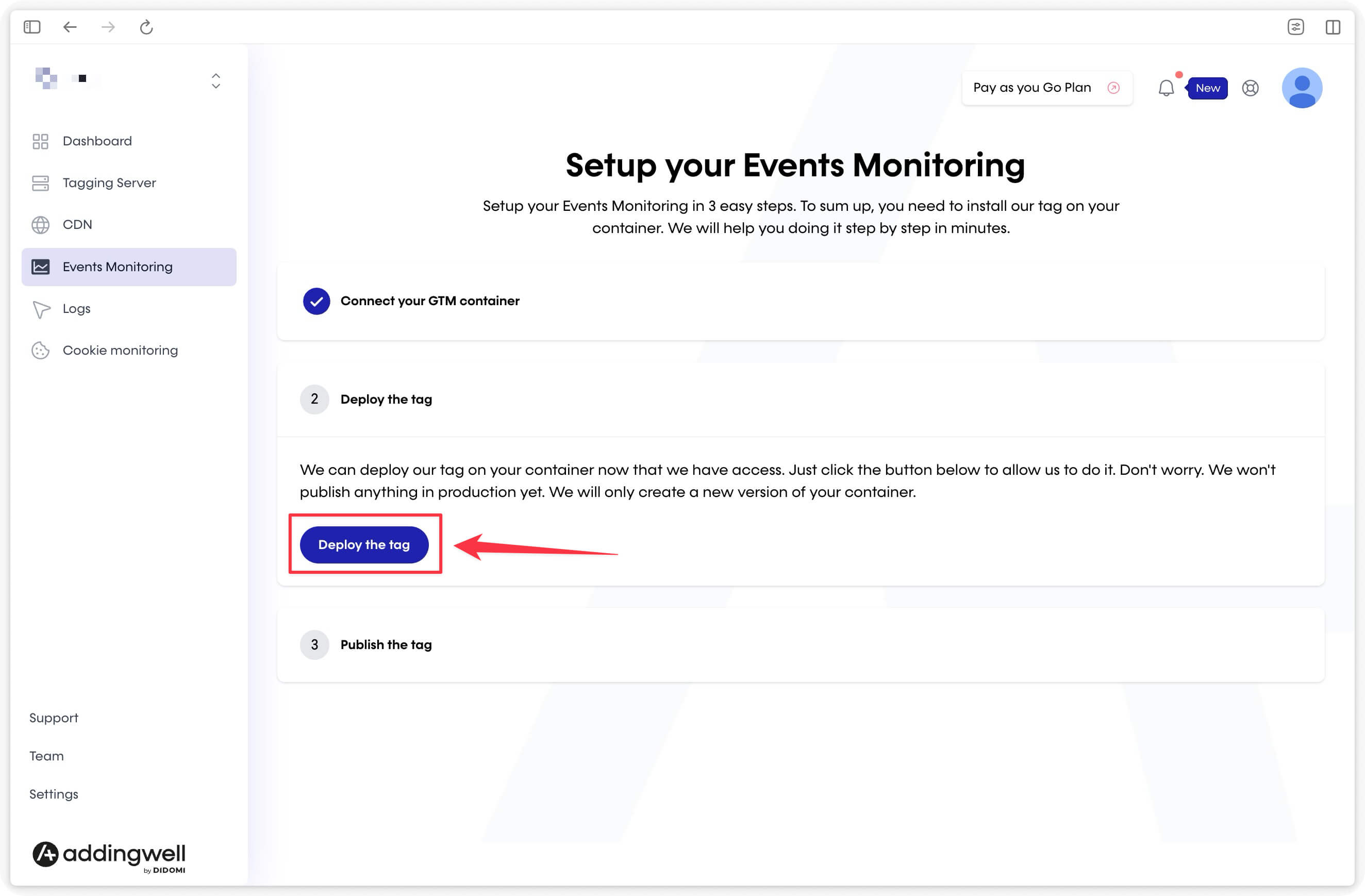
Click the Deploy the tag button.
This automatically adds the Addingwell Monitoring tag to your GTM Server container. The tag fires for every request going through your server.
Create and publish a new version
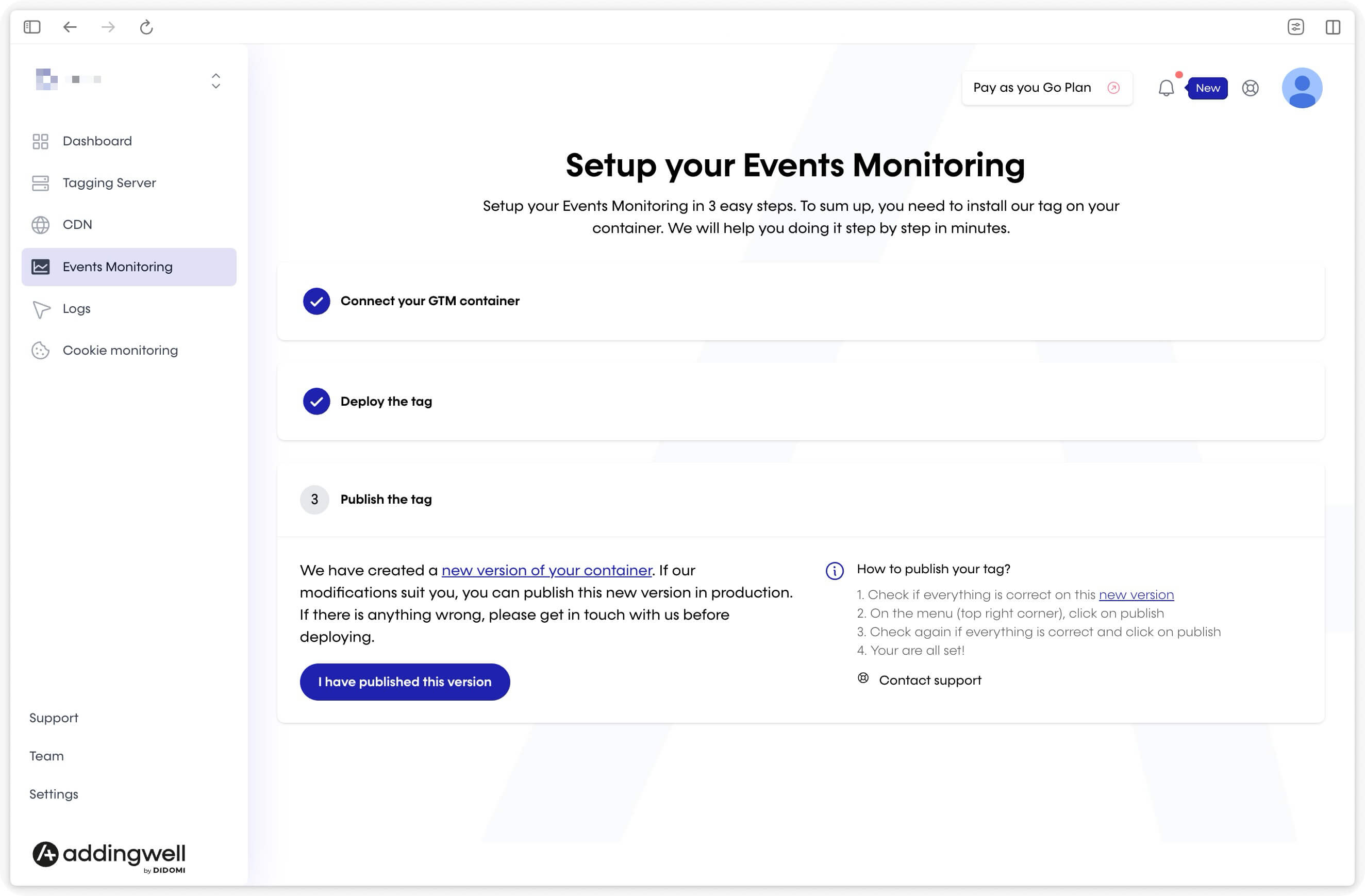
A new screen then appears in your Addingwell platform.
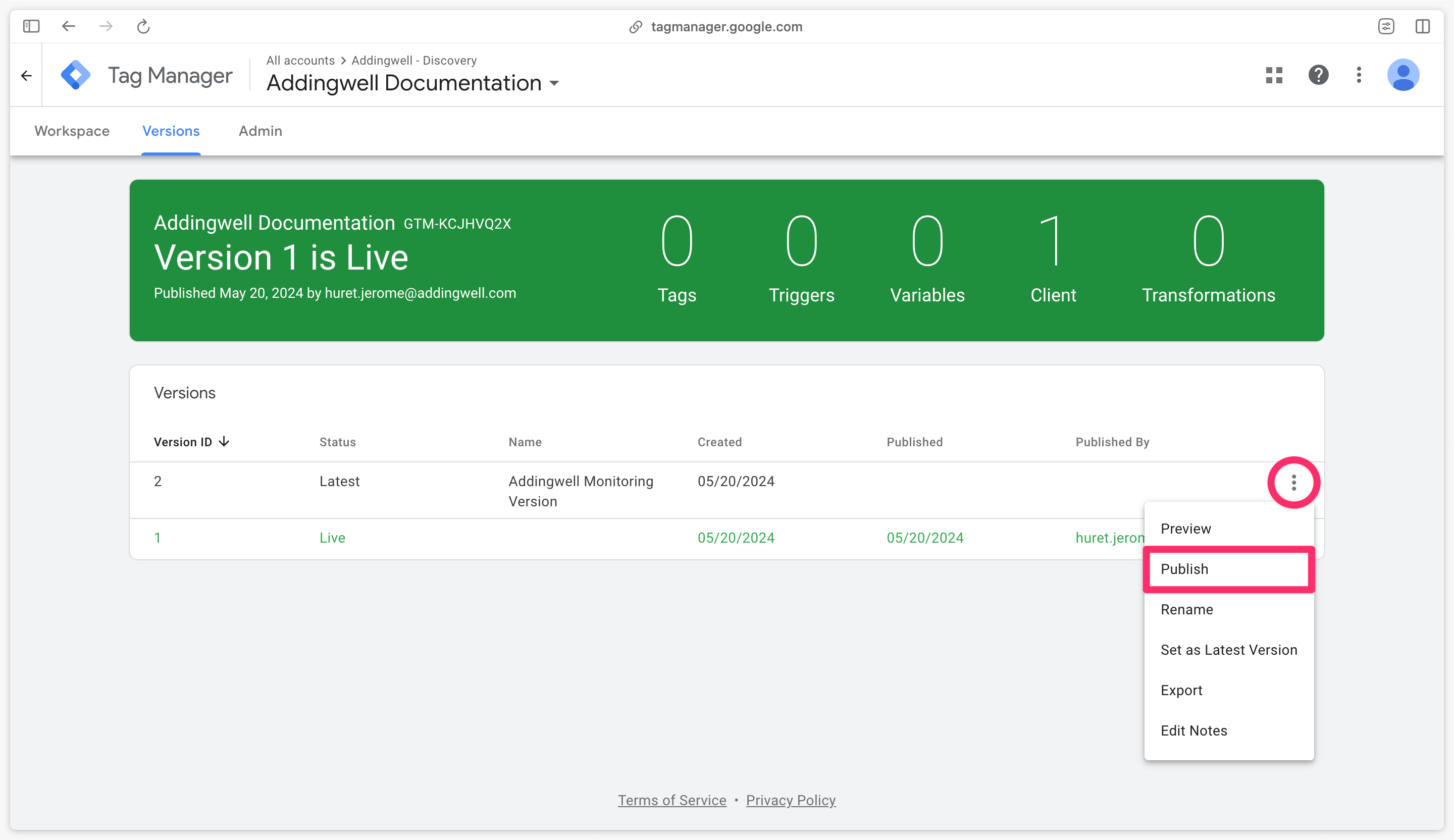
In Google Tag Manager Server, click the Versions tab. Select Addingwell Monitoring Version, click the three dots, then choose Publish.
Notify Addingwell
Go back to Addingwell and click the I have published this version button to let us know the new version is live.
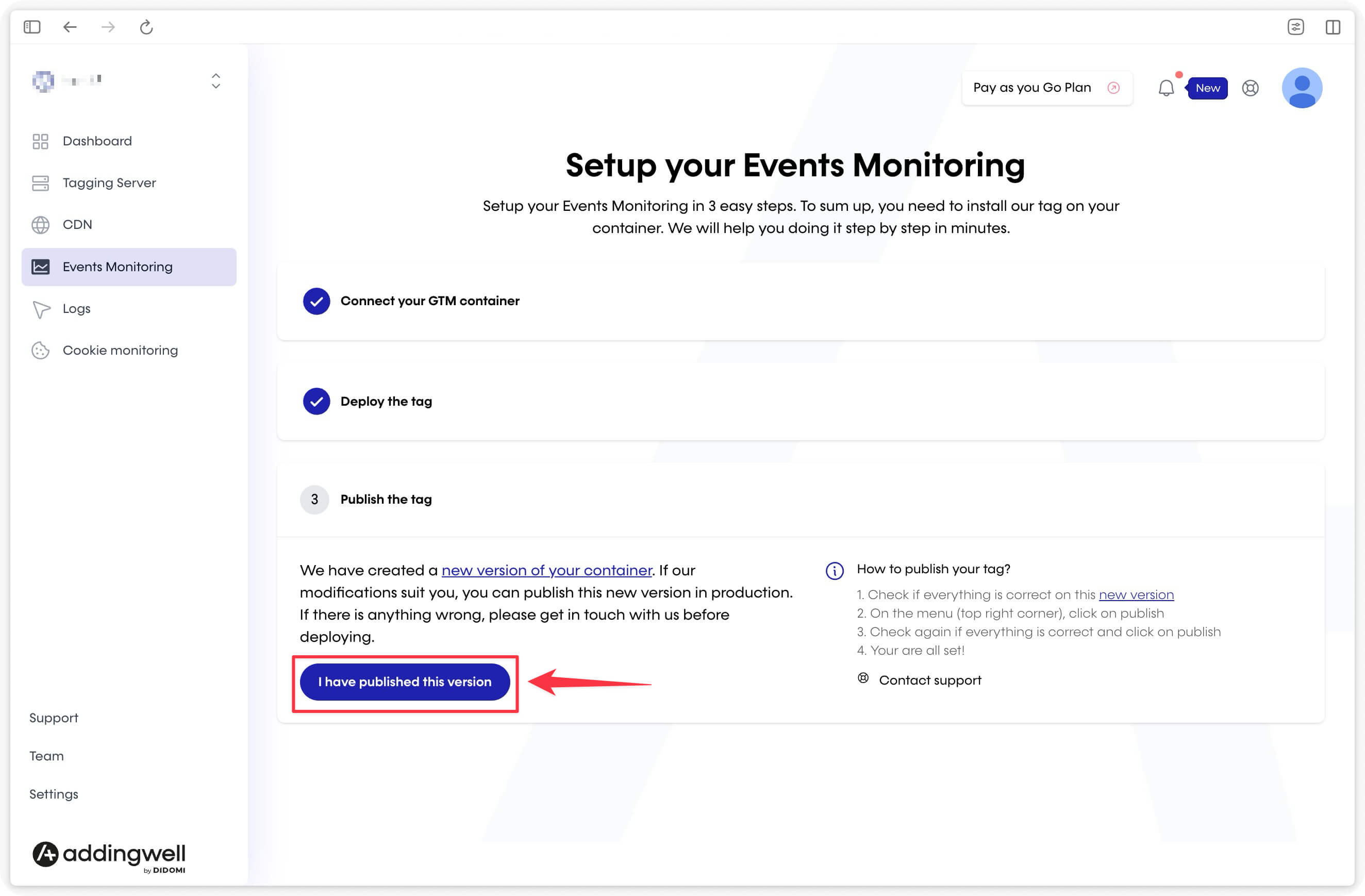
Addingwell then prepares Events Monitoring. This takes a few minutes.
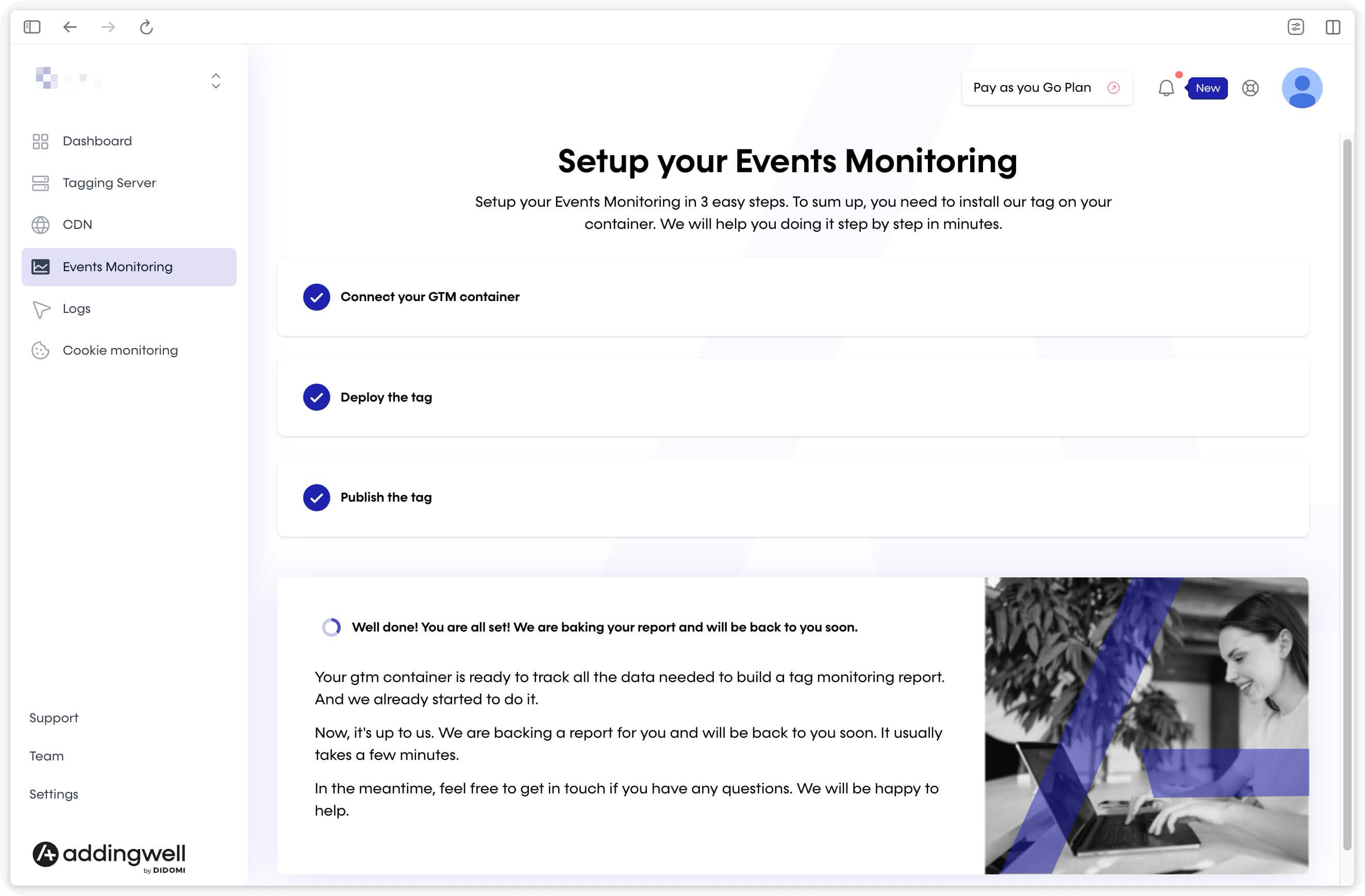
Next step
Once the setup is complete, you will see this screen.
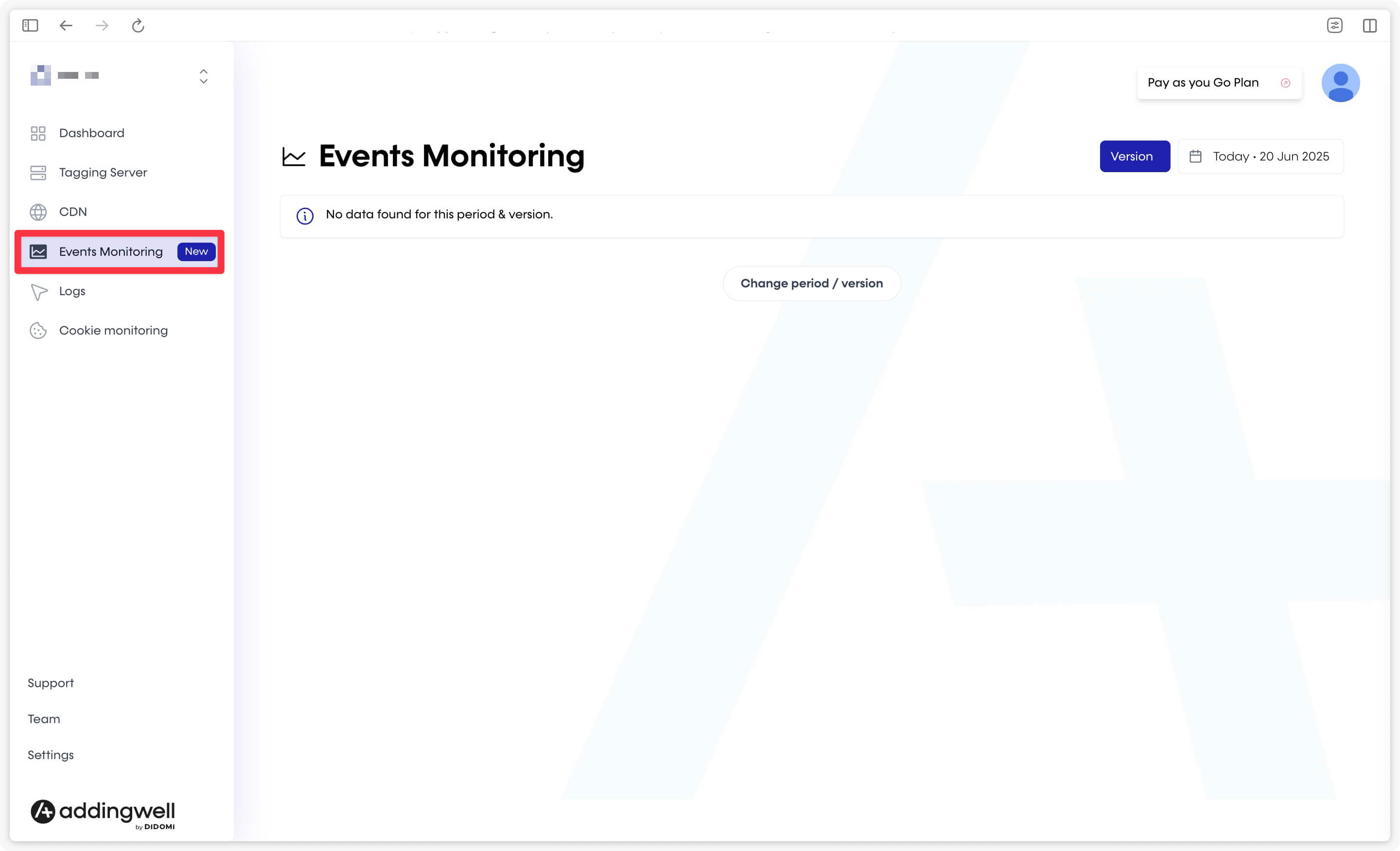
A few hours after Events Monitoring is deployed, you should see your first tags appear in the monitoring interface.
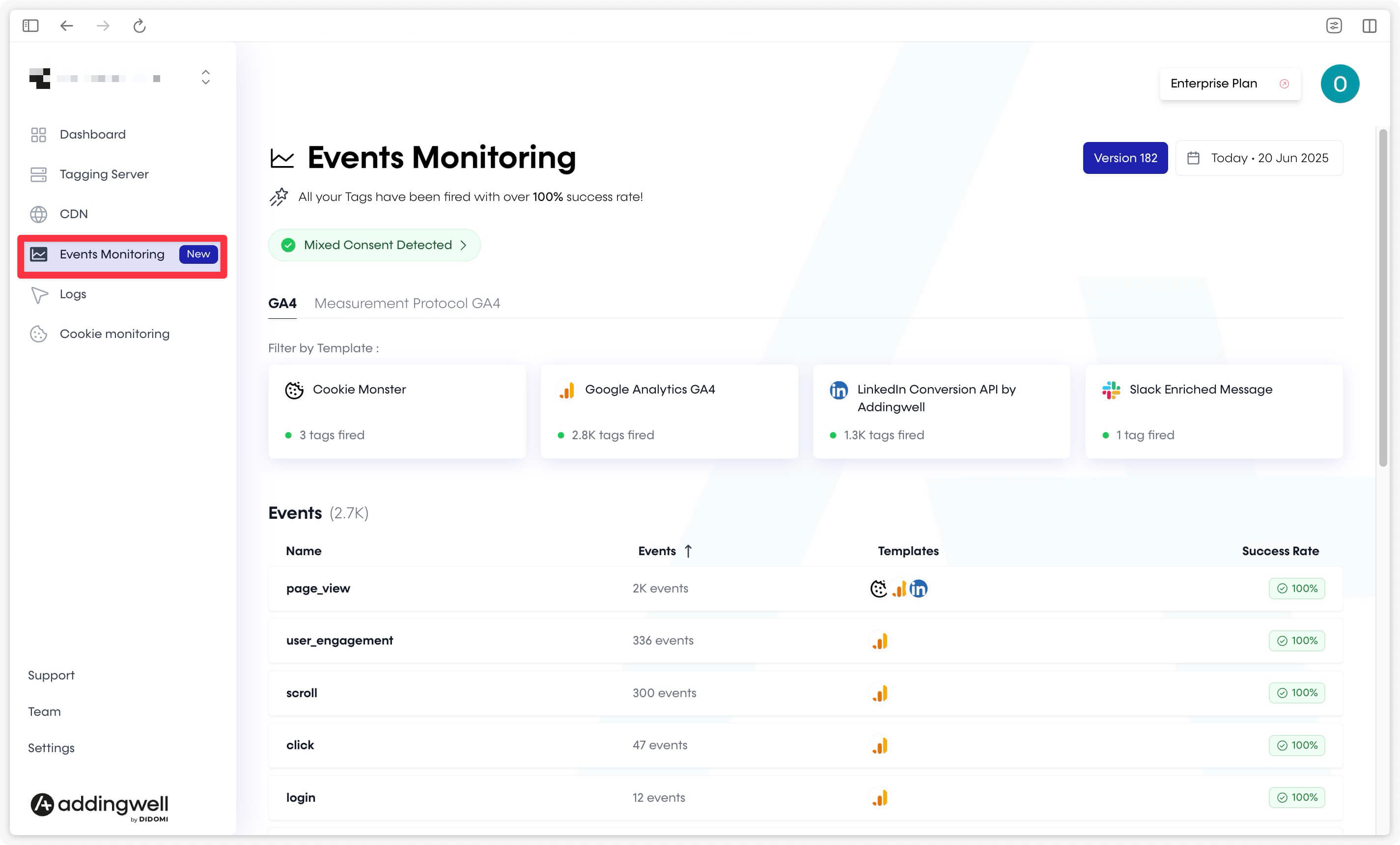
You can now move on to the next step and start sending your data to the server.