Microsoft UET Conversion API with GTM Server-Side
Microsoft UET CAPI is an advanced conversion tracking solution that helps improve measurement and performance of your Microsoft Ads campaigns.
Why should you evolve your tracking?
With evolving privacy regulations (gradual phase-out of third-party cookies, Safari’s ITP, growing use of ad blockers), conversion tracking based solely on the browser — known as client-side — is becoming less and less reliable.
In practice, this means:
- Some conversions are no longer tracked
- Data reported in Microsoft Ads may be incomplete
- Automated bidding strategies (Target CPA, Target ROAS, Maximize Conversions) optimize on partial data.
Result: the actual performance of your campaigns may be underestimated.
Why migrate your conversions to server-side?
Server-side conversion tracking helps reduce this data loss.
Instead of relying solely on a script running in the user’s browser, events (purchase, lead, sign-up…) are sent from your server to Microsoft Advertising via a Google Tag Manager Server container (GTM Server). Your server then sends the event to Microsoft Ads server-to-server, in a first-party context.
This architecture allows you to:
- Improve your site’s performance by offloading the Microsoft tag from your GTM Web: tags no longer run in the user’s browser, reducing client-side load;
- Reduce the impact of ad blockers;
- Improve the reliability of collected data;
- Extend the lifetime of first-party cookies (especially on Safari, beyond 7 days). Your campaigns benefit from more complete and reliable signals to feed optimization algorithms.
Access to the Conversion API
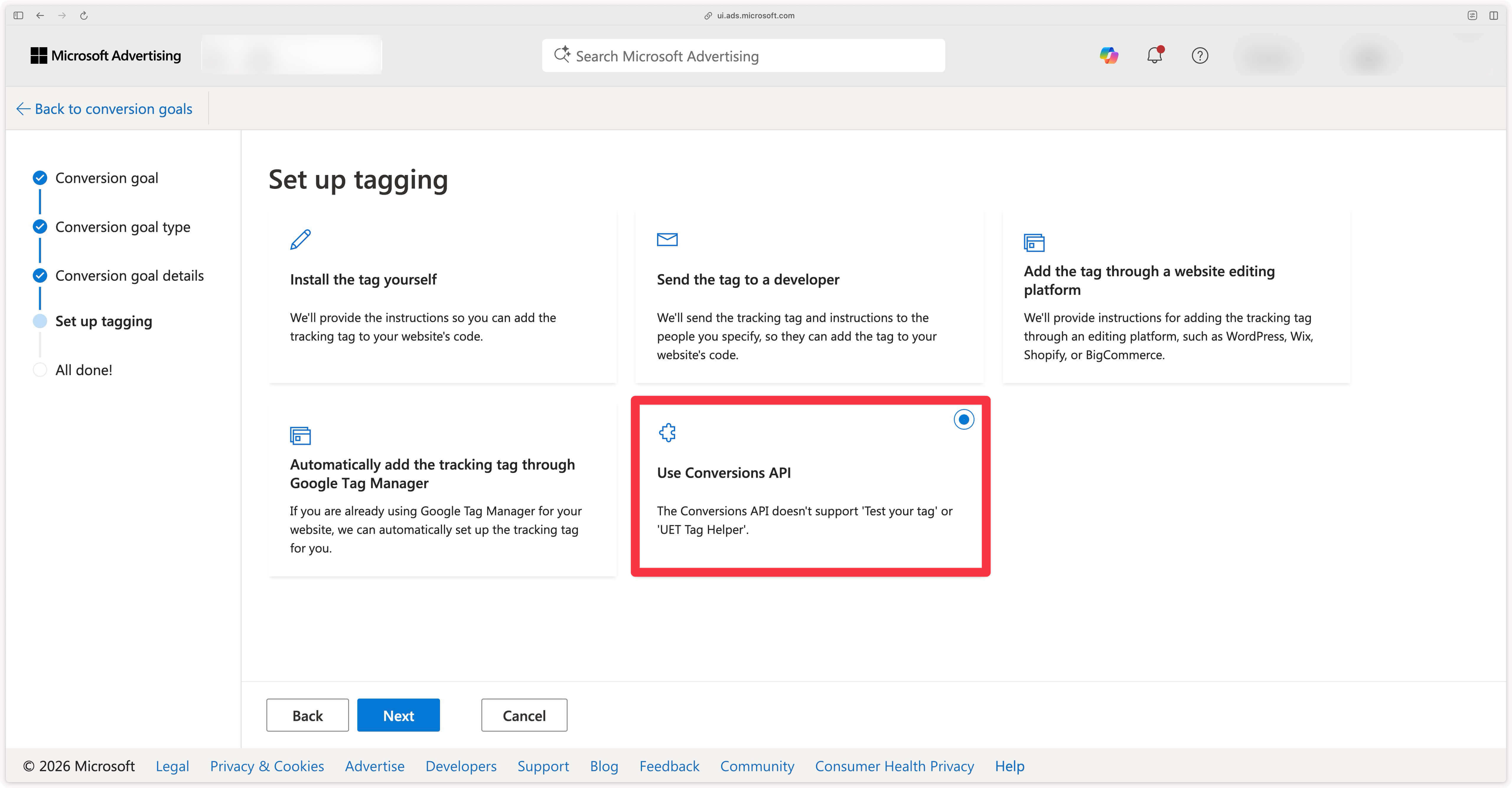
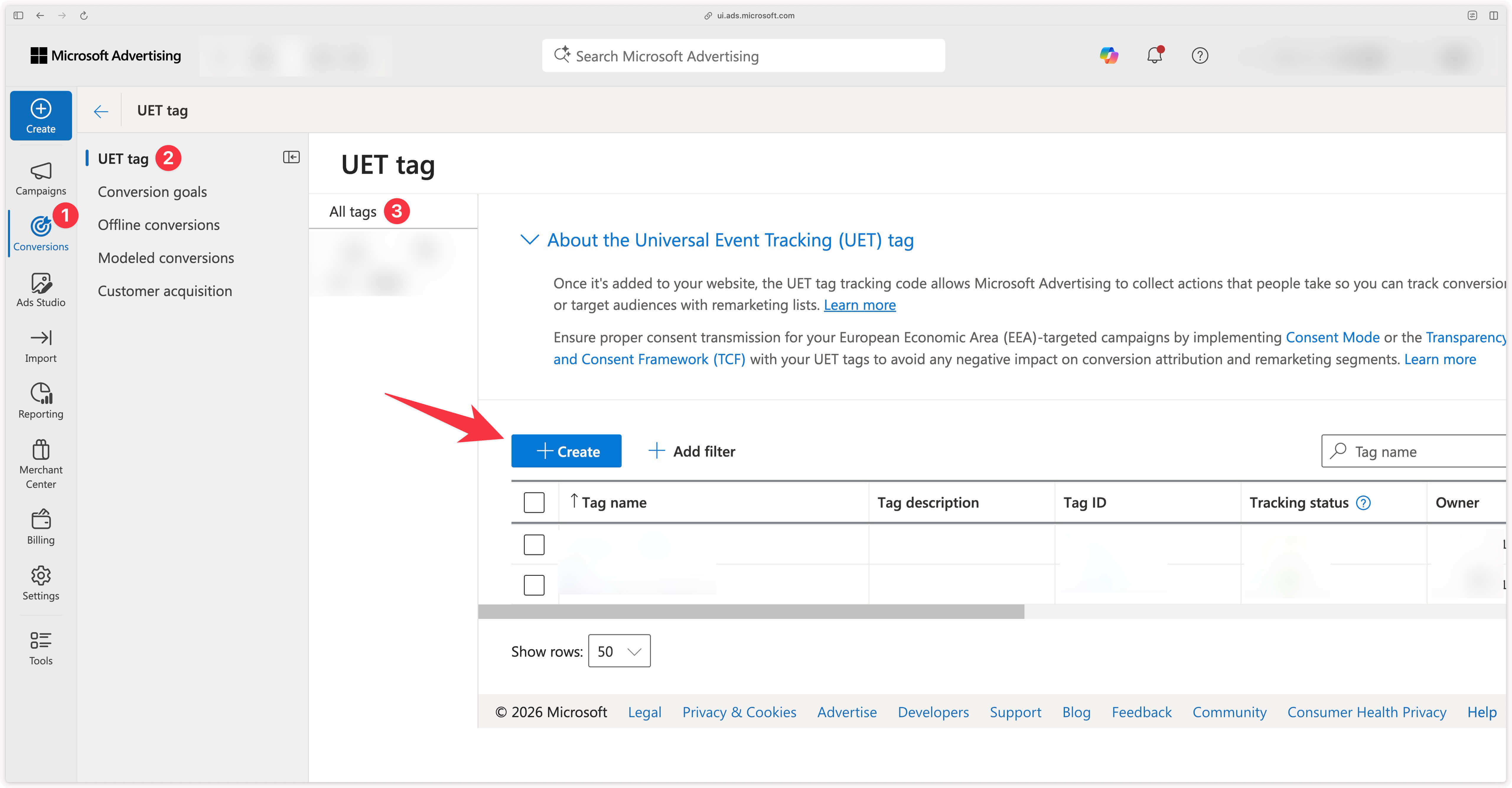
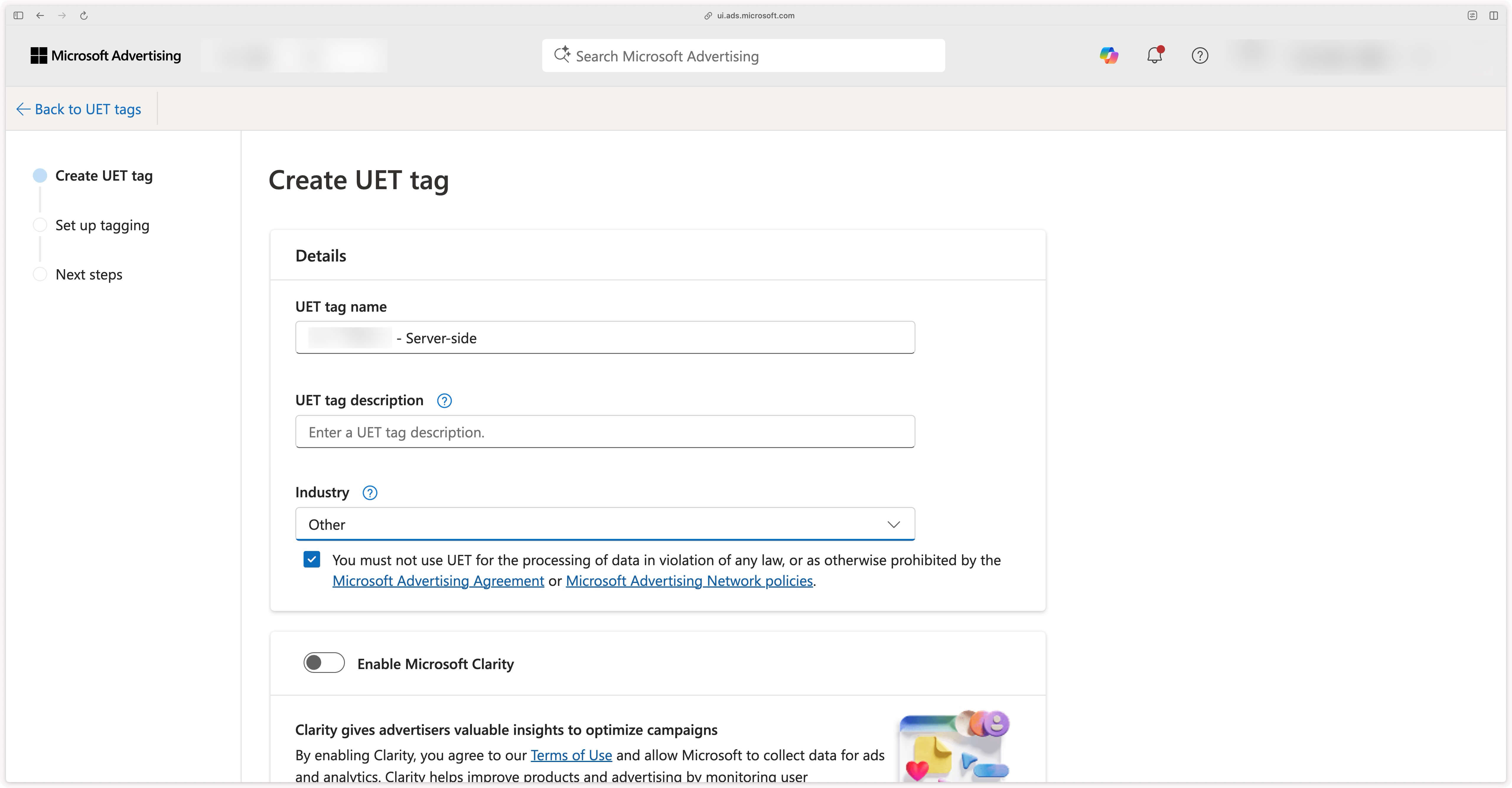
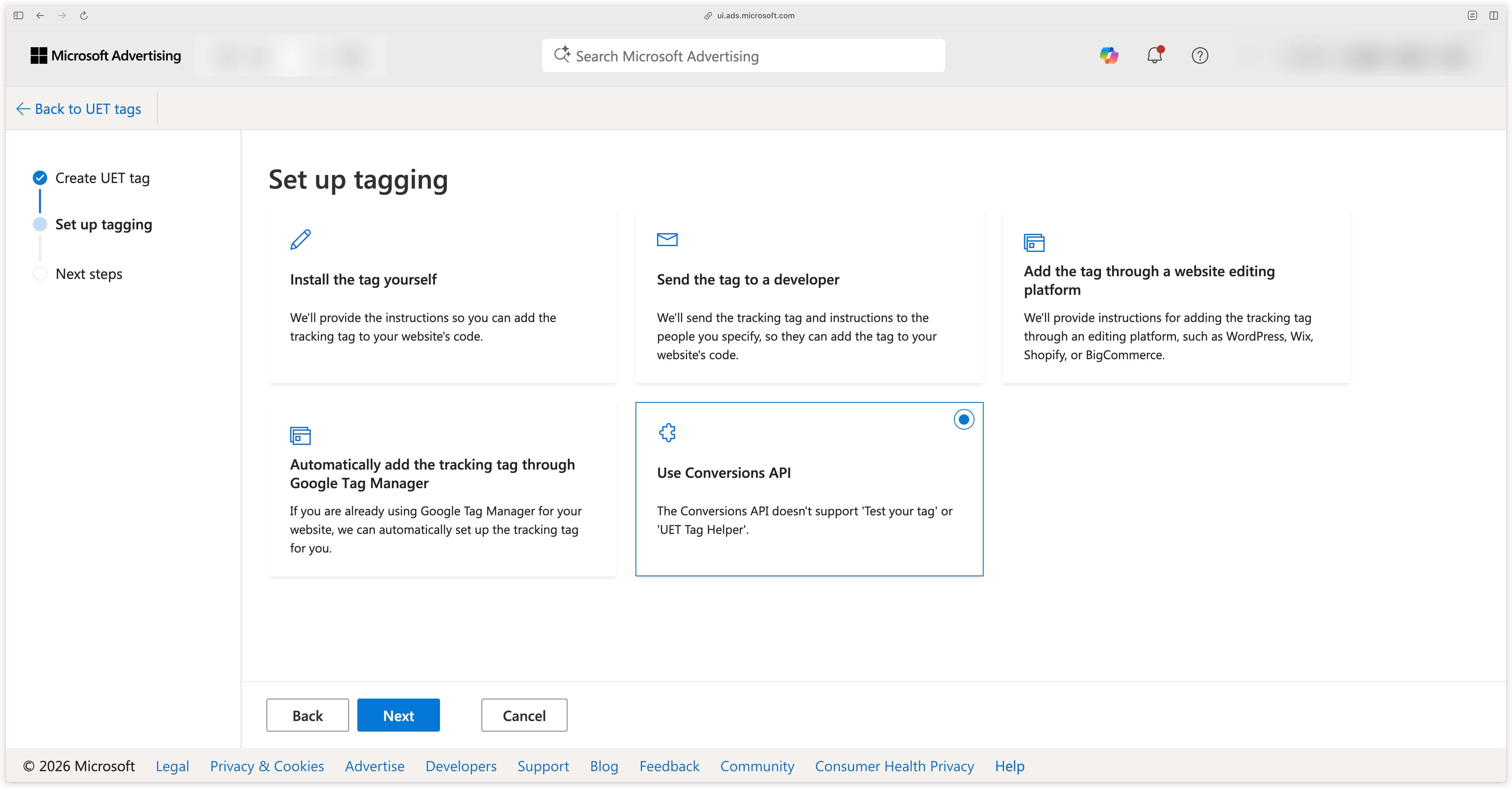
The Conversion API is enabled directly from your UET Tag settings. Go to the Conversions menu in your Microsoft Ads account, open the UET Tag you use for conversion tracking, then select the Use Conversion API option at the Set up tagging step.
How the Microsoft UET CAPI tag works
A single server-side tag
Our Microsoft UET CAPI tag works by being integrated solely into your GTM Server container. Once the server-side tag is published and operational, you must disable your Microsoft Advertising tags in your GTM Web container to avoid duplicate conversions.
Special case: remarketing
If you use Microsoft Advertising remarketing features, we recommend enabling the Send pixel request option in our tag.
If you are unsure about enabling this option, it is best to enable it to ensure optimal and complete tracking.
Why?
Remarketing relies on cookies present in the user’s browser. The Send pixel request option allows Microsoft to link events sent from your server with cookies present in the browser through a request that returns to the browser, shown in purple in the diagram below.
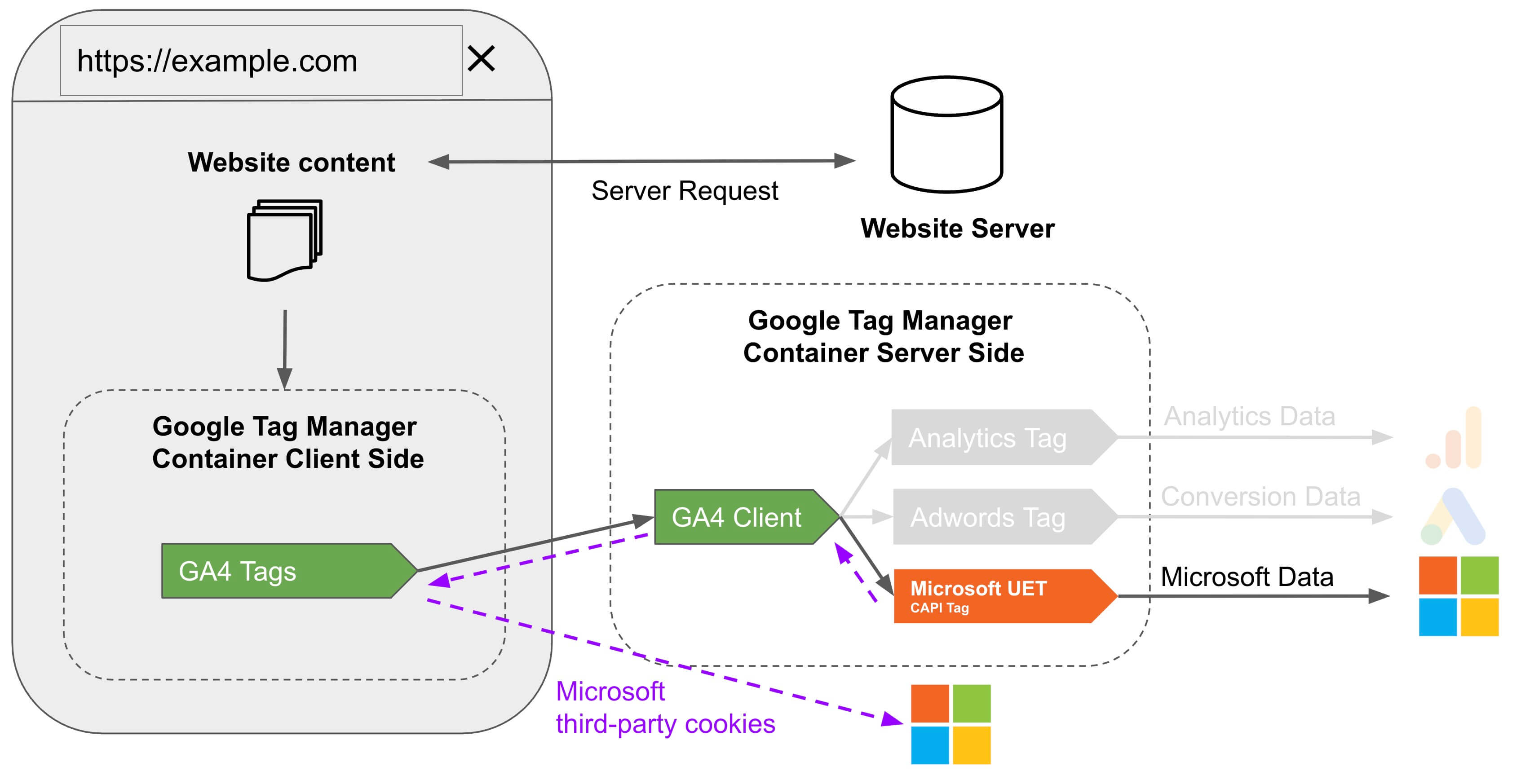
This ensures proper data reconciliation and the correct functioning of your remarketing audiences.
We will now detail the configuration of Addingwell’s Microsoft UET Conversion API, following these steps:
- Steps to deploy Microsoft Ads tracking in server-side;
- Conversion event configuration;
- Verifying that data is properly reported in Microsoft Advertising and in Addingwell’s Events Monitoring.
Configure your conversion goals in Microsoft Ads
When configuring Microsoft UET Conversion API, you have two options for organizing your conversion goals in Microsoft Ads.
| Option | Advantage | Disadvantage |
|---|---|---|
| Use an existing UET Tag | Little to no configuration required in Microsoft Ads | Client-side vs server-side comparison not possible |
| Create a new UET Tag dedicated to server-side | Client-side vs server-side comparison possible | Requires reconfiguring your conversion goals on the new UET Tag |
We will now explain both options to help you choose the one that best fits your needs.
Option 1: Existing UET Tag
If you already use a UET Tag for Microsoft Ads conversion tracking, you should already have conversion goals configured in Microsoft Ads. In this case, you can decide to continue using the same UET Tag to send your conversions in server-side.
In this example, there are 2 conversion goals on the existing UET Tag:
- Purchase: configured on the event action
purchase - Add to cart: configured on the event action
add_to_cart
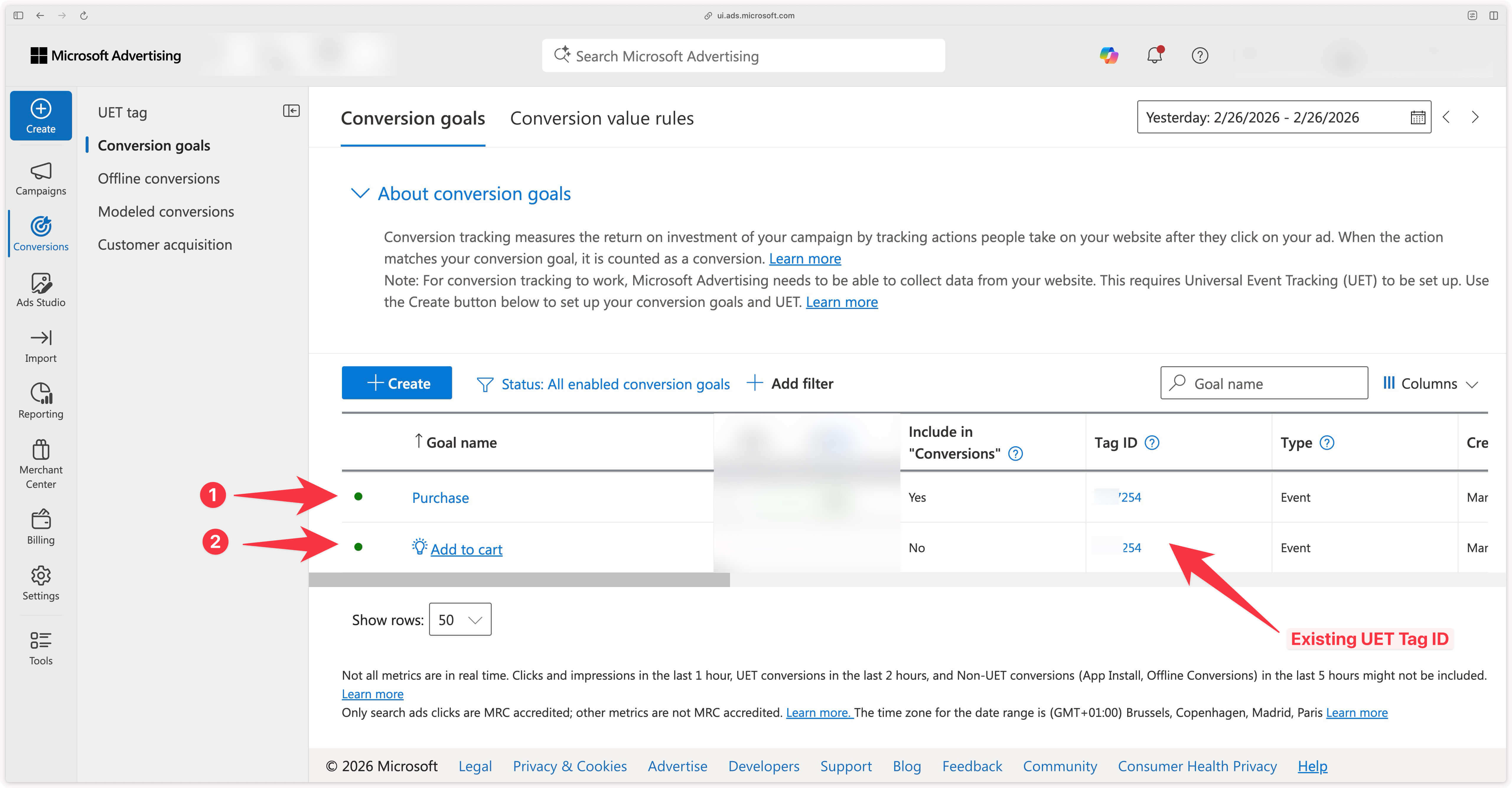
In this specific case, the event actions do not need to be changed because the same ones will be used to send events in server-side. See the mapping table used in our server-side tag.
To check which event action a conversion goal is configured on, click on the relevant conversion goal, then navigate to the Set up tagging step on the left sidebar menu.
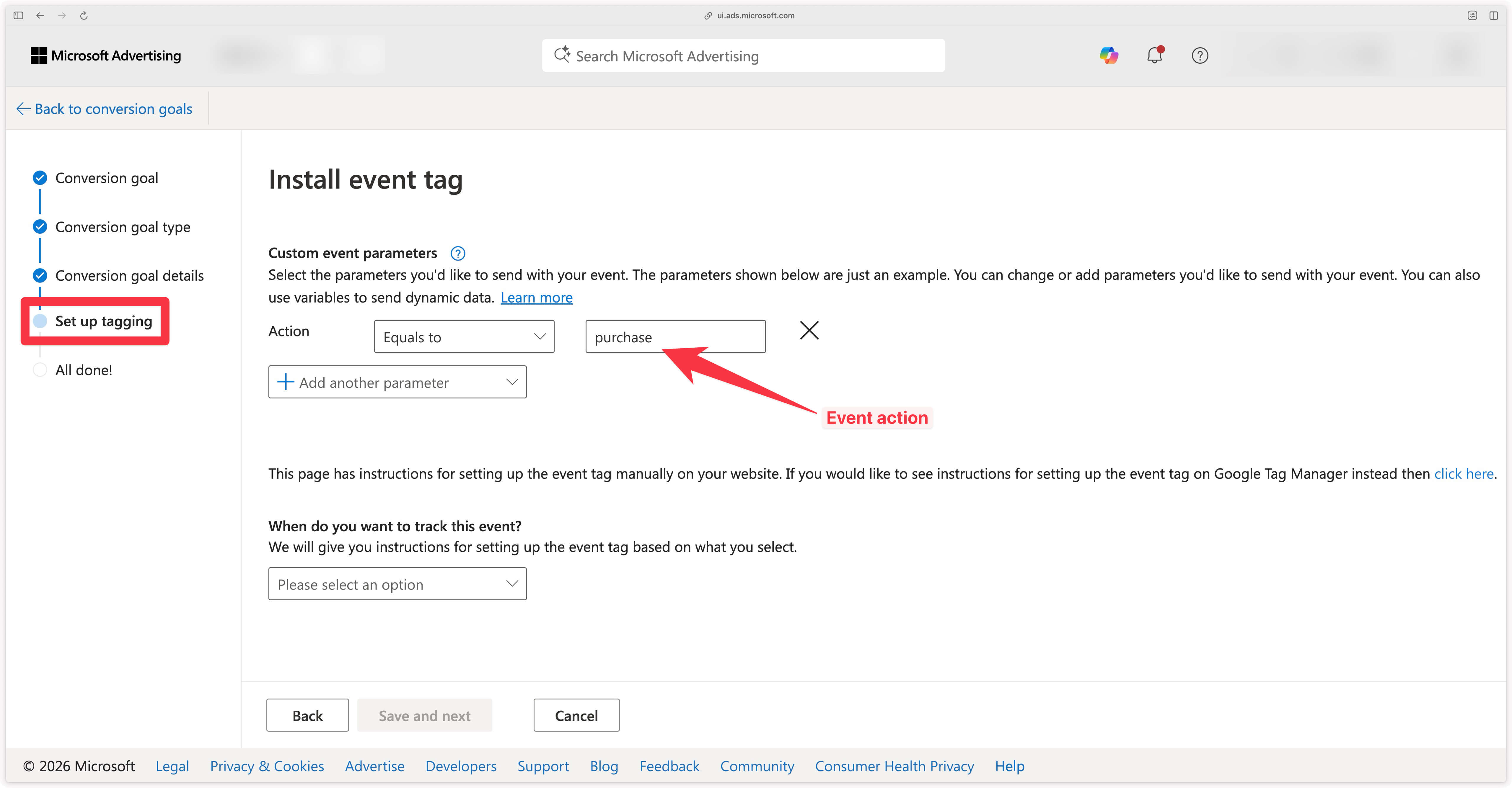
If your current event actions do not match those used in the GA4 standard (page_view, add_to_cart, begin_checkout, purchase, etc.), the best approach is to modify them by clicking on the conversion goal and navigating to the Set up tagging step on the left sidebar menu as shown above, to match them with GA4 events. This will make configuring Addingwell’s Microsoft UET CAPI tag easier later on.
Configure the Addingwell Microsoft UET Conversion API tag
Import the tag into GTM Server
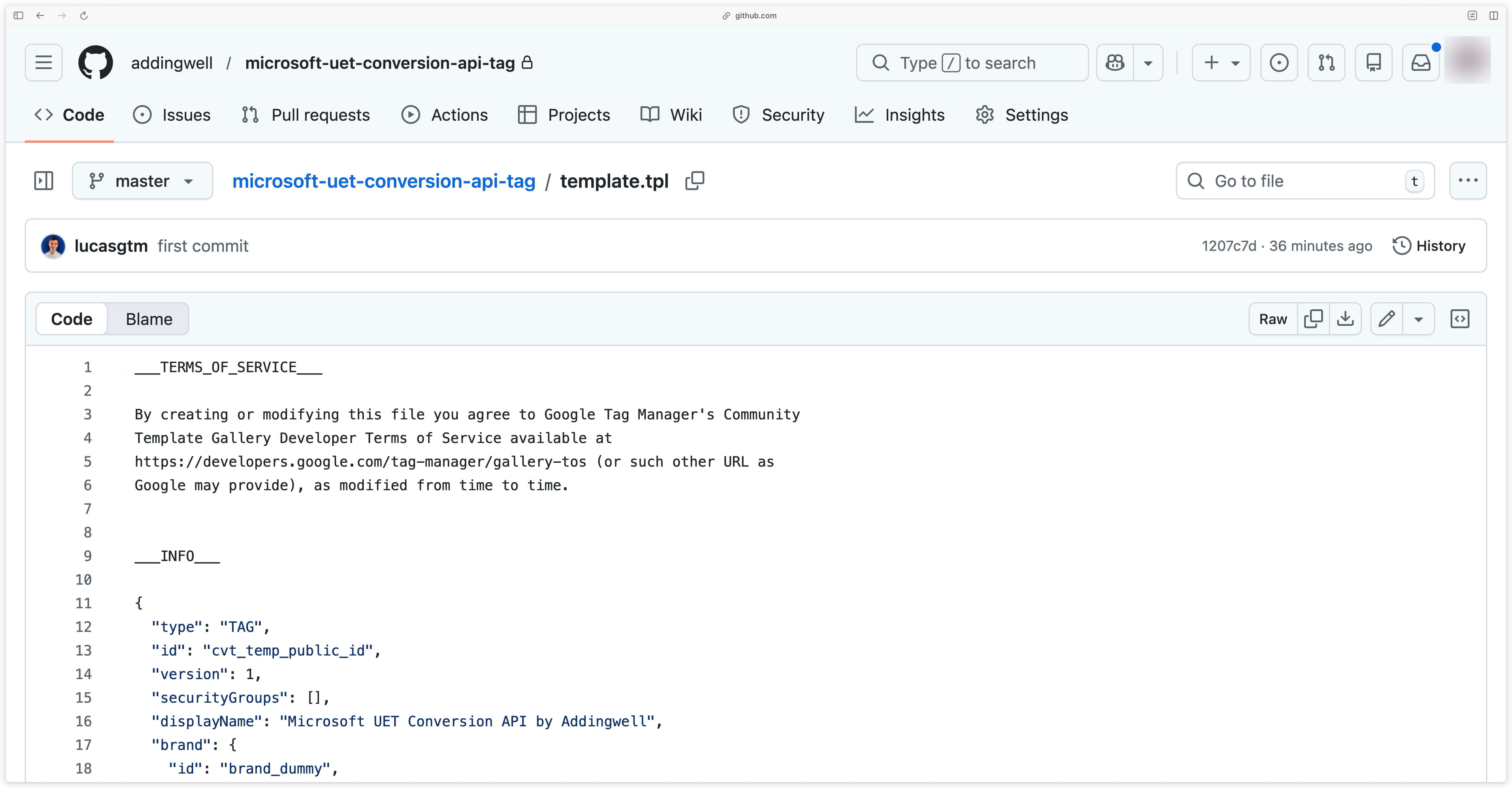
Click here to download the Microsoft UET Conversion API tag and click on the download icon to retrieve the file.
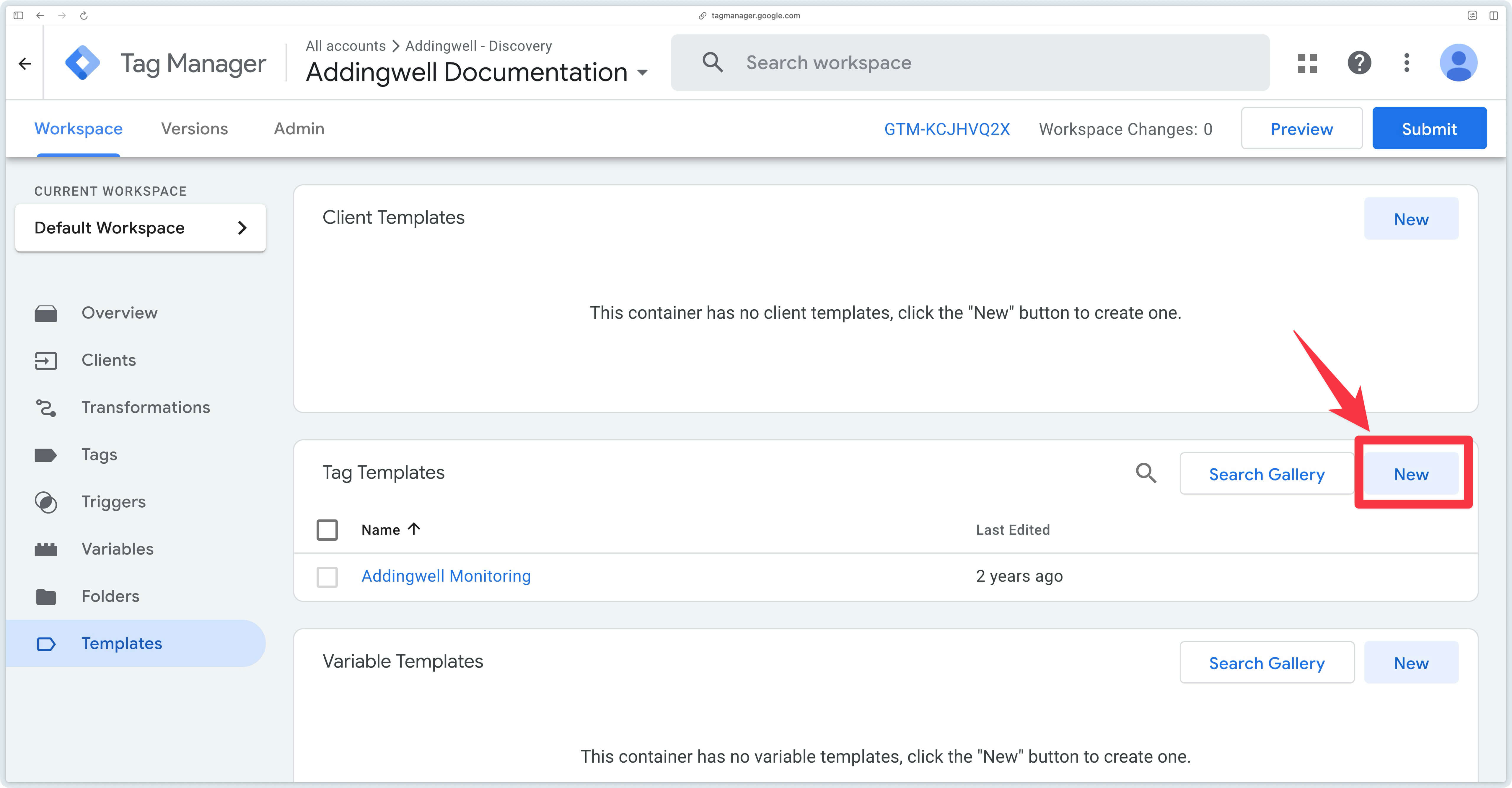
Then go to the Templates tab in the server container, and in the Tag templates section, click on New.
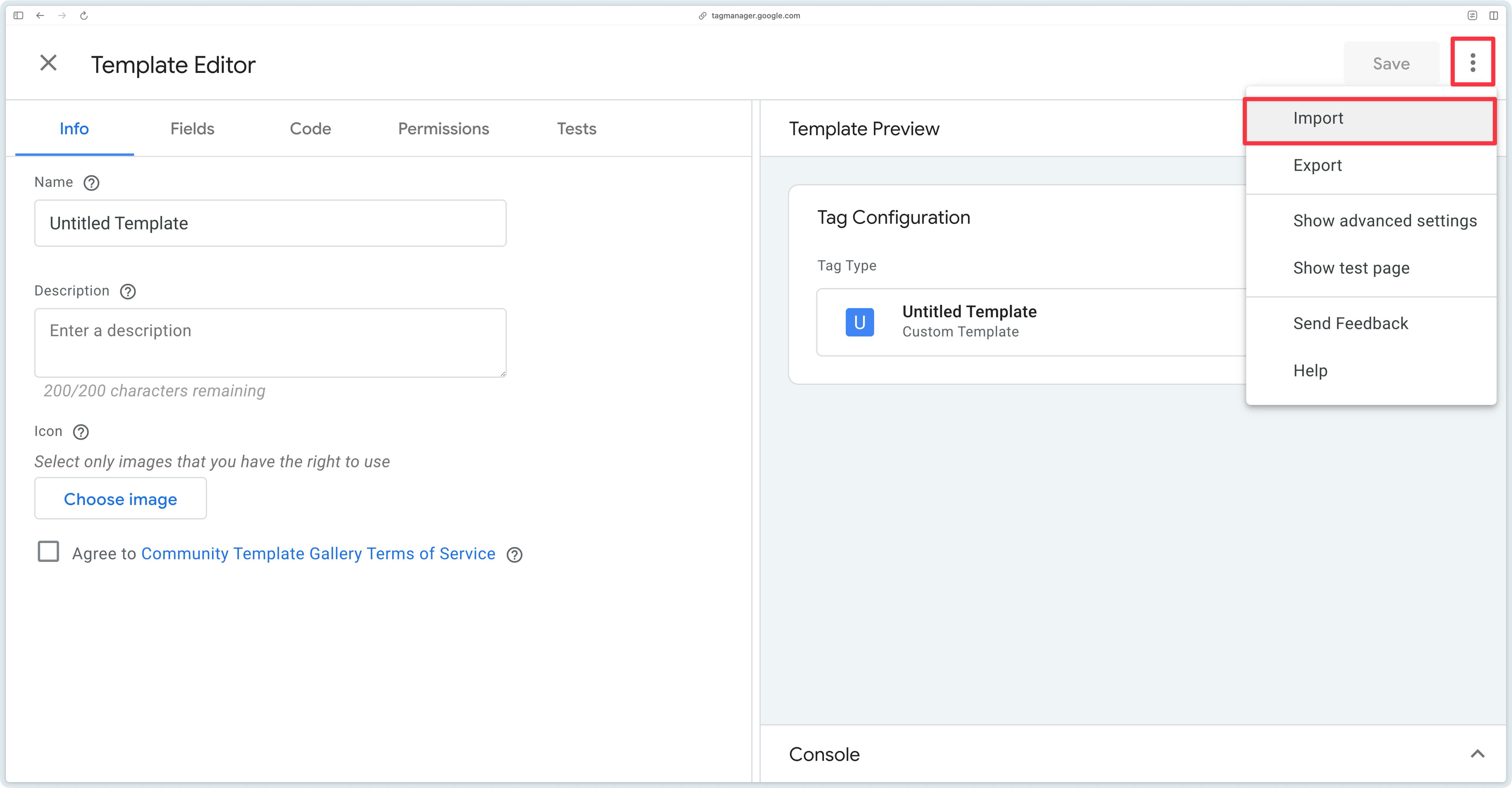
Then click on the three dots in the top right corner, and select Import.
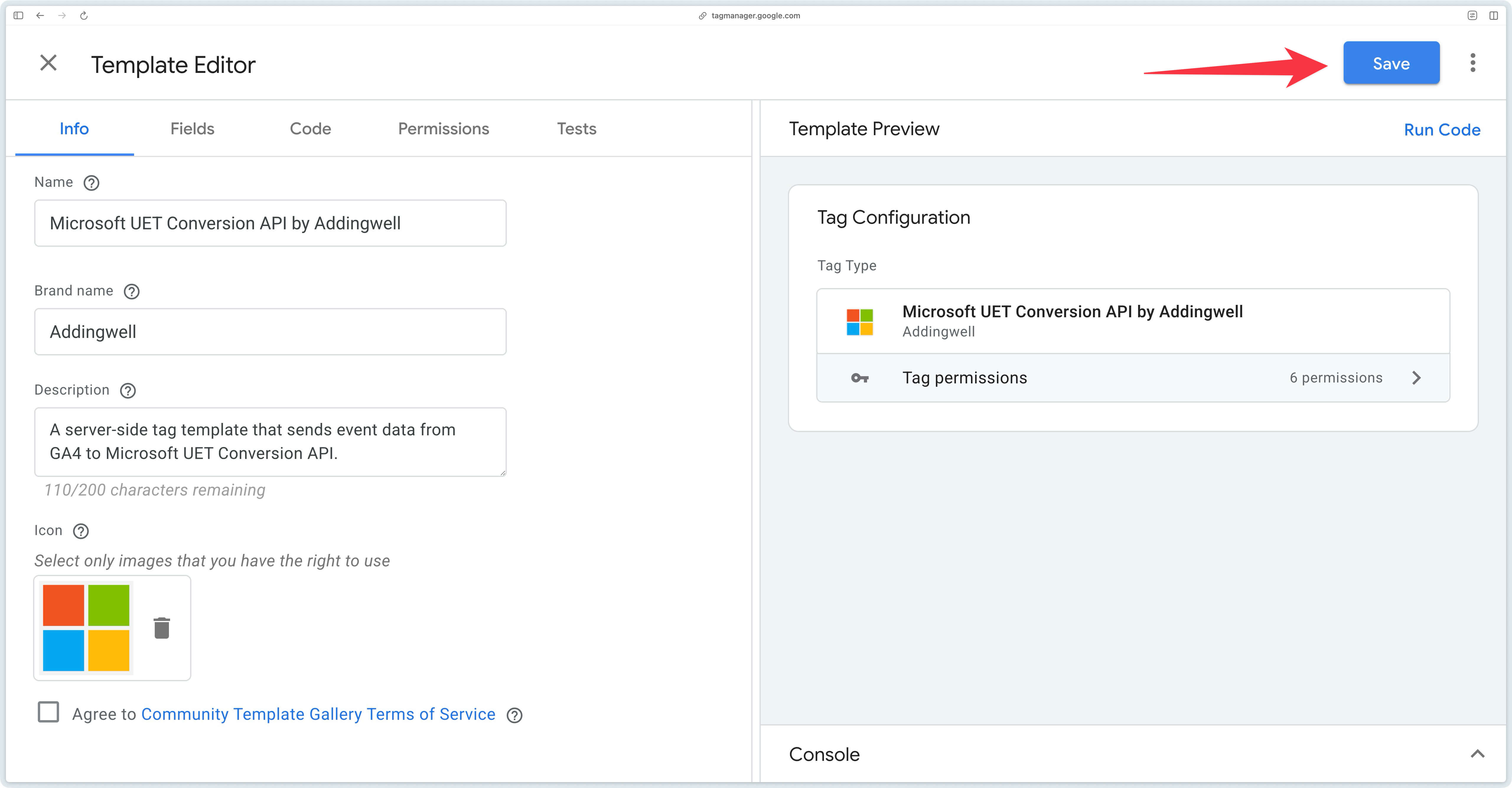
Then select the recently downloaded template.tpl file, and click on Save.
Configure the tag
Create a new tag in Google Tag Manager Server-Side and select the recently created Microsoft UET Conversion API tag. To configure the tag, 3 pieces of information are required:
- The UET Tag ID to which data will be sent
- The API Token allowing communication with the Microsoft Advertising Conversion API
- The Microsoft Account ID (optional) will be required if you use Microsoft Advertising products that rely on remarketing.
Once you have retrieved the UET Tag ID, API Token, and Microsoft Account ID (optional), you can proceed with configuring the Addingwell Microsoft UET Conversion API tag.
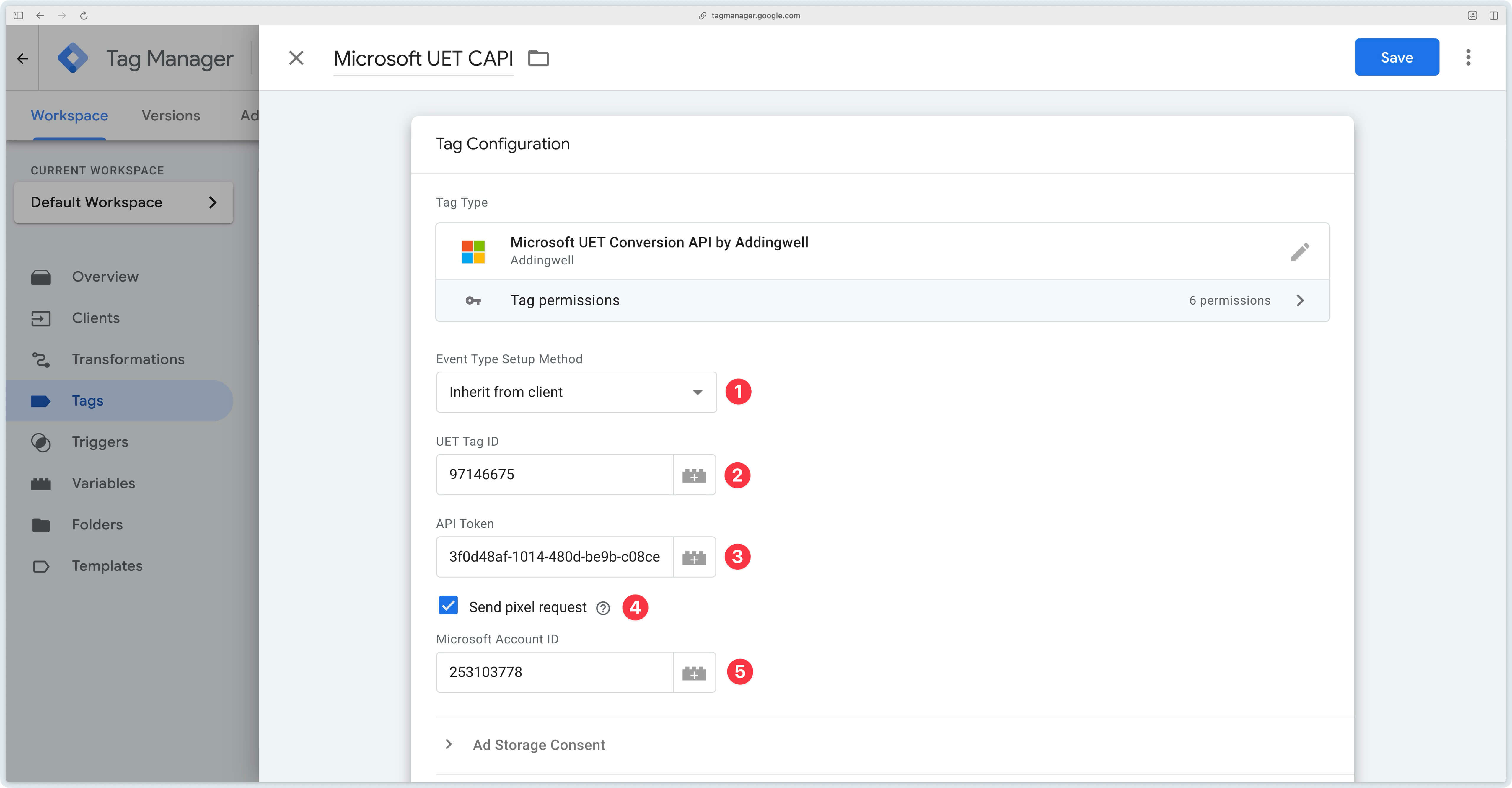
Event Type Setup Method
| Setup method | Description |
|---|---|
| Inherit from client | With this configuration, the GA4 page_view event will be sent as pageLoad and all other GA4 events (add_to_cart, purchase, etc.) will be sent as-is. See the mapping table for more details. |
| Override | Manually map GA4 events to your Microsoft Ads Event Actions. |
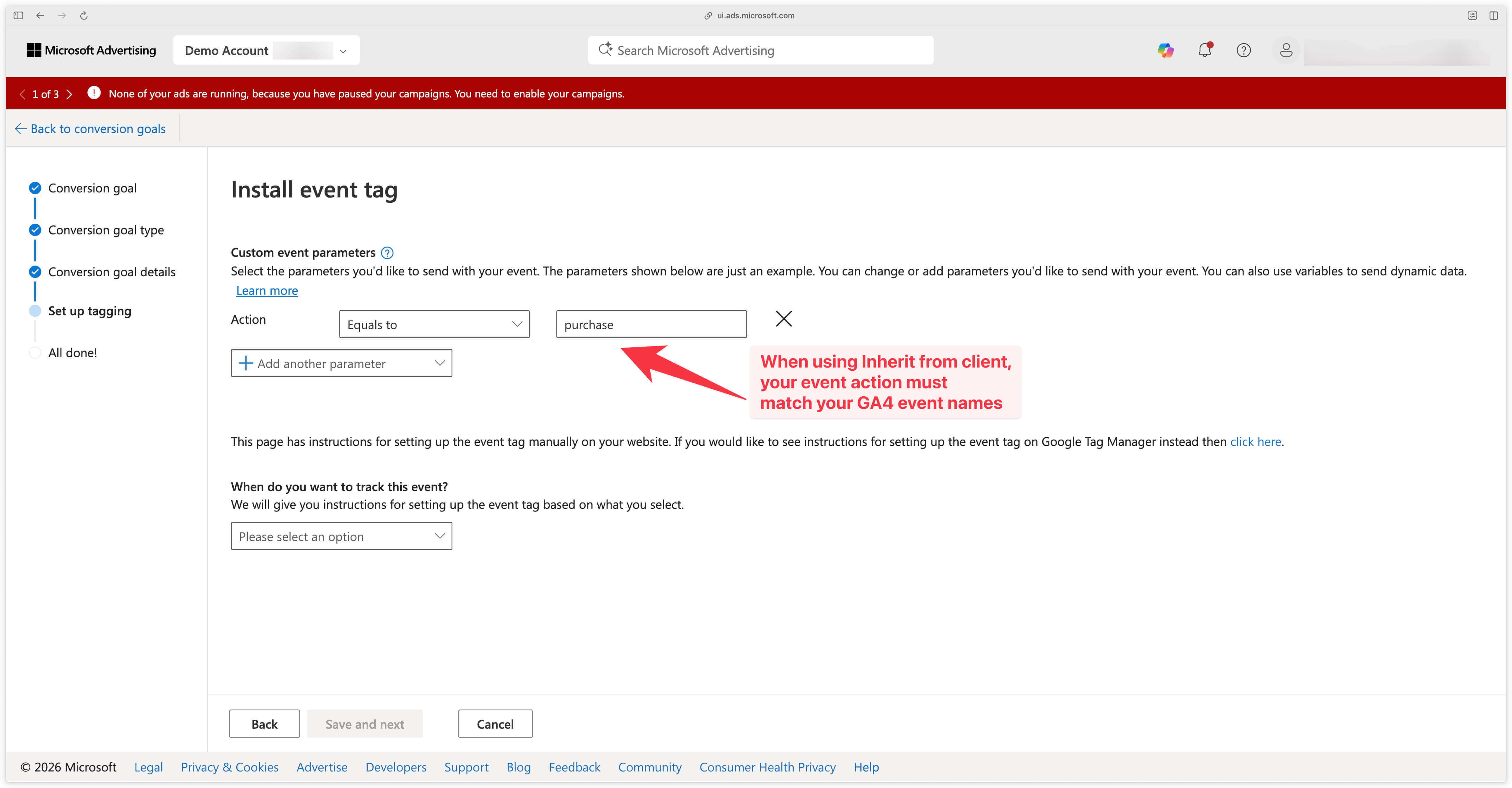
The configuration chosen here will impact the setup of your conversion goals in Microsoft Ads. Indeed, the Event Actions sent to Microsoft Ads will either be the GA4 events as-is (with Inherit from client), or the Event Actions of your choice (with Override).
Here is an example of a conversion goal configuration in Microsoft Ads if you chose the Inherit from client configuration and trigger your tag on the GA4 purchase event:
UET Tag ID
Enter here the UET Tag ID retrieved from the Conversions menu in Microsoft Advertising.
API Token
Enter here the API Token retrieved from the UET Tag ID settings.
Send pixel request
This checkbox sends a request from the browser to retrieve third-party cookies. Microsoft Ads recommends enabling this option if you use Microsoft Advertising products that rely on remarketing. Enabling this option allows Microsoft Ads to link events sent from the server with third-party cookies present in the browser, which is necessary for these products to function properly.
Microsoft Account ID (optional)
If you checked the Send pixel request checkbox, you must enter the Microsoft Account ID associated with your Microsoft Advertising account.
Trigger the tag
Finally, trigger the Microsoft UET Conversion API tag on the relevant GA4 events based on the conversion goals configured in Microsoft Ads.
For example, for an e-commerce site, the following events are commonly used:
| Event name |
|---|
| page_view |
| view_item_list |
| view_item |
| add_to_cart |
| begin_checkout |
| add_payment_info |
| add_shipping_info |
| purchase |
This list of events is of course not exhaustive and depends on your specific situation.
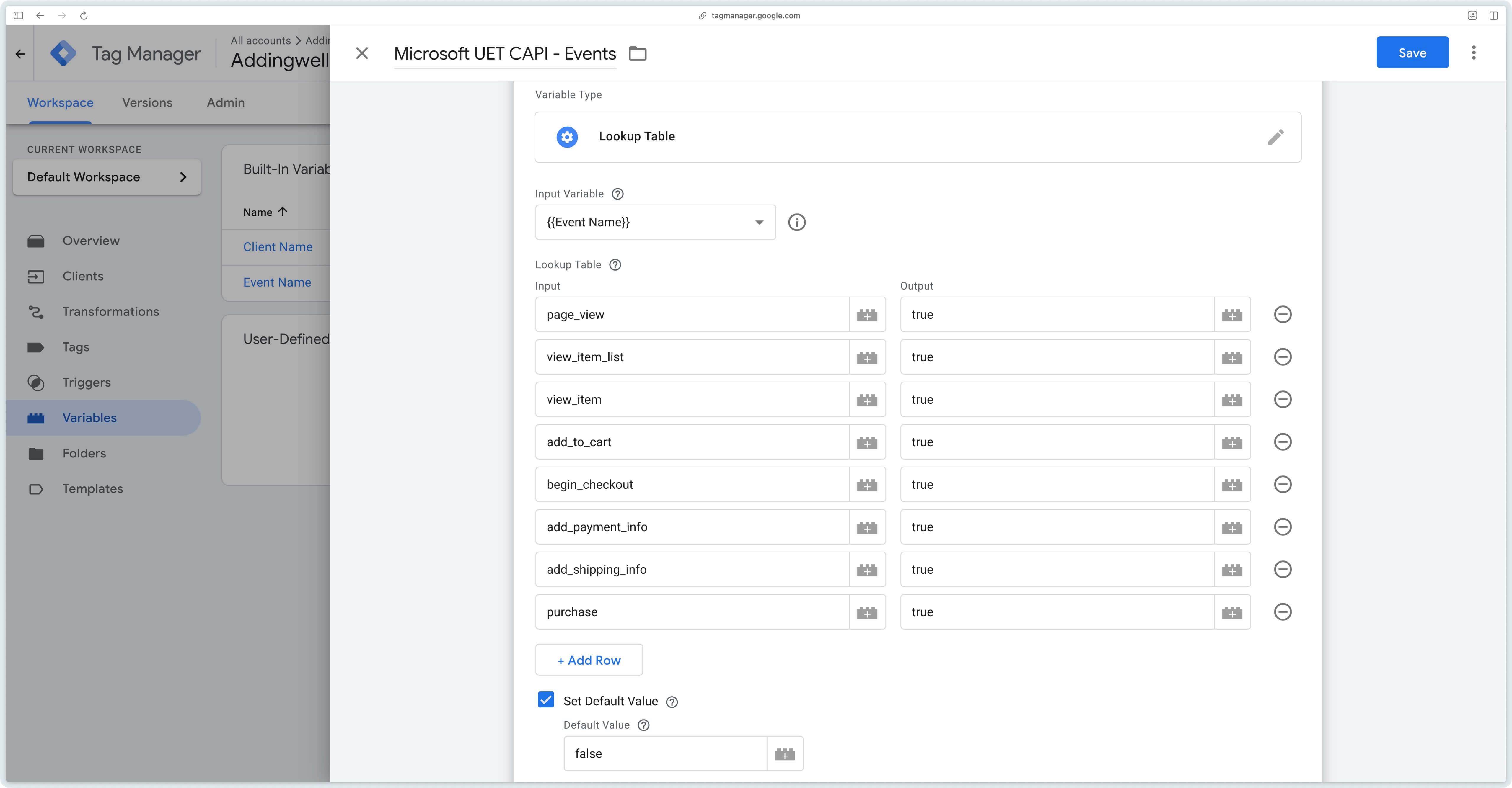
For optimal organization, create a Lookup Table variable configured as follows:
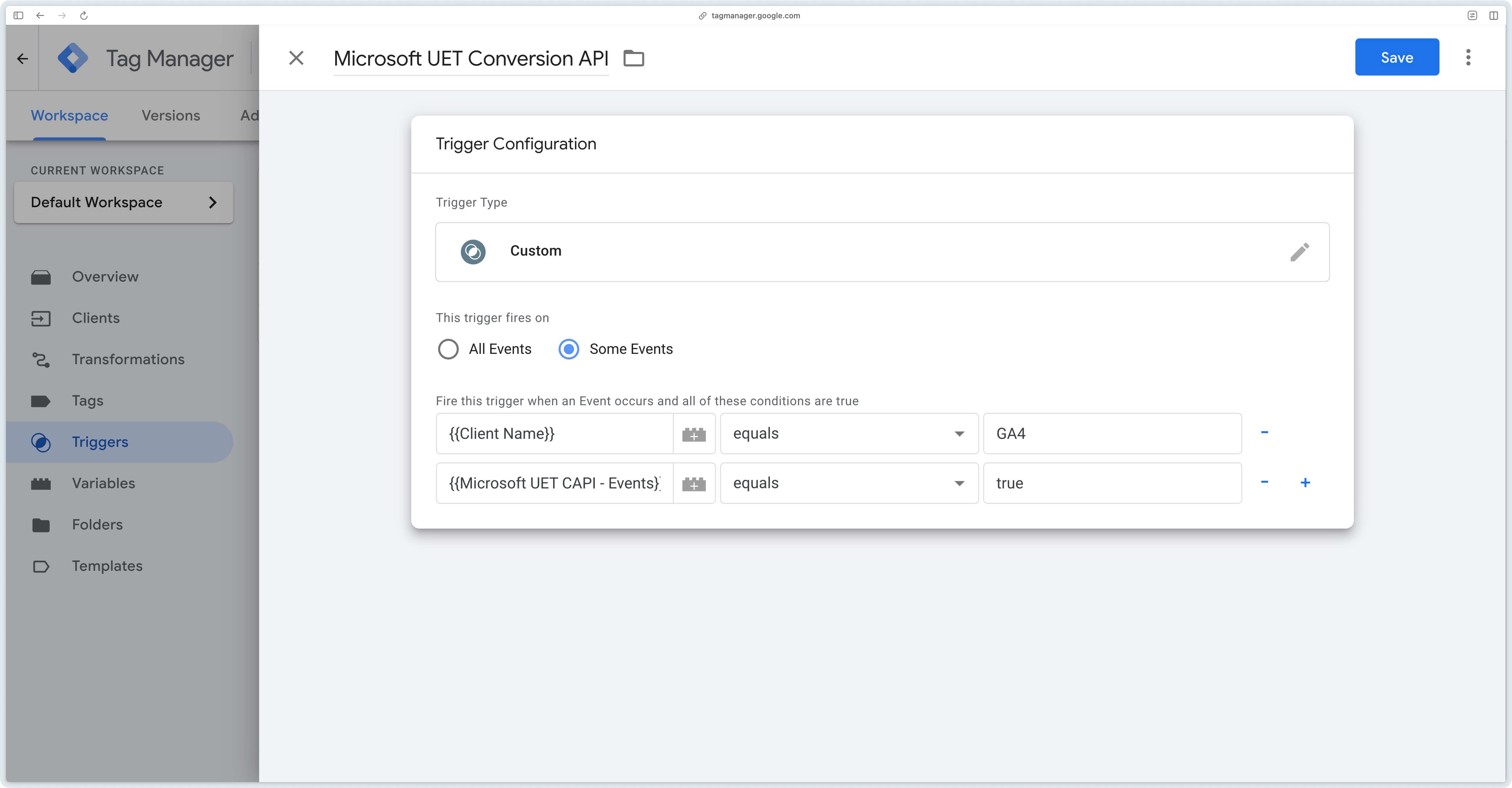
In the Microsoft UET Conversion API tag, create a custom trigger that checks that events come from GA4 (Client Name = GA4) and that the previously configured conversion table returns true.
Verify received data
Event volume
The first step is to ensure that the Microsoft UET Conversion API tag fires correctly for the events specified in the trigger.
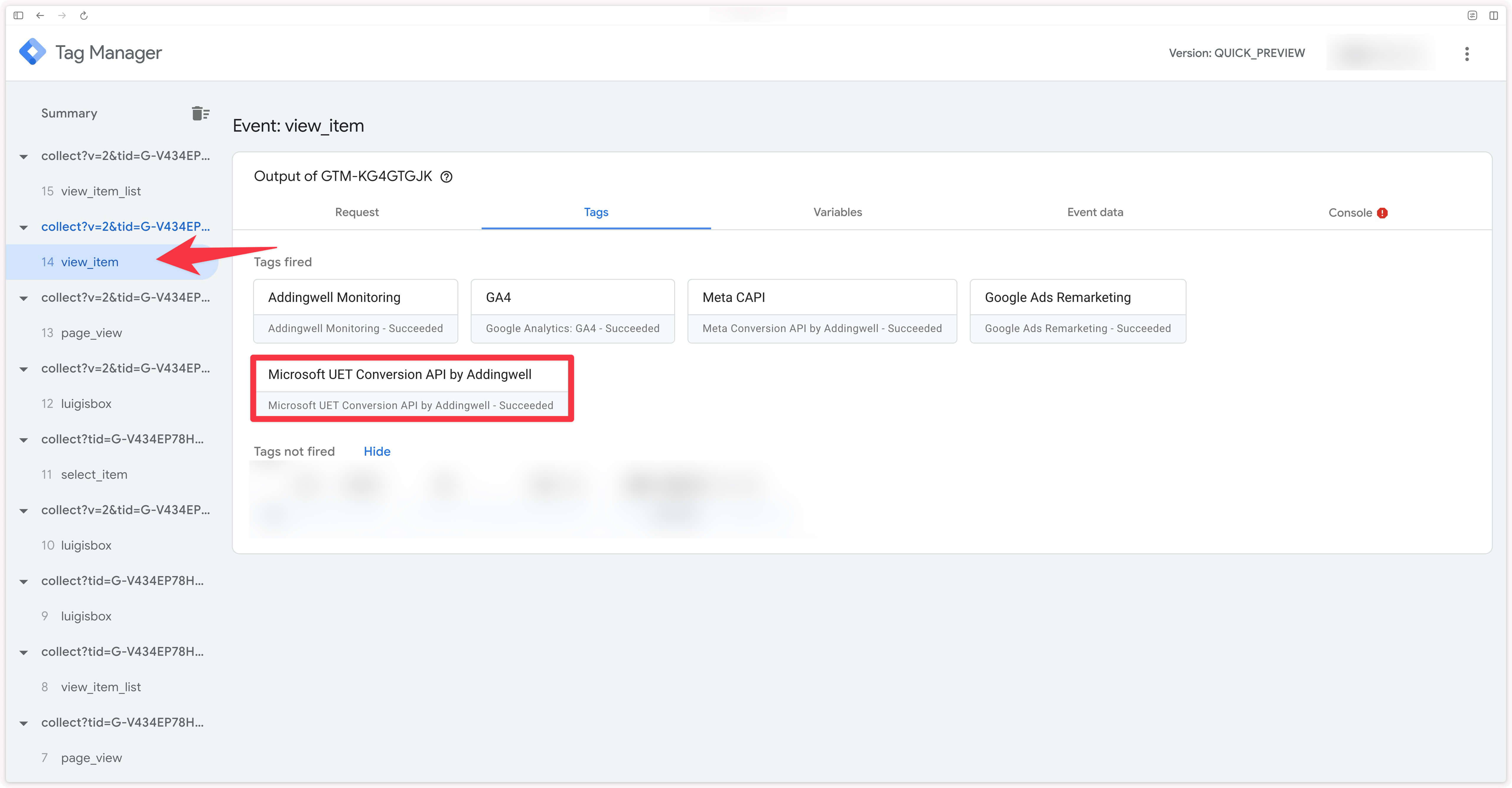
In the server container preview, make sure your Microsoft UET Conversion API tag fires for a specific event (for example, in our case, we verify the trigger on the view_item event). Confirm that it appears in the Tags fired section and that the tag status is Succeeded.
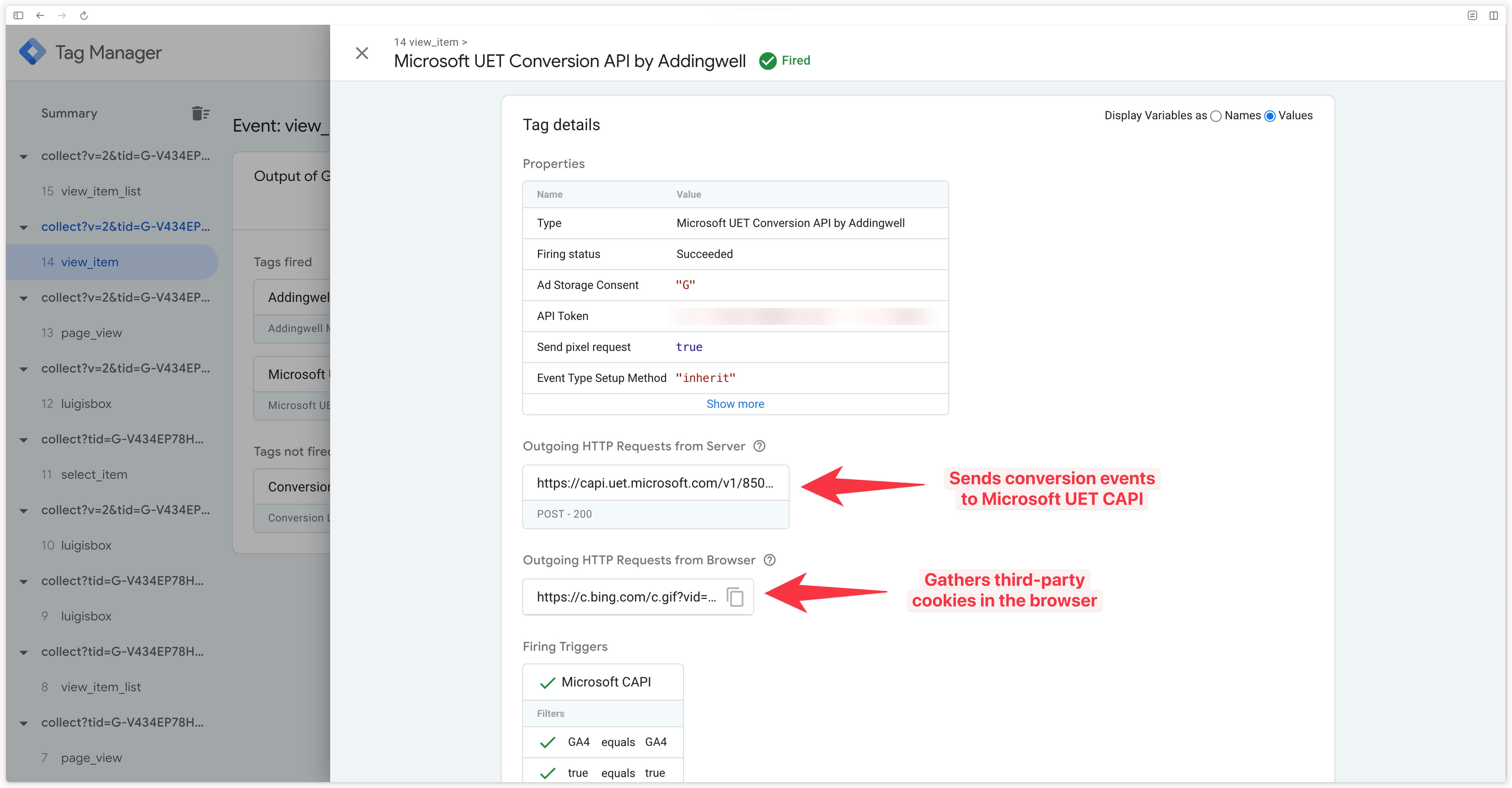
In the preview, click on the Microsoft UET Conversion API tag to verify that requests were sent to Microsoft via the Conversion API and the pixel.
Note that a pixel request will only appear here if the Send pixel request option was checked during the tag configuration.
Event volume received in Microsoft Ads
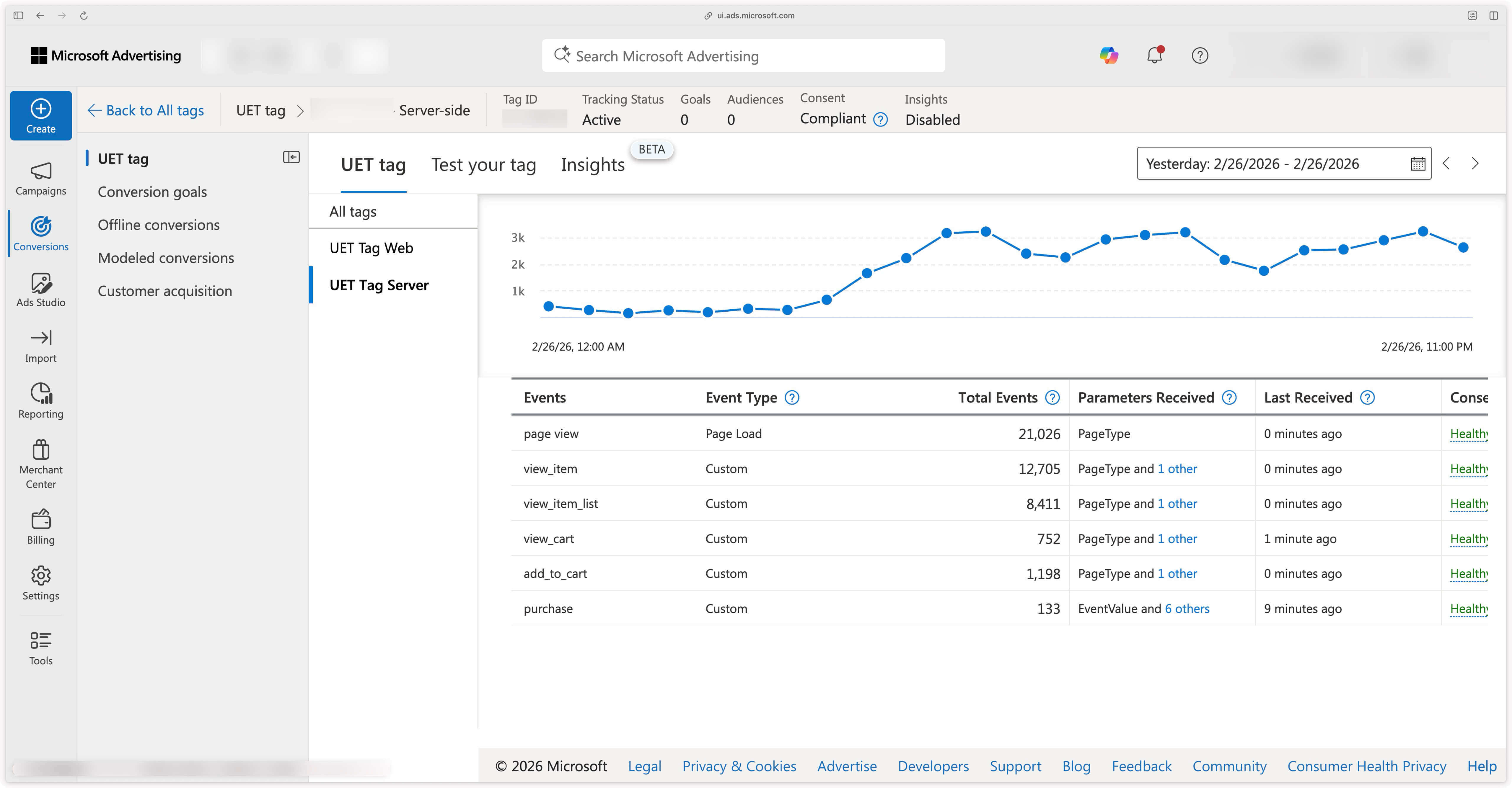
Access your UET Tag in Microsoft Ads via the Conversions menu.
Events received by Microsoft Ads from the Conversion API appear here.
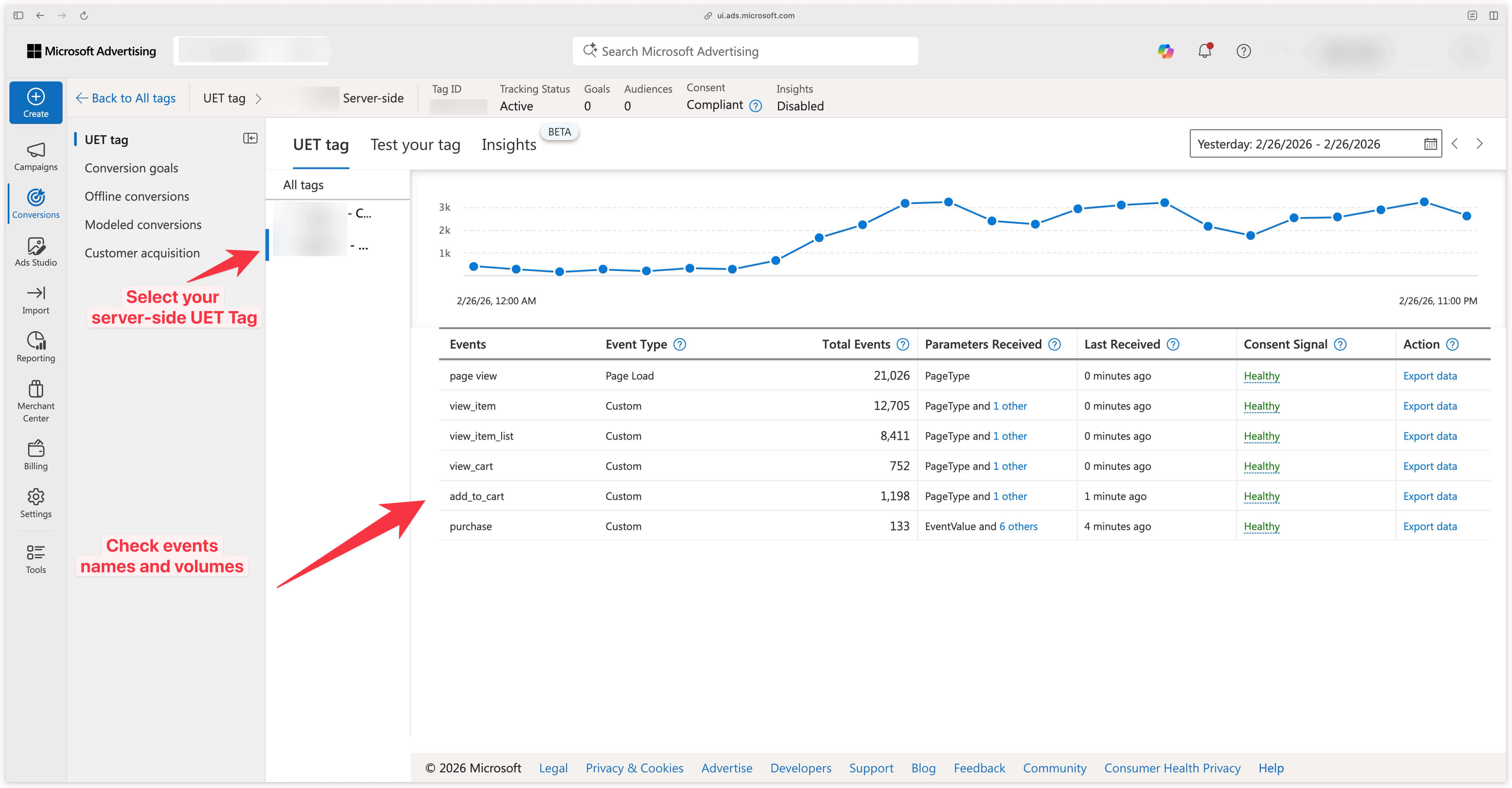
This interface allows you to check whether the events on which you triggered the Microsoft UET Conversion API tag are properly received in Microsoft Ads. You can also verify the volume by comparing with the client-side UET Tag (if you created 2 different UET Tags) or with your back-office.
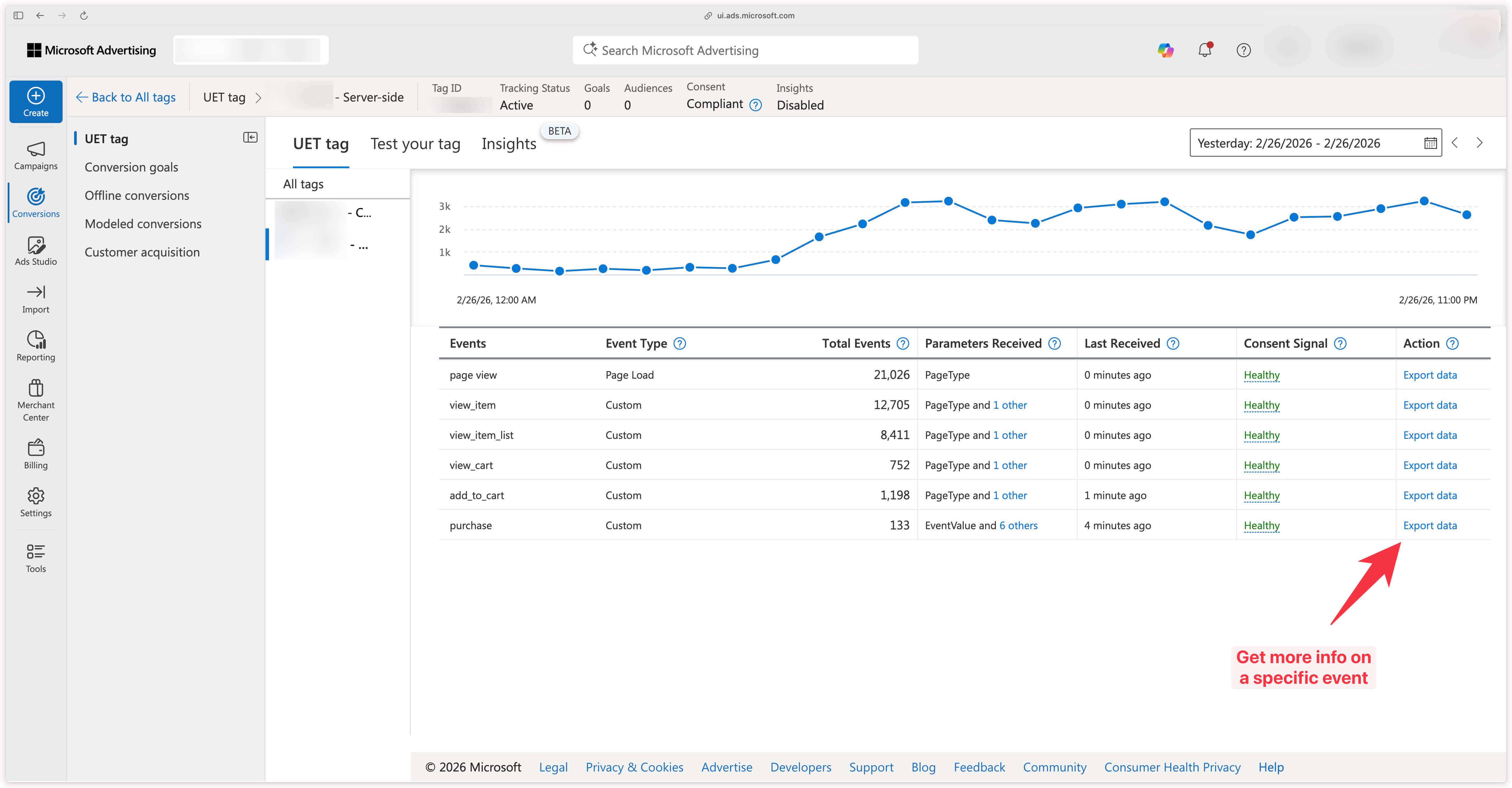
By clicking on Export data in the Action column, you can get more details about the parameters transmitted with the event.
Event volume in Addingwell’s Events Monitoring
Click on the Events Monitoring tab from your Addingwell container. Select the desired time period, then click on the Microsoft UET CAPI tag card.
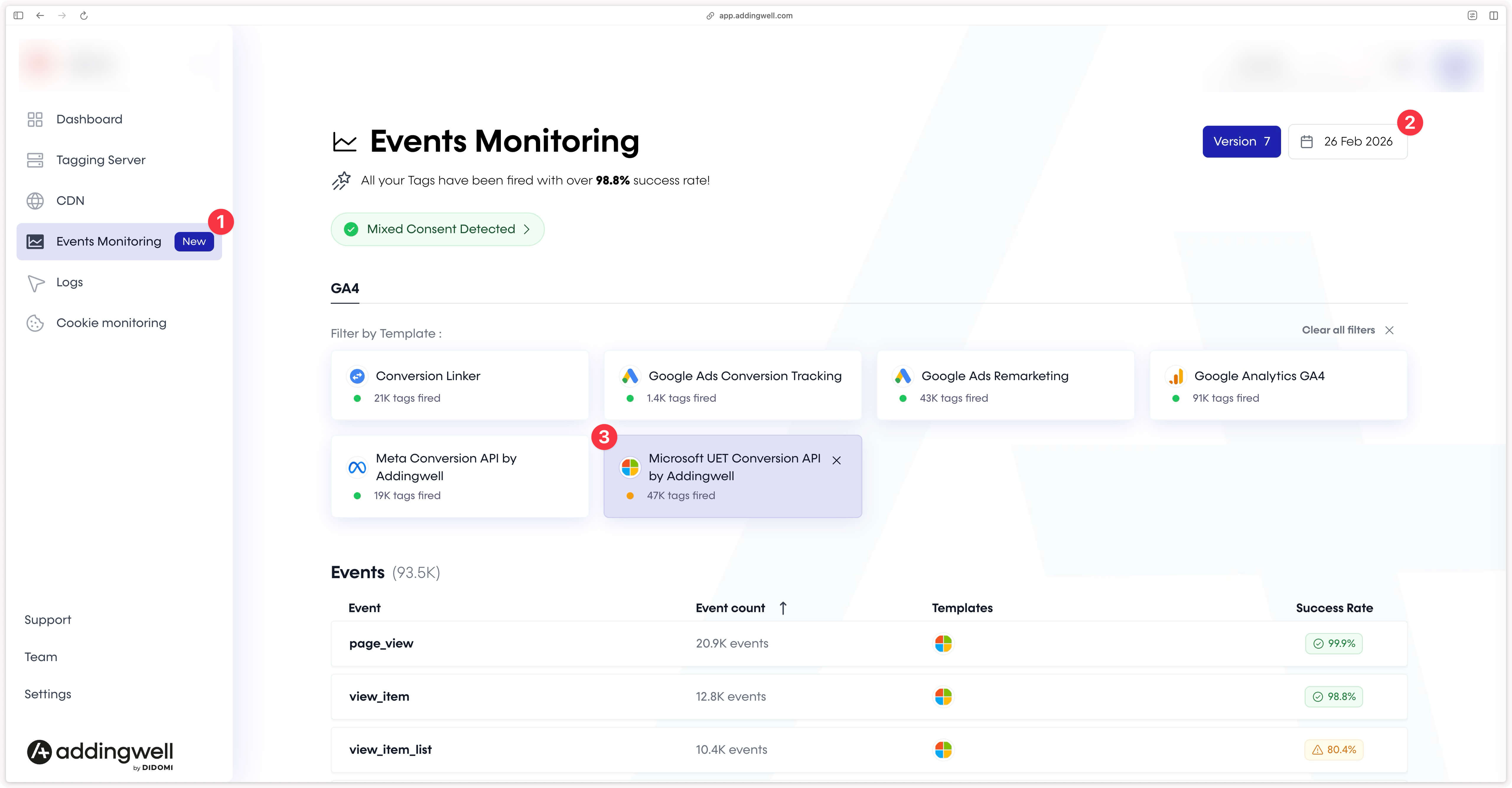
This screen provides details on the events sent by your server to the Microsoft UET Conversion API, as well as the success rate for each event (not all events have 100% success in this example).
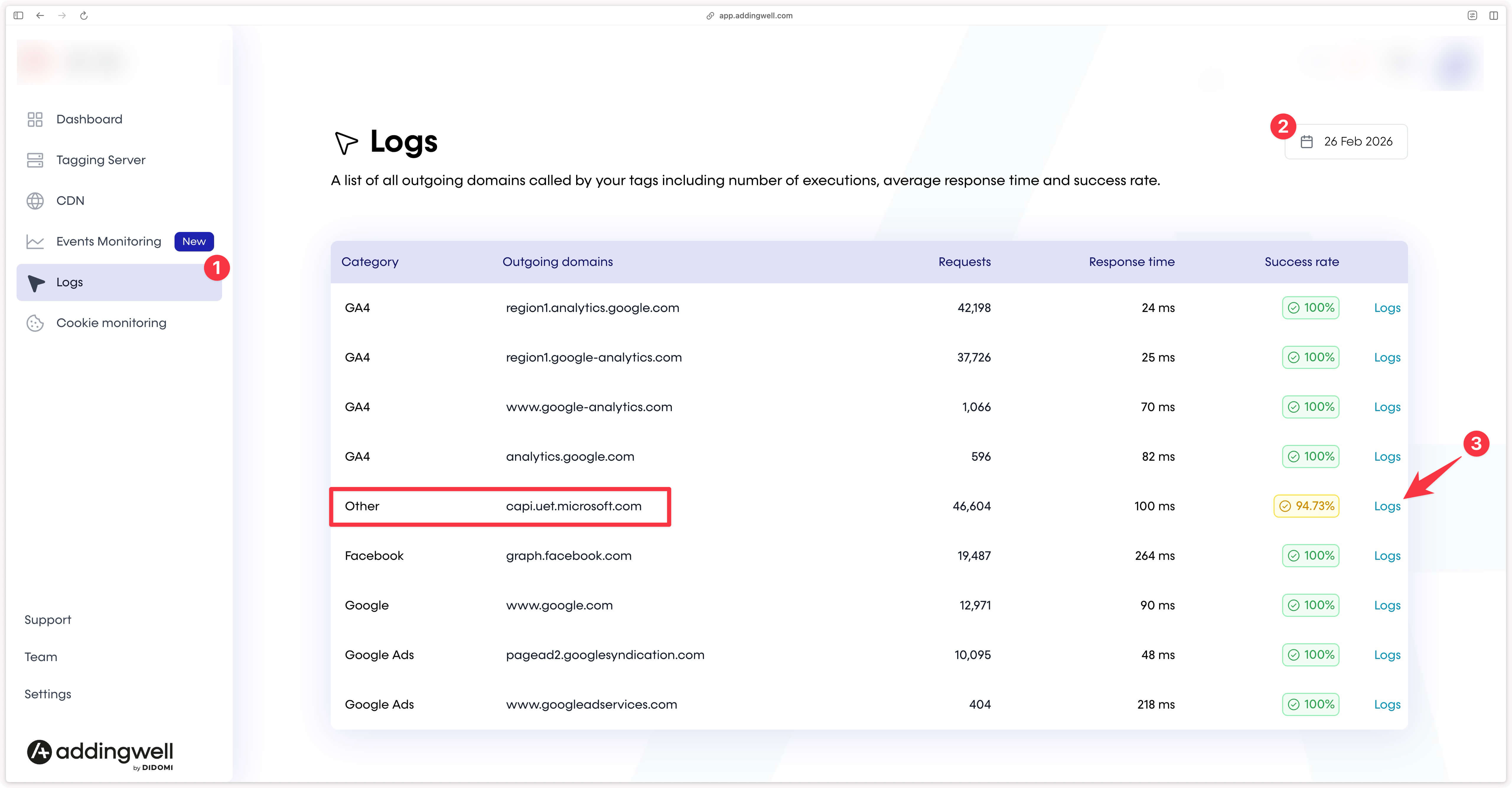
You can learn more about errors by checking the logs. Click on the Logs tab, then select the Microsoft UET API logs.
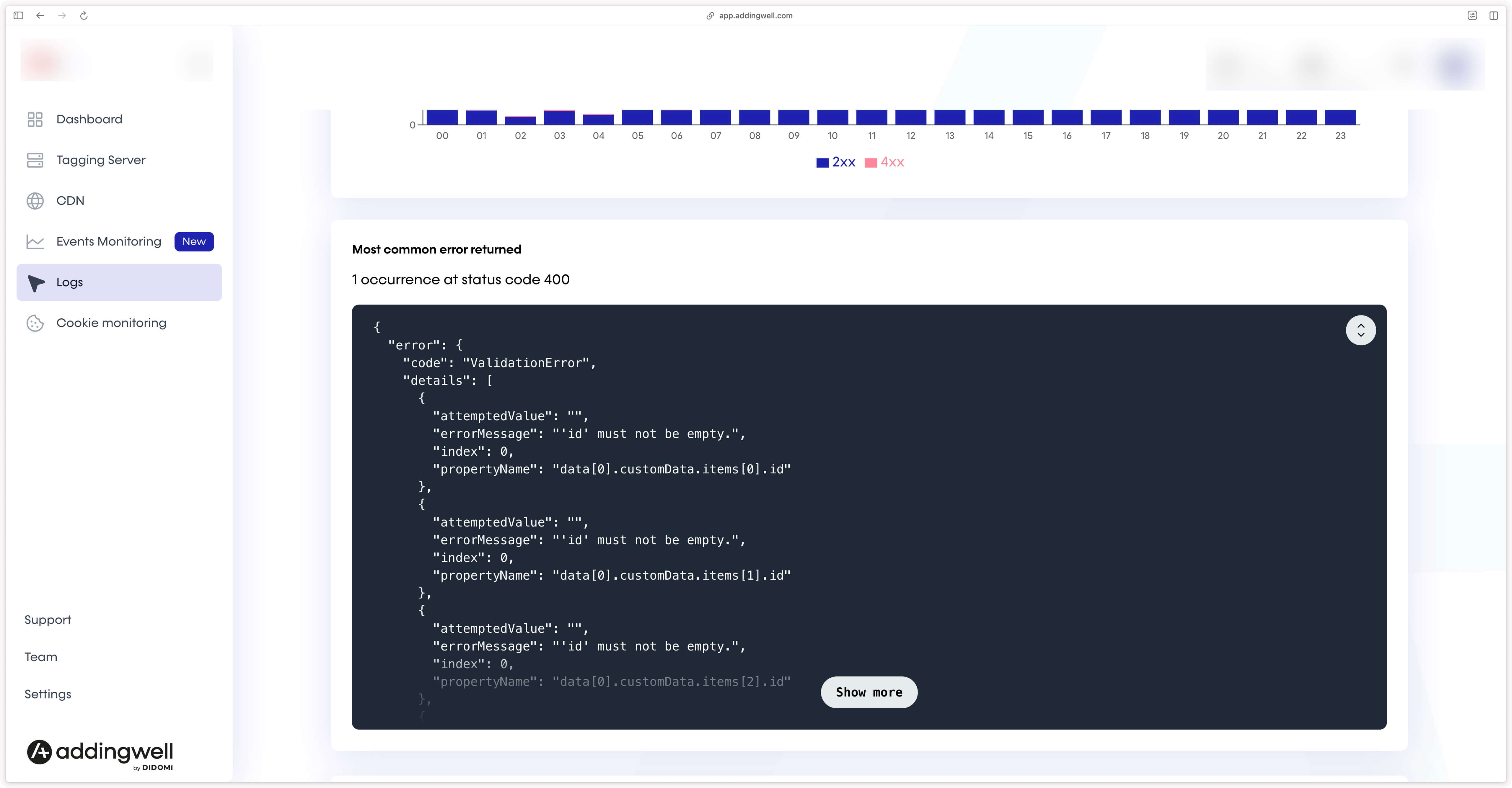
In this example, in our account’s error logs, the error concerns product IDs that are not provided. In this case, it is a dataLayer issue — the item_id key in the items array is empty in the website’s dataLayer. If you also have errors at this stage, take the necessary actions based on the nature of the error displayed.
Data quality
Sending your conversion events to Microsoft Ads is an important first step. You can go further by adding user data (such as email or phone number) to these events. This data allows Microsoft Ads to match received events to a real user in their database.
This enables Microsoft Ads to:
- Better attribute received conversions, by identifying those that would otherwise not have been linked to your Microsoft Ads campaigns.
- Optimize your campaign performance, thanks to higher-quality user signals.
To follow our methodology on reliably sending user data server-side, see our dedicated documentation.
In Addingwell via Events Monitoring
Click on the Events Monitoring menu from your Addingwell container. This screen displays all user data processed by your GA4 client and made available for your server-side events.
Let’s take the purchase event as an example: by clicking on the event name, you can check the parameters available for this specific event.
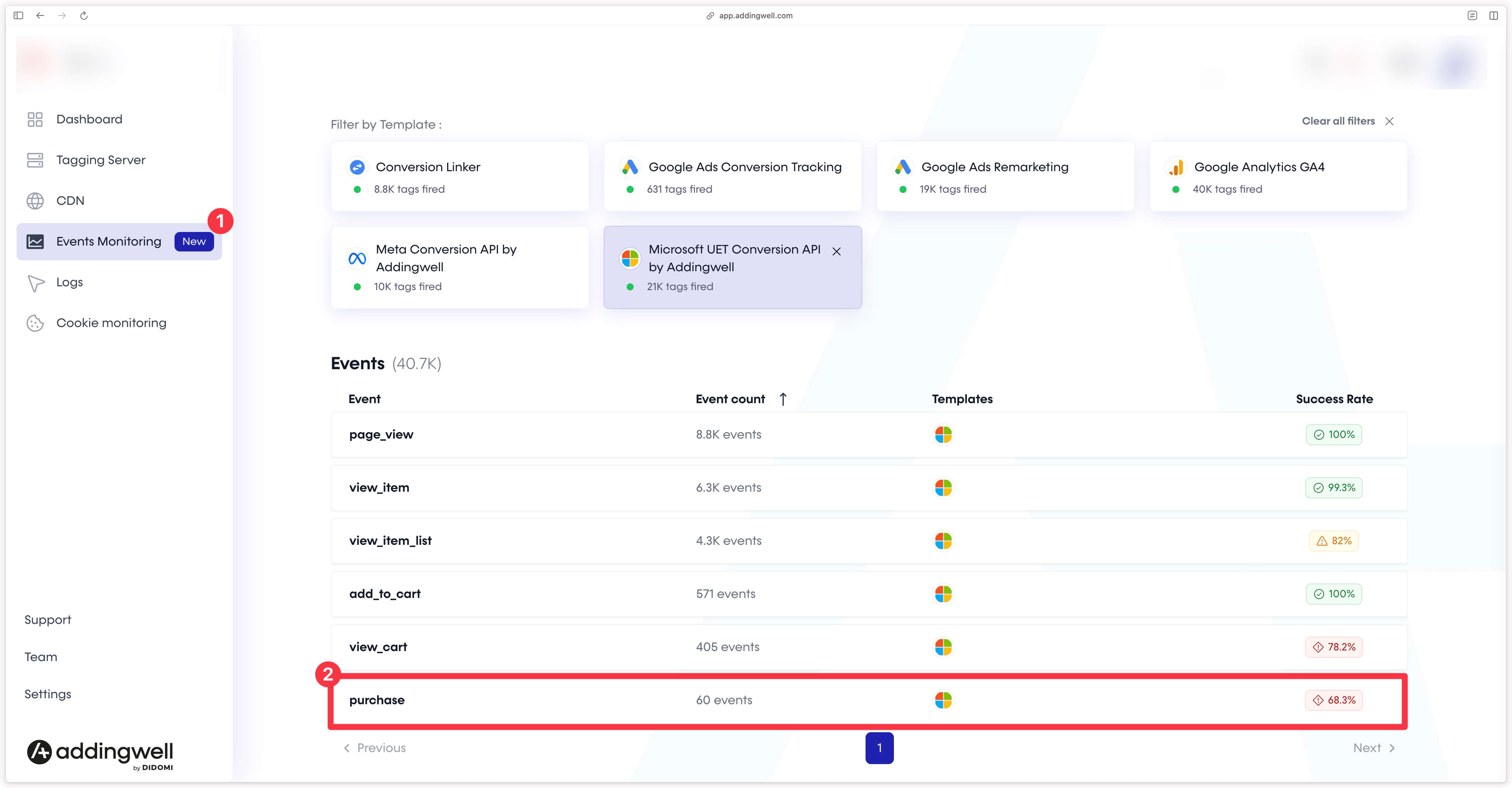
On this screen, you can see the percentage of user data presence, such as email, in your purchase events, as well as the coverage rate for each parameter.
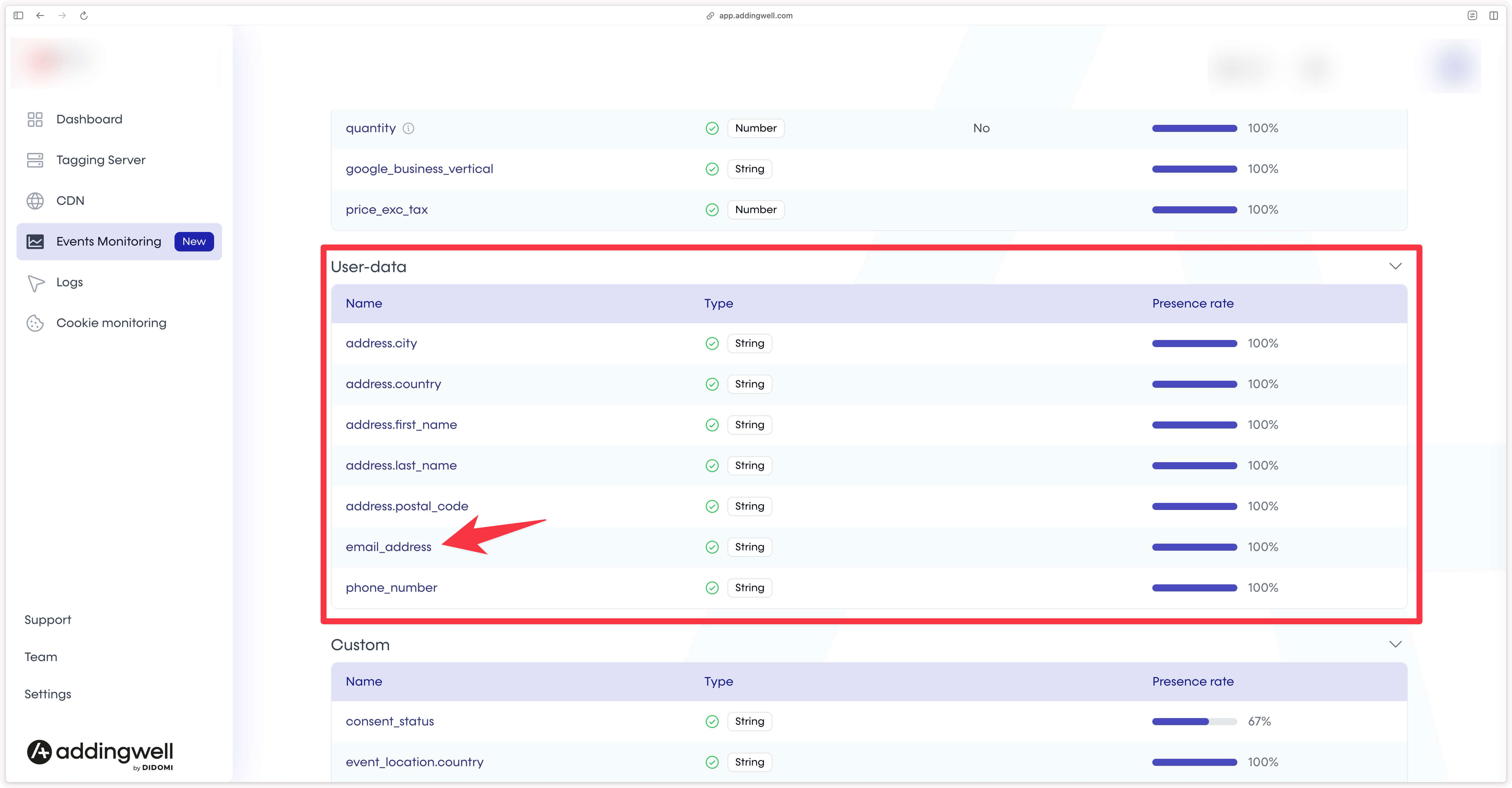
In our example, email data is present in 100% of purchase events.
The data being sent is therefore of high quality, as the events contain the expected user information available at this stage of the customer journey.
Congratulations
You have completed the configuration of Microsoft UET Conversion API, and you have verified that your data is properly transmitted to Microsoft and that the data quality is good.
If you encountered any issues during these steps, feel free to contact our support team.