Pinterest CAPI Conversion Tracking with Google Tag Manager
Pinterest CAPI: boost your ad conversion tracking
Do you have advertising campaigns on Pinterest and haven’t yet installed Pinterest CAPI? Simple and quick to set up, it’s the best solution today for tracking your ads, and it would be a shame to miss out on this opportunity!
Why Pinterest Conversions API?
If you are running advertising campaigns on Pinterest, then you’ve already implemented the Pinterest Pixel (also called Pinterest Tag), which is triggered from the user’s browser to track conversions from your ads. However, as the world of tracking is constantly evolving, this Pixel is now becoming obsolete, notably due to ad blockers, the end of third-party cookies and restrictions in certain browsers (Safari for example). Another issue related to this Pixel is its impact on your site’s loading time, which can be detrimental to your web performance.
To alleviate these issues and ensure optimal conversion tracking for your advertising campaigns, Pinterest has developed its Conversion API called Pinterest Conversions API (or CAPI). This server-to-server technology is the ideal solution for bypassing the limitations of the Pixel, and can be set up very easily on your server-side container. By tracking your conversions via Pinterest CAPI, your conversion data will be more accurate, more robust and your advertising campaign performance improved.
Addingwell recommendations
Our recommendation is the same as Pinterest’s, which currently advocates double tracking via sending data via both Pixel and CAPI. The data will then of course be deduplicated (don’t worry, our Addingwell tag guarantees this deduplication).
How the Addingwell tag works
As you can see, the recommendation is to continue using Pixel, along with CAPI, as shown in the diagram below:
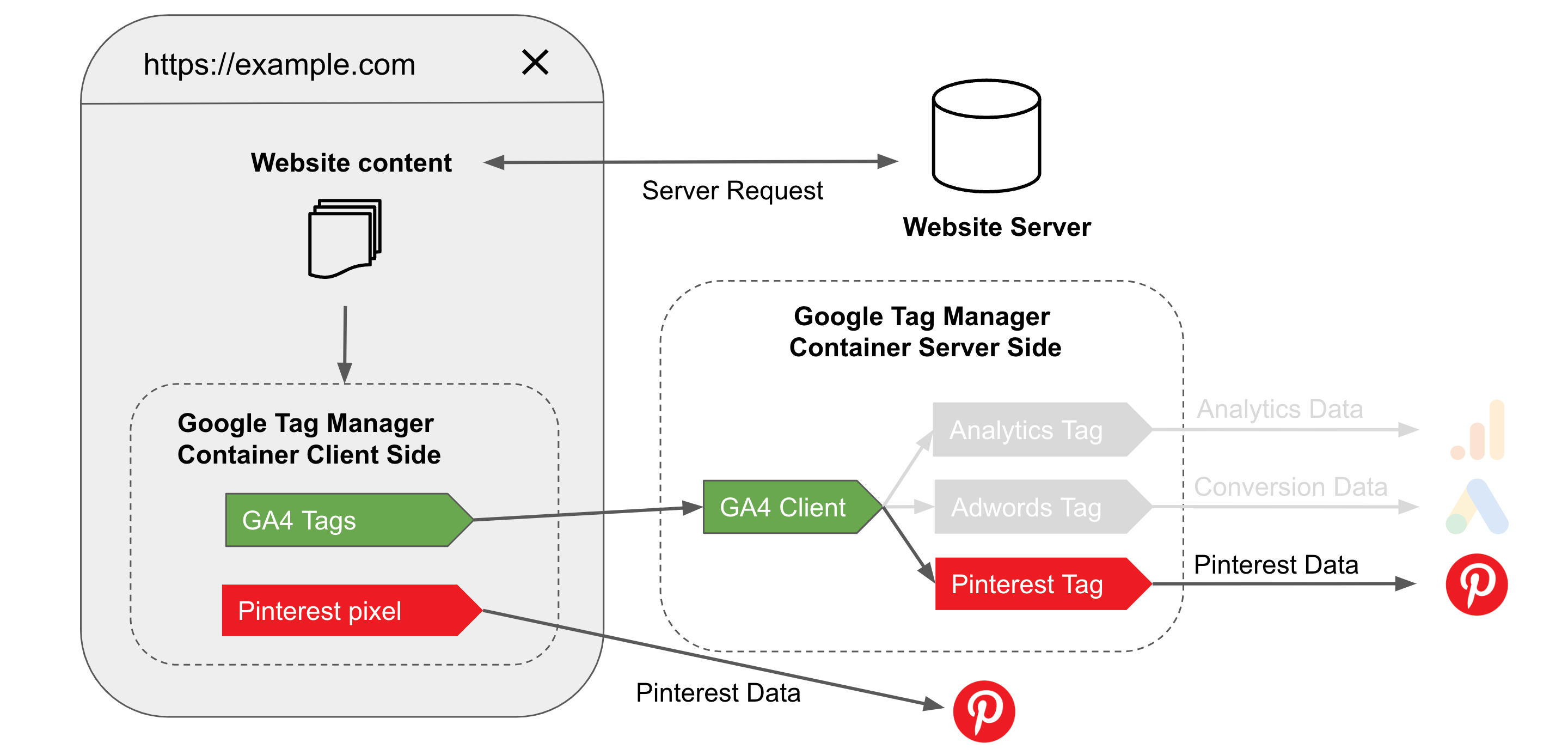
However, this dual implementation can be complex when it comes to managing the deduplication of events sent, and doesn’t solve web performance concerns, since the Pixel is still loaded from your user’s browser.
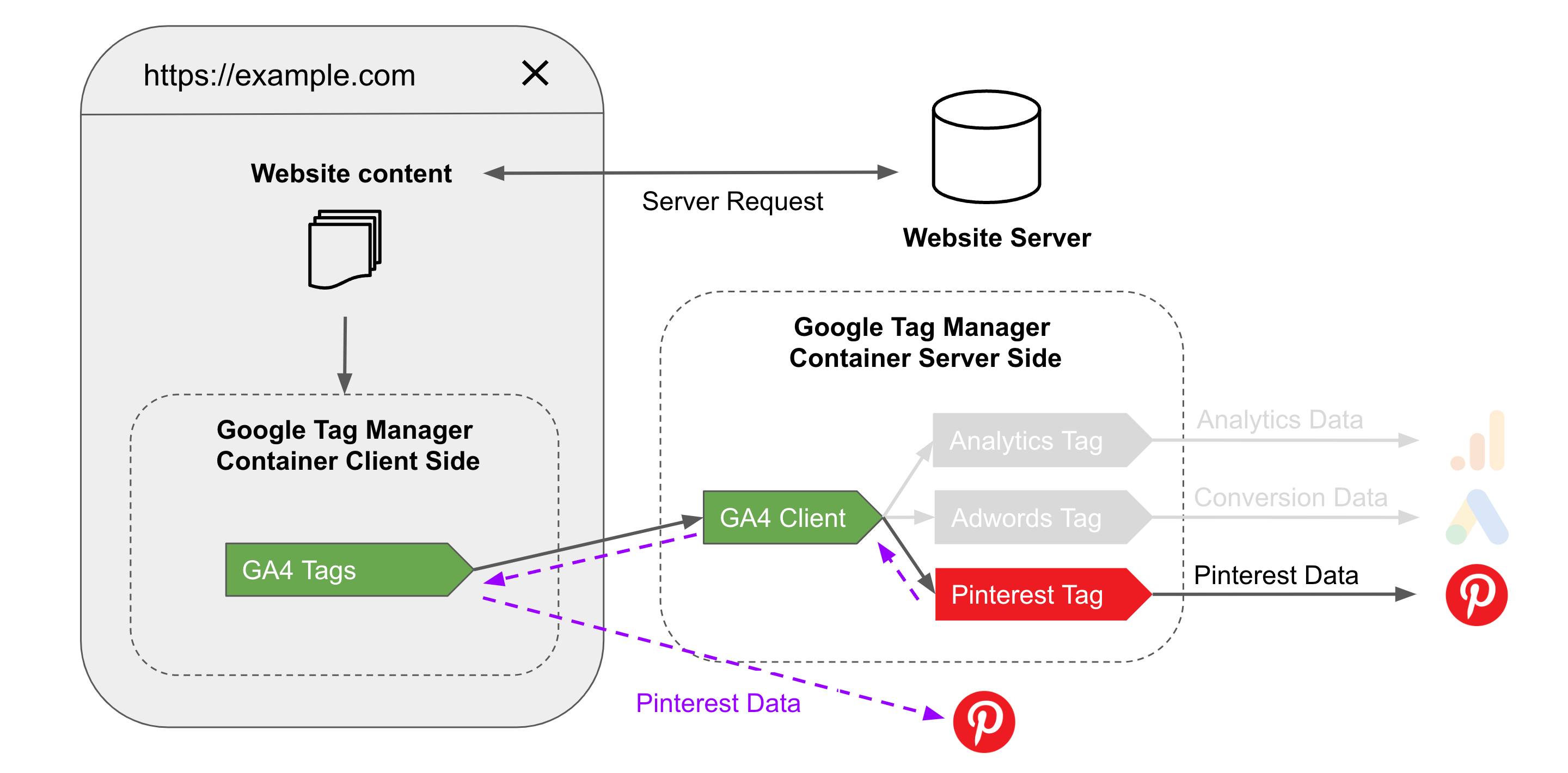
Our solution simplifies everything, so you don’t have to worry about deduplication or loading the Pixel on the client side. The Addingwell sGTM Pinterest CAPI tag works like this: the tag sends the data to CAPI and lets you load the Pixel directly from your server-side tag:
Expected benefits post set-up
After implementing Pinterest CAPI, adblocker bypass, and Safari 16.4 bypass, your data will be more reliable and accurate, and you’ll also see a greater number of attributed conversions in your Pinterest campaign manager.
Here’s an example, on a view_item conversion, after setting up Pixel + CAPI tracking:
After deduplication, we see +14% conversions on this event compared to tracking via the Pixel alone!
Pinterest CAPI tag set-up
Now that you’ve understood the benefits of implementing CAPI for Pinterest, follow our detailed methodology to set up your Pinterest tag and verify the data received post-implementation.
Import tag
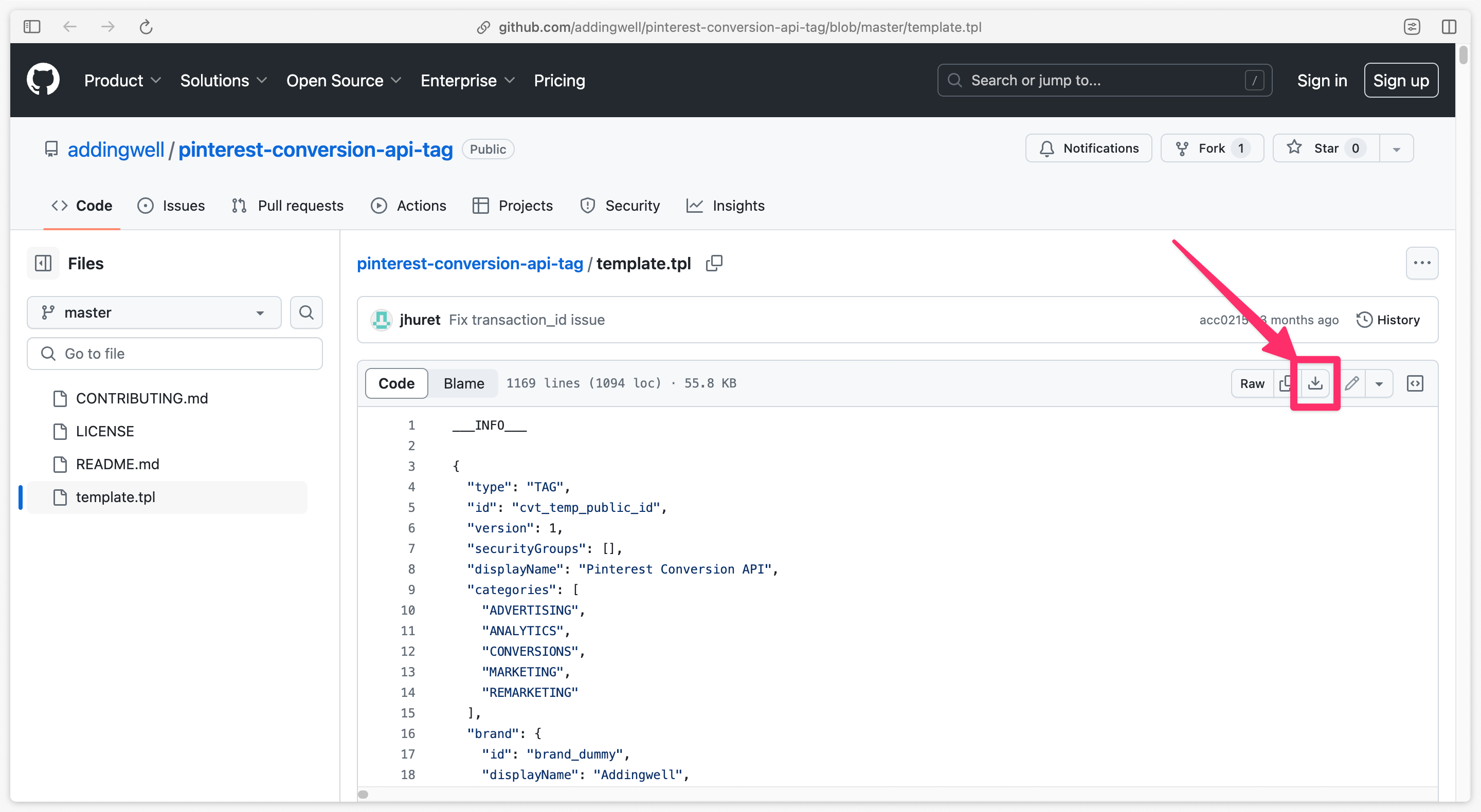
Download tag
Click here to download the Pinterest Conversion API tag and click on the download icon to retrieve the file.
Import the tag into sGTM
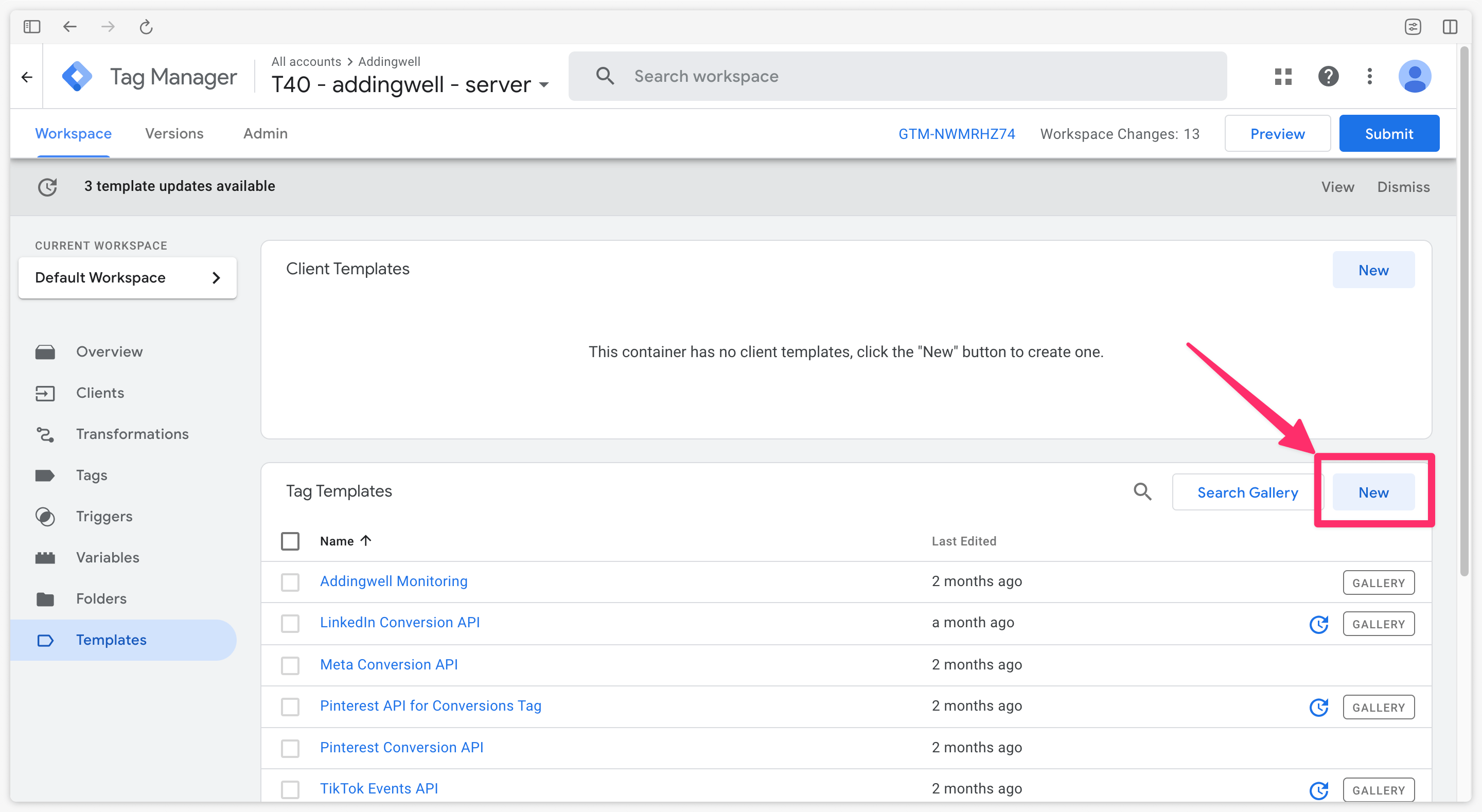
Go to the Templates tab of the server container, then, in the Tag templates section, click New.
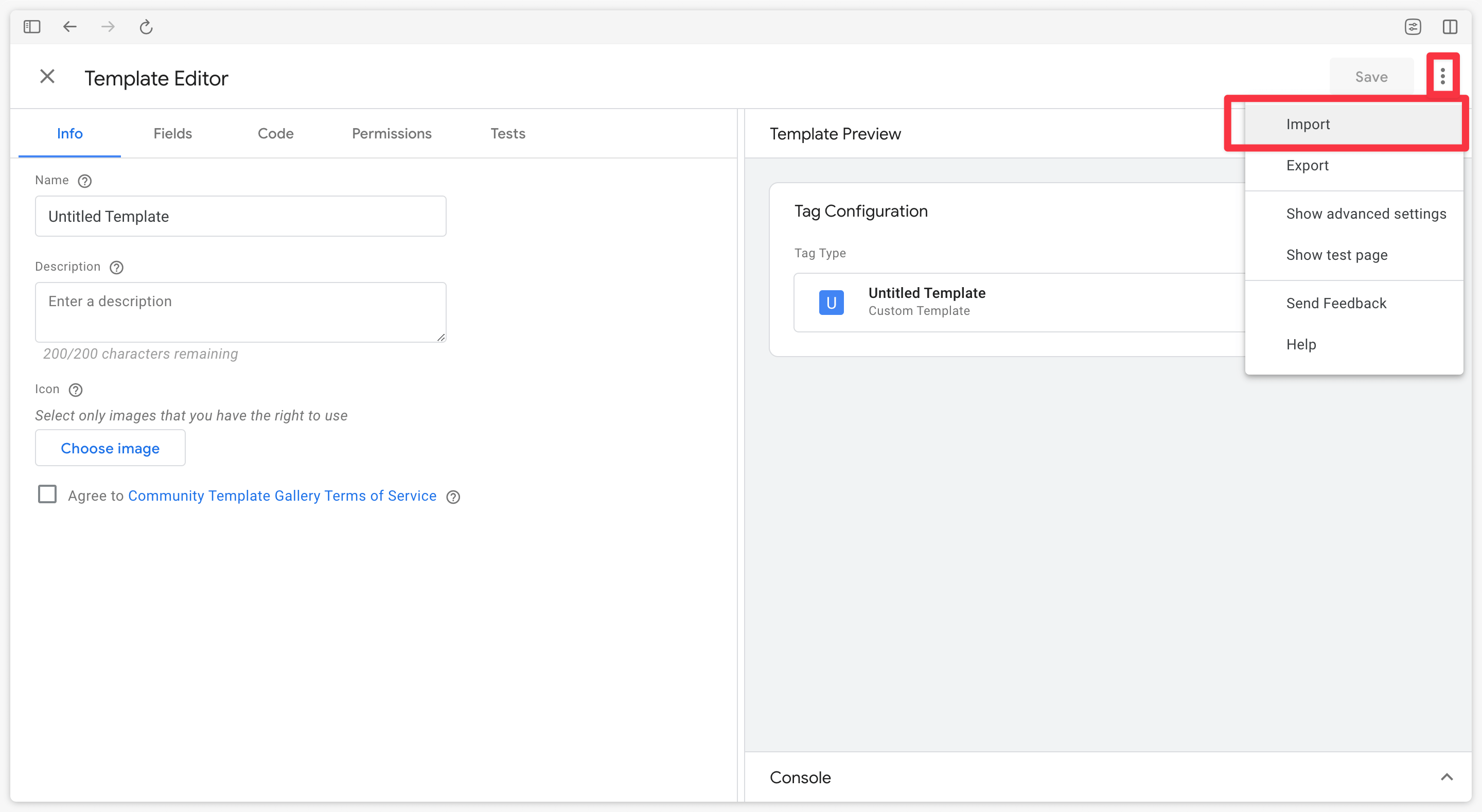
Then click on the three small dots at top right, then select Import.
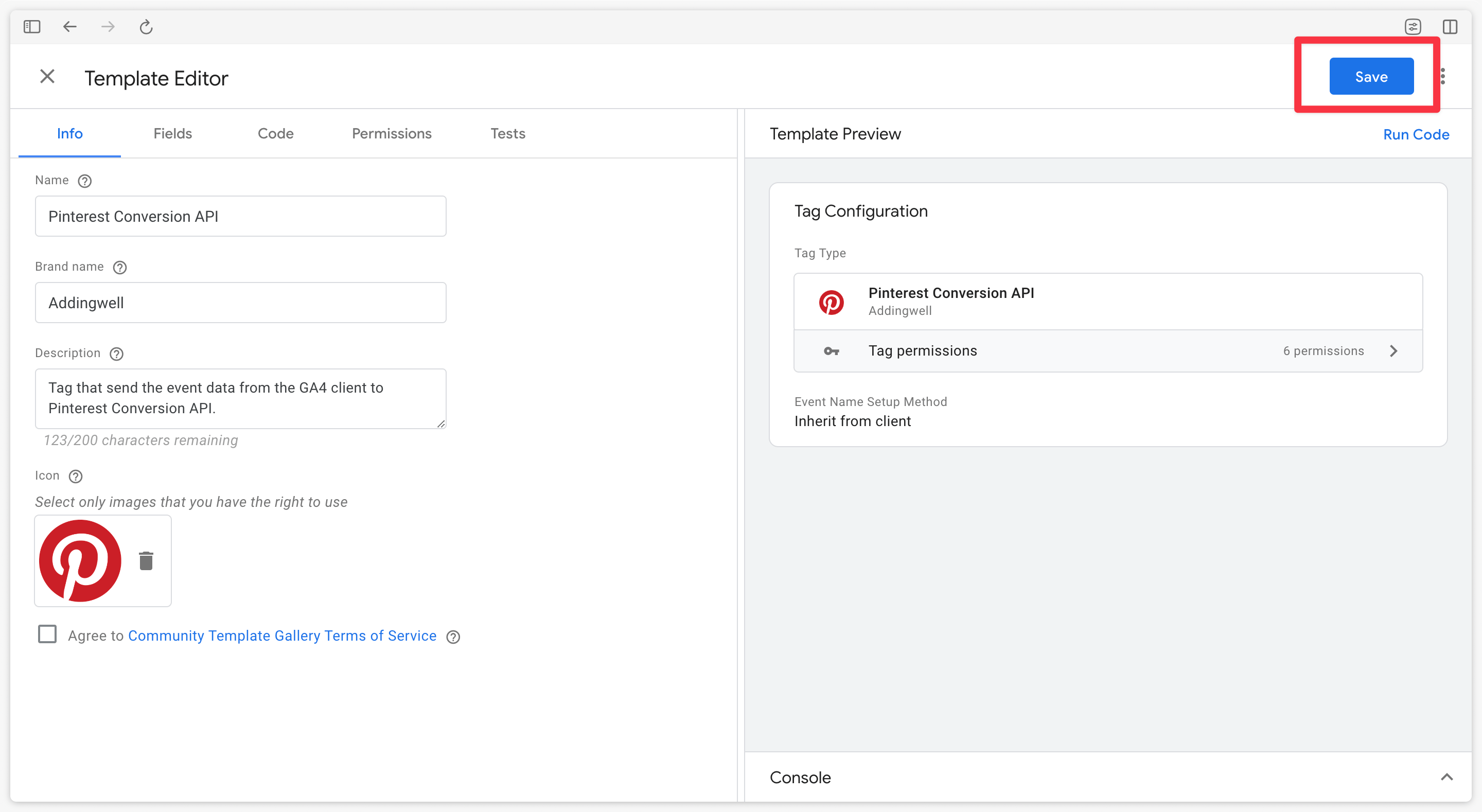
Save the new imported tag
Then select the newly uploaded template.tpl file, and click Save.
Configuring the tag
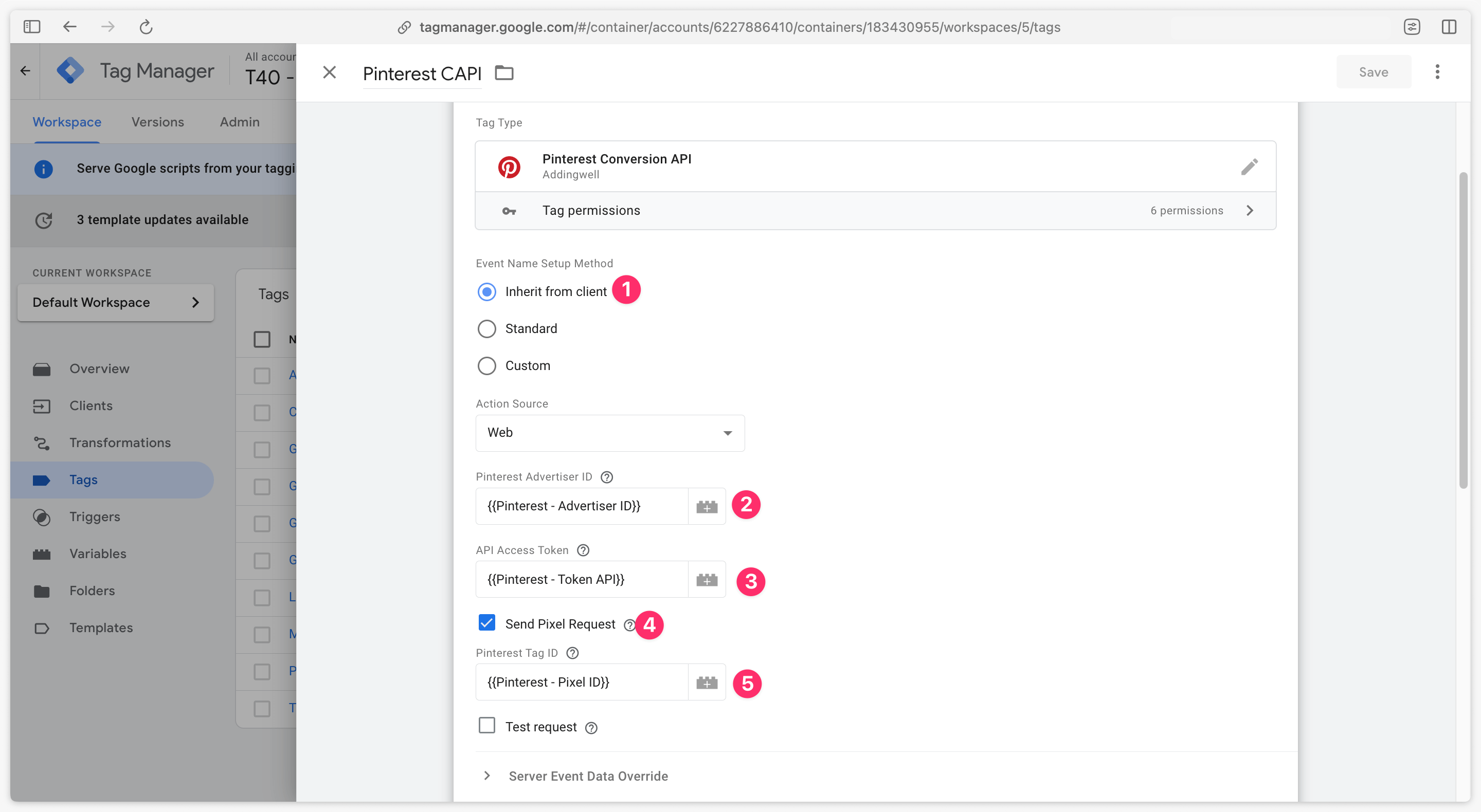
Create a new tag in Google Tag Manager Server-Side and select the recently imported Pinterest CAPI tag.
To configure the tag, three pieces of information are required:
- Your Pinterest Advertiser ID
- Your API Access Token enabling communication with the conversions API (CAPI)
- Your Pinterest Tag ID
Once you’ve retrieved the Pinterest Advertiser ID, API access Tokenn and Pinterest Tag ID, configure the Pinterest CAPI tag.
Event Name Setup Method
| Setup Method | Description |
|---|---|
| Inherit from client | The tag will automatically do a match beween GA4 events received from the client-side container and standard Pinterest events, using this mapping table. Each GA4 event not listed in the mapping table will be sent as a custom event to Pinterest. |
| Standard | Match your own GA4 events with those to be sent to Pinterest. Choose to send a standard event from the drop-down menu. By choosing this option, you can only send one event via this tag. To send other events, you’ll need to create additional Pinterest CAPI tags, each specific to an event in the drop-down list. |
| Custom | Match your GA4 events to those you want to send to Pinterest. Choose to send a custom event by entering its name. |
Pinterest Advertiser ID
Enter the Advertiser ID retrieved from your Pinterest ad manager.
API Access Token
Enter the API Access Token retrieved from your Pinterest ad manager.
Send pixel request
This box allows you to send a request to the Pinterest pixel (=Pinterest Tag ID) (purple arrow on the diagram below) with the same event_id as the request sent to the conversion API, thus facilitating the deduplication mechanism. This complies with Pinterest’s recommendations in terms of ad tracking.
With this Addingwell tag, it is therefore not necessary to have Pinterest tags on the client container: only the tag on the server container is required.
Pinterest Tag ID (= Pinterest pixel)
Enter here the Pinterest Tag ID retrieved from your Pinterest ads manager
Test Request
By checking this box, events will not be logged, but the API will always return the same response messages. You can use this mode to test that your requests work and that your events are built correctly.
Triggering the tag
Trigger the Pinterest CAPI tag on relevant GA4 events using the mapping table.
For example, for an e-commerce site, the following events are typically used:
| Event name |
|---|
| page_view |
| view_item_list |
| view_item |
| add_to_cart |
| purchase |
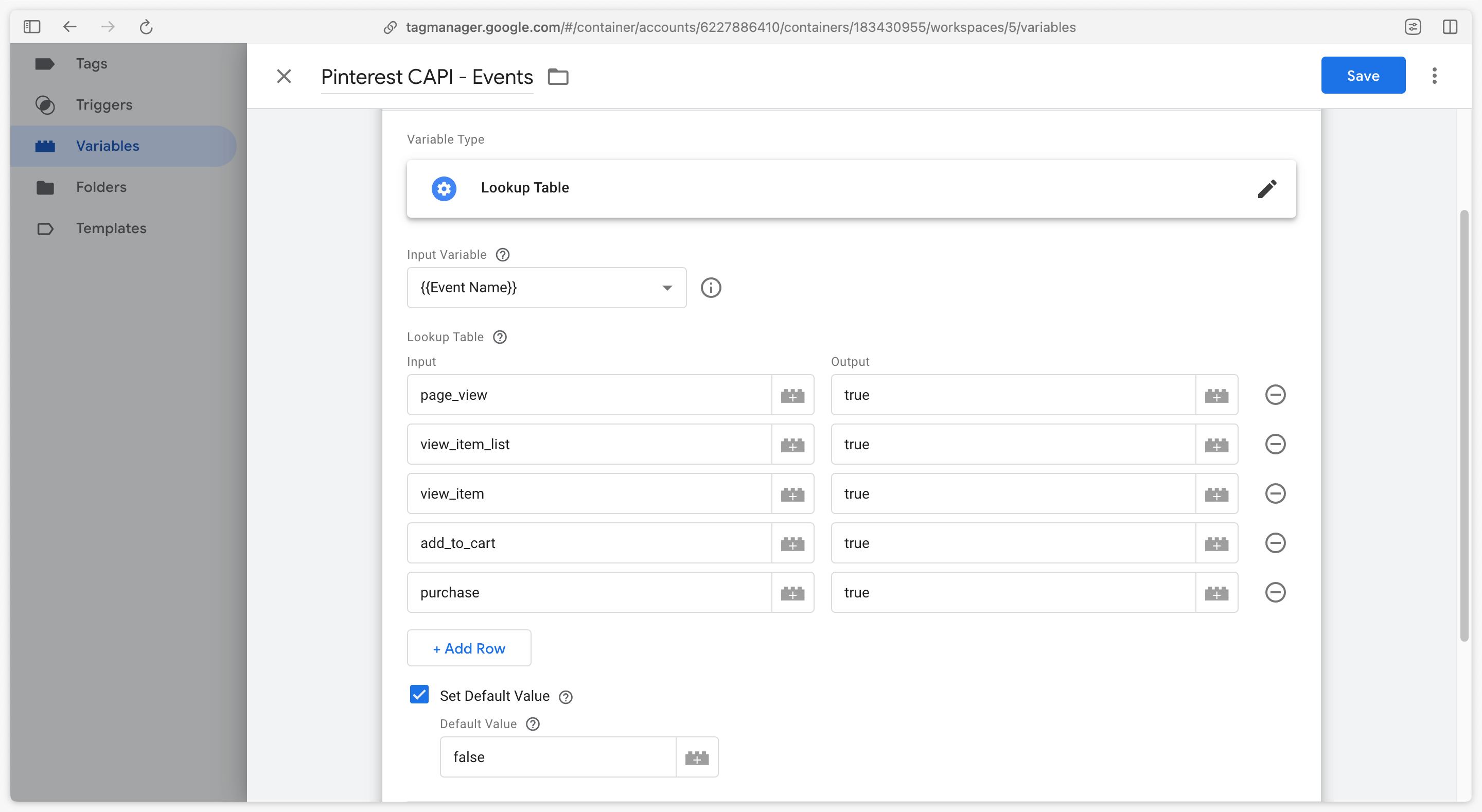
This list of events is of course not exhaustive and depends on your situation.
For optimal organization, create a Lookup Table variable configured as follows:
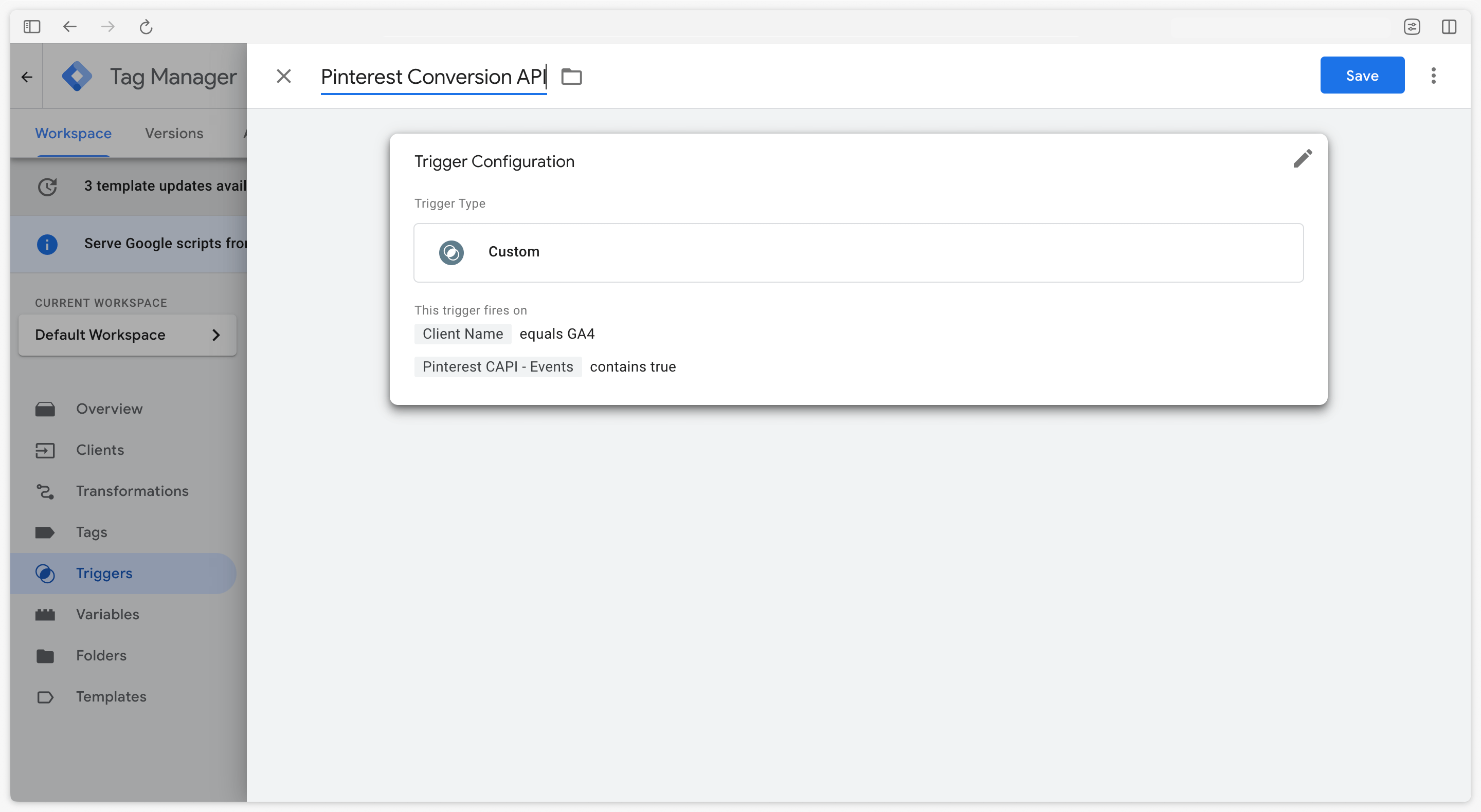
In the Pinterest CAPI tag, create a custom trigger verifying that the events come from GA4 (Client Name = GA4) and that the previously configured mapping table returns true.
Depending on the country in which your website operates and the regulations in force regarding data collection (GDPR in Europe, CCPA in California, Law 25 in Quebec, etc.), it is imperative to configure the tag trigger based on user consent. Ensure that the tag is triggered only when the appropriate consent has been obtained, in accordance with applicable legal requirements.
Check received data
Once you’ve set up your Pinterest CAPI tag, it’s time to check that your events are correctly being sent by your server container, and that the volume of events received by Pinterest is consistent and deduplicated. To find out more, follow our methodology to investigate the quality of received data (especially user data).
Check event delivery
GTM Server-Side preview
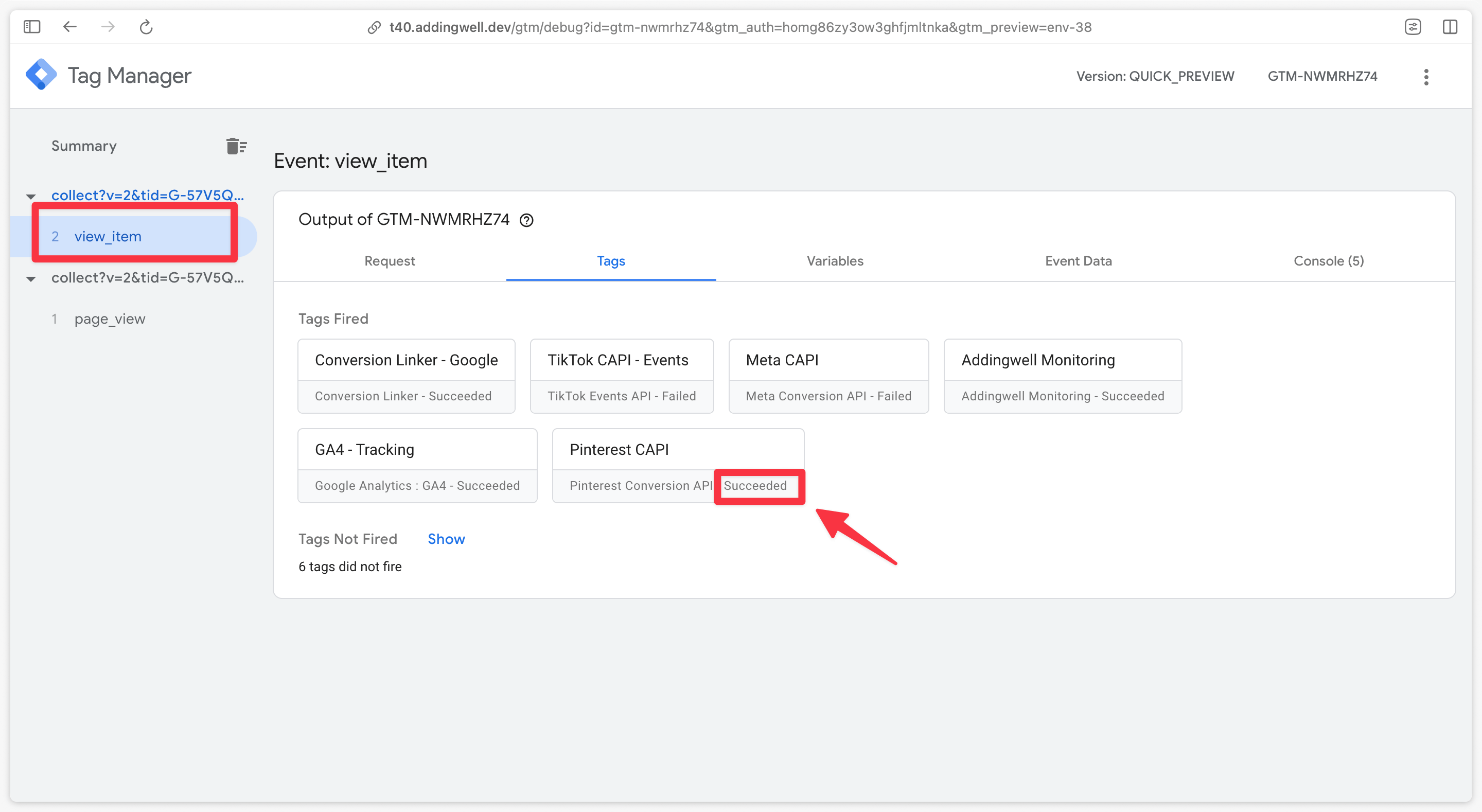
The first thing to check in the GTM server preview is that the Pinterest Conversion API tag is triggered correctly on the events configured in the trigger.
In the server container preview, check that your Pinterest CAPI tag is indeed triggered for a given event (here in our example, we’re checking triggering on the view_item event), and that it therefore appears in the Tags fired section and finally that the mention on the tag is Succeeded.
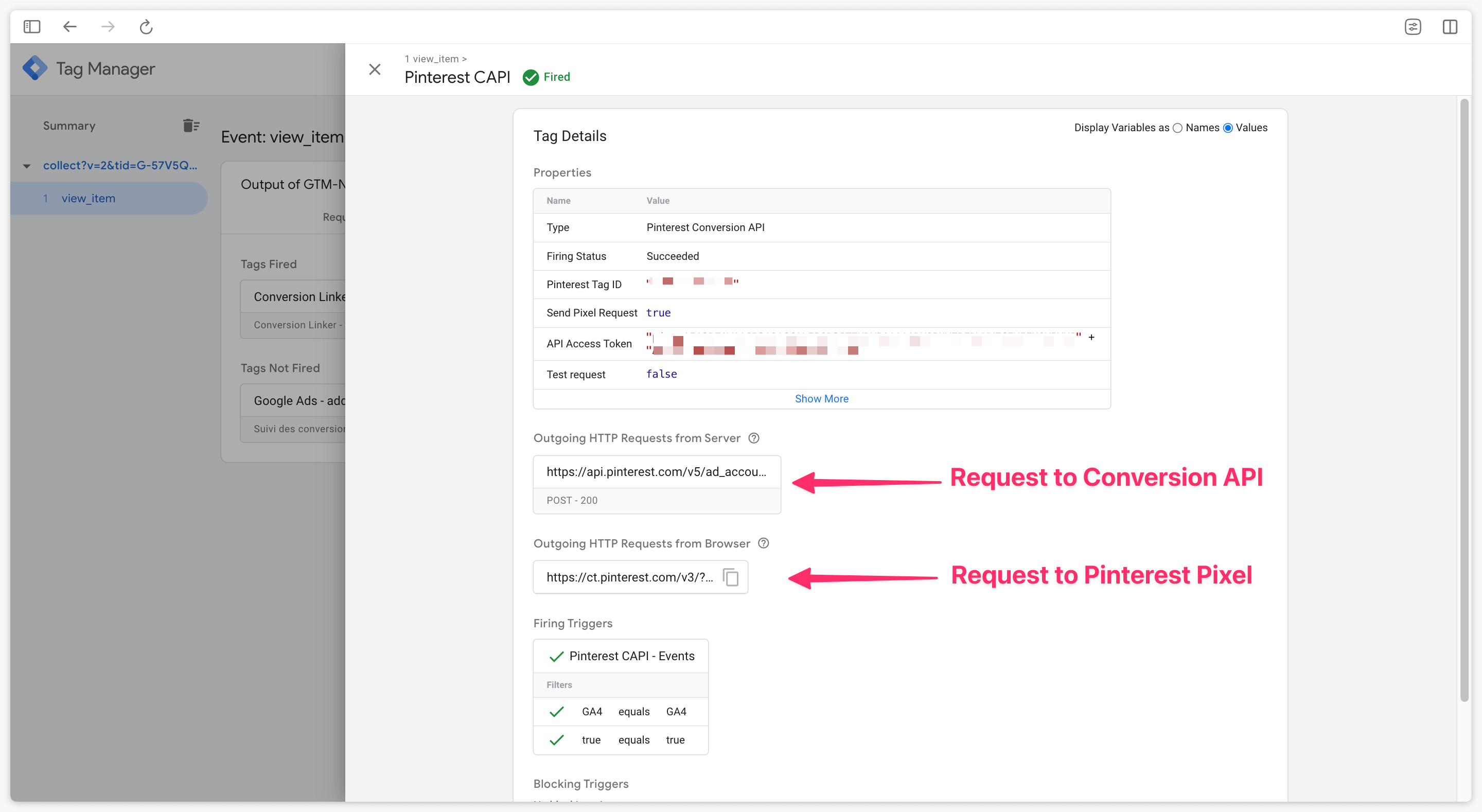
Still in the preview, by clicking on the Pinterest tag, check that requests have been sent to Pinterest both via the conversion API and via the pixel.
A request to the pixel will only be visible here if the Send pixel request box has been checked in the tag configuration.
Check the volume of events received
On Pinterest : volume of received events
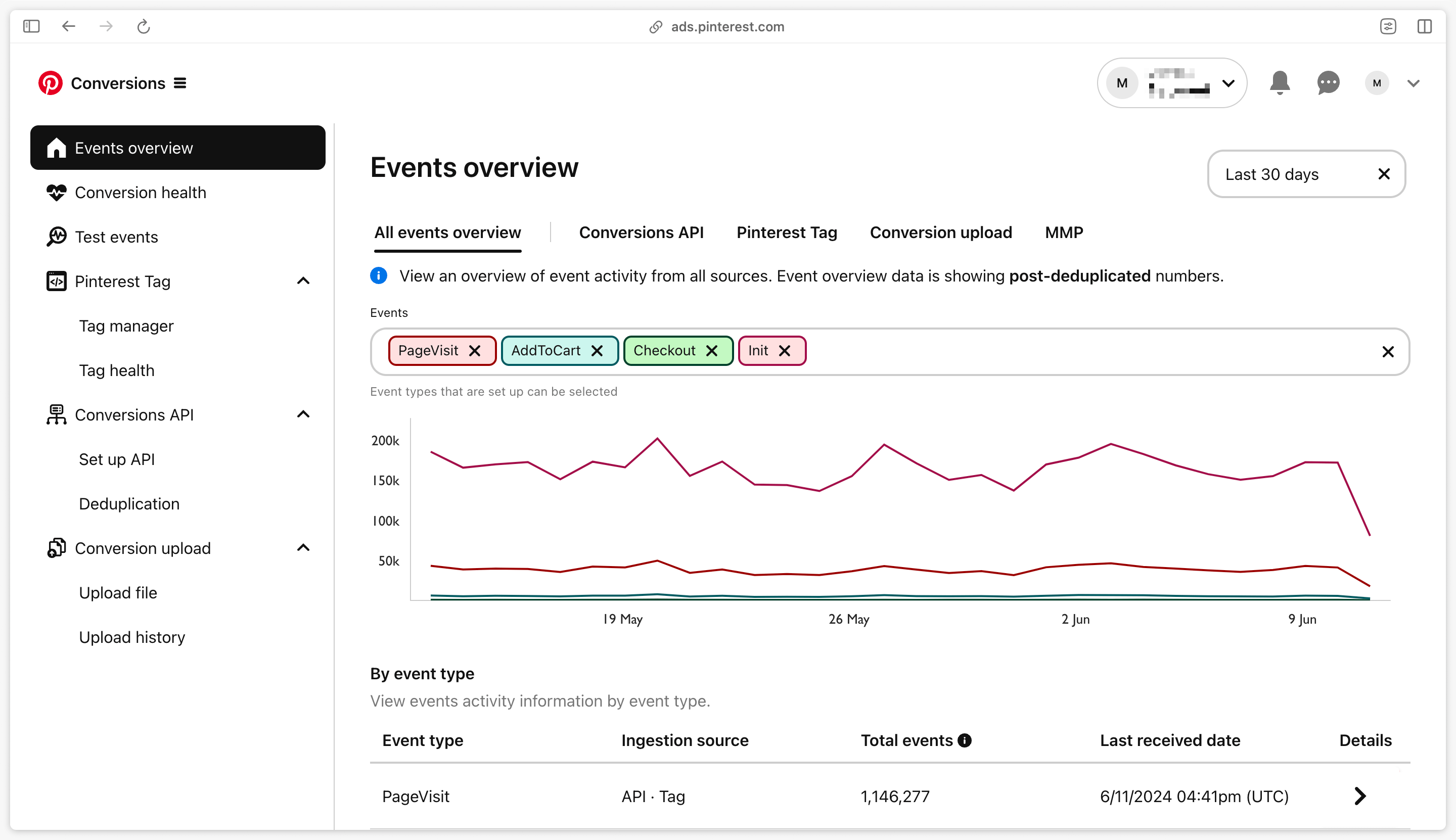
Go to your Pinterest campaign manager Then click on Account Overview > Business > Conversions. Then click on Events Overview
Events received by Pinterest appear here, for Pixel+CAPI data sources, but in a deduplicated way. On our example below, we can see that the PageVisit, AddToCart, Checkout and Init events have indeed been received by Pinterest in the last 30 days.
On Pinterest : pixel volume and CAPI volume
To get more details on an event type, and check the feedback from the Pixel Pinterest Tag (=browser) or CAPI (=server), go to the Event type table, and click on the Details arrow of the event you wish to check.
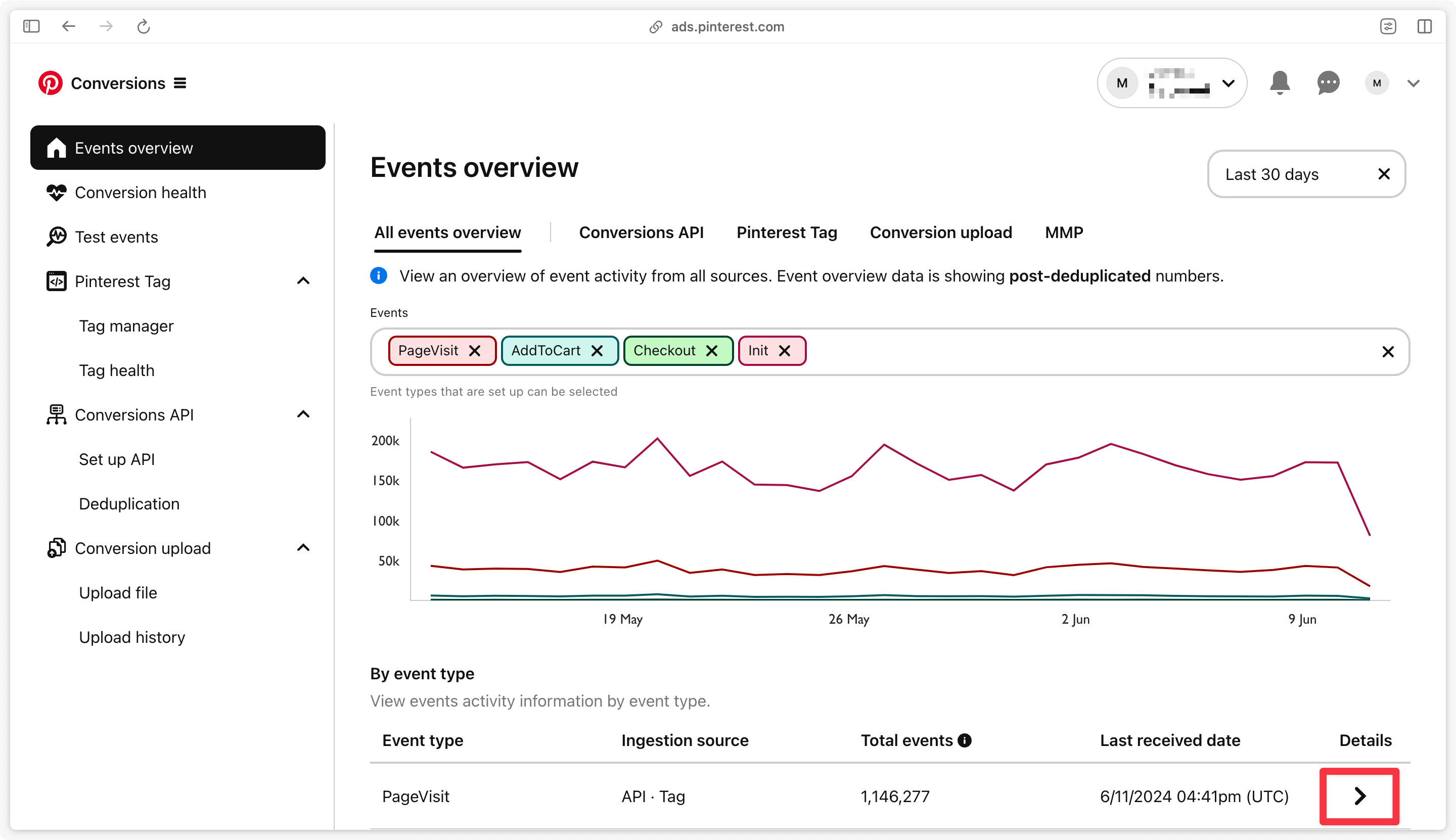
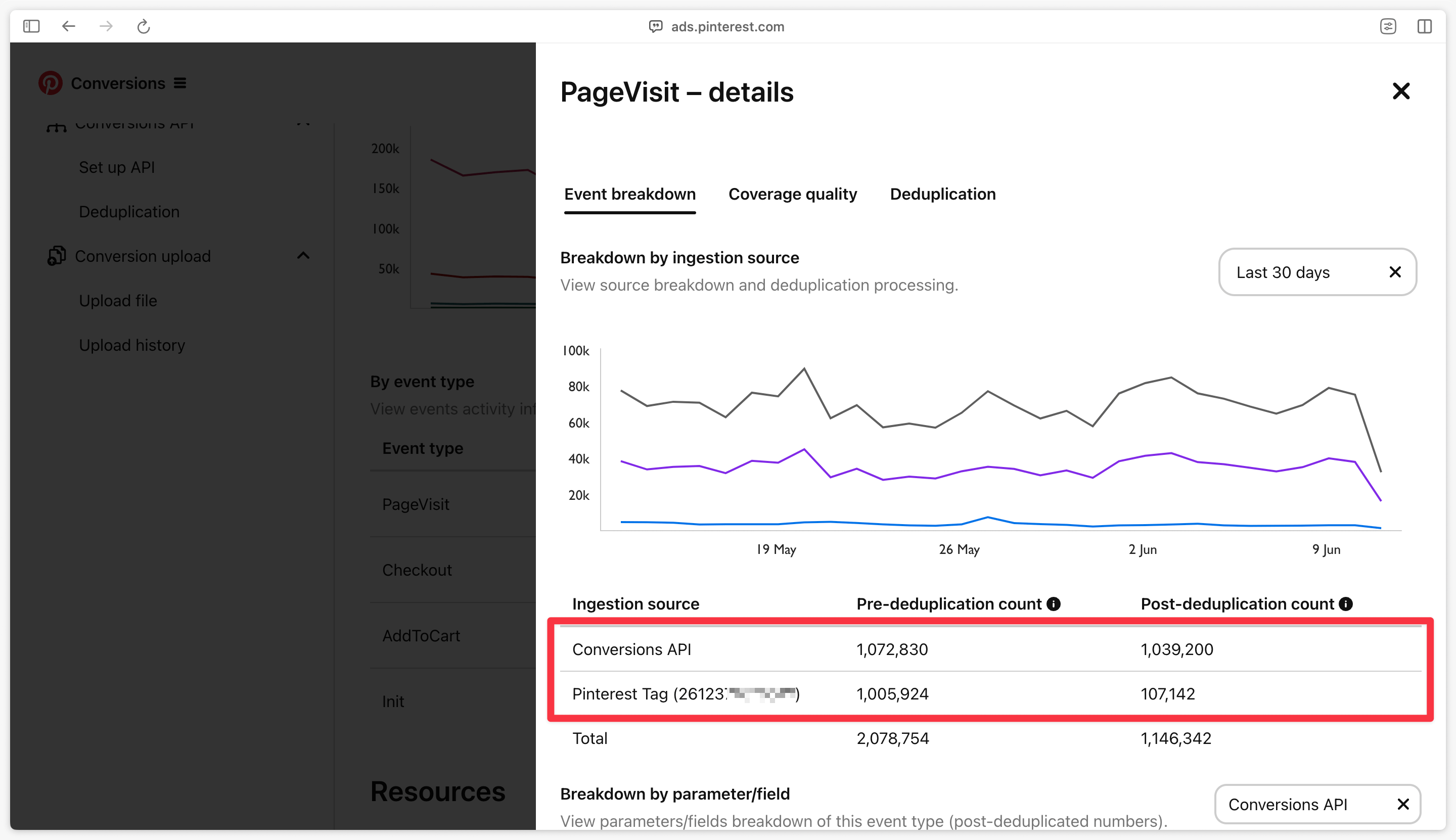
In the example below, we’re interested in the details of the PageVisit event received by Pinterest, via the Event Breakdown tab.
In the Pre-deduplication count column, the number of events received from Pixel (=browser) should be relatively equal to the number of events received from CAPI (=server). It is also possible to observe a higher number of events received by CAPI, which would indicate that certain browser requests are being blocked (notably by ad-blockers).
If more requests come from the Pixel than from CAPI, this indicates that another implementation of the Pinterest Pixel exists somewhere on the site. It’s then necessary to determine whether this Pixel conflicts with the current implementation, or whether it’s another markup that doesn’t yet have a Server-Side implementation.
Finally, the Post-deduplication count column shows you the deduplication of events received, and tells you how many deduplicated events Pinterest is accounting for via the Pixel + CAPI implementation.
On Addingwell, via Tag Health : successful requests
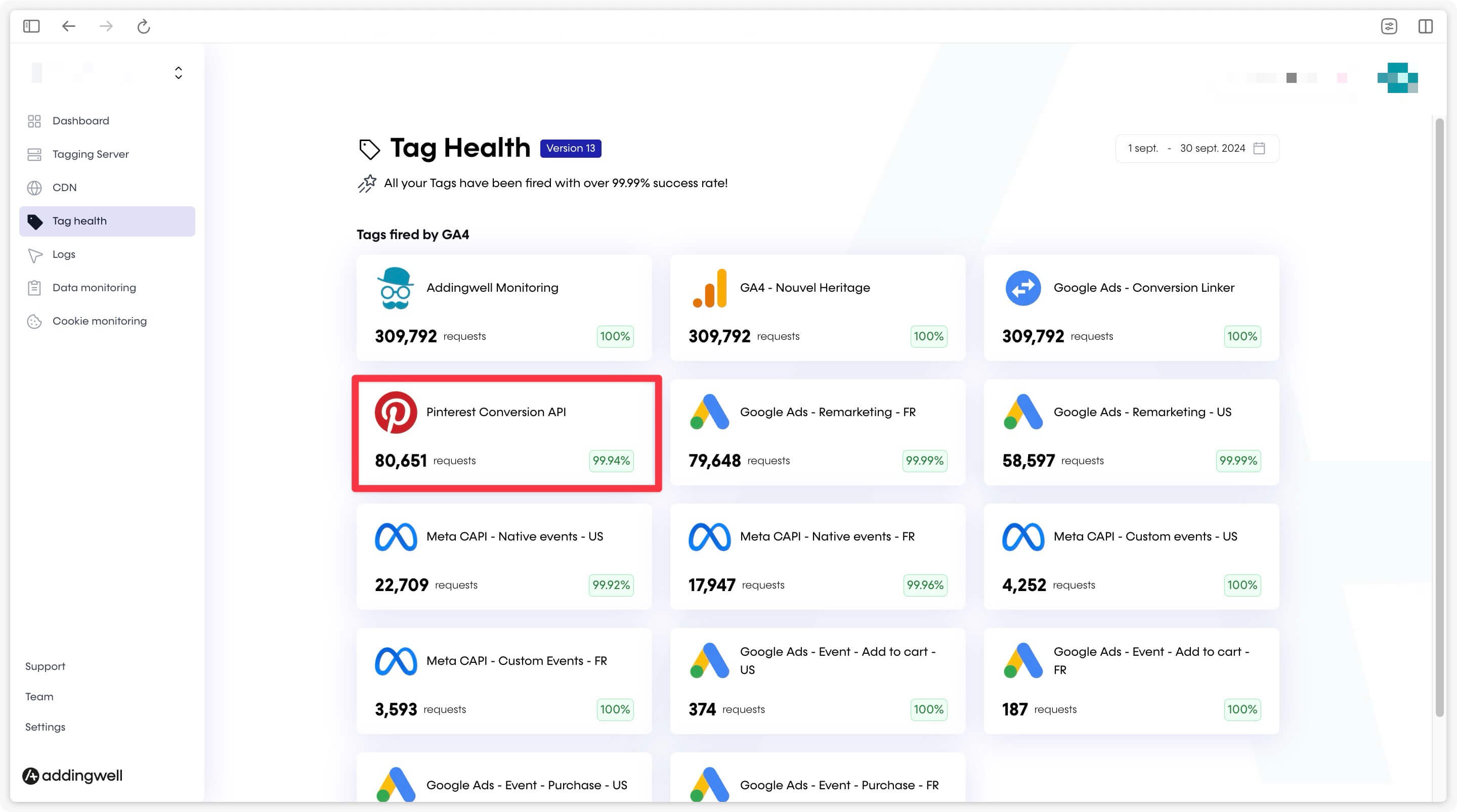
Go to the Tag Health tab in the Addingwell interface. First, check the number of requests made for Pinterest Conversions API over a given period, and the % of successes on these requests. Click on Pinterest Conversions API for more details:
A first screen gives you details on the events sent by your server to Pinterest Conversions API, and the % success of requests, which is close to 100% in our example:
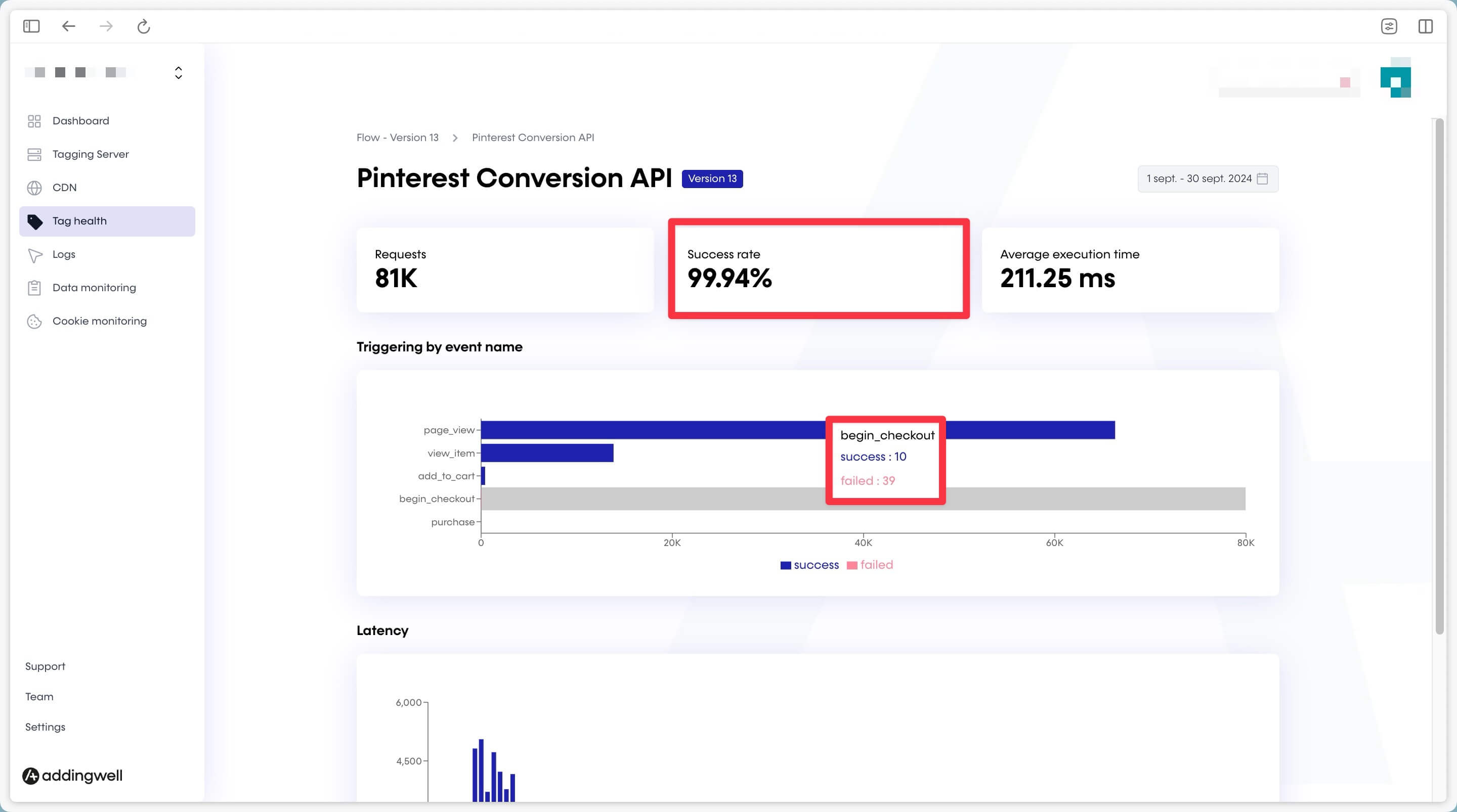
To get more details on the unsuccessful requests, we’re going to dig deeper by retrieving the logs on these errors. Click on the Logs tab and click one more time on the Logs of the Pinterest API :
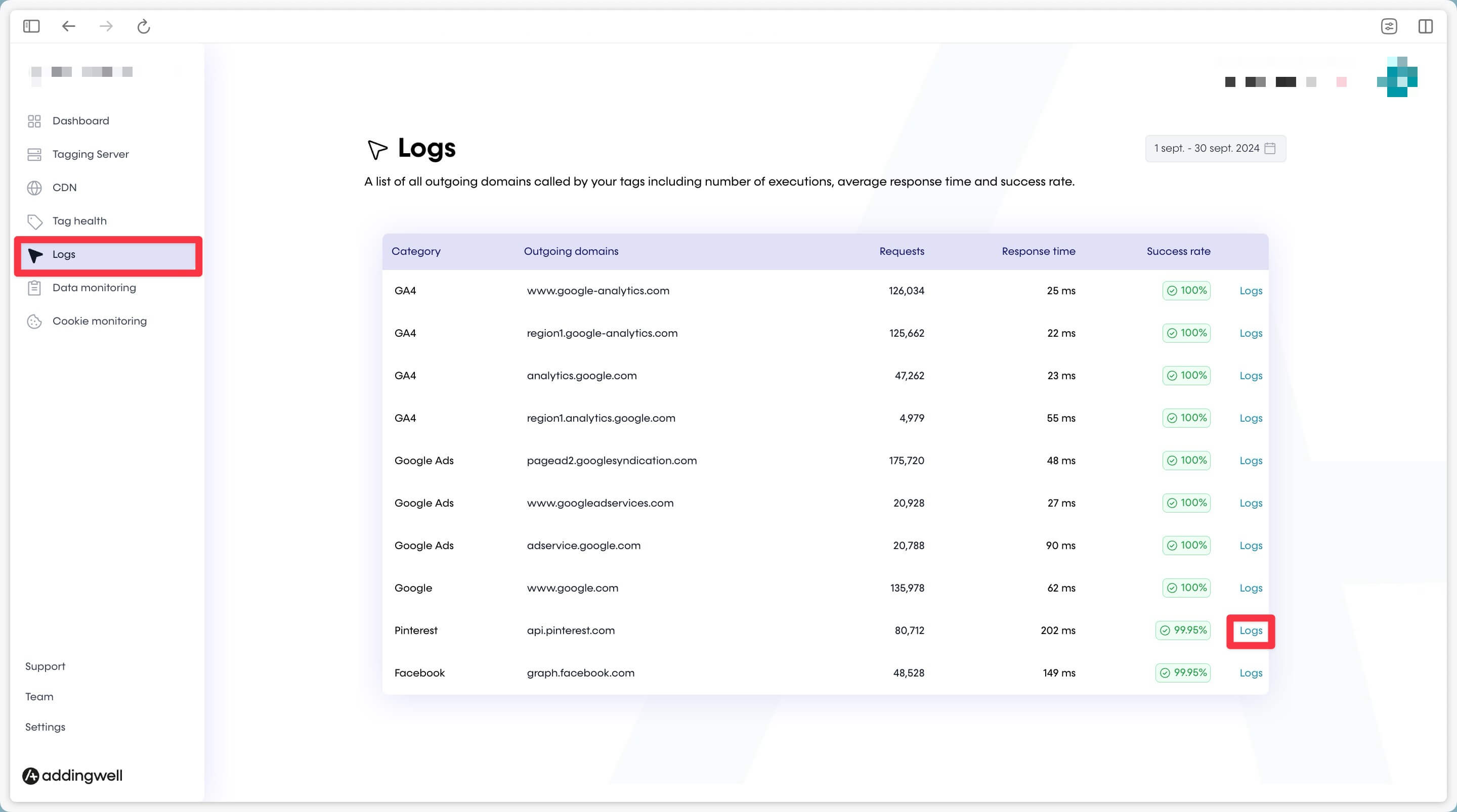
As an example, in the error logs on our account, the most frequent error (5 errors) corresponds to a number that is not of “integer type”, and that should be modified to stop receiving this error. You can check your own logs for errors and try to rectify them.
Check the quality of the data received
Sending your conversion events to the Pinterest platform is a good first step, but you can go a step further by associating user-data (= user data) with these events. This user-data (typically an email, or a phone number, or a First and Last Name) will allow Pinterest to associate these user-data sent from your server with a real user in their database.
This allows Pinterest to:
- To better attribute received conversions, as Pinterest can find conversions that would not otherwise have been attributed to Pinterest campaigns.
- Better optimize your campaign bids, as the data received is more qualitative.
Addingwell side via Data Monitoring
In your Addingwell Container, click on the Data monitoring menu. On this screen, you can see all the user data processed by your GA4 client and made available to your server-side events. You can see above that email data is present in 25.9% of server-side events. In our example, we’ll check the list of event(s) for which user email data is indeed transmitted, by clicking on the search icon to find out more.
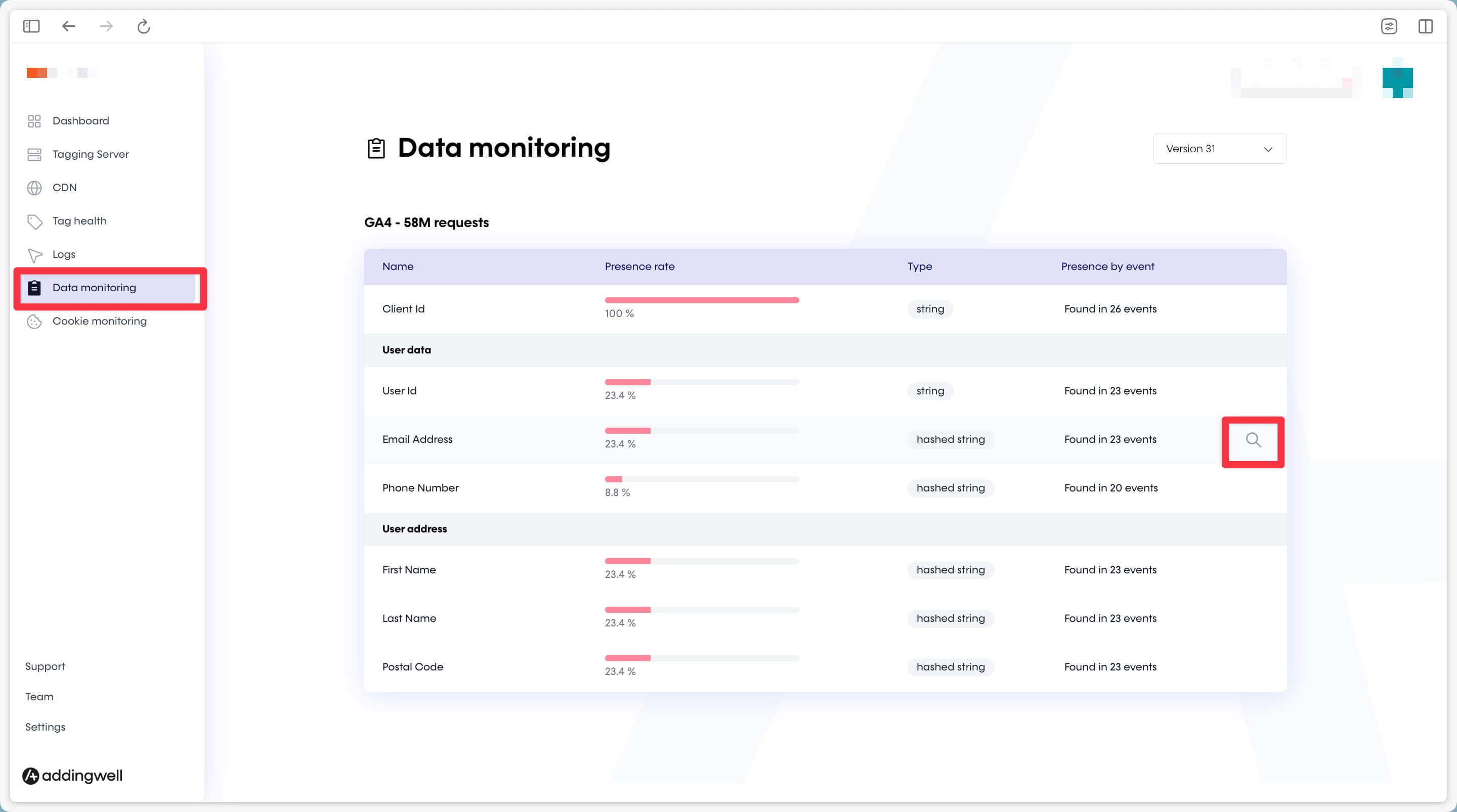
On this screen, you can see the percentage presence of email user data in your server-side processed events.
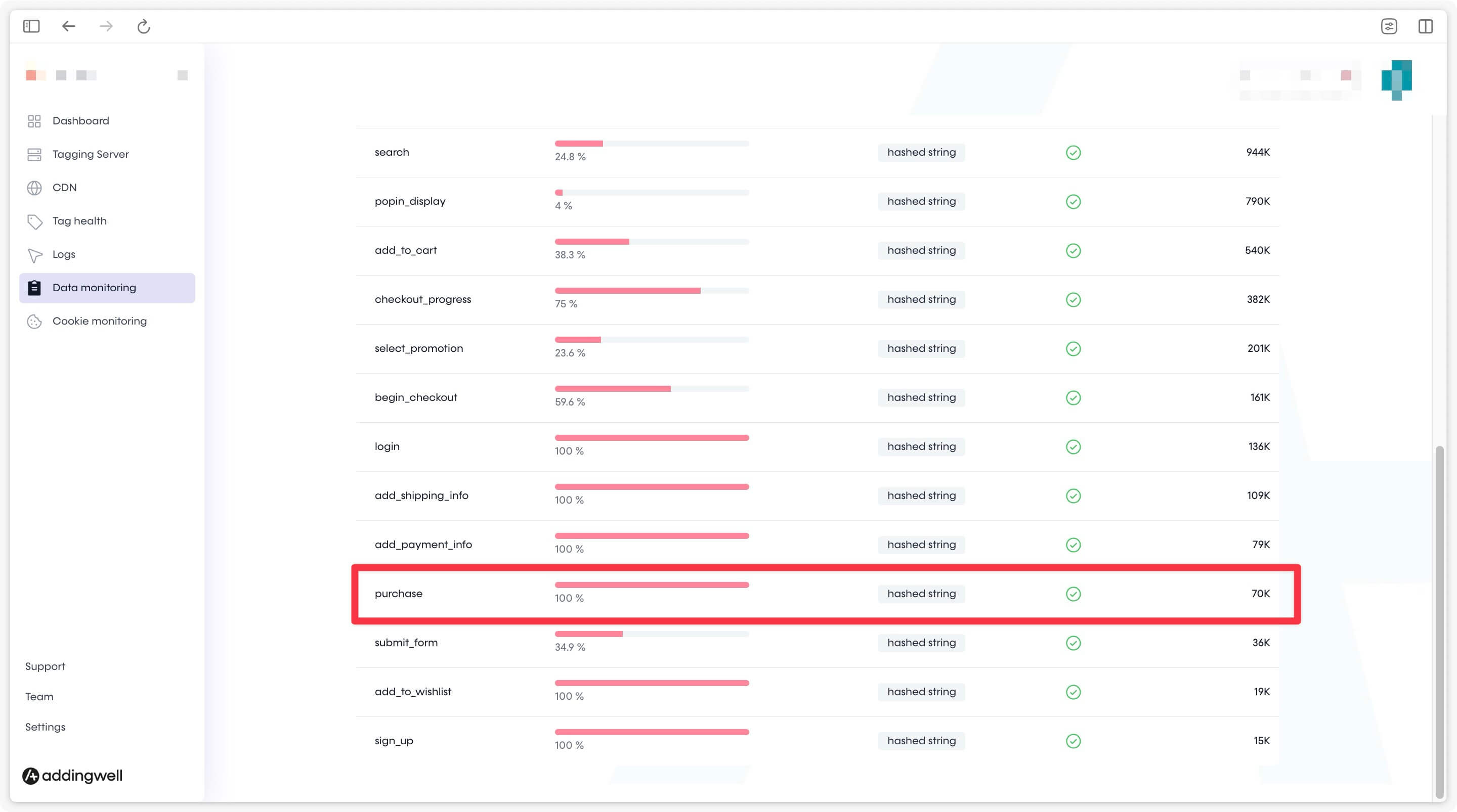
In our example, user email data is present in 100% of purchase events, but only 35.8% in the add_to_cart event. This is perfectly logical for our purchase funnel, as email is not available to 100% of users at the add-to-cart stage.
Everything is set up correctly, the data sent is qualitative and the events contain the desired and available user data.
On Pinterest’s Side: Check Coverage Quality
To evaluate the quality of received data, especially user data (email, etc.), Pinterest provides more details in the Coverage Quality tab.
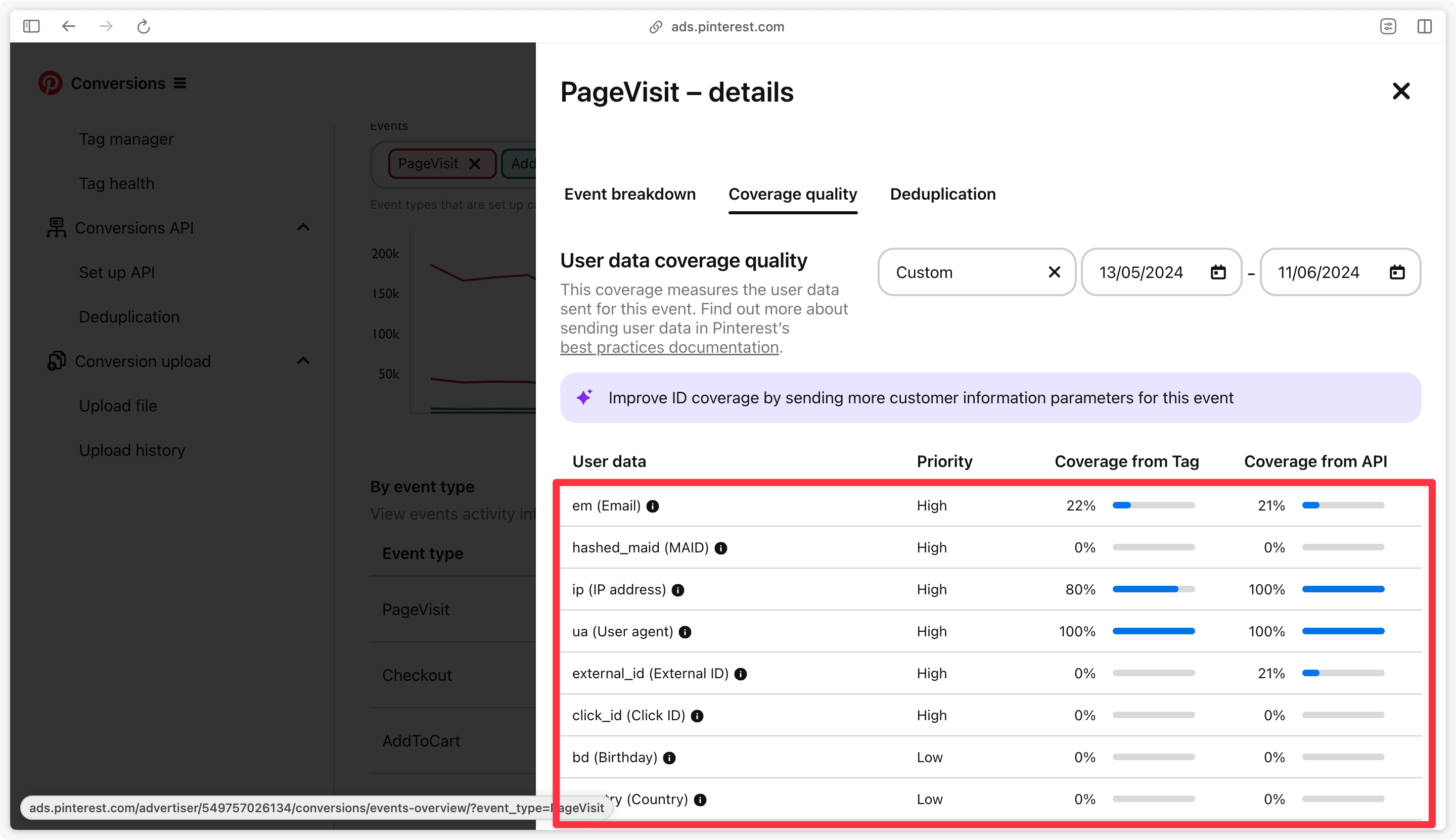
Pinterest examines the parameters sent in each event and shows you how frequently these parameters are sent via the Pinterest Pixel Tag and via Conversions API.
For example, if you send user email data (=em) on a Checkout (=purchase) event, your coverage will be high. On an Init (=page_view) event (which contains little or no user data), your coverage for this email parameter will be lower.
The idea is not to achieve a complete coverage of 100% everywhere but to see for each event if there are additional data you could transmit to improve match quality.
Congratulations
You have completed the Pinterest CAPI setup, and you have checked that your data is being transmitted accurately and is of high quality.
If you encountered any issues during these steps, feel free to contact our support team.